Scheduled Status
Post text, photos and videos to your WhatsApp Status at the time you choose, once or on a repeat, and see which posts went out.
Scheduled Status posts to your WhatsApp Status at the time you choose. It is a tile in Free Tools.
WhatsApp Web must be open
WhatsApp Web has to be open at the time a Status is due, or the post is marked Missed.
Create a post#
Click New Status.
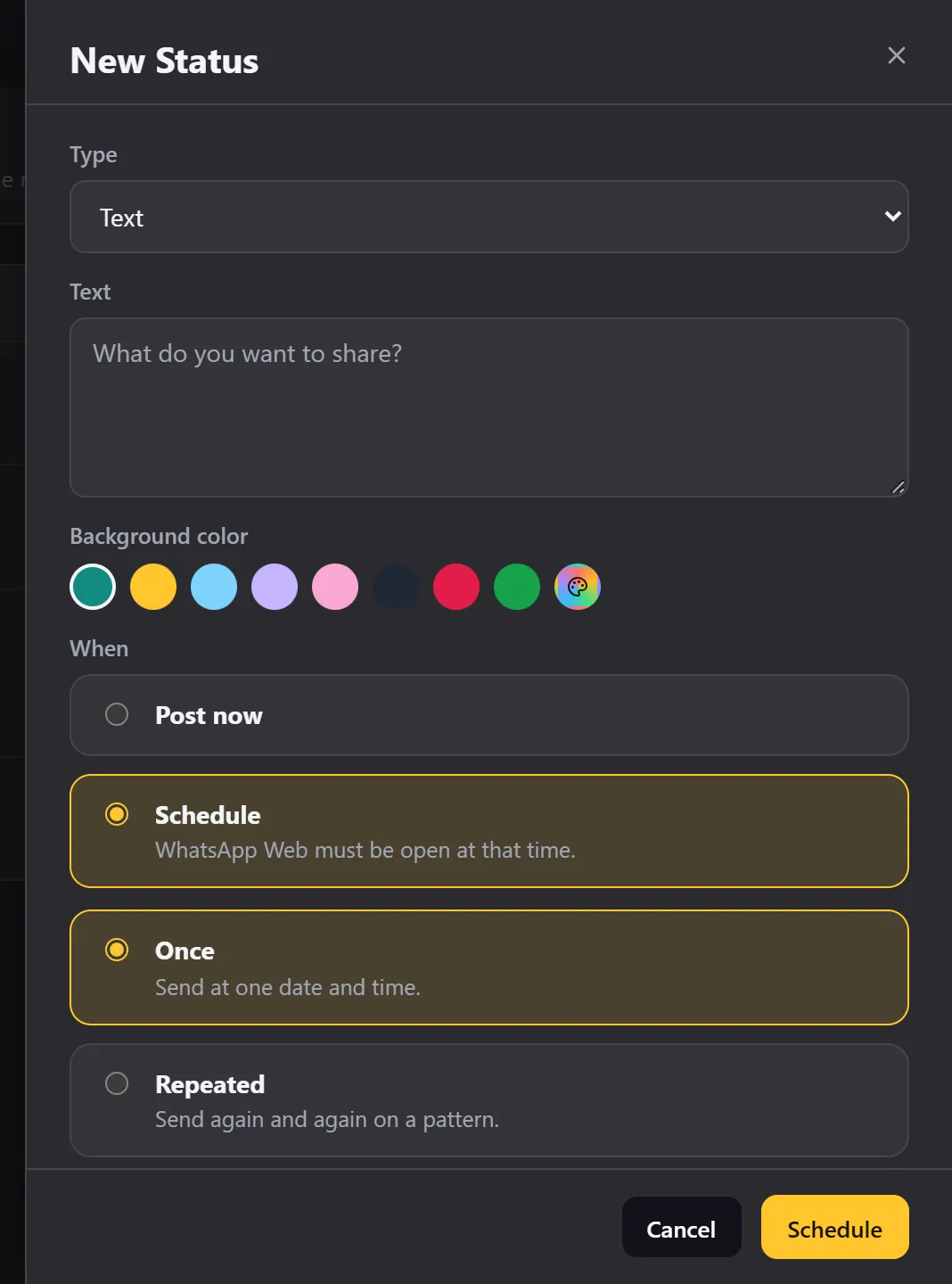
- Choose the type: text, photo or video.
- For text, write it, and pick a background colour. For a photo or a video, choose the file, and add a caption if you like.
Choose when:
- Post now, or
- Schedule. Pick the date and the time, and choose Once, or Repeated to post it again on a pattern.
- Click the button at the bottom. It says Post now or Schedule, depending on what you chose. A message confirms it (Posting your Status… or Status scheduled).
The list#
The list shows every post, and its state:
| State | Meaning |
|---|---|
| Pending | Waiting for its time. |
| Posted | It went out. |
| Failed | It could not be posted. The list says why. |
| Missed | WhatsApp Web was closed at the time. |
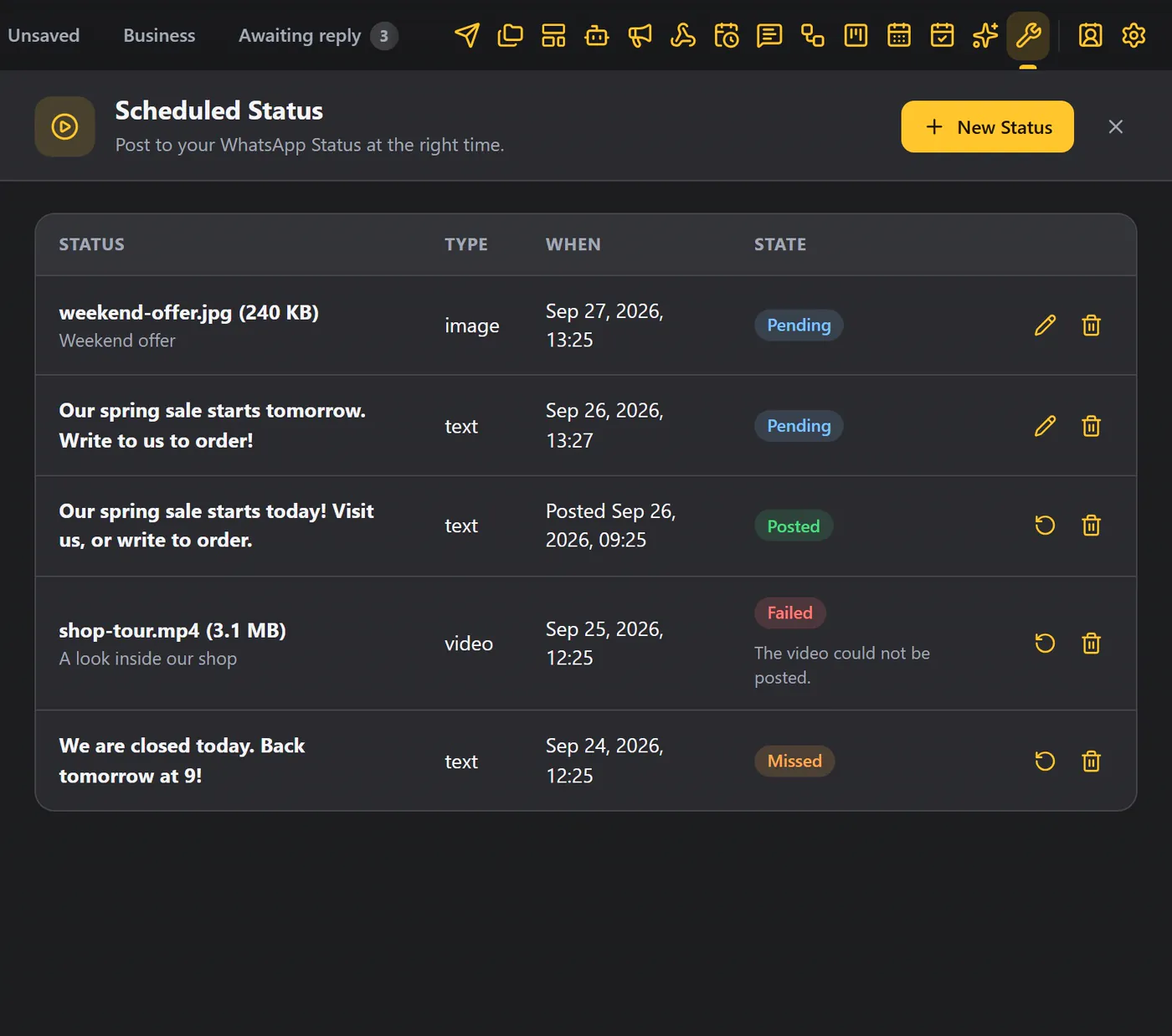
- The pencil edits a post that is waiting.
- Schedule again posts it once more.
- The bin deletes it.
Tips#
- Plan a week of Status posts in one sitting, and keep WhatsApp Web open.
- Add a caption to photos and videos, so people know what to do.
- Big videos take longer to upload. Keep them short.