Install the extension
Download WAFlow, add it to Chrome in developer mode, and open WhatsApp Web. It takes about five minutes.
WAFlow is a Chrome extension. You add it once, and it appears as a bar at the top of WhatsApp Web.
Before you start#
| You need | Details |
|---|---|
| Google Chrome | Version 111 or newer, on Windows, macOS or Linux. Other Chromium browsers that accept Chrome extensions usually work too, but Chrome is what we test. |
| A computer | WhatsApp Web has to be open on a computer for WAFlow to work. |
| WhatsApp on your phone | You sign in to WhatsApp Web the way you always do, by scanning the QR code. |
| A license key or a free trial | See Activate your license. You can start a trial from inside the extension. |
Step by step#
- Get the WAFlow ZIP file from the person who provided WAFlow to you.
- Unzip it. Right-click the file and extract it to a folder you will keep, for example
Documents\WAFlow. The folder has a file calledmanifest.jsonin it. Open the extensions page. In Chrome, type
chrome://extensionsin the address bar and press Enter.
Chrome's extensions page, with the Developer mode switch at the top right Turn on Developer mode. Use the switch at the top right. Three buttons appear: Load unpacked, Pack extension and Update.

The Developer mode switch is on, and the Load unpacked button is showing - Load the folder. Click Load unpacked, choose the folder you unzipped (the one that holds
manifest.json), and confirm. Check that it is there. WAFlow now appears under All Extensions, with its switch on.
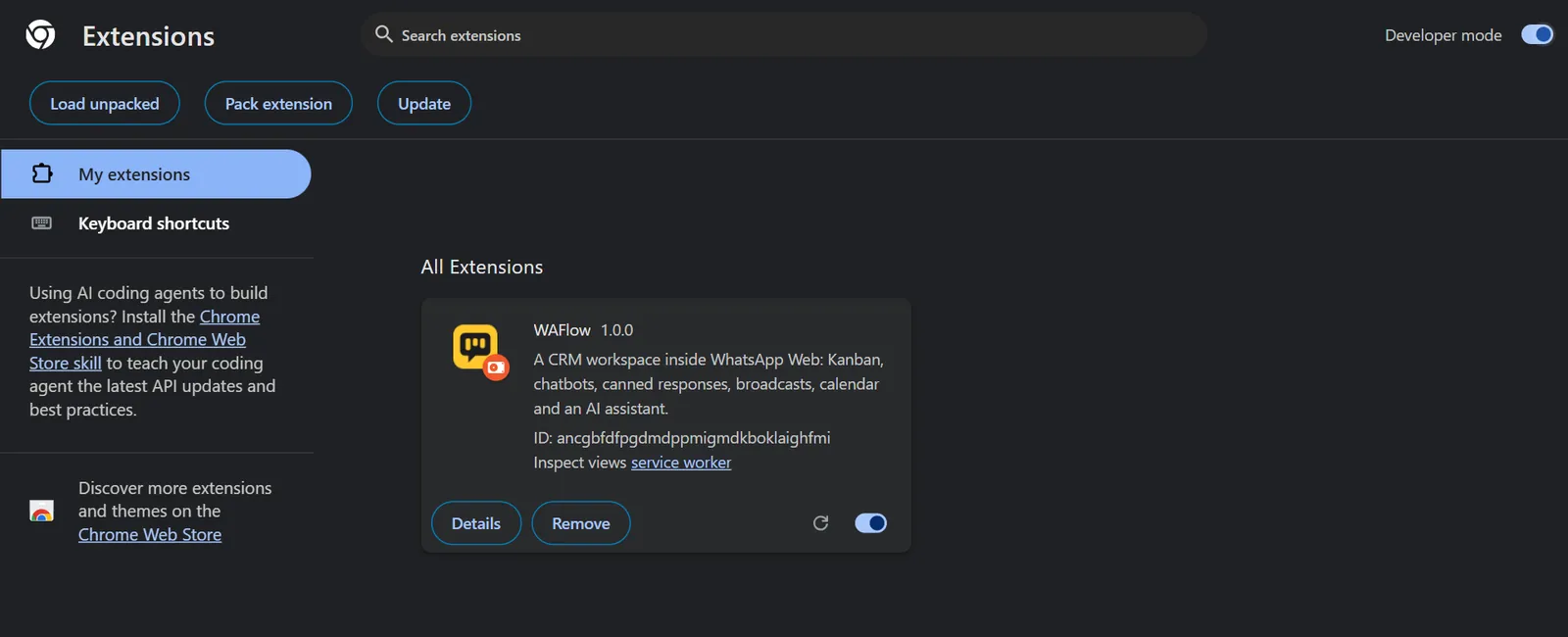
WAFlow listed on the extensions page - Open WhatsApp Web. Go to
web.whatsapp.com, or click the WAFlow icon in Chrome's toolbar, which opens WhatsApp Web for you. Sign in as usual. See the bar. The WAFlow bar appears at the top. Until a license is applied it shows only the logo, an Activate license button and Settings.

The bar before a license is applied: the logo, Activate license and the gear
Next: activate your license.
The WAFlow icon in Chrome's toolbar is only a shortcut that opens WhatsApp Web. Everything else happens inside WhatsApp Web itself, so you do not need to pin it.
Updating WAFlow#
When a new version is released, download the new ZIP and unzip it over the same folder. Then open chrome://extensions and click the round reload arrow on the WAFlow card. Reload WhatsApp Web afterwards.
Chrome identifies an extension that was loaded from a folder by that folder's location. If you load WAFlow from a different folder, Chrome treats it as a new extension, and the data saved by the old one (contacts, notes, boards, bots) is not there. Update in place, or make a backup first from Settings → Backup and restore and restore it in the new one. See Import and export data.
If Chrome shows a warning#
Chrome shows a reminder about "extensions in developer mode" each time you start it. That is normal for an extension that is loaded from a folder. You can dismiss it.
Permissions WAFlow asks for#
| Permission | Why |
|---|---|
web.whatsapp.com | To add the bar and the panels to WhatsApp Web. |
| Storage, unlimited storage | To keep your contacts, notes, boards and settings in your browser. |
| Alarms and notifications | To run schedules and to tell you when a reminder or appointment is due. |
| Other websites, only when you ask | Chrome asks once per site when you connect an AI service or a webhook, for example api.openai.com. Nothing else is contacted. |
Something did not work?#
- The bar does not appear: reload WhatsApp Web, and check on
chrome://extensionsthat WAFlow is switched on. See Troubleshooting. - Chrome says the manifest is missing: you picked the wrong folder. Pick the folder that directly contains
manifest.json.