Appointments
Book customers, keep track of who is coming, and remind them in one click, all from WhatsApp.
Appointments lets you book customers, keep track of who is coming, and remind them, all from WhatsApp. It is the twelfth icon in the WAFlow bar.
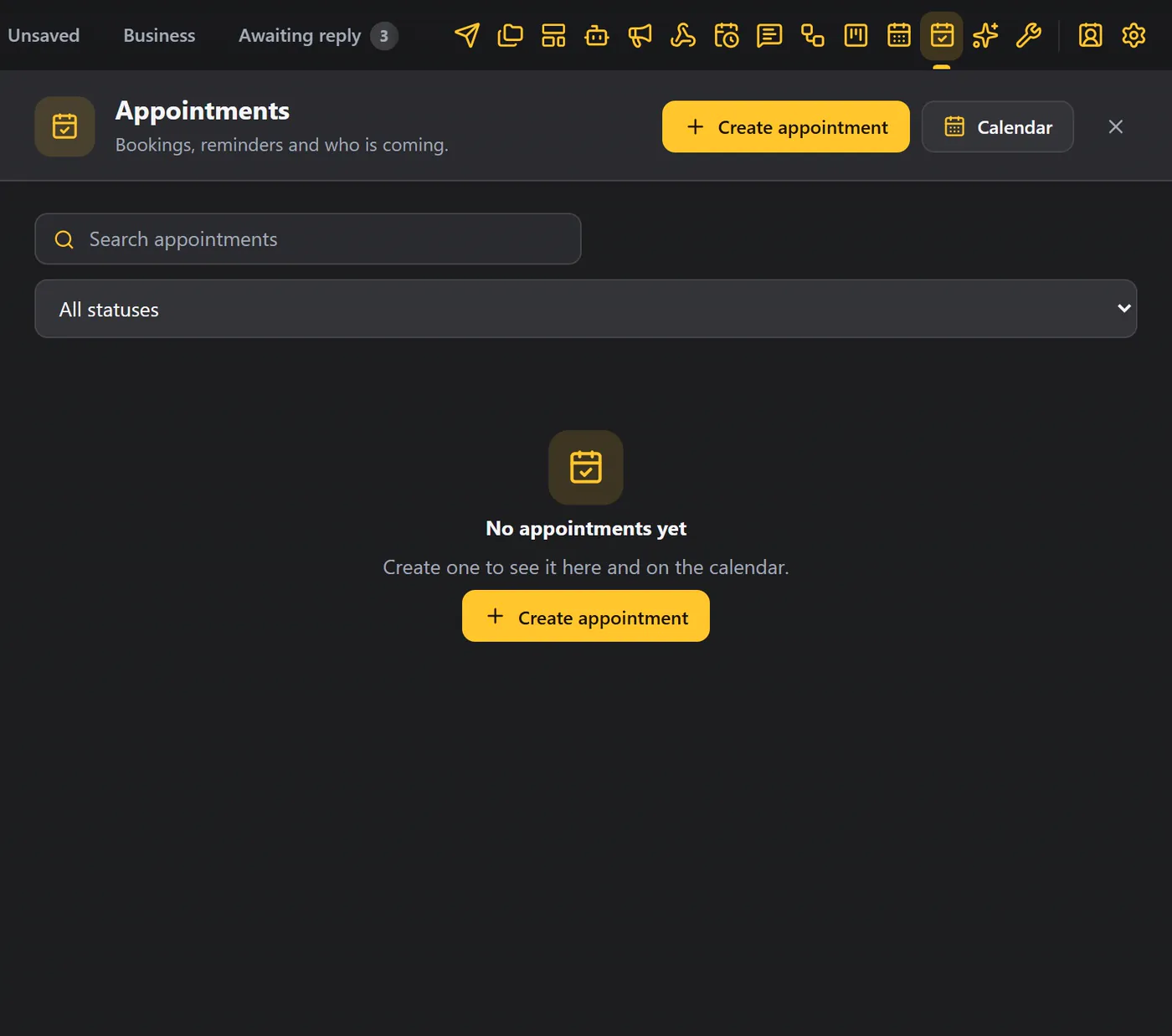
Create an appointment#
Click Create appointment. The form has three parts: the customer, the appointment and the reminder.
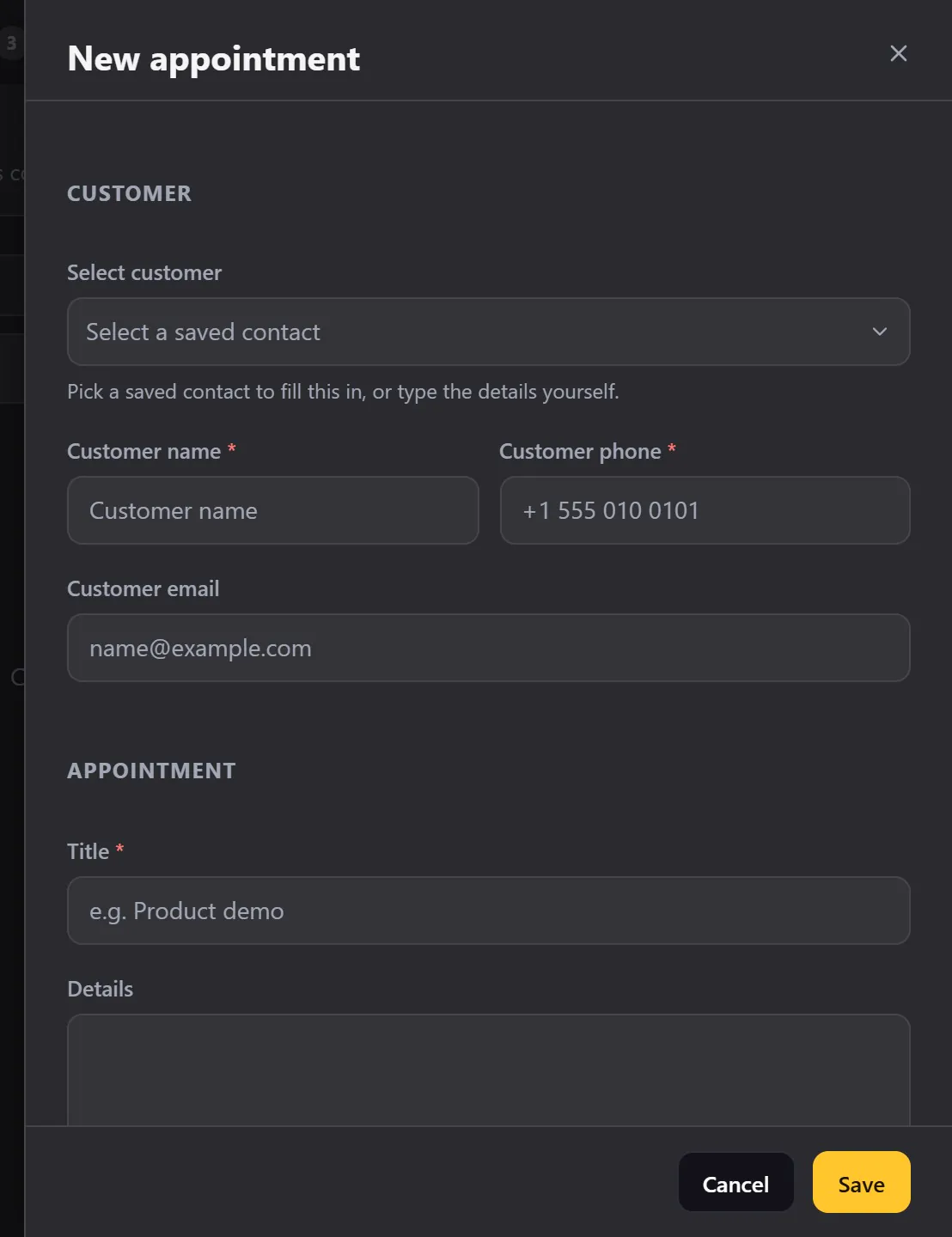
The customer#
- Choose a saved contact, and the name and phone number fill in for you.
- Or type them yourself, for someone who is not in WhatsApp yet.
- The email is optional.
The appointment#
| Field | Notes |
|---|---|
| Title | For example Product demo. |
| Details | Optional, for your own notes. |
| Start and End | Set the start and the end. The end moves along with the start, so you only change it when you need to. |
| Status | Starts as Scheduled. Change it to Completed after the visit, Cancelled, or No-show. |
The reminder#
- Notify me chooses when WAFlow reminds you: 15 or 30 minutes, 1 or 2 hours, or a day before.
- Message to customer is the reminder you can send them. Use placeholders for the name, the title, the date and the time:
{{customer_name}},{{title}},{{date}},{{start_time}}and{{end_time}}. - The preview shows exactly what the customer will read.
Click Save.
The list#
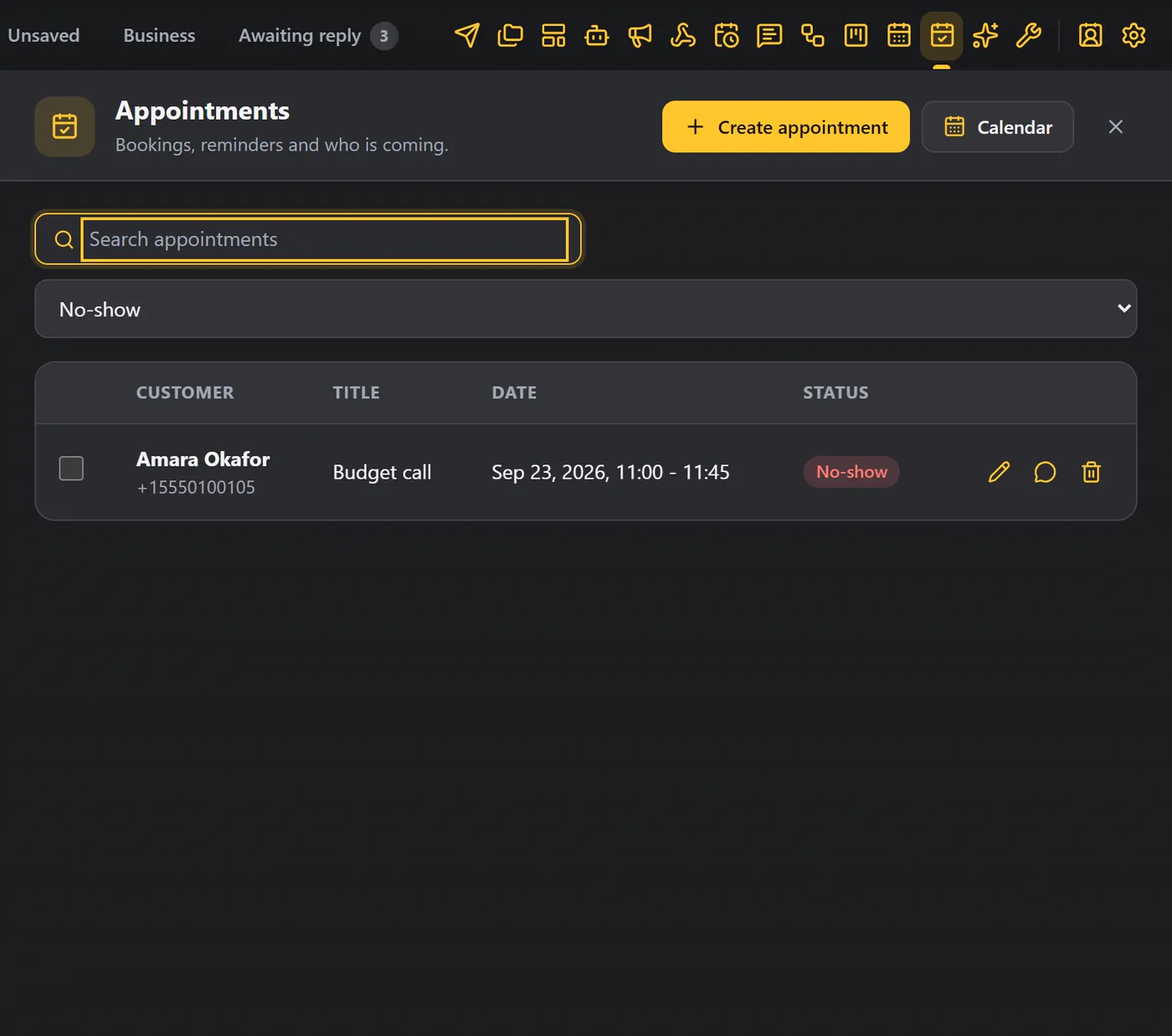
Your appointment appears in the list, with the customer, the title, the date and time, and the status.
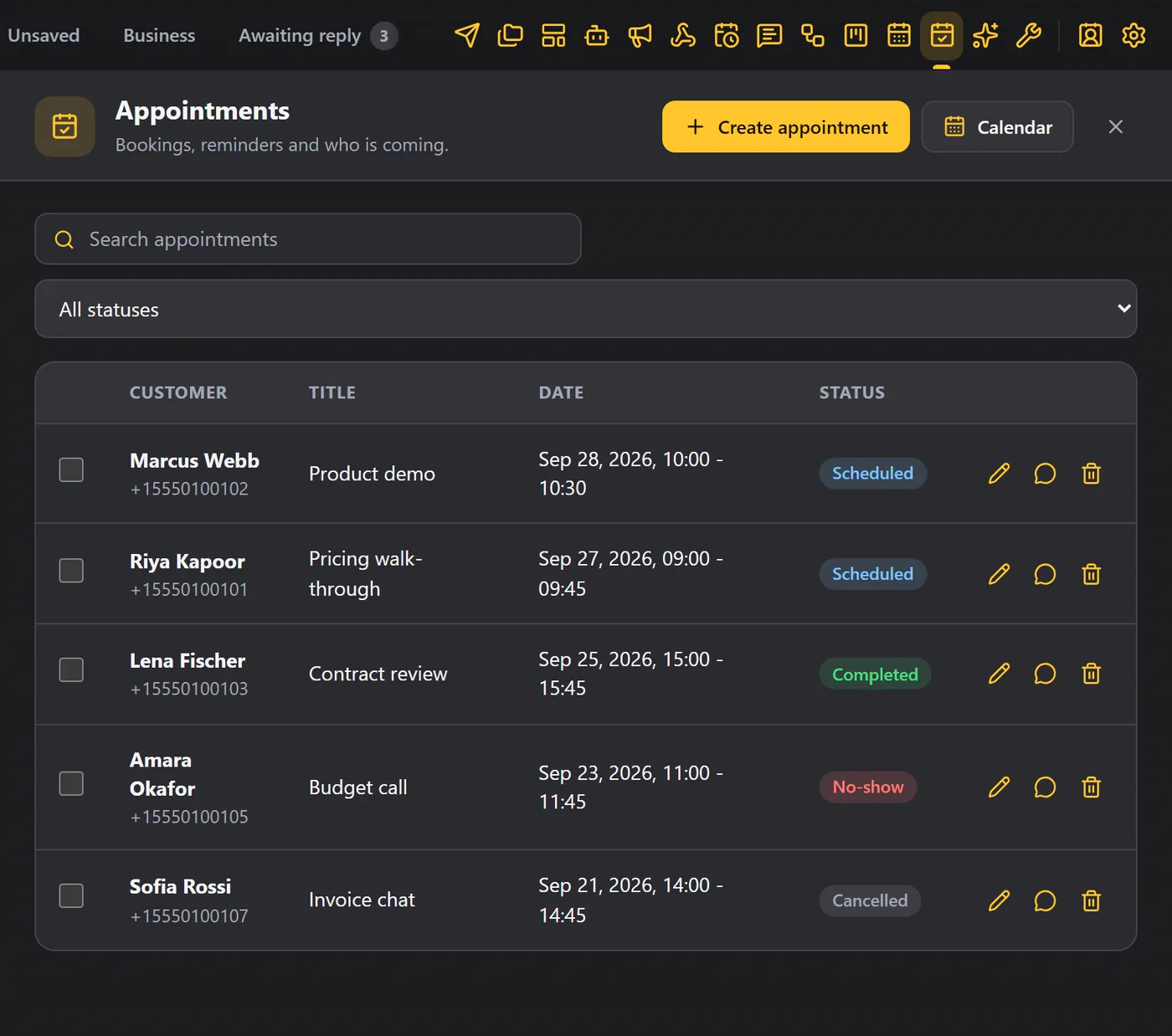
| Icon | What it does |
|---|---|
| Speech bubble | Opens that customer's chat with the reminder already typed. You just press send. |
| Pencil | Edits the appointment. Change the status here when the visit is done. |
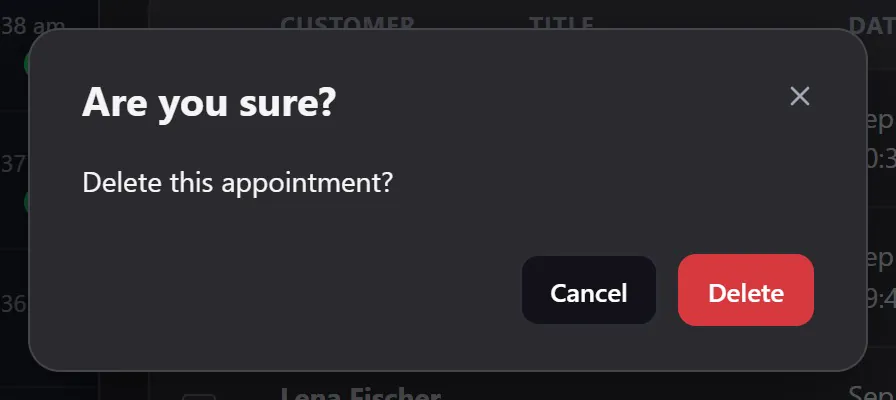
| Bin | Deletes it, after you confirm. |
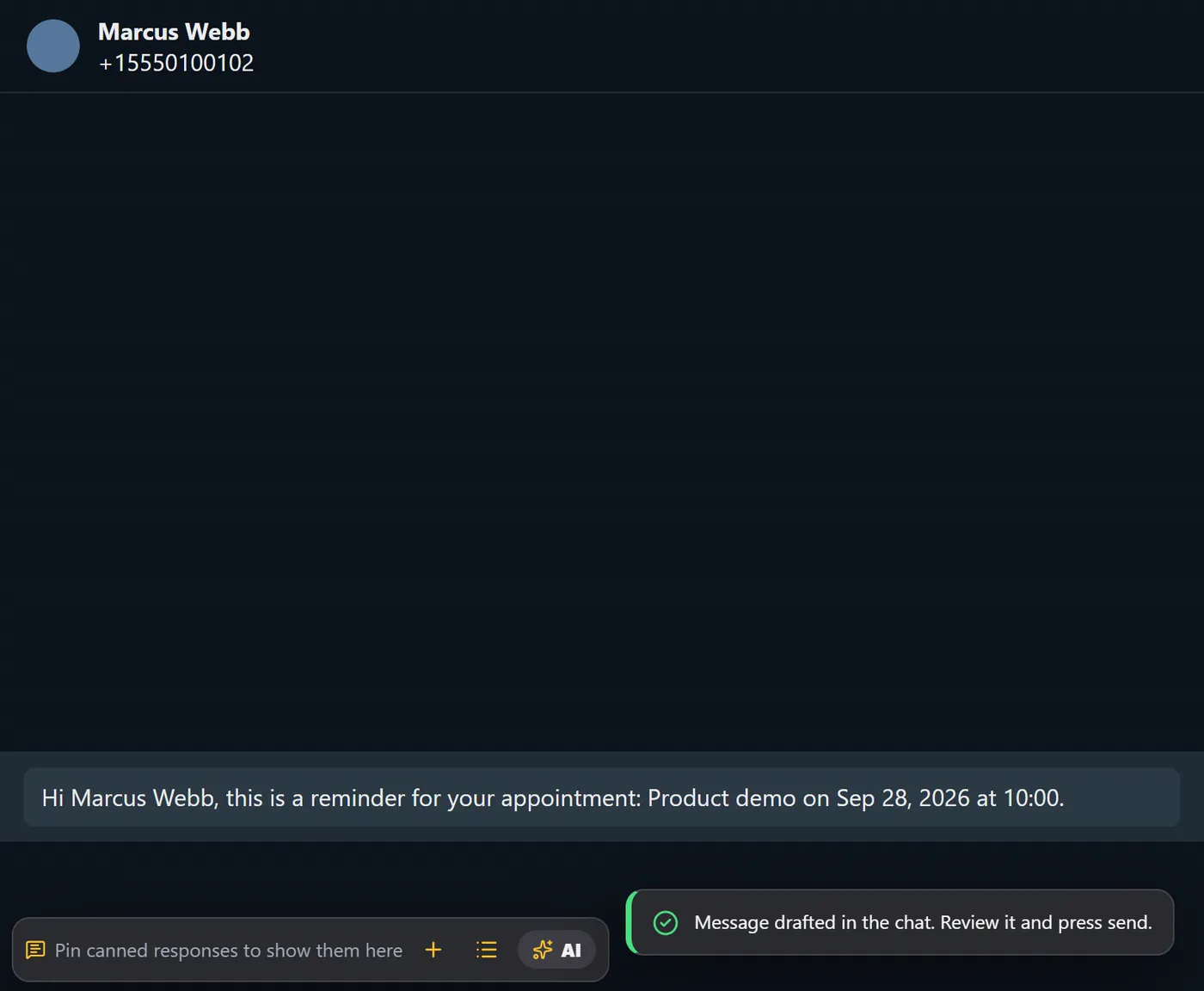
- Search by name, title or phone number.
- Filter by status, to see only the completed ones, or the no-shows.
- Tick several rows to delete them together.
Book from a chat#
You can also book from a chat. Open the chat, click Contact details (icon 15), and choose the Appointments tab. Create appointment opens the form with the customer already filled in.
Where appointments show up#
- On the Calendar, coloured by status.
- As a notification, at the time you chose in Notify me. You can turn these notifications off in Module settings.
- As an Appointment created event for webhooks.
Tips#
- Always add a reminder.
- Update the status after every visit, so your calendar stays true.
- Use the speech bubble to remind customers in one click.