Templates
Save a message once and use it again and again in Send Message, broadcasts, schedules, bots and canned responses.
A template is a message you save once and use again and again. It can be plain text, or carry pictures, documents, a poll or buttons. Templates is the third icon in the WAFlow bar.
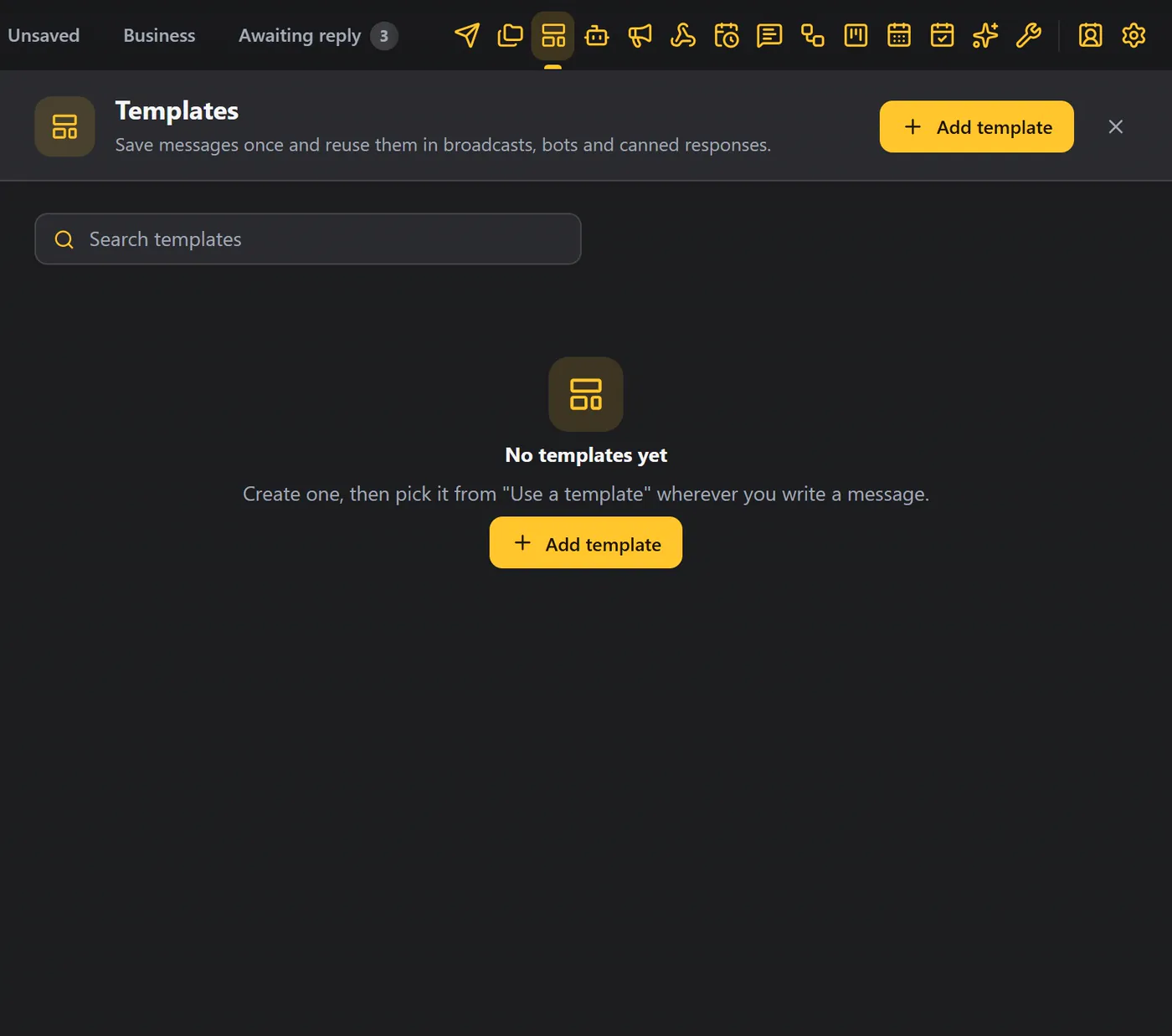
Create a template#
- Click Templates, then Add template.
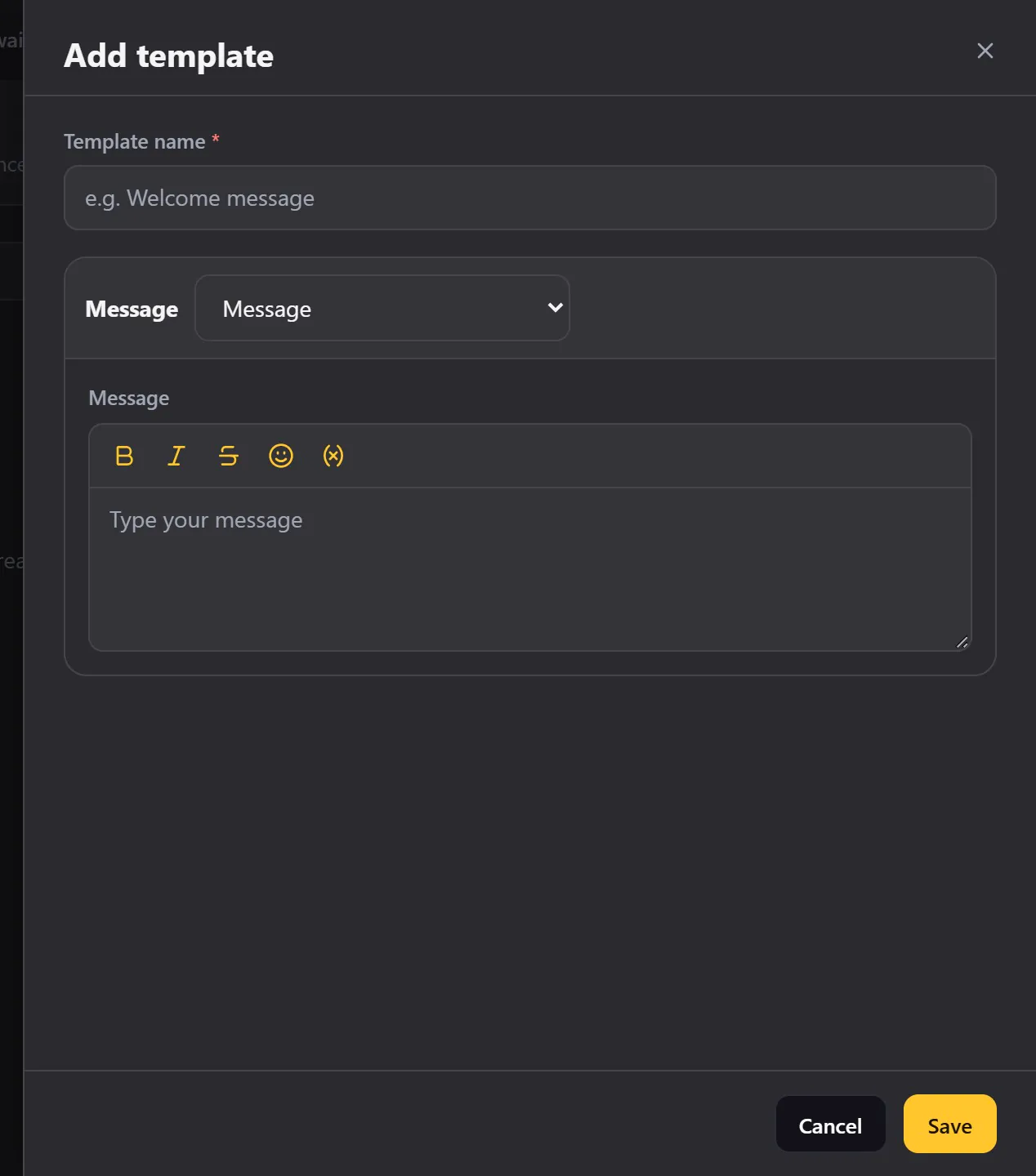
- Give it a name you will recognise. The name is only for you. Your customers never see it.
- Choose the message type: plain text, images or videos, documents, audio, contacts, a poll, a list or buttons.
- Write the message. Above the box are the formatting tools: bold, italic, strikethrough, emoji and variables. Use a variable such as First name so every person gets their own name. See Variables and formatting.
- Click Save.
Create a few. A payment reminder with the due date in bold, and a price list that goes out as a document with a short caption, are good starting points.
Manage your templates#
All your templates appear as cards. Each card shows the name, the message type, and a preview of the message.
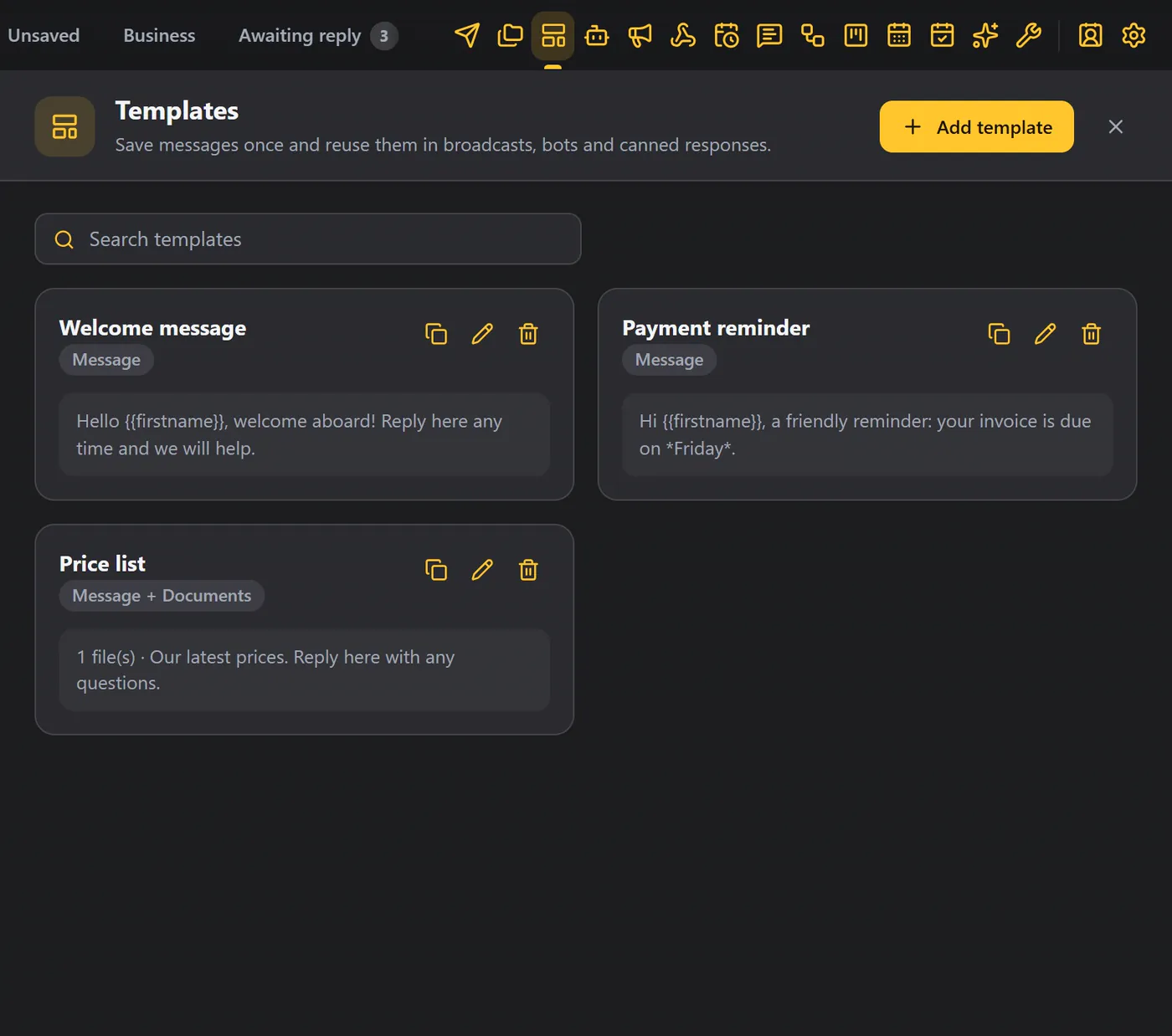
- Use the search box to find one quickly.
- The three icons on a card let you clone it, edit it or delete it.
- Clone makes a copy, so you only change what you need. Then click Edit to rename it, and save.
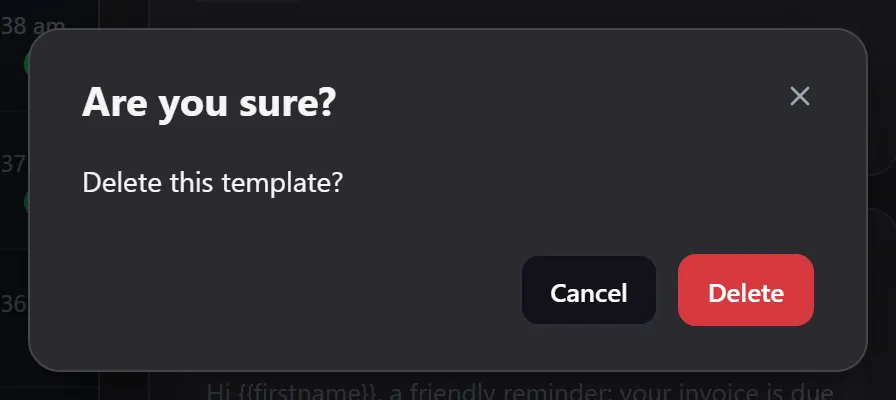
- Delete asks you to confirm first, so nothing disappears by accident.
Use a template#
Open Send Message and click Use a template. Pick one, and it drops into your message, ready to send. You can still change it first.
The same Use a template button is in schedules, broadcasts, message bots and canned responses.
Good to know#
- Templates are saved in your browser, and are included when you back up your data.
- Keep templates short and friendly, use variables for a personal touch, and give each one a clear name.
- A template is a starting point: it drops its text into your message, and you can still edit the message before you send it.