Contact details
The file WAFlow keeps on every person you talk to, right beside the chat: profile, tags, notes, reminders and appointments.
Contact details is the file WAFlow keeps on every person you talk to. It sits right beside the chat, so you never lose track of who someone is. It is the icon next to the gear in the WAFlow bar.
Open it#
- Open a chat first. The panel is always about the chat you have open.
- Click Contact details (icon 15). A panel slides in from the right. Click the icon again, or the cross, to close it.
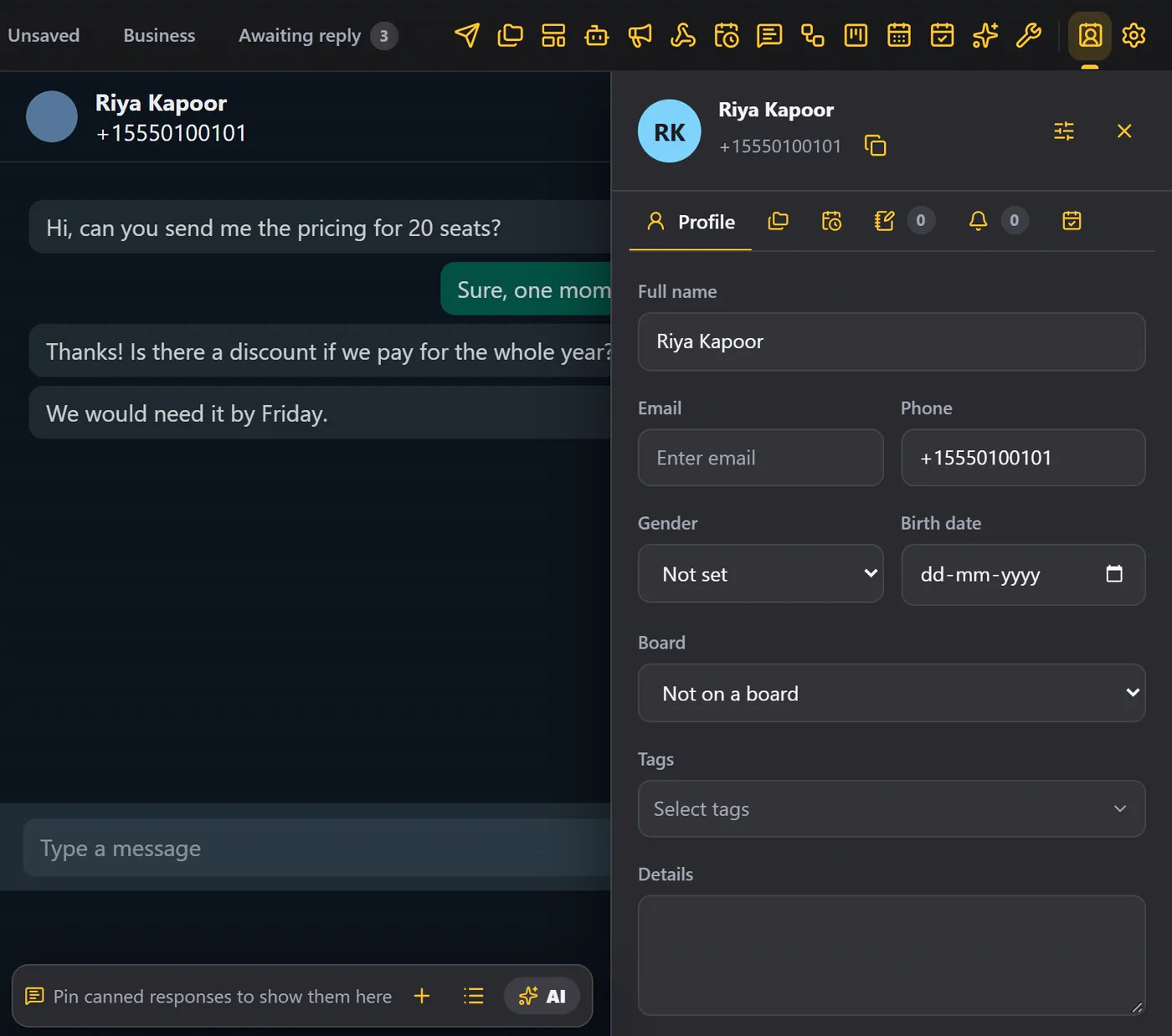
At the top are the contact's name and phone number. Click the copy icon to copy the number.
Chat tools#
The chat tools button in the header opens a menu for this chat.
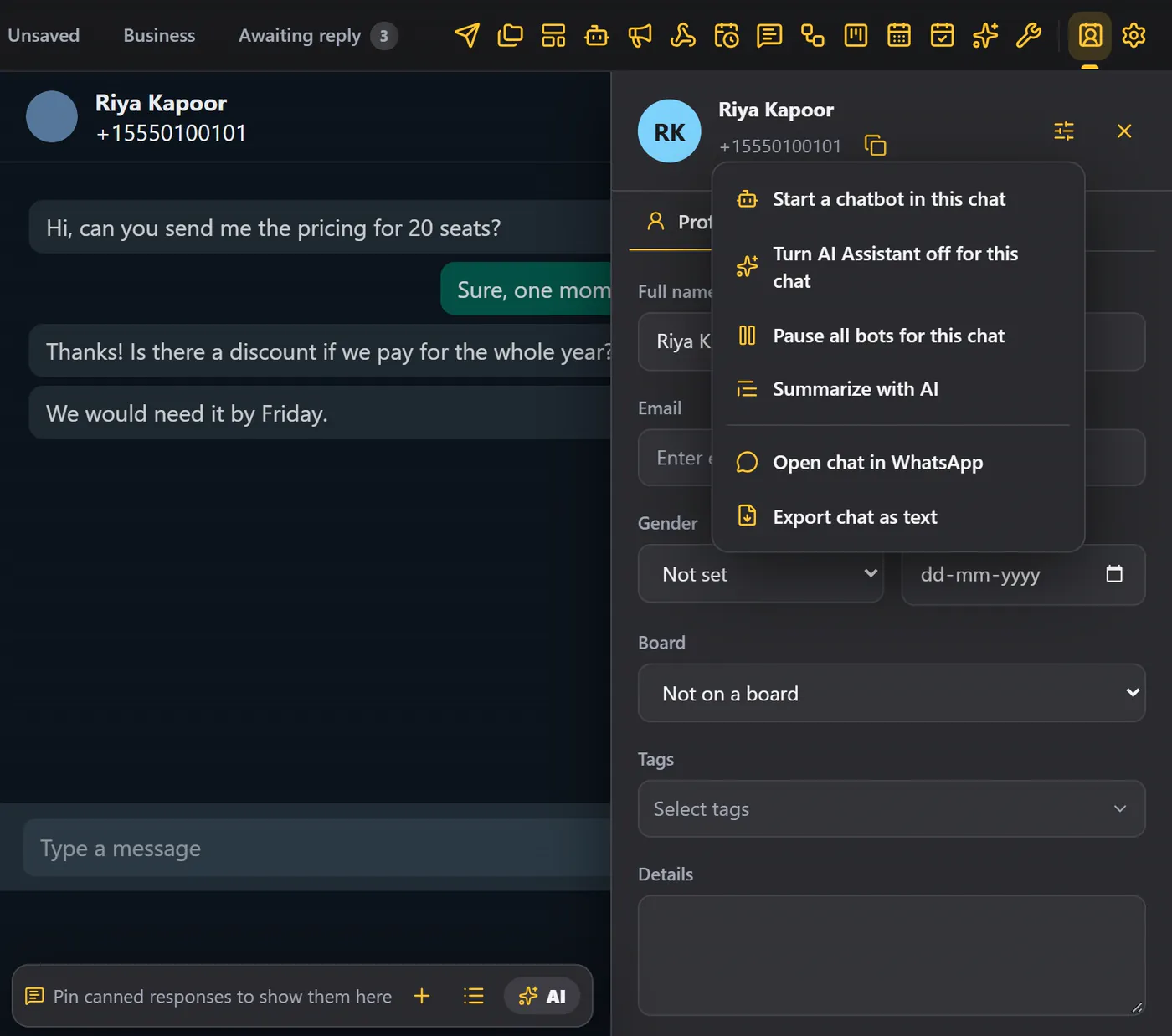
| Choice | What it does |
|---|---|
| Start a chatbot in this chat | Starts one of your chatbots, or stops the one that is running. |
| Turn AI Assistant off for this chat | The AI Assistant will not answer this person. |
| Pause all bots for this chat | Message bots, chatbots and the assistant stay quiet in this chat. |
| Summarize with AI | Writes a short summary of the conversation. See below. |
| Open chat in WhatsApp | Opens the conversation in WhatsApp. |
| Export chat as text | Saves the conversation as a text file. |
The six tabs#
Under the header are six tabs: Profile, Tabs, Schedule, Notes, Reminder and Appointments. Notes and Reminder show how many you have.
Profile#
Profile is the contact's card.
| Field | Notes |
|---|---|
| Full name, Email | Type them. |
| Phone | Comes from WhatsApp. You cannot change it. |
| Gender, Birth date | Optional. |
| Board | If you use Kanban, there is a Board field for each dashboard. Pick a stage, and the chat's card moves there. Choose Not on a board to take it off. |
| Tags | Open the list and pick as many as you like: Lead, Customer, VIP, Follow up, or your own. |
| Details, Address | Free text. |
| Custom fields | Your own fields, such as Company, Budget and Source. They appear on every contact. |
Click Save profile, and your changes are stored. Manage tags and fields takes you to where they are created. See Tags and custom fields.
Tabs#
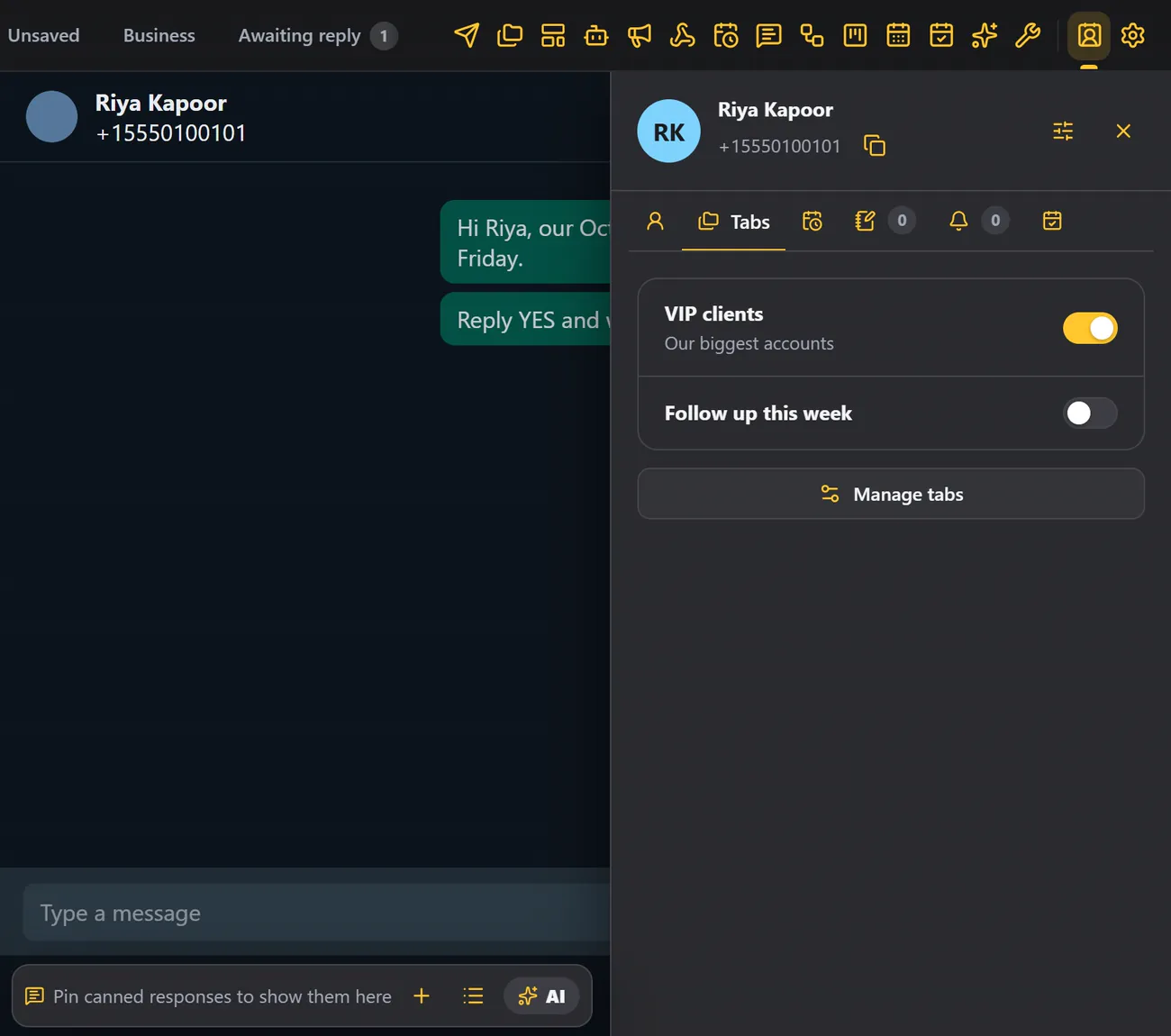
The Tabs tab lists your custom tabs. Switch one on, and this chat is added to it. Switch it off, and it is removed.
Schedule#
Schedule lists the messages that are waiting to go to this chat. Click Add schedule to plan a new one, with the chat already chosen. See Schedule.
Notes and reminders#
Notes is a private notebook for this contact, and Reminder holds follow-ups. See Notes and reminders.
Appointments#
Appointments lists this contact's bookings. Click Create appointment, and the form opens with the name and phone number already filled in. Type a title, choose the time, and save. It appears in this list and on the Calendar. See Appointments.
Summarize with AI#
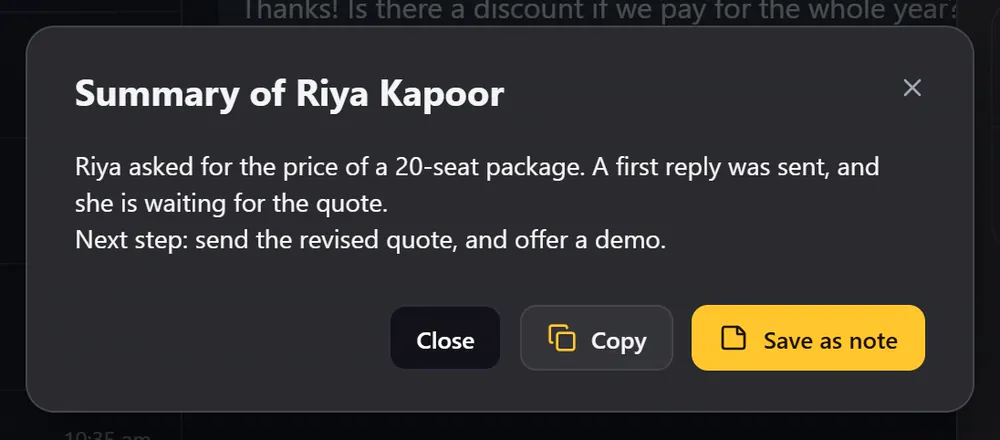
Summarize with AI needs your own AI key. It reads the conversation, and writes a short summary. Copy it, or save it as a note on the contact.
Connect a service in the AI Assistant first.
The same information in Free Tools#
Everything you write here is also in Free Tools. Notes lists every note for every contact, and Reminders lists every reminder. You can search, filter, and click a name to jump straight to that contact.
Tips#
- Save the profile after every call.
- Use tags for who they are, and notes for what happened.
- Set a reminder before you forget.