A tour of the WAFlow bar
The chat filters on the left, one icon for every tool on the right, and the panels they open. Learn where everything is.
Once a license is applied, a bar appears across the top of WhatsApp Web. It has two halves: chat filters on the left, and one icon for every tool on the right.
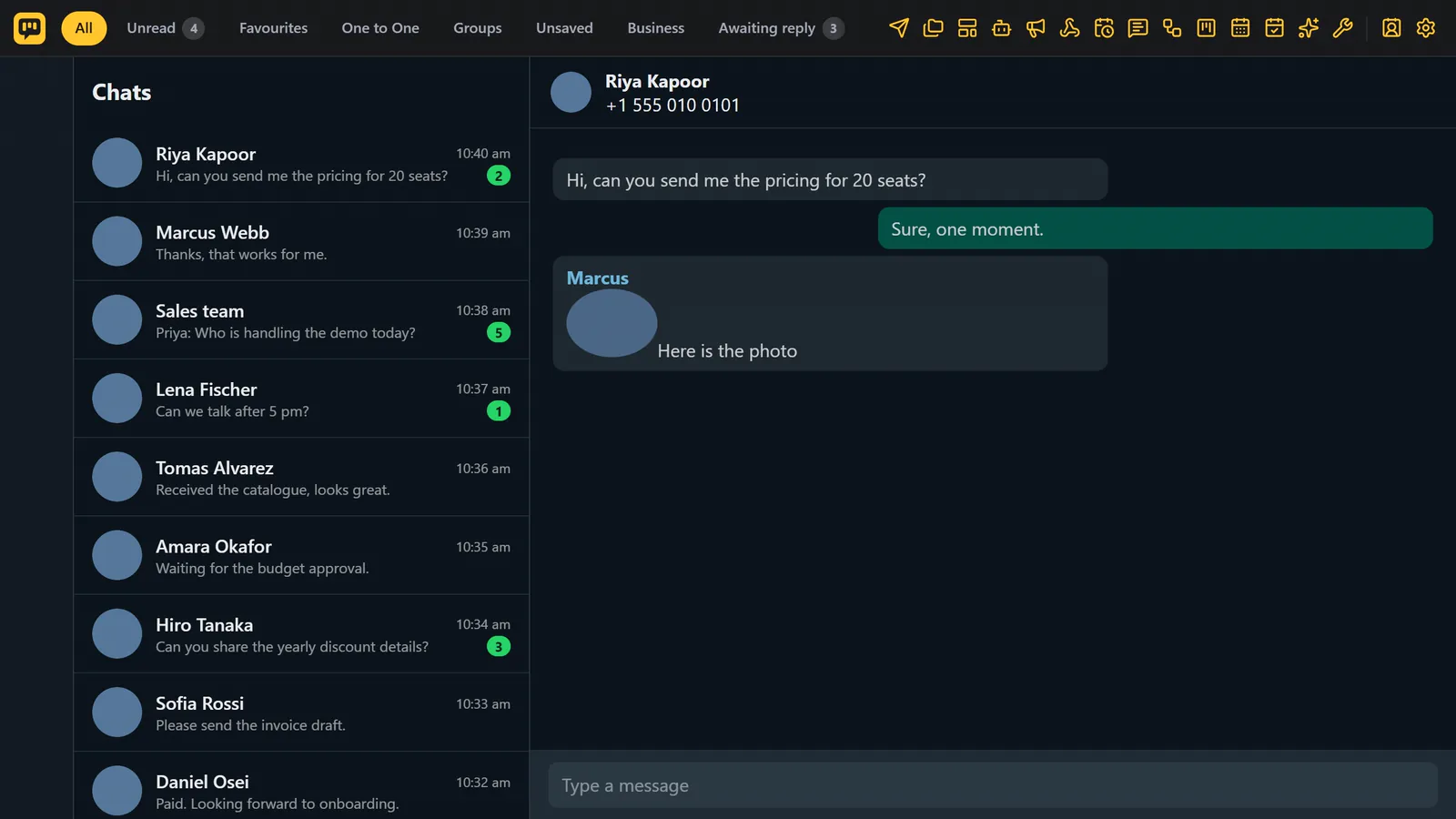
The chat filters#
The tabs on the left decide which chats WhatsApp shows in its chat list.
| Tab | Shows |
|---|---|
| All | Every chat. |
| Unread | Chats with new messages, with a count beside it. |
| Favourites | Chats you marked as favourites. |
| One to One | People only. |
| Groups | Groups only. |
| Unsaved | People who are not in your contacts yet. |
| Business | Business accounts. |
| Awaiting reply | Chats where the customer wrote last and you have not answered yet. A good list to clear every day. |
After these come your own Custom Tabs, and a + button to make a new one. See Custom Tabs.
The tool icons#
The icons on the right are numbered here from left to right. Hover over an icon to see its name, and click it to open the tool.

| # | Icon | What it opens | Read |
|---|---|---|---|
| 1 | Send Message | Write one message and send it to many people. | Send Message |
| 2 | Custom Tabs | Your own chat filters. | Custom Tabs |
| 3 | Templates | Messages you saved to reuse. | Templates |
| 4 | Message Bot | Keyword replies. | Message Bot |
| 5 | Schedule Broadcast | Send to many people, now or later. | Schedule Broadcast |
| 6 | Webhook | Tell other tools when something happens. | Webhooks |
| 7 | Schedule | Messages queued for one chat. | Schedule |
| 8 | Canned Responses | Slash shortcuts and quick replies. | Canned Responses |
| 9 | Chatbot Flows | Conversations you draw with blocks. | Chatbot Flows |
| 10 | Kanban | Your chats as cards on boards. | Kanban |
| 11 | Calendar | Appointments by month, week and day. | Calendar |
| 12 | Appointments | The appointments list and form. | Appointments |
| 13 | AI Assistant | Answers from your own knowledge. | AI Assistant |
| 14 | Free Tools | Eleven small helpers. | Free Tools |
| 15 | Contact details | The file on the person whose chat is open. | Contact details |
| 16 | Settings | Pause automations, license, look and language. | Settings menu |
How panels behave#
- Most tools open as a panel on the right, and your chat list stays on the left.
- A screen you open from the bar closes when you click a conversation in WhatsApp's chat list, so that chat shows. The X in its corner and Esc close it too.
- Kanban opens as a separate full-screen page in its own tab, or inside WhatsApp, as you choose in Module settings.
- While WhatsApp's picture, video or Status viewer is open, the WAFlow bar hides so it does not cover the viewer's own controls. It returns when the viewer closes.
More than the bar#
- The shortcut bar above the message box shows your pinned canned responses and an AI row with writing help.
- The Paused chip appears in the bar while all automations are paused. Click it to resume. See Settings menu.
Where to go next#
Follow the first day checklist to get one tool working today.