Schedule
Queue a message to send later, to one chat, once or on a repeat. Includes weekly patterns and an option that cancels the message if the customer replies first.
Schedule queues messages to send later. It is the seventh icon in the WAFlow bar. The list shows everything that is waiting, whether it is for one chat or for many.
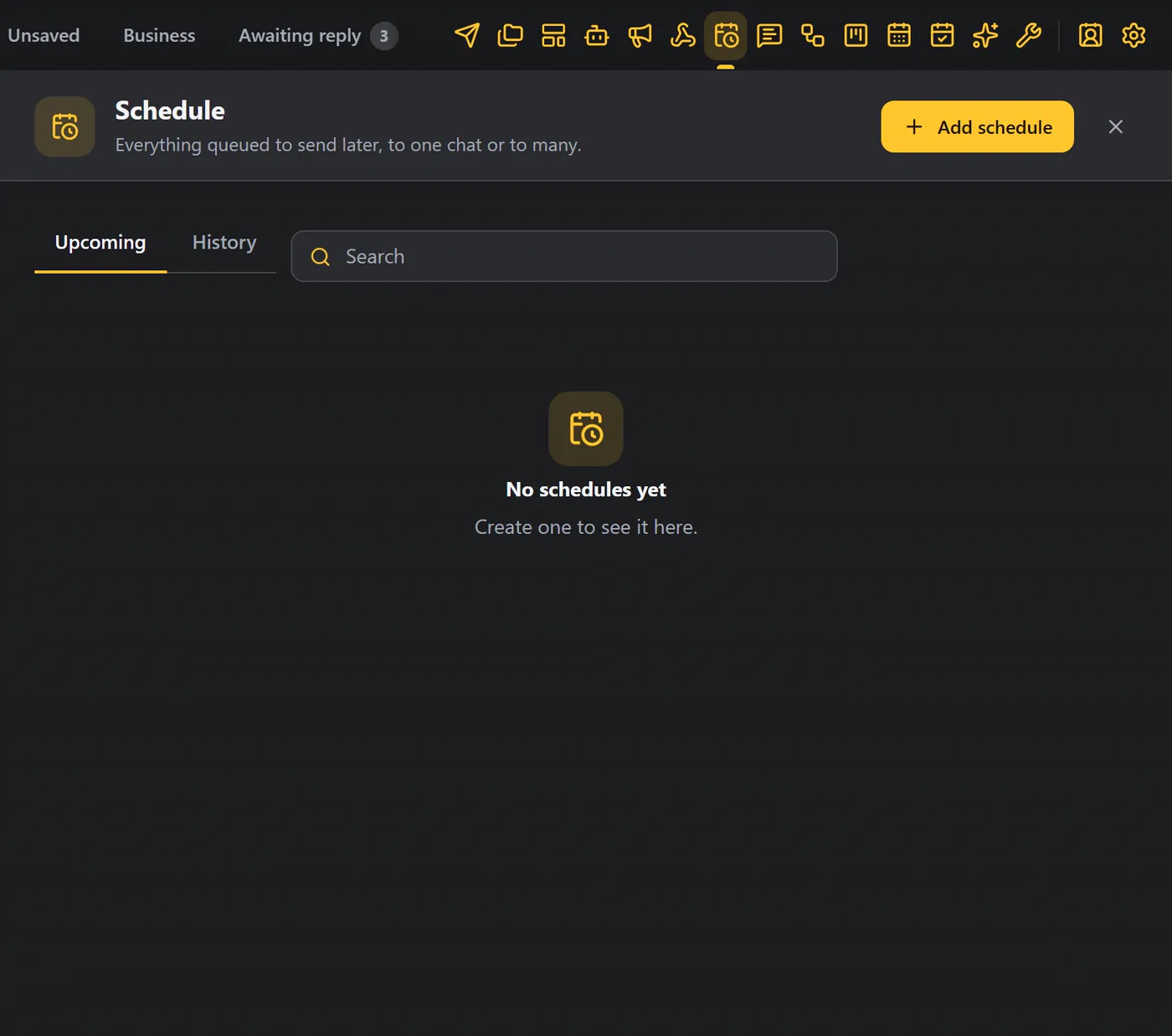
A schedule can only send while WhatsApp Web is open in Chrome at that time. If it was closed, use the option Send automatically even if the time has passed, described below.
Add a schedule#
Click Add schedule. A wizard opens with four steps: Choose chat, Message and delay, Scheduling and action, and Preview and submit.
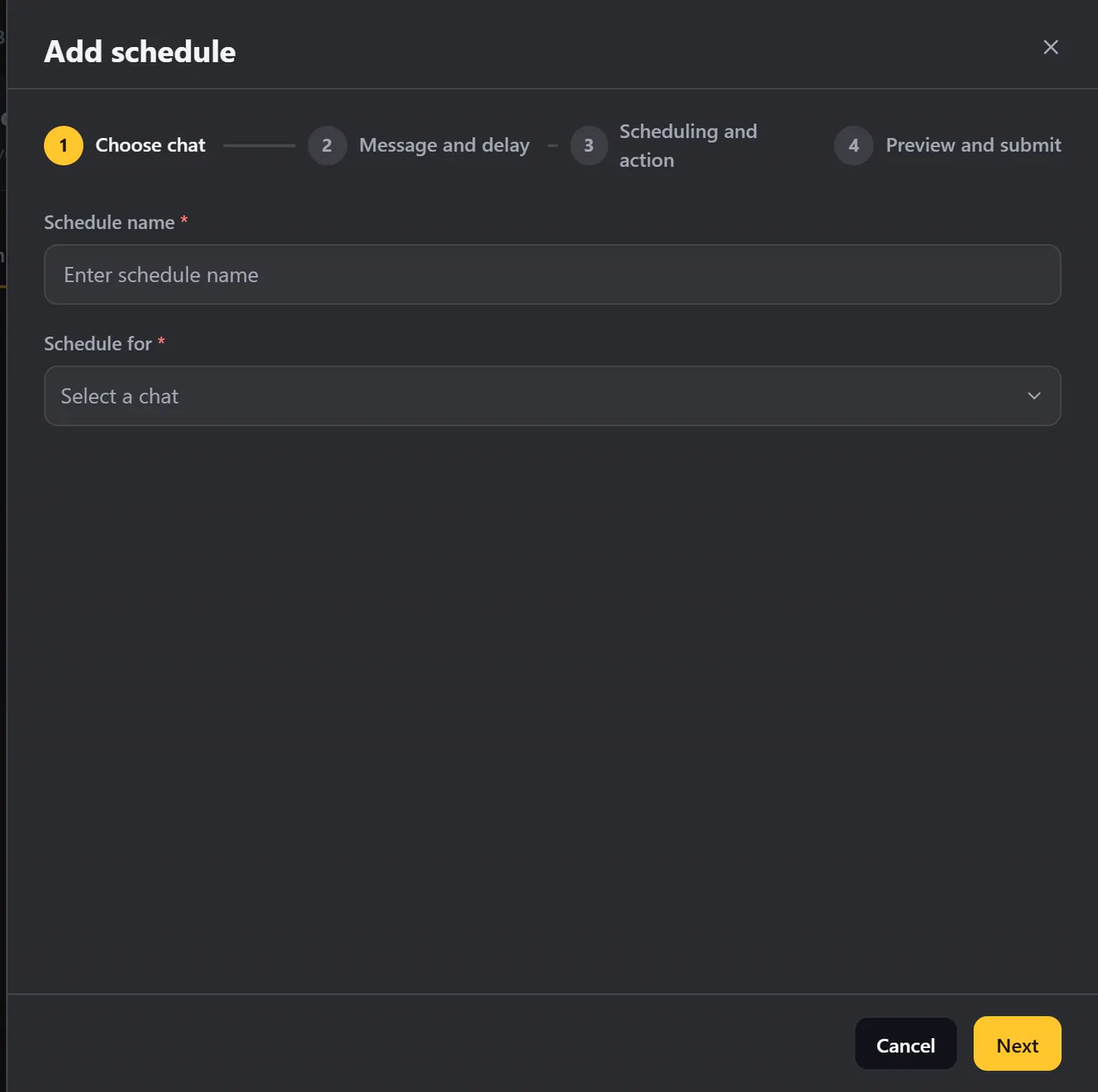
1. Choose the chat#
Pick who the message is for, from your chats. You can search by name or number. The schedule name fills in for you (for example Schedule for Riya Kapoor). You can change it.
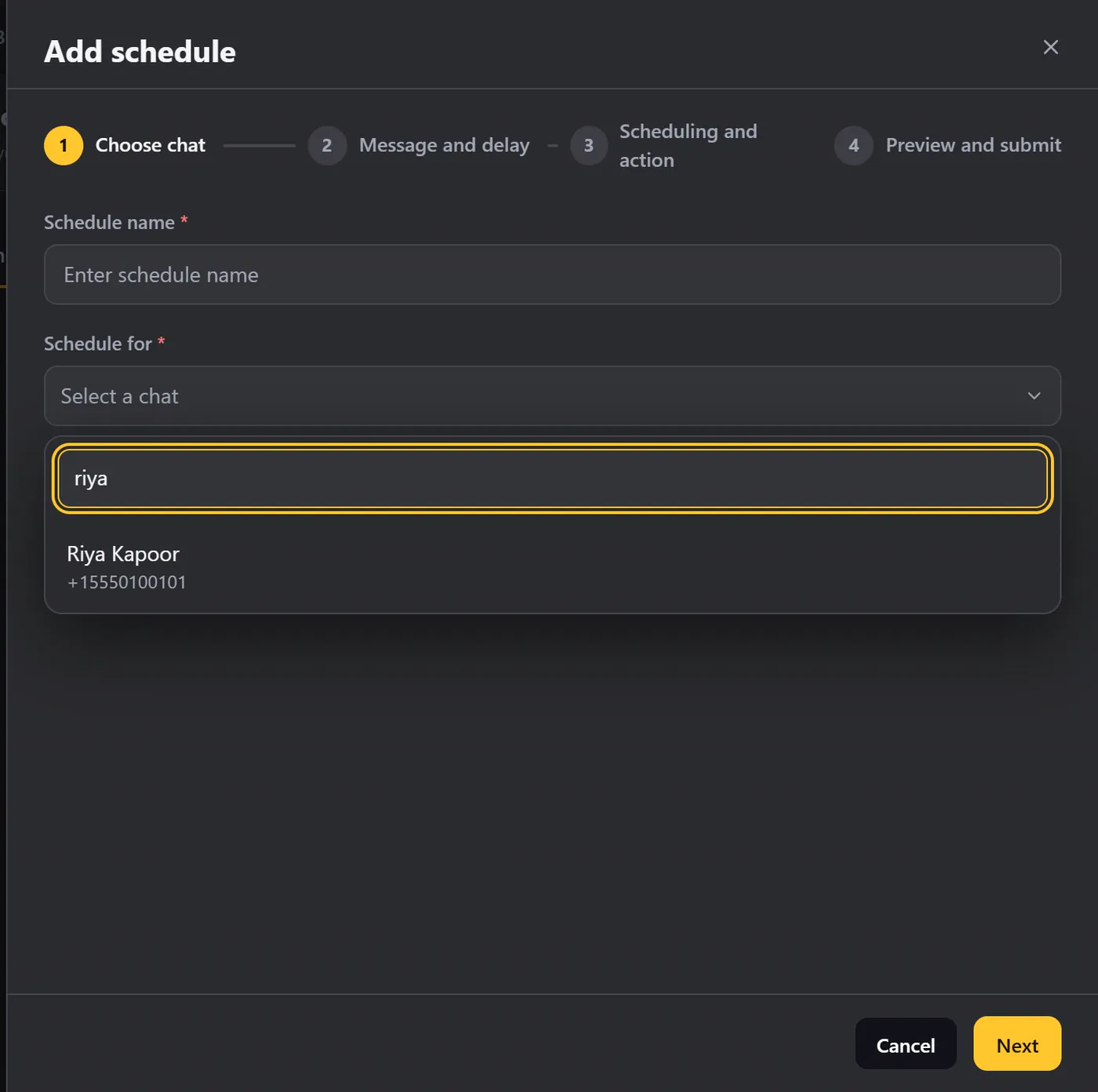
2. Write the message#
Write it just like in Send Message. If you add more messages, the delay is the wait between them.
3. Choose when#
Pick the date and time. Choose Once to send it a single time, or Repeated to send it again and again:
- Repeat every so many minutes, hours, days, weeks, months or years.
- For weeks, tick the days, and add the times of day. You can add more than one time.
- Stop repeating: Never, After a number of times, or On a date.
Below, the preview describes the pattern in words and shows the next three times it will run, so you can check it. For example: Every week on Mon, Thu at 09:00, 15:00, 4 times. Next: Sep 28 09:00, Sep 28 15:00, Oct 01 09:00.
Three options sit below:
| Option | What it does |
|---|---|
| Resume if the window reloads | If WhatsApp Web is reloaded while the schedule is running, it picks up where it left off. |
| Send automatically even if the scheduled time has passed | If WhatsApp Web was closed at the planned time, the message still goes out when it opens. |
| Discard if the recipient replies before it is sent | If your customer answers on their own, the schedule cancels itself. Handy for reminders. |
There is also Actions after sending, where you can tag the chat or move it on a board.
4. Preview and submit#
Check the name, the chat, when it runs and the wait between messages. Then click Schedule.
Your schedules#
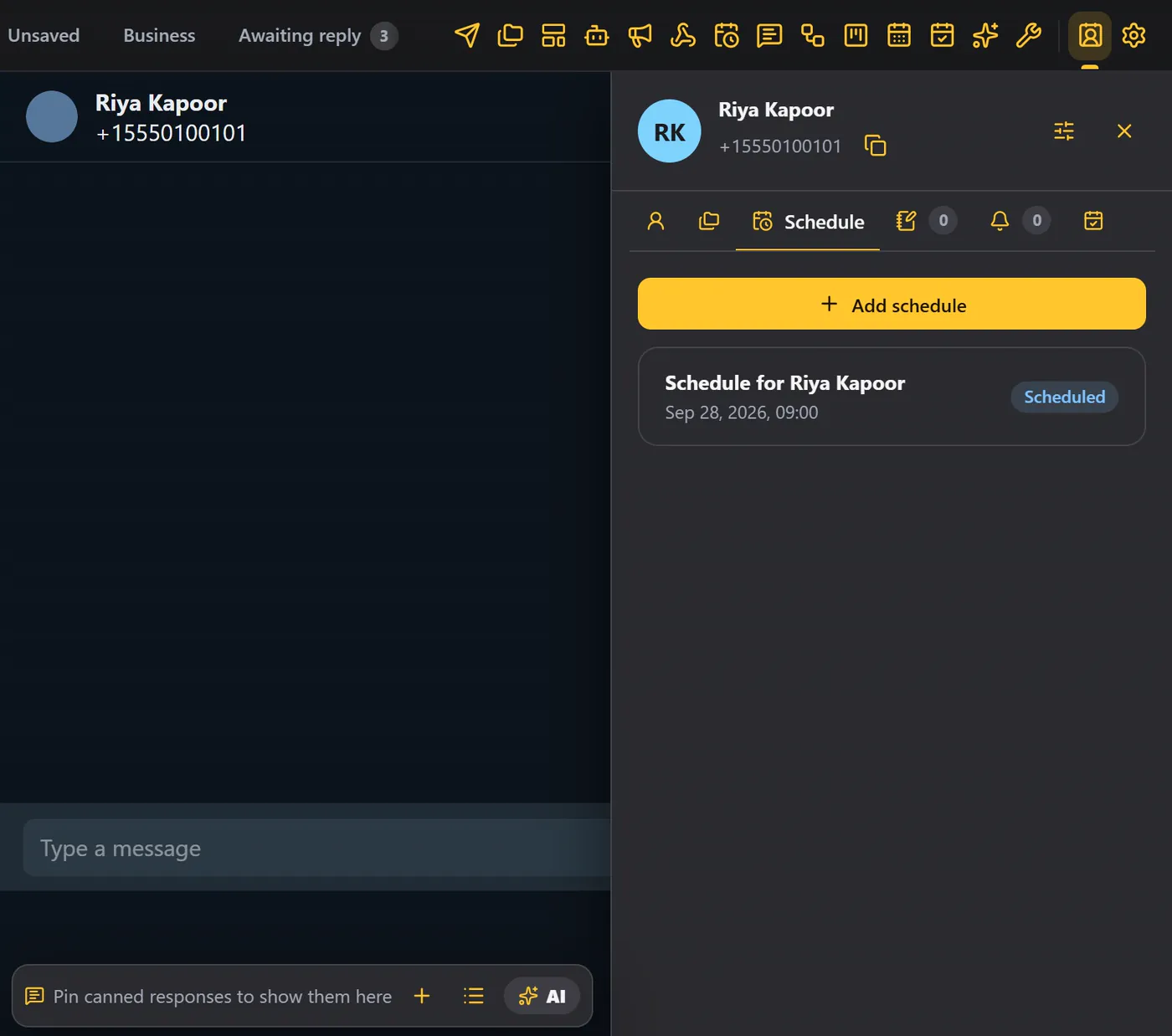
The schedule appears in the list, with its status and when it runs next.
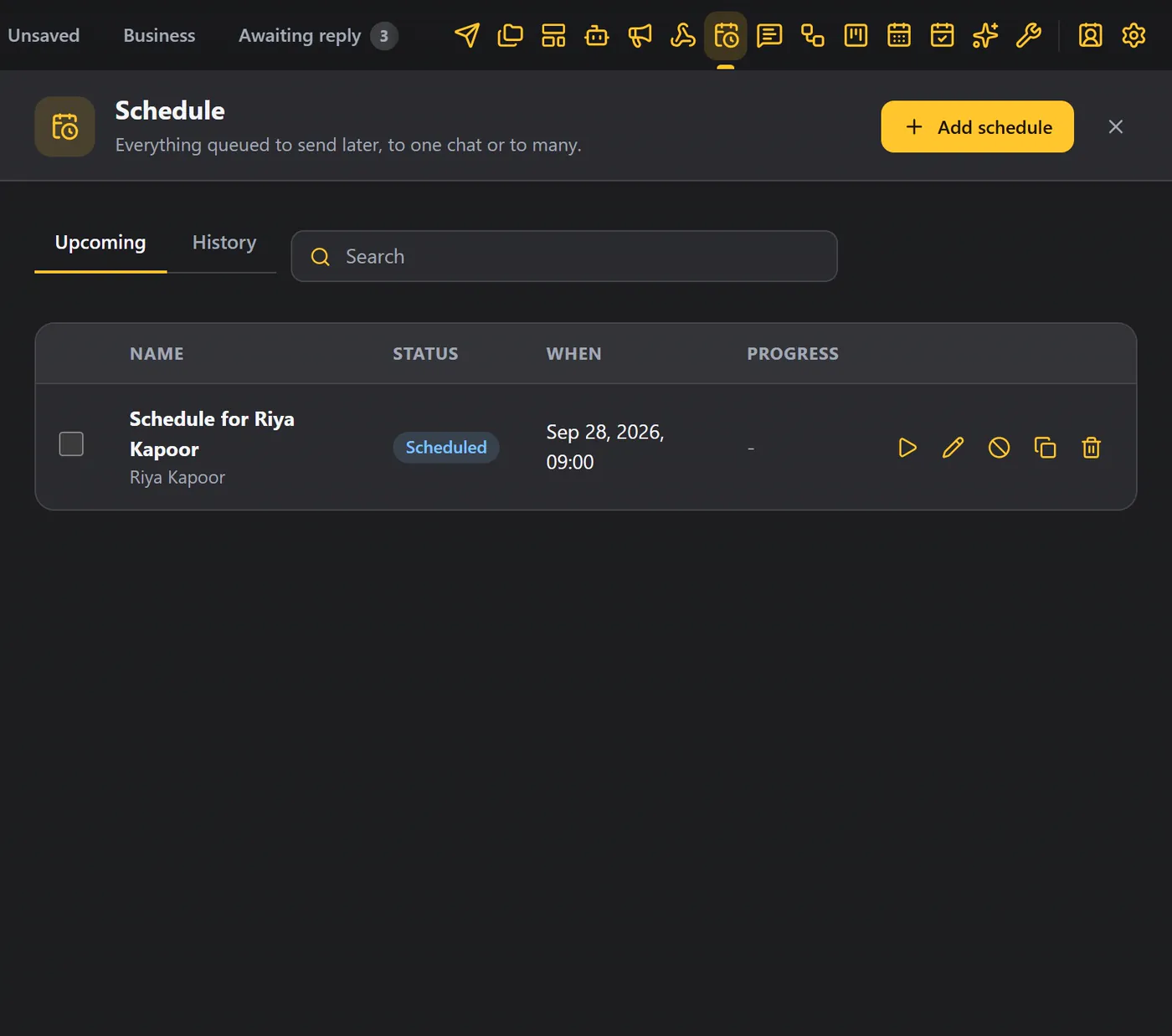
- The icons on a row are Start now, Edit, Discard, Duplicate and Delete.
- When a schedule has run, it moves to the History tab.
- Use search to find one by name, and tick several rows to delete them together.
Schedule from a chat#
There is a quicker way, from a chat itself. Open the chat and click Contact details (icon 15). The Schedule tab lists this chat's schedules. Click Add, and the wizard opens with the chat already chosen.
Tips#
- Use a repeat for weekly reminders.
- Turn on discard if the recipient replies when a reply makes the message pointless.
- Keep WhatsApp Web open so every message goes out on time.
- For a message to many people, use Schedule Broadcast.