Schedule Broadcast
Send one message to many chats, safely paced, now or later, with a preview, live progress and a downloadable report.
Schedule Broadcast sends one message to many chats, paced so it looks natural, now or later. It is the fifth icon in the WAFlow bar.
The panel has two tabs, Upcoming and History, and a search box.
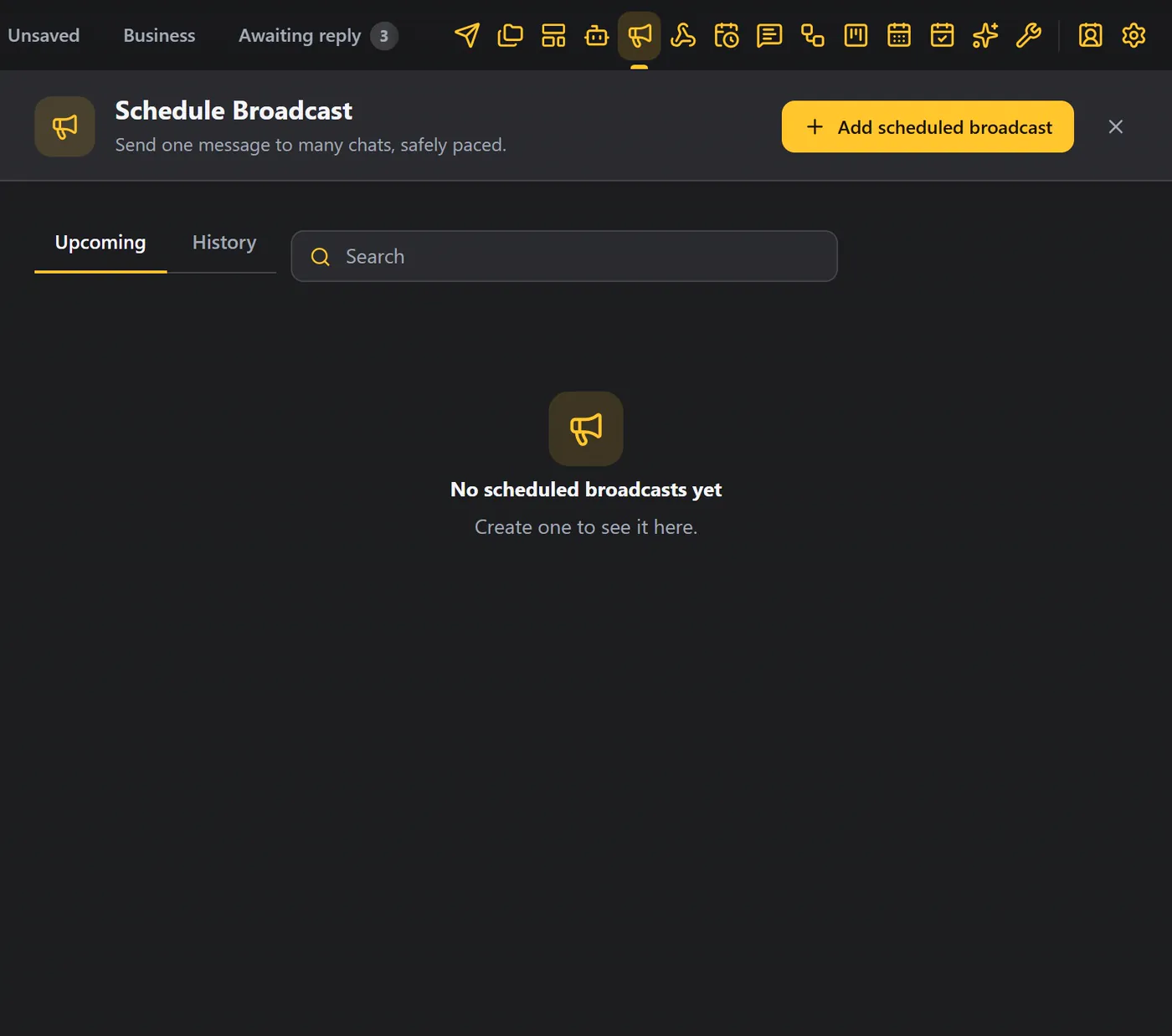
Create a broadcast#
Click Add scheduled broadcast. A wizard opens, with four steps shown at the top: Choose target, Message and delay, Scheduling and action, and Preview and submit.
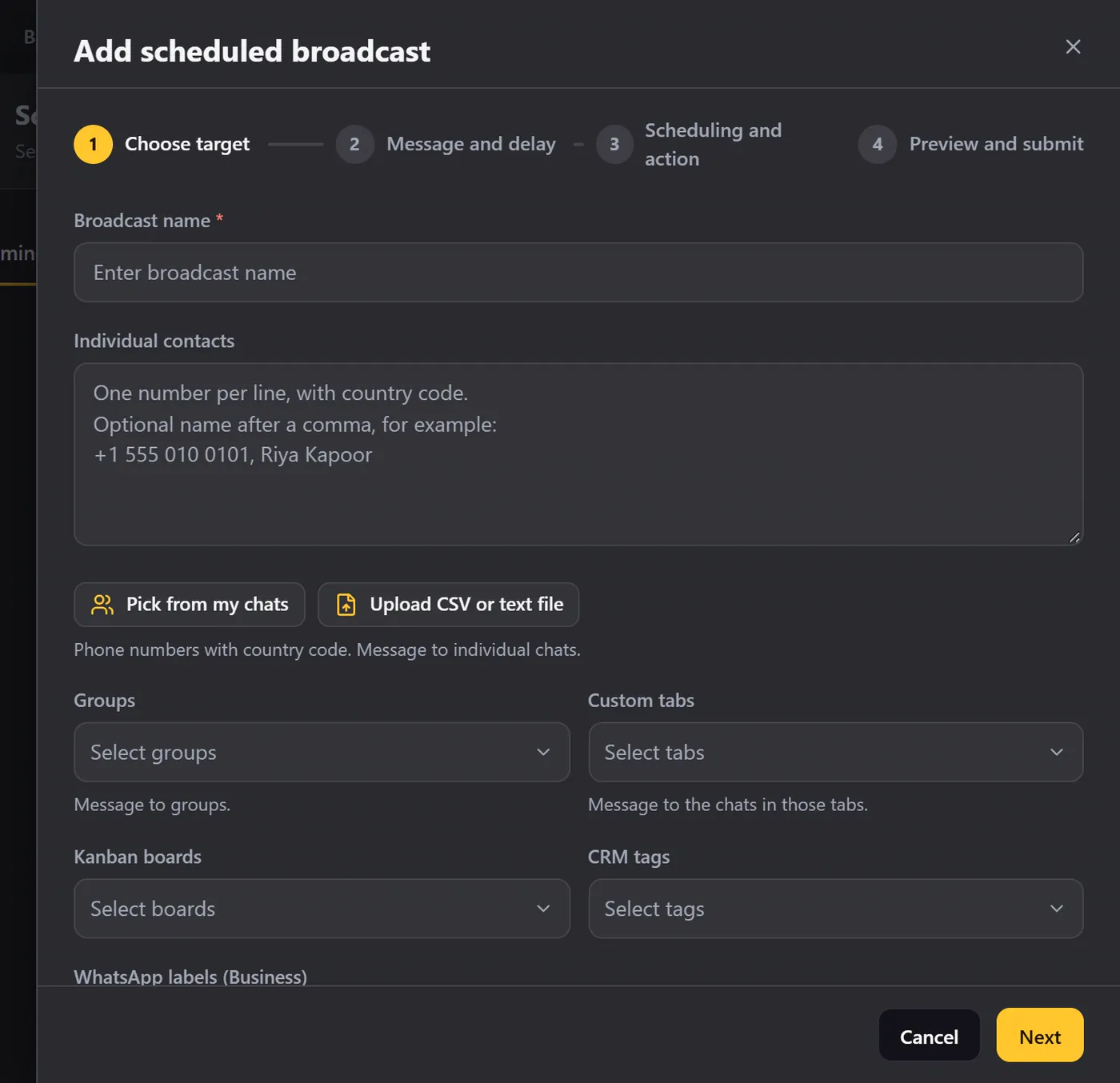
1. Choose the target#
- Give your broadcast a name. Only you will see it.
Add people in any combination:
- Individual contacts: one phone number per line, with the country code, and an optional name after a comma.
- Pick from my chats, or upload a CSV or text file with your numbers.
- Groups, Custom tabs, Kanban boards, CRM tags or WhatsApp labels. You can combine them.
- Allow duplicate numbers is off, so nobody gets the message twice.
- Click Count recipients to see how many people will receive it.
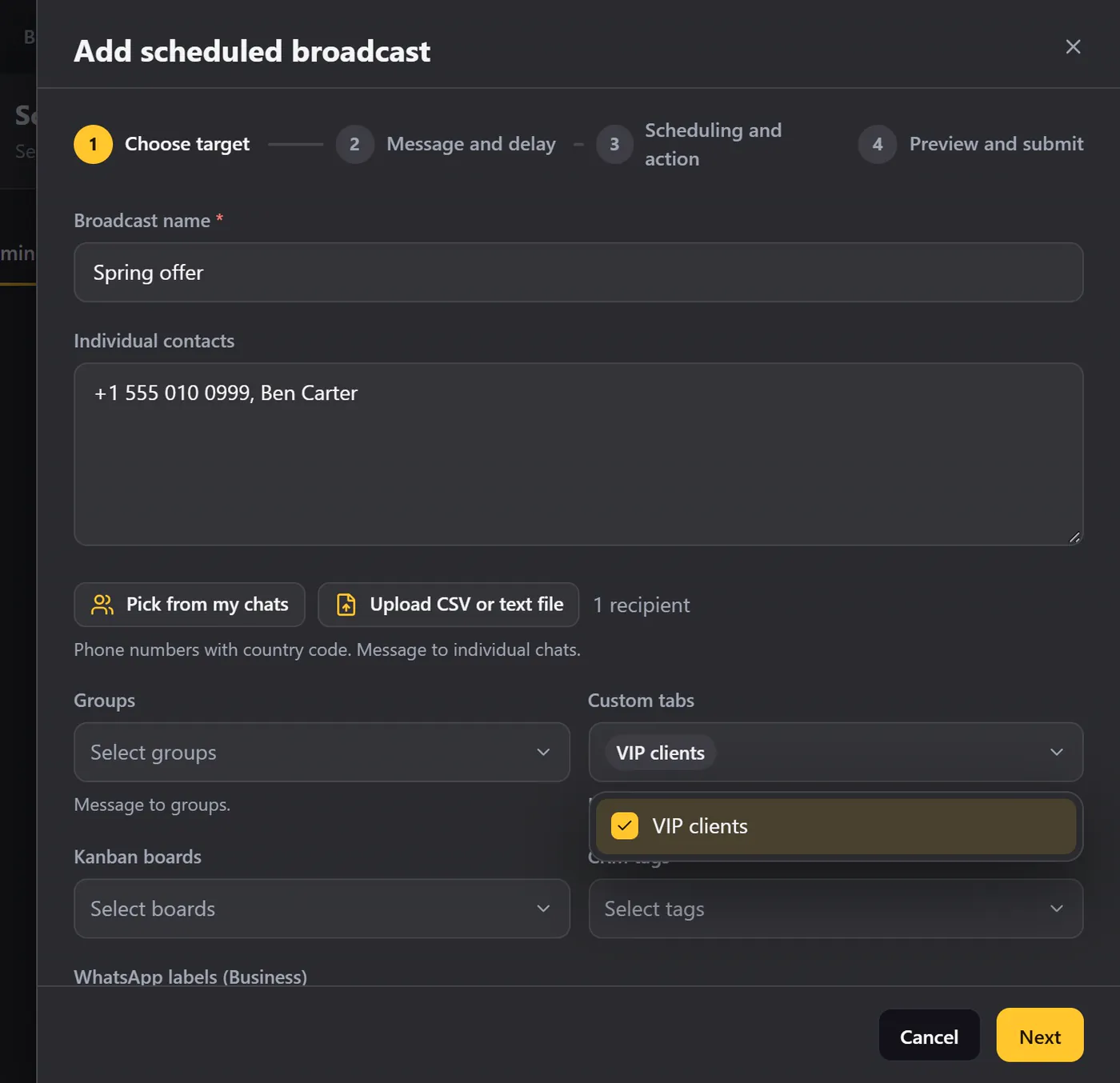
Click Next.
2. The message and the delay#
- Write the message just like in Send Message, with variables such as first name.
- Add a second version and tick Send one random message from the list. Each person then gets one of them, so the messages are not all identical.
- The sending delay is the wait between people. The default is 5 to 12 seconds. If you set it lower, WAFlow warns that it is fast.
- You can take a longer break every few contacts, for example pause for 60 seconds after every 20.
3. Scheduling and action#
What should happen?
| Choice | Meaning |
|---|---|
| Start immediately | The broadcast starts as soon as you confirm. |
| Schedule for later | Pick a date and time, and send once or repeat it every so often. |
| Save as a draft | Keep it in the list, marked Draft, to finish later. |
Three options sit below:
| Option | What it does |
|---|---|
| Resume if the window reloads | The broadcast picks up where it left off. |
| Send automatically even if the scheduled time has passed | It still goes out late if WhatsApp Web was closed. |
| Mention all group participants | For groups. |
Actions after sending can tag the chats, move them on the Kanban board, and more. See Message Bot for the list of actions.
4. Preview and submit#
Check the name, the recipients, when it starts and the wait between people. If you set a safety limit in Module settings, a banner explains it. Below, you can read the messages that will be sent. Click Send now (or Schedule).
Watch it run#
The broadcast runs in the background, so you can keep using WhatsApp. Click View progress in the notification.
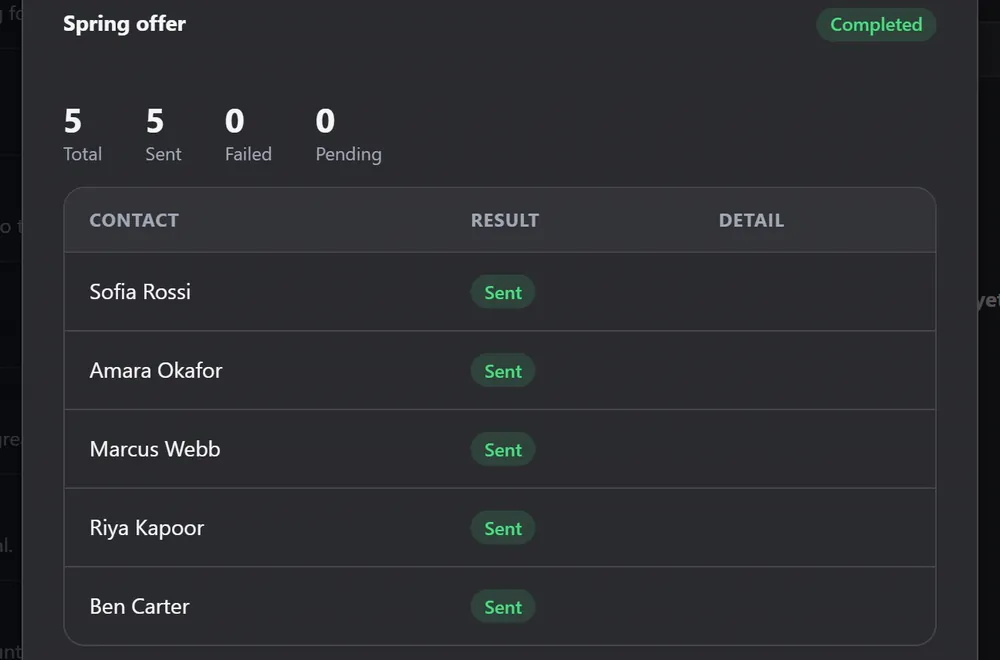
The progress window shows the total, and how many were sent, failed and pending. Below, every contact appears with its result.
- Pause stops it for now, and Resume continues.
- Discard skips everyone who has not received it yet.
- When it finishes, click Download report to save a CSV file with every result.
Your broadcasts#
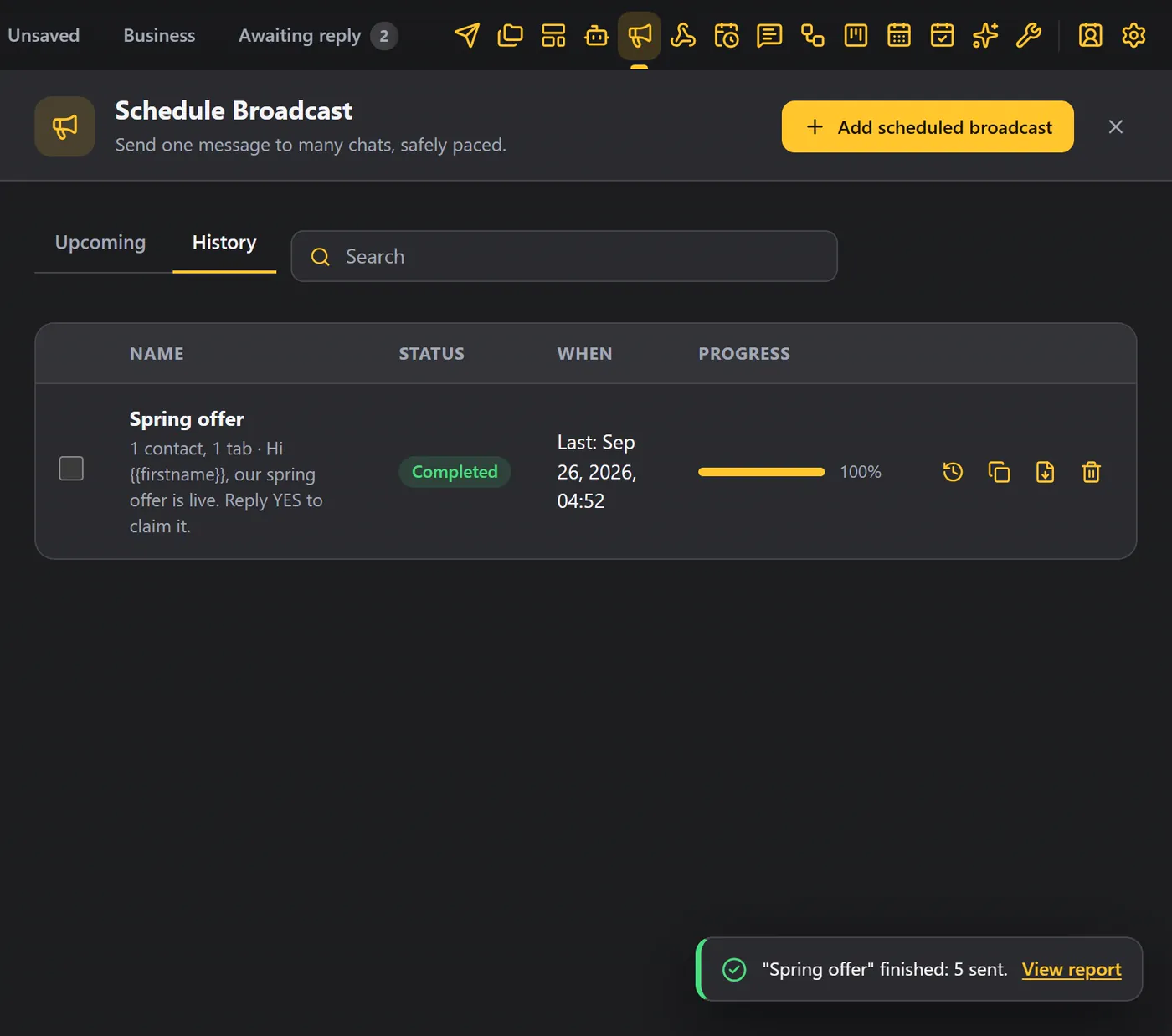
A finished broadcast moves to the History tab, with its progress.
Upcoming shows what is waiting. A scheduled broadcast shows its date and time, and a draft is marked Draft.
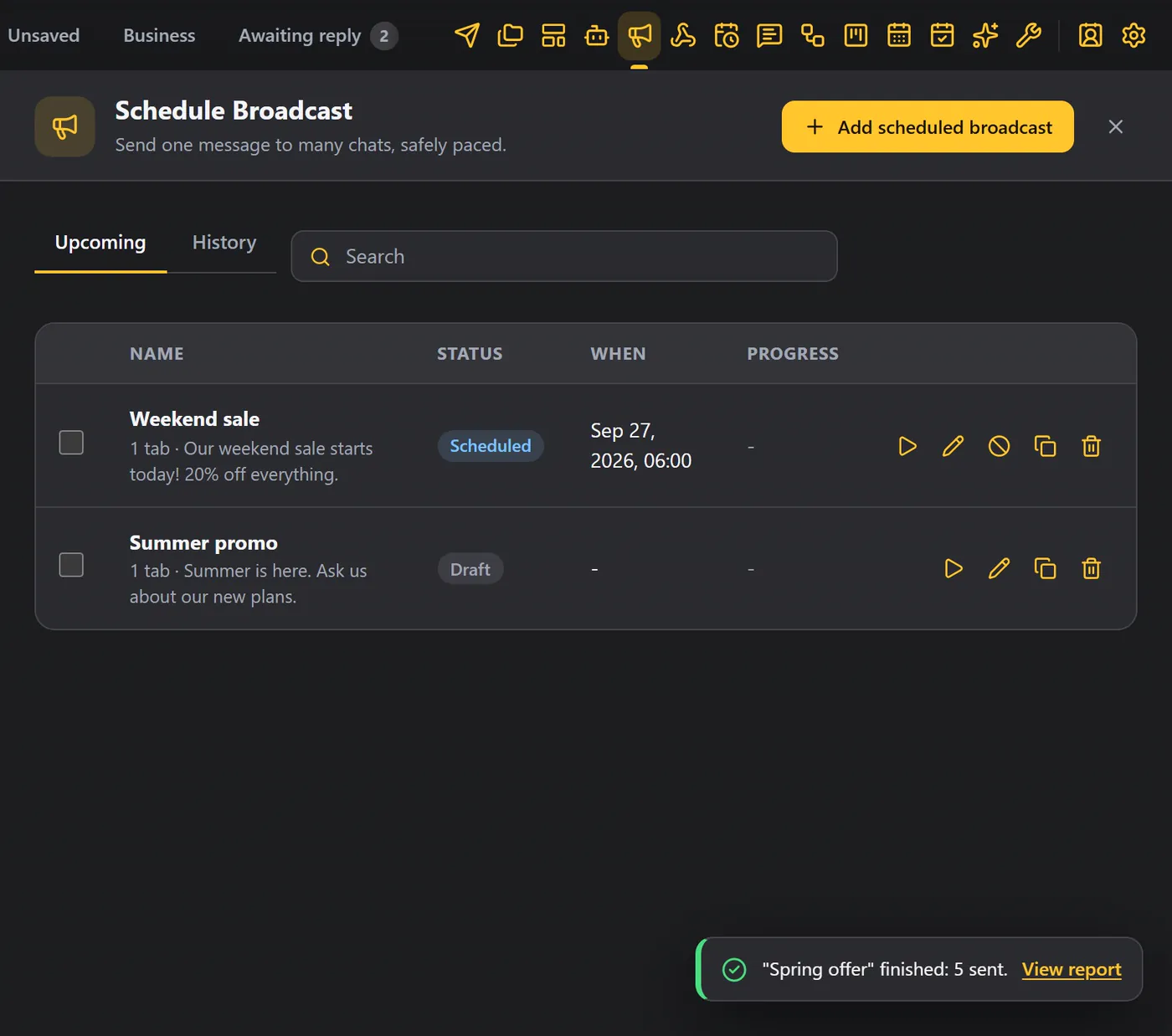
The icons on a row start it now, edit it, discard it, duplicate it or delete it. Use the search box to find one by name, and tick several rows to delete them together.
Tips#
- Keep the delay at five seconds or more.
- Send a test to yourself first.
- Use custom tabs to keep your lists tidy.
- Check numbers with the number validator before a big broadcast.
- Read Safe sending.