Kanban
See every conversation as a card and move the cards across boards as a deal moves forward. Includes dashboards, boards, the card menu and the full-screen page.
Kanban shows every conversation as a card, and you move the cards across boards as a deal moves forward: New lead, Contacted, Negotiation, Won. It is the tenth icon in the WAFlow bar.
By default it opens as a full-screen page in its own tab, next to WhatsApp. You can choose to open it as a panel inside WhatsApp instead, in Module settings, under Interface.
The Kanban page#
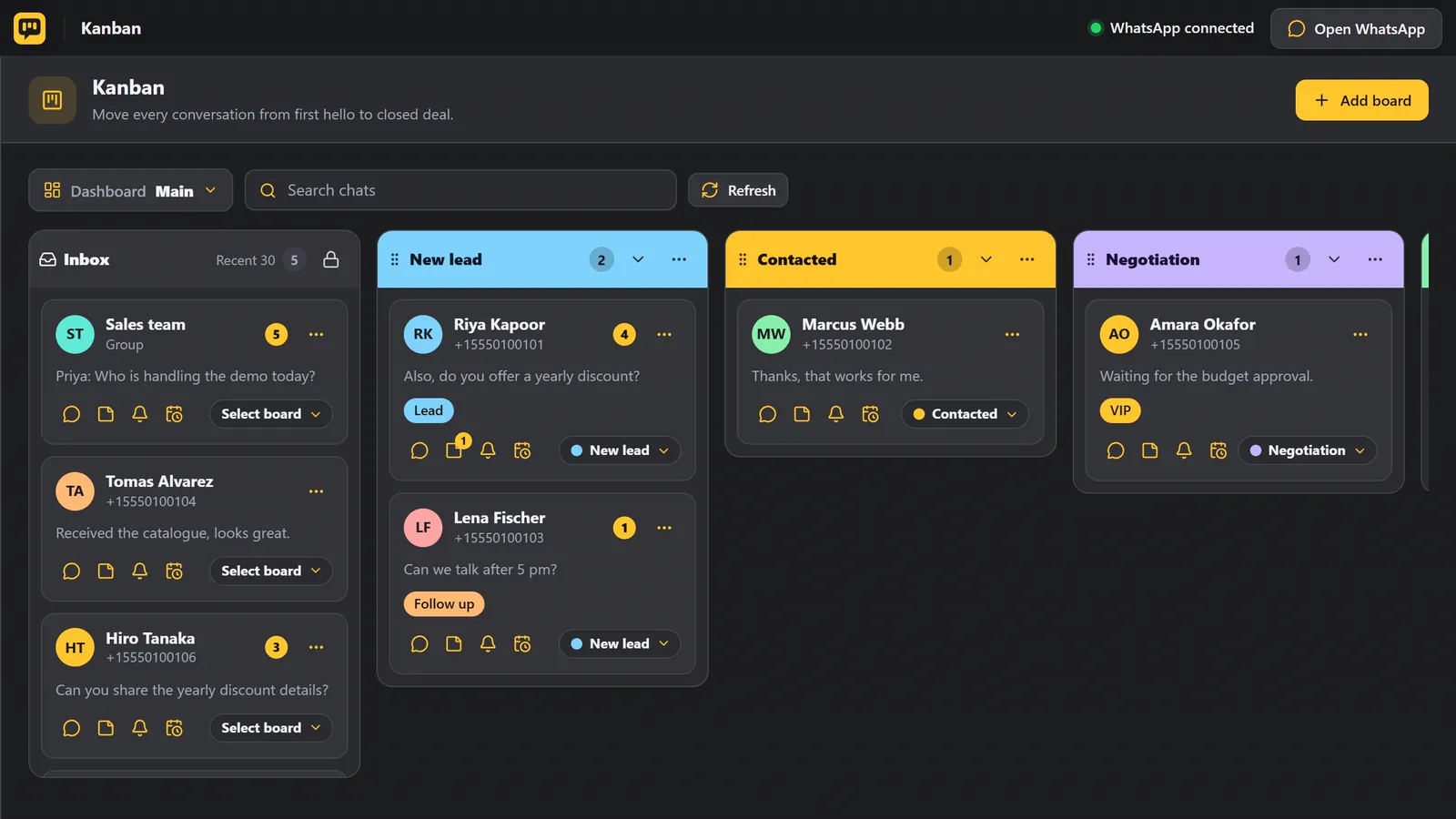
- At the top, the WAFlow name, the screen name, and whether WhatsApp is connected. Open WhatsApp takes you back to the WhatsApp tab.
- Your data is shared with WhatsApp Web, so both always stay in sync.
- On the left is the Inbox, with your most recent chats. You choose how many it shows in Module settings.
- Next to it are your boards. Each board is a column.
The full-screen Kanban page needs WhatsApp Web open in another tab. Chats, labels and open chat go through that tab. Your boards, notes and reminders are shared between both.
Cards#
Each chat is a card. It shows the name, the phone number, the last message and any tags. Below that is a row of shortcuts.
| Shortcut | What it does |
|---|---|
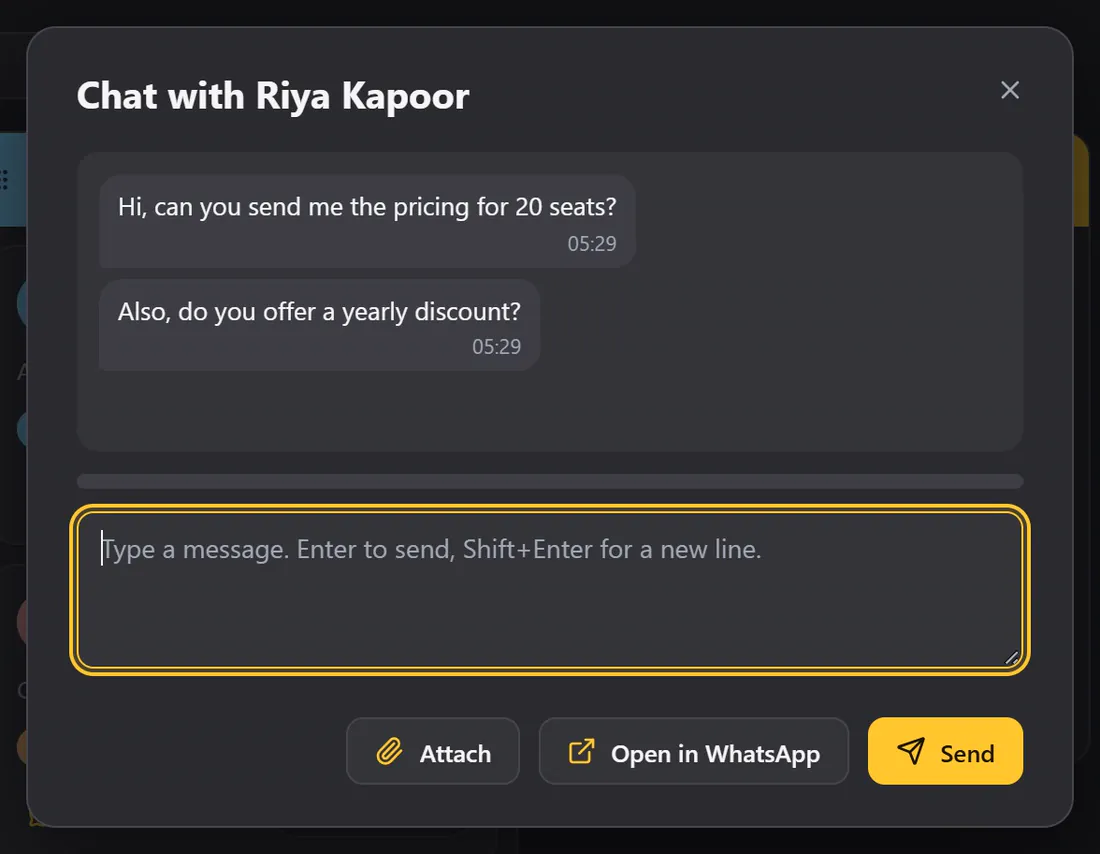
| Message icon | Opens a chat window right here, so you can reply without leaving Kanban. |
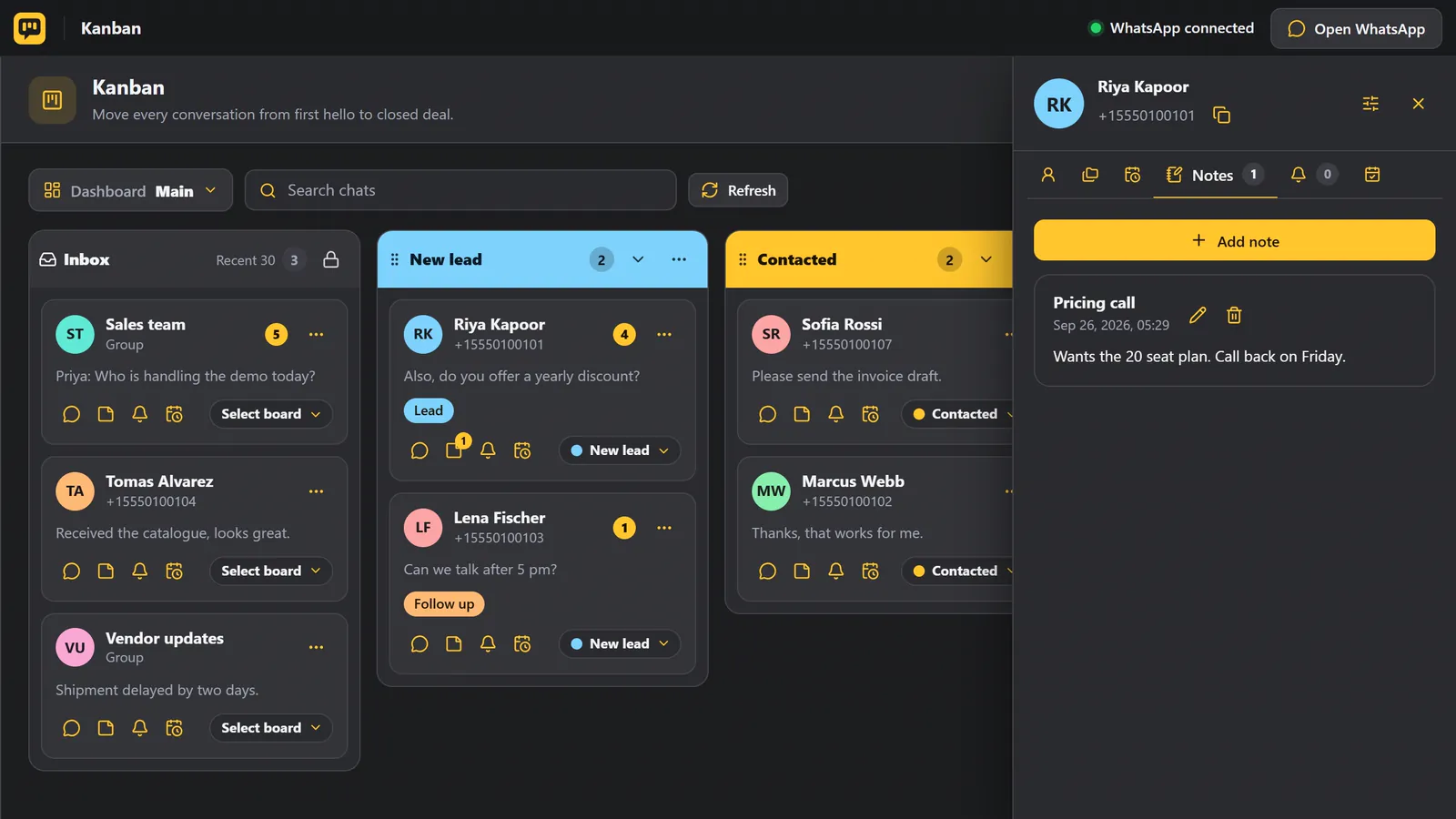
| Note icon | Opens the CRM notes for that person. |
| Bell | Adds a reminder. |
| Calendar icon | Schedules a message. |
| Board button | Moves the card. Click it and pick a board from the list. No dragging needed. |
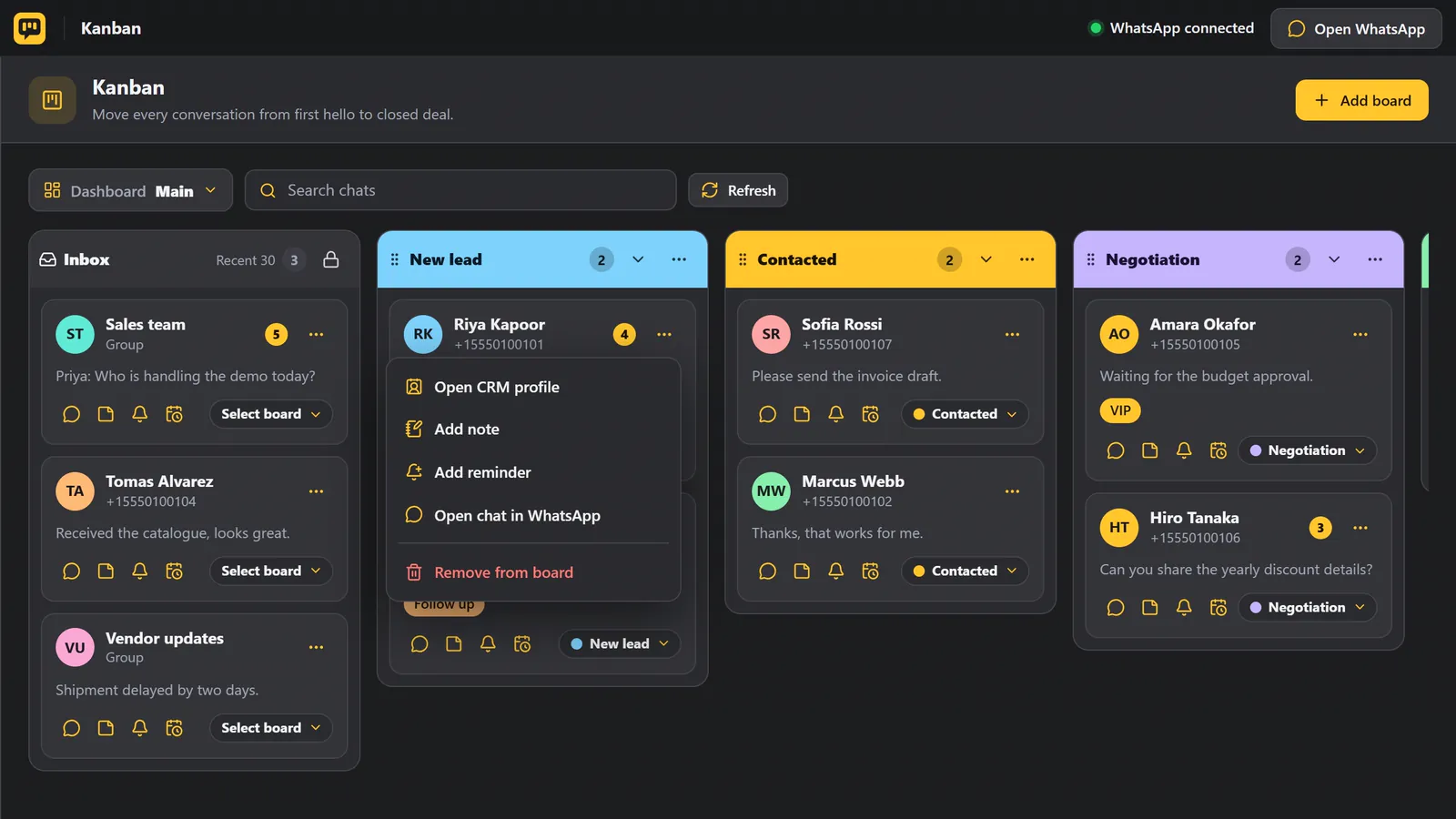
The three dots on a card open more actions.
| Action | What it does |
|---|---|
| Open CRM profile | Shows the contact details. |
| Add note / Add reminder | See Notes and reminders. |
| Open chat in WhatsApp | Opens the conversation in WhatsApp Web. |
| Remove from board | Takes the card off the board. The chat is not deleted. |
Move a deal forward#
Drag its card to another board, and drop it wherever you want it in the list. Or use the board button on the card.
Boards#
Every board has its own menu.
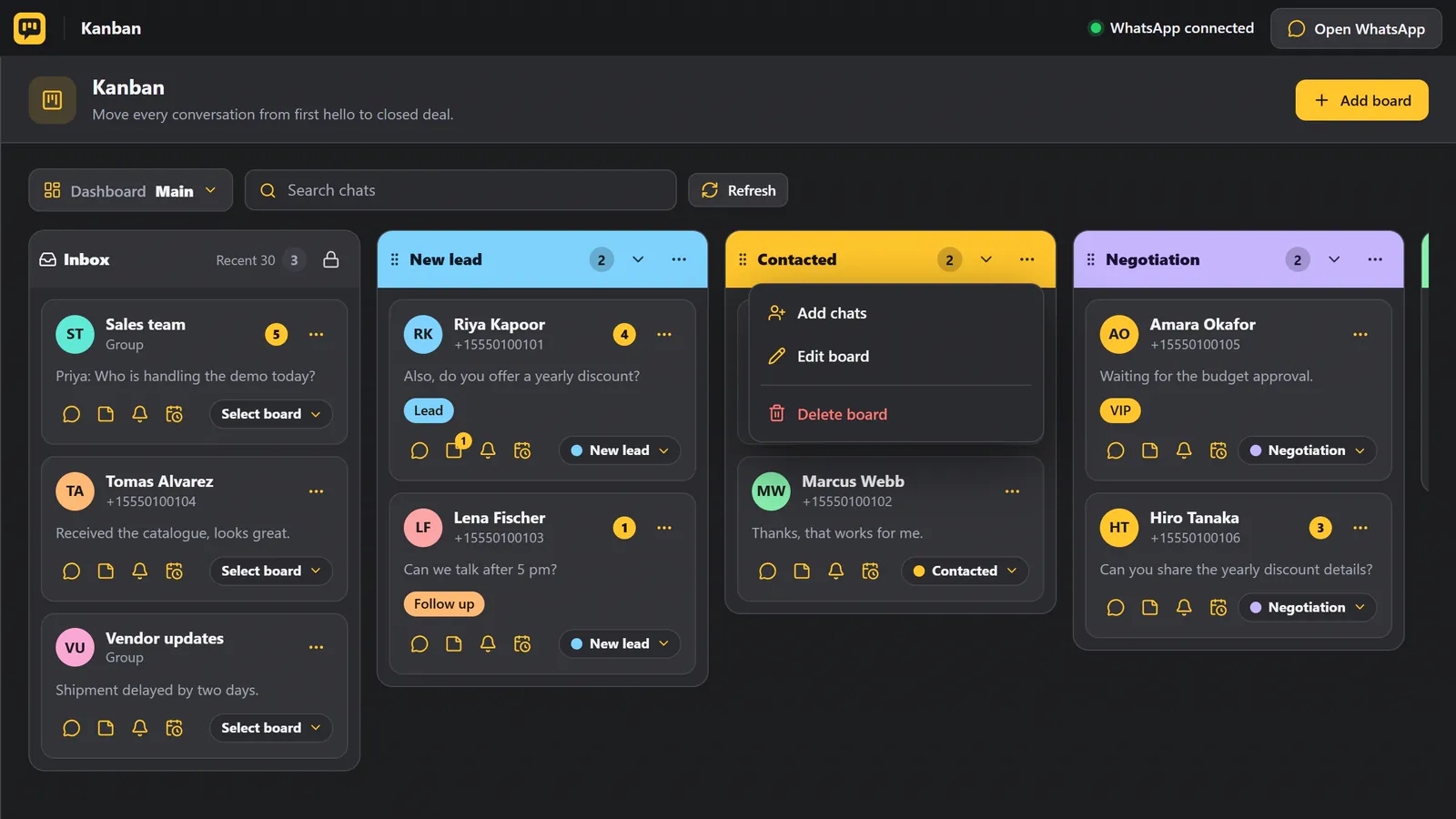
| Action | What it does |
|---|---|
| Add chats | Picks several chats at once and puts them on the board. |
| Edit board | Changes its name and colour. |
| Delete board | Removes the board. Your chats are never deleted. |
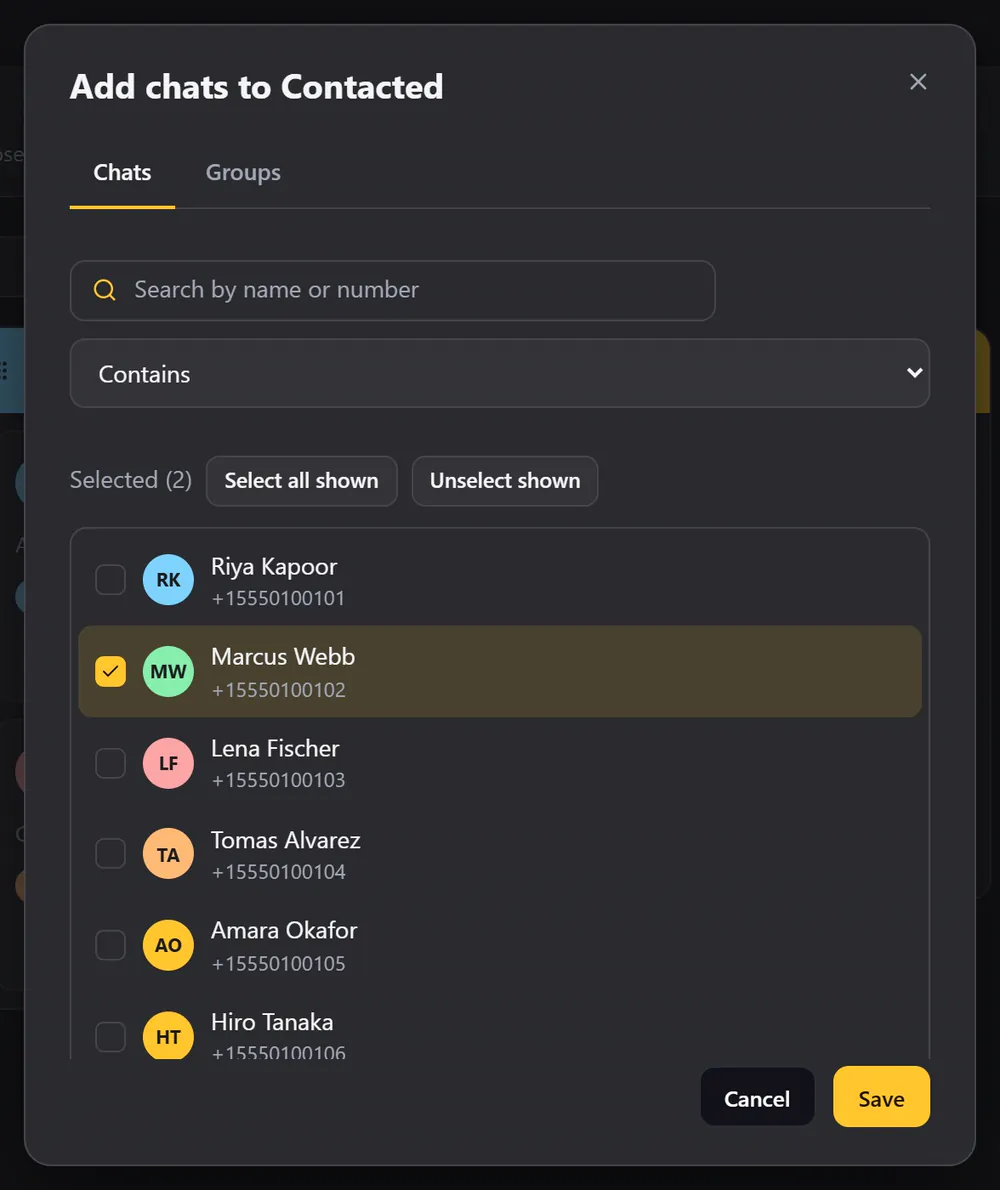
- Click Add board to make a new one. Give it a name, up to 20 characters, and pick a colour.
- Drag a board by its handle to reorder the columns.
- The arrow collapses a board, to save space.
Dashboards#
Dashboards are separate sets of boards, for different pipelines. A chat can be on a board in each dashboard. Use the dashboard button to switch between them.
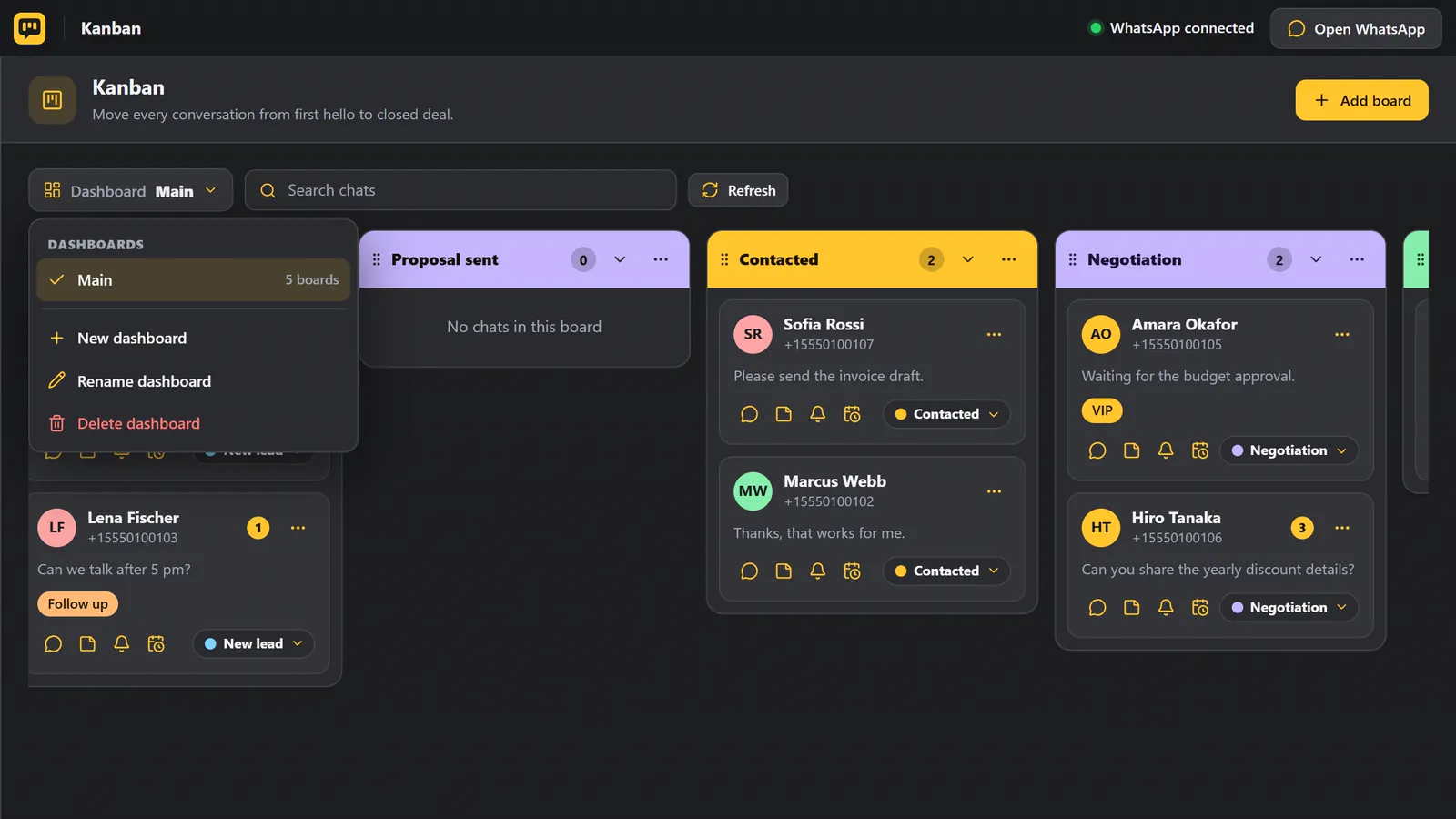
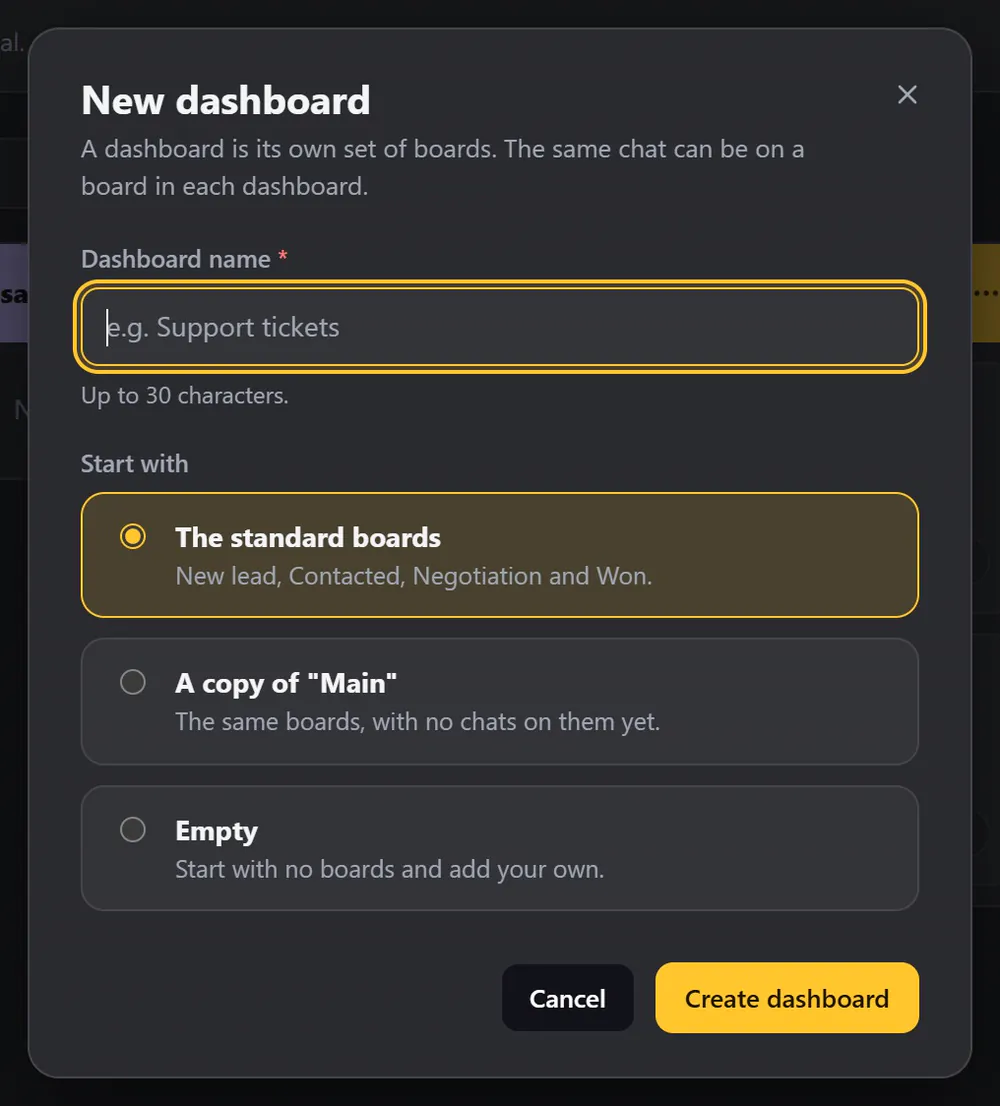
Choose New dashboard, and give it a name. Start with:
- The standard boards: New lead, Contacted, Negotiation and Won.
- A copy of "Main": the same boards, with no chats on them yet.
- Empty: no boards, and you add your own.
Search and refresh#
Use the search box to find a chat by name, number or message. The Refresh button reloads the Inbox.
Kanban and the rest of WAFlow#
- On a contact's Profile, the Board field for each dashboard moves the card too.
- Send Message and broadcasts can send to everyone on a board.
- Message bots and the AI Assistant can move cards for you.
- Export contacts can export the chats on a board.
- A Kanban stage changed event is available for webhooks.
Tips#
- Keep the boards few and clear, like New lead, Negotiation and Won.
- Use tags for the details.
- Add a reminder to every card, so no deal goes quiet.