Message Bot
Replies to your customers automatically, even when you are away. Choose the trigger, write the reply, and add actions such as tags and Kanban moves.
A Message Bot replies automatically when a message matches a rule you set, for example the words price or cost. It is the fourth icon in the WAFlow bar.
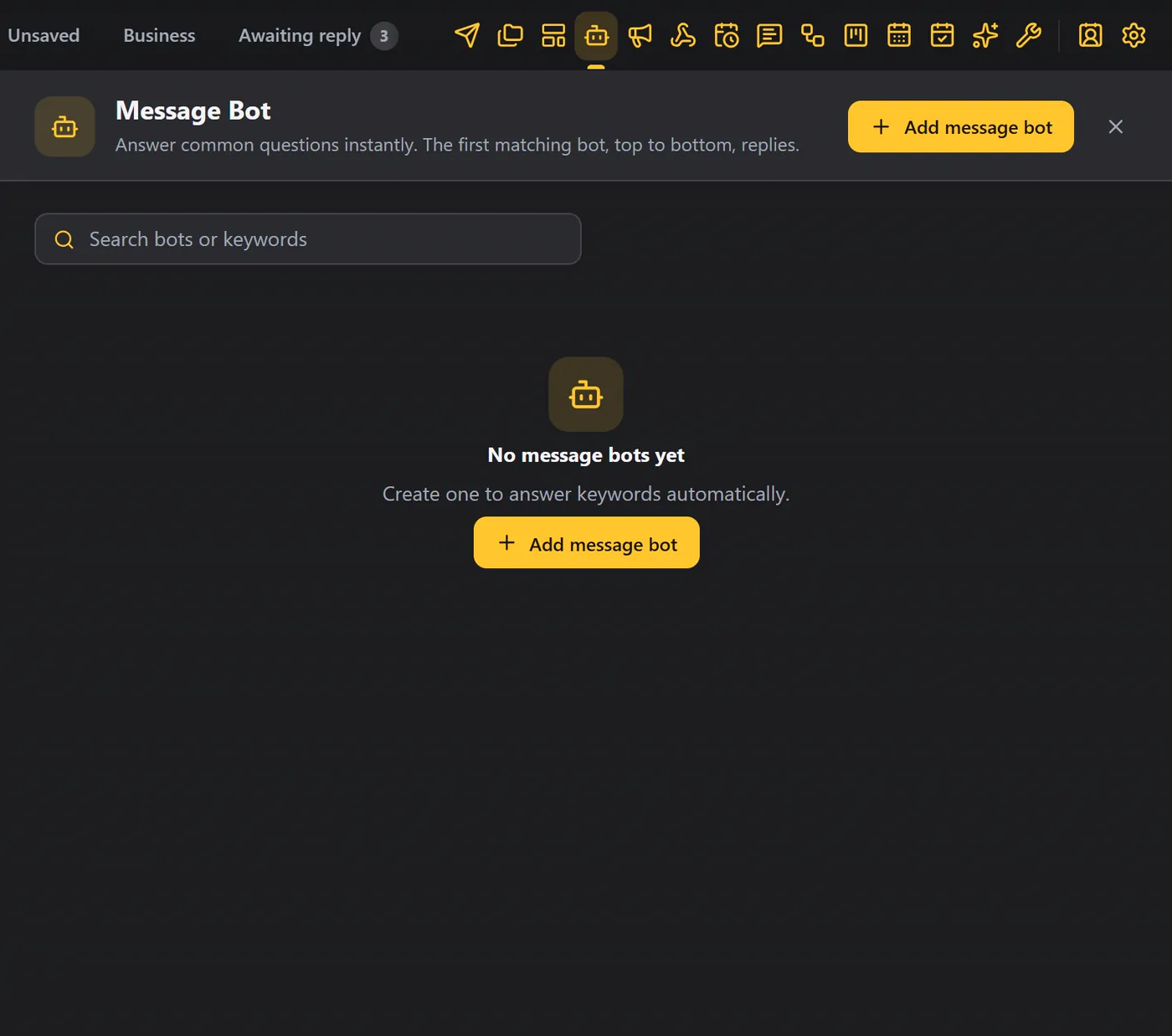
Click Add message bot. The editor has four parts: Target, Trigger, Reply and Post actions.
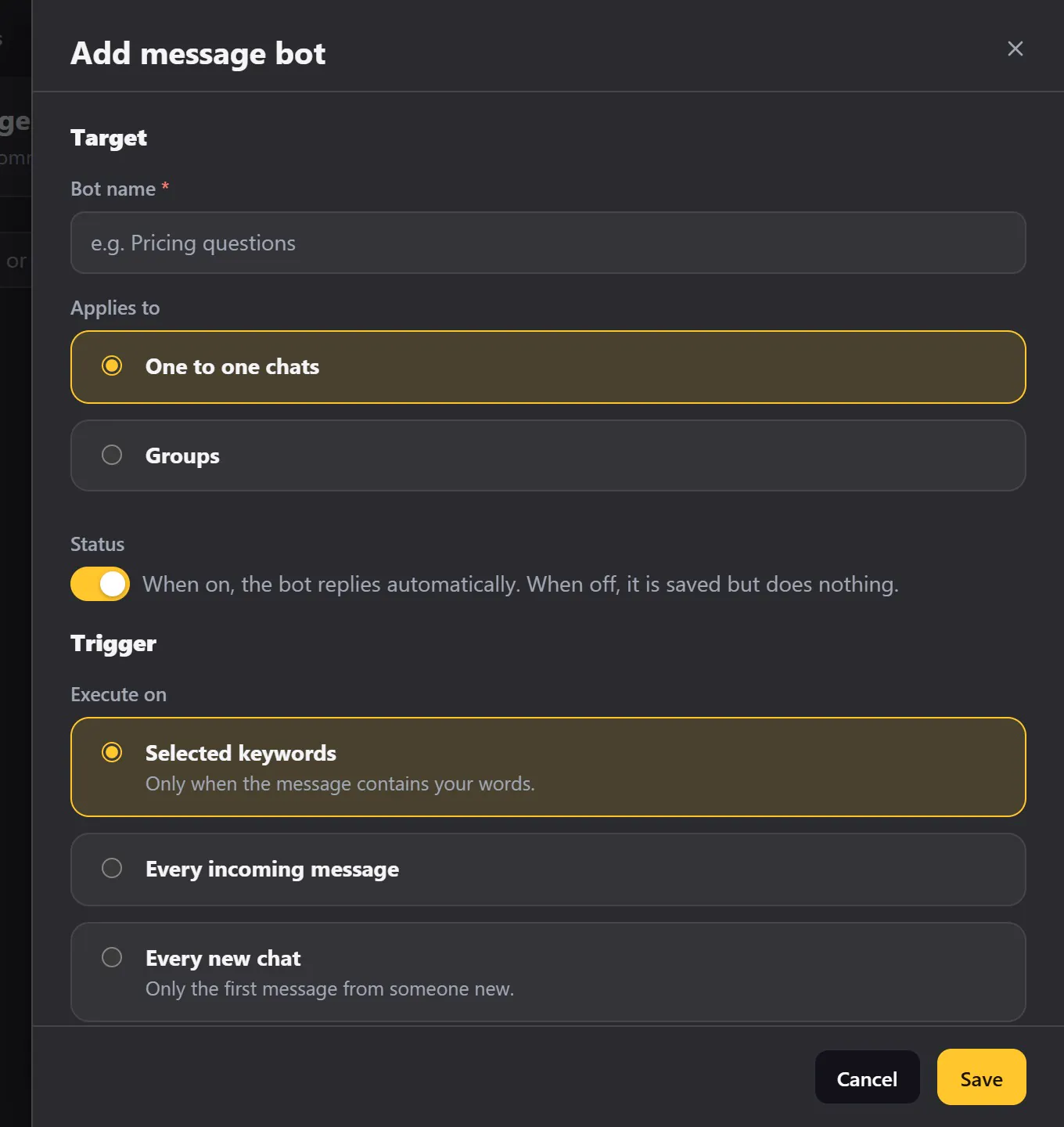
1. Target#
| Field | What it does |
|---|---|
| Bot name | For example Pricing questions. Only you see it. |
| Applies to | One to one chats, or Groups. For groups, choose all groups or only some of them. |
| Status | A switch. When it is off, the bot is saved but does nothing. |
2. Trigger#
Execute on decides when the bot replies:
- Selected keywords: only when the message contains your words.
- Every incoming message: on every message from a customer.
- Every new chat: only on the first message from someone new. Good for a friendly welcome.
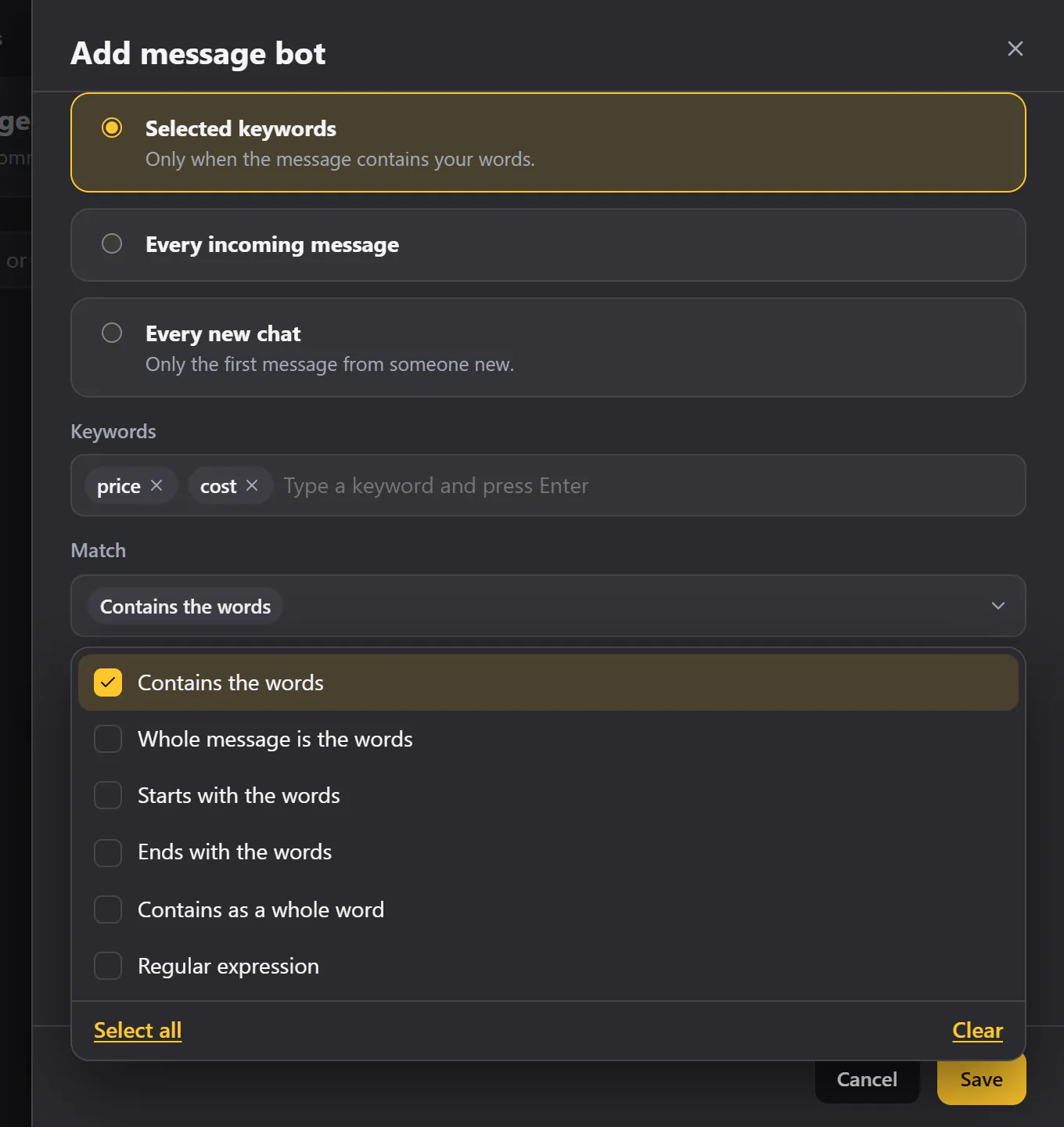
With selected keywords, type a word and press Enter. Add as many as you like, for example price and cost. If any one of them passes the test, the bot replies.
Match decides how the words are compared with the message:
| Match | The bot replies when the message… |
|---|---|
| Contains the words | Includes the words anywhere. |
| Whole message is the words | Is exactly the words. |
| Starts with the words | Begins with them. |
| Ends with the words | Ends with them. |
| Contains as a whole word | Includes the word on its own, not inside a longer word. |
| Regular expression | Matches a pattern. |
Other trigger settings:
- Case sensitive: turn it on if capital letters matter.
- Days: choose the days the bot runs. Leave them empty to run every day.
- Replies per chat: limits how often the bot answers the same person. 1 means only once. 0 means no limit.
3. Reply#
Write your message. It works just like Send Message, with bold, emoji, variables, images and more.
- Click Add message to send more than one. Each message can wait a few seconds after the last.
- Or choose Use a canned response to reuse a reply you already saved.
- Three options sit below: Show typing before replying, Mark the conversation as read, and Don't reply while that chat is open on screen.
- The wait time is a random pause between your minimum and maximum seconds. It makes the reply feel human.
4. Post actions#
Post actions run after the bot has replied. You can:
| Action | What it does |
|---|---|
| Add or remove CRM tags | Tag the chat, for example Hot lead. |
| Add the chat to a custom tab, or remove it | Files the chat in a custom tab. |
| Move it on the Kanban board, or remove it | Moves the card. See Kanban. |
| Add the contact to a group, or remove it | You must be an admin of the group. |
| Add or remove a WhatsApp label | Labels are available on WhatsApp Business. |
| Archive or block the chat | |
| Send to these webhooks | Calls one of your webhooks. |
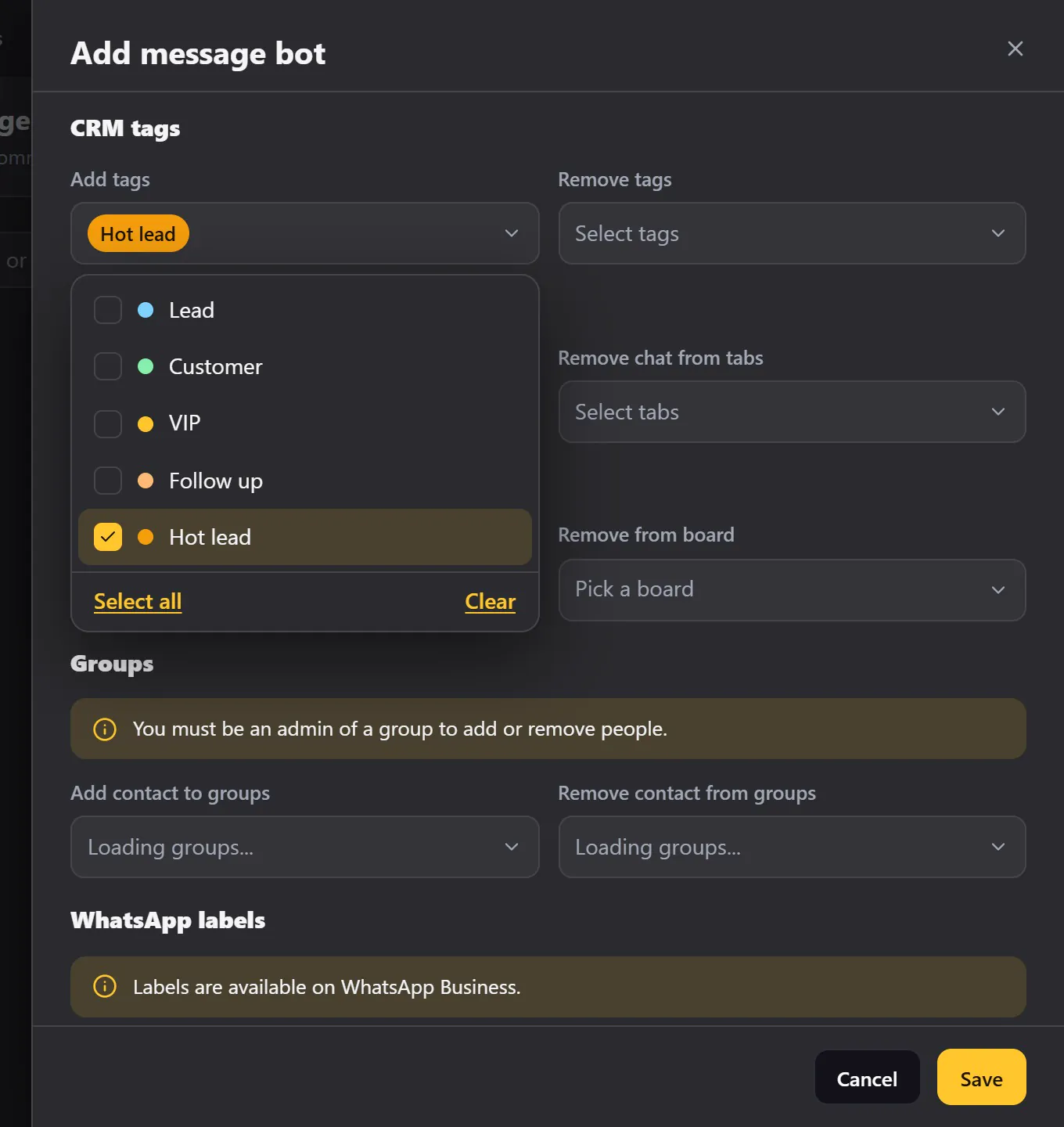
For example, tag every price question as a Hot lead.
Click Save. Your bot is ready, and it is active.
See it work#
Each bot is a card that shows its name, who it applies to, how it is triggered and its keywords.
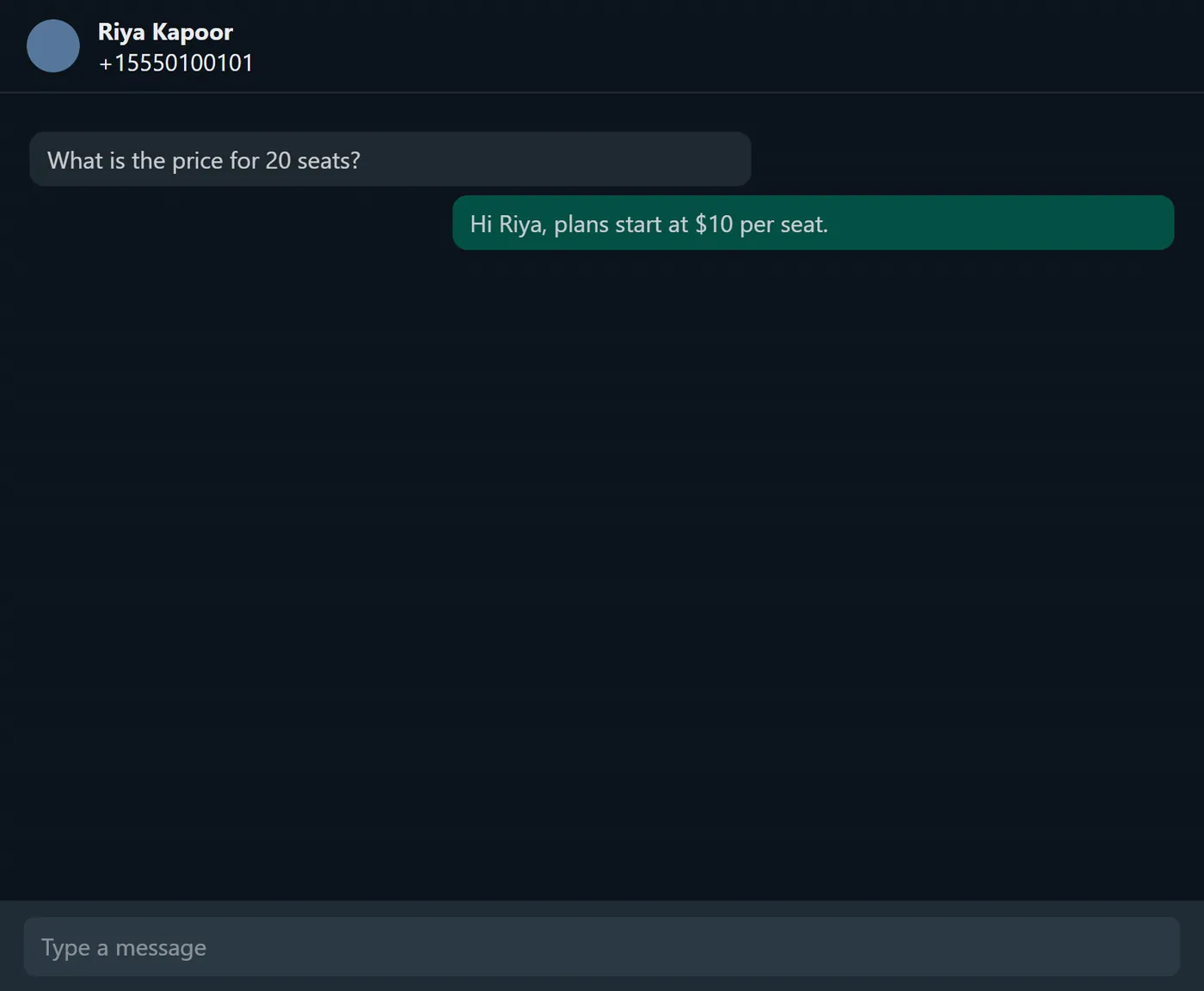
A customer writes What is the price for 20 seats? The bot replies straight away, with the customer's name filled in. The post actions ran too, so the customer now has the Hot lead tag.
Manage your bots#
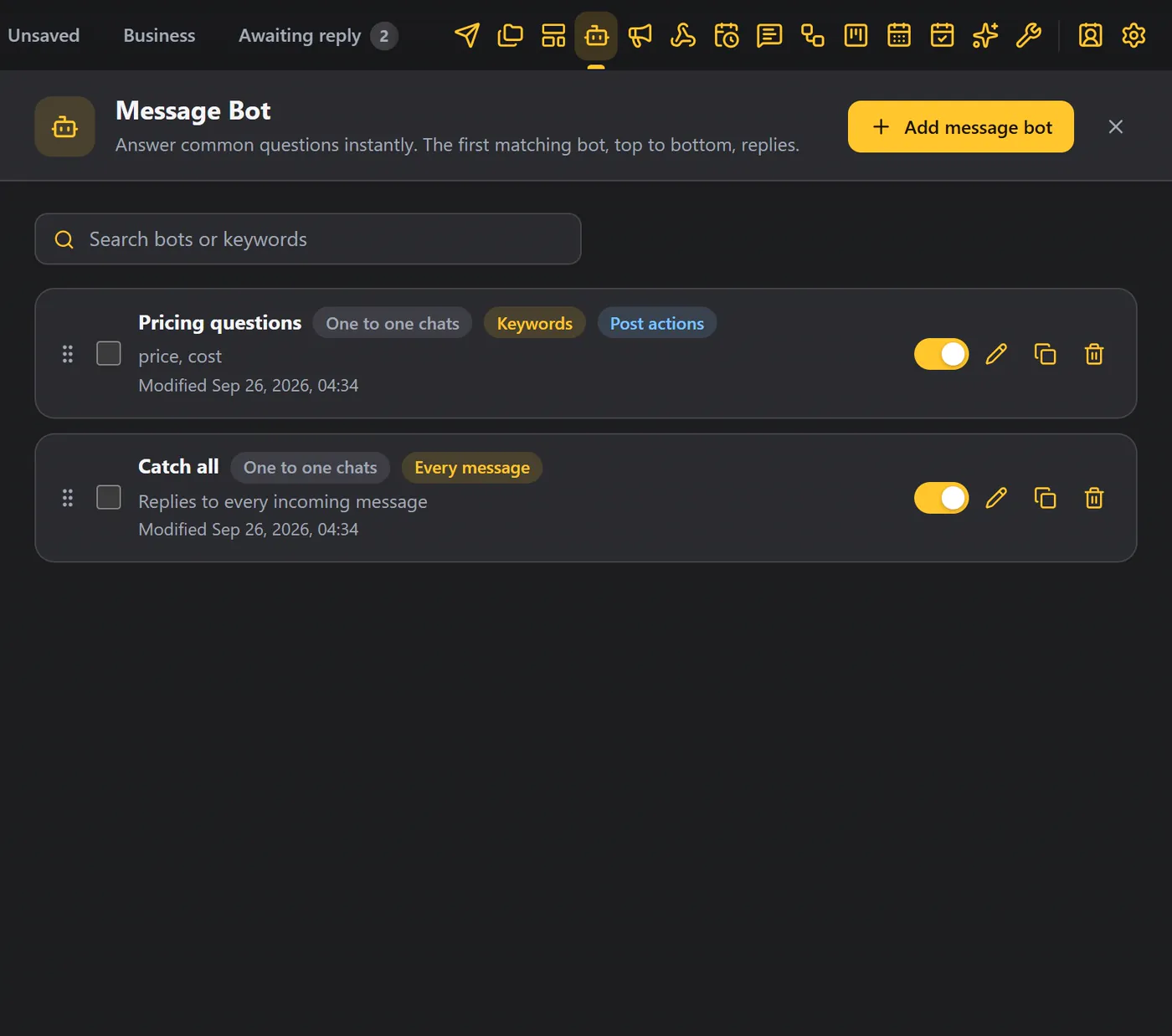
- The Active switch turns a bot off without deleting it.
- The pencil edits a bot. The copy icon makes a copy, switched off. The bin deletes it, after you confirm.
- Use the search box to find a bot by its name, or by a keyword.
- Tick several boxes to select bots and delete them all at once.
The order matters#
If several bots match a message, only the first one, from the top, replies. Drag a bot by its handle to change its priority. The bot at the top is checked first.
Tips#
- Put your most specific bot at the top.
- Add a short wait so replies feel human.
- Use Every new chat for a friendly welcome.
- Look at Settings → Module settings → Recent activity to see when a bot replied.
- For multi-step conversations, use Chatbot Flows. To answer from your own knowledge, use the AI Assistant.
- When you need a pause for every bot, use Pause all automations in the Settings menu.