Blur
Hide names, photos and messages on your screen so you can share it or work in public. Choose what to blur, reveal on hover, and pick the strength.
Blur settings hides private information on your screen, so you can share it or work in public. It is a tile in Free Tools.
Only WhatsApp Web is blurred, and only on your screen. Nothing is uploaded and no message is changed. The people you chat with see nothing different.
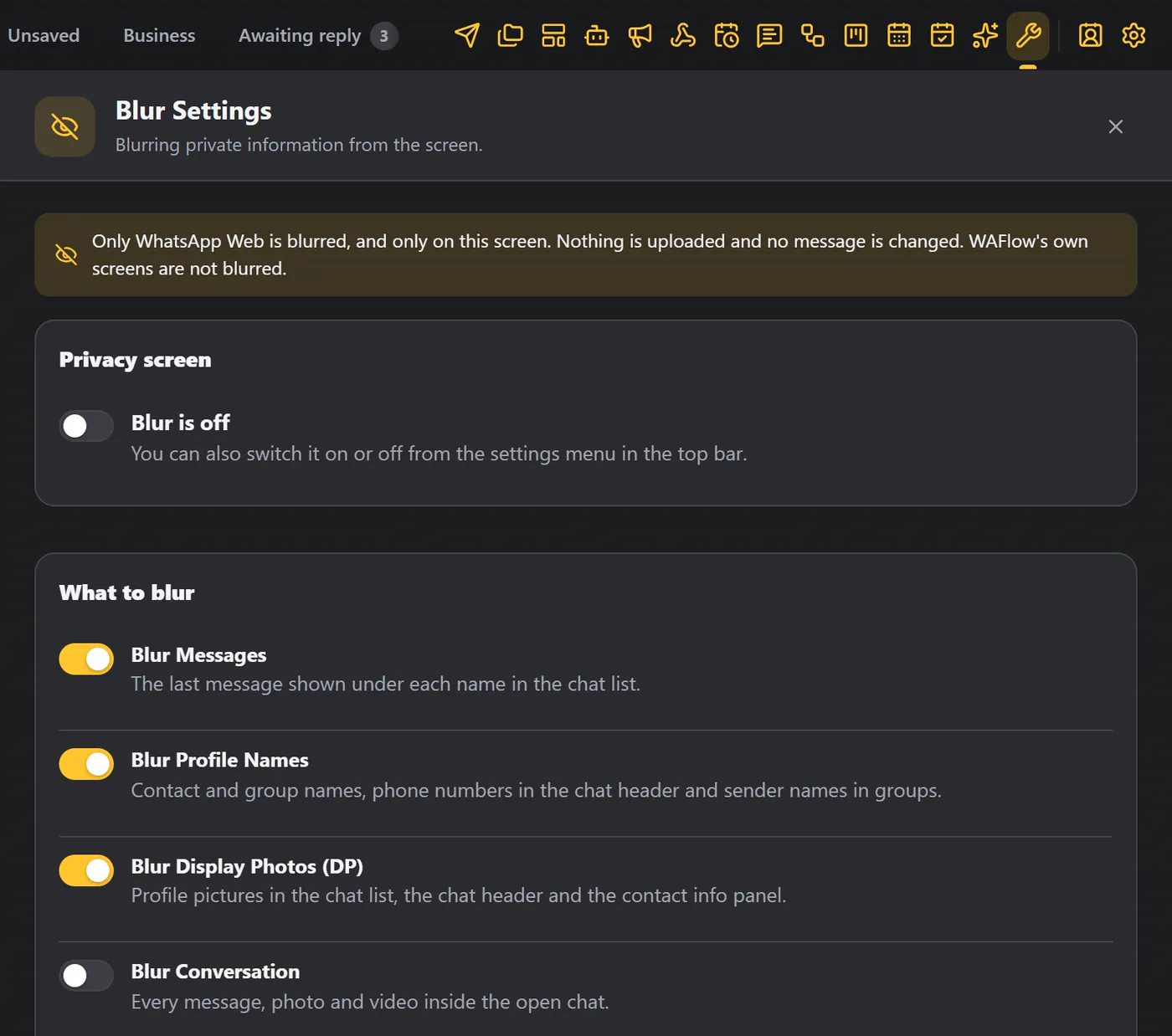
The main switch#
Blur is off / Blur is on is the main switch, called Hide private information. You can also switch it from the Settings menu (Turn blur on), without opening Free Tools.
What to blur#
| Option | Blurs |
|---|---|
| Blur Messages | The last message shown under each name in the chat list. |
| Blur Profile Names | Contact and group names, phone numbers in the chat header, and sender names in groups. |
| Blur Display Photos (DP) | Profile pictures in the chat list, in the chat header and in the contact info panel. |
| Blur Conversation | Every message, photo and video inside the open chat. |
Conversation blur and hover#
With Blur Conversation on, turn on Show conversation on hover, and you can point at a message to read it. It blurs again when you move away. That way you can read a single message while everyone else on the call sees a blur.
Blur everything#
Blur everything covers the whole chat list and the whole chat. Use it if a part is missed after a WhatsApp update.
Strength#
Choose the strength: light, medium or strong. The preview shows the result.
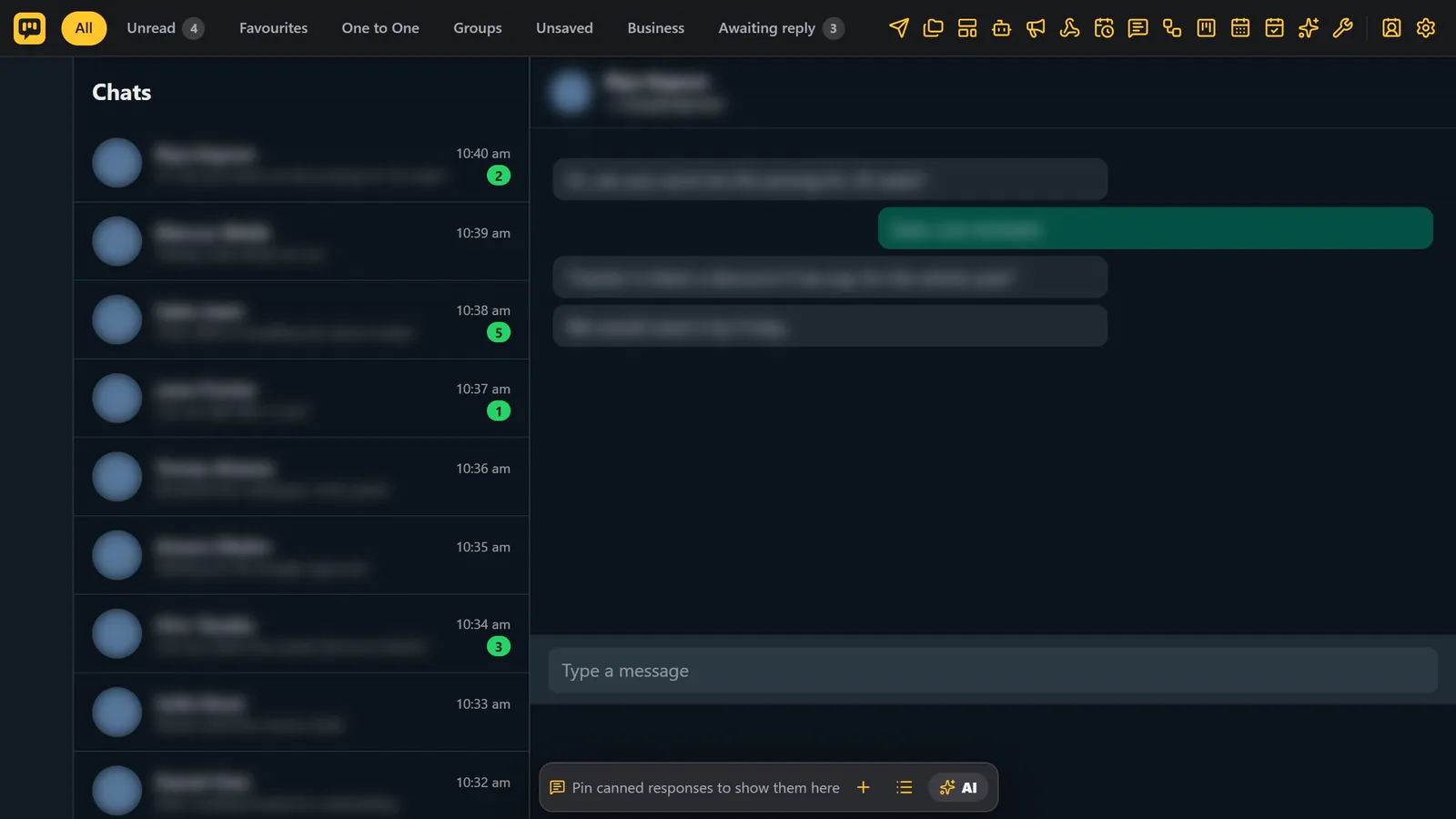
The result in WhatsApp#
Names, messages and photos are blurred. Point at a message, and it shows.
Good to know#
- Blur is off without a license, along with the shortcut bar.
- WhatsApp updates sometimes change its page. If a part of the screen is not blurred after an update, turn on Blur everything.
- Turn blur on before you start sharing your screen.