Canned Responses
Your best replies, saved once and sent with a click or a slash shortcut. Includes pinned reply buttons and funnels that send several messages in a row.
Canned Responses are your best replies, saved once and sent with a click or a slash shortcut. It is the eighth icon in the WAFlow bar.
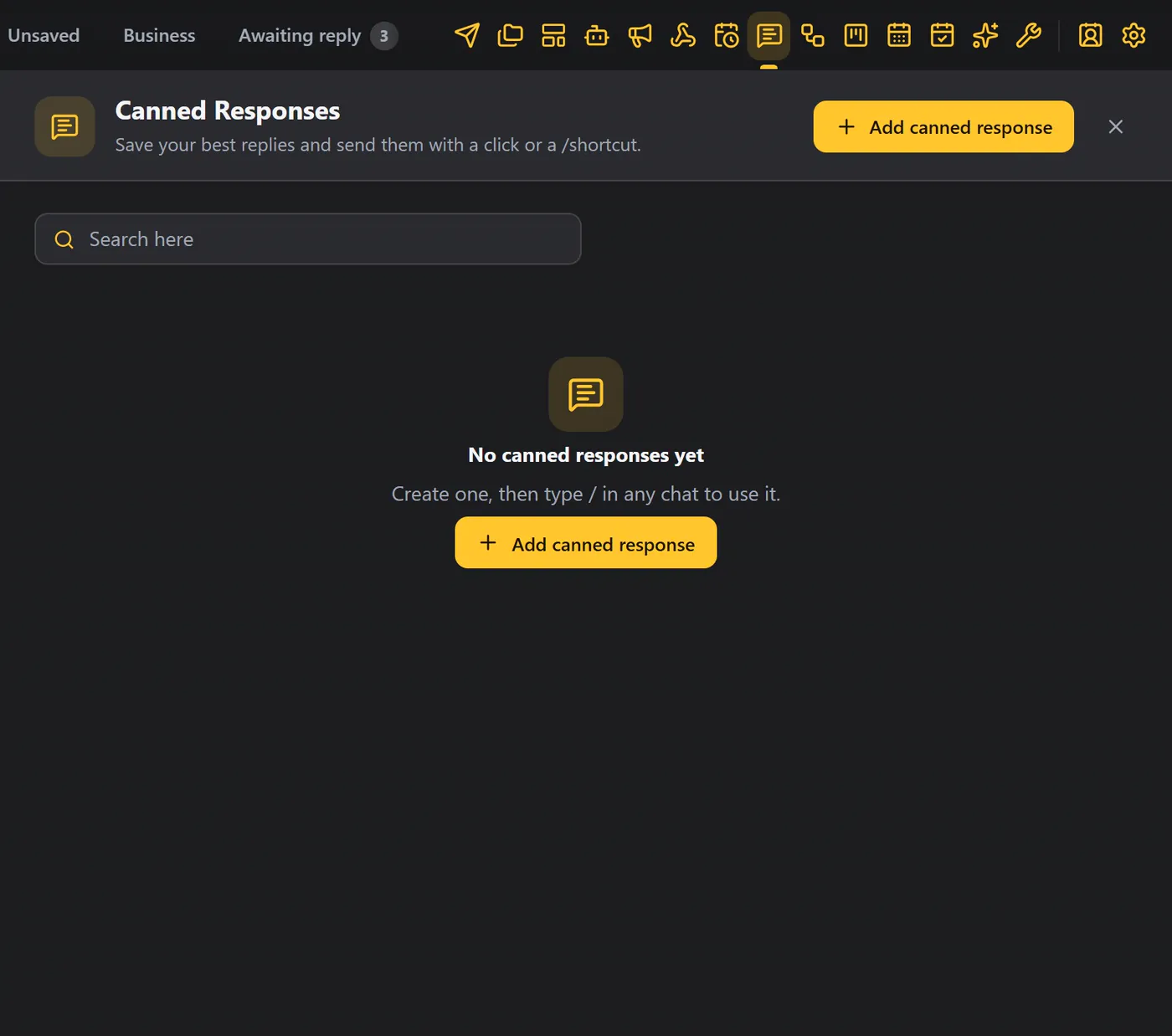
Add a canned response#
Click Add canned response.
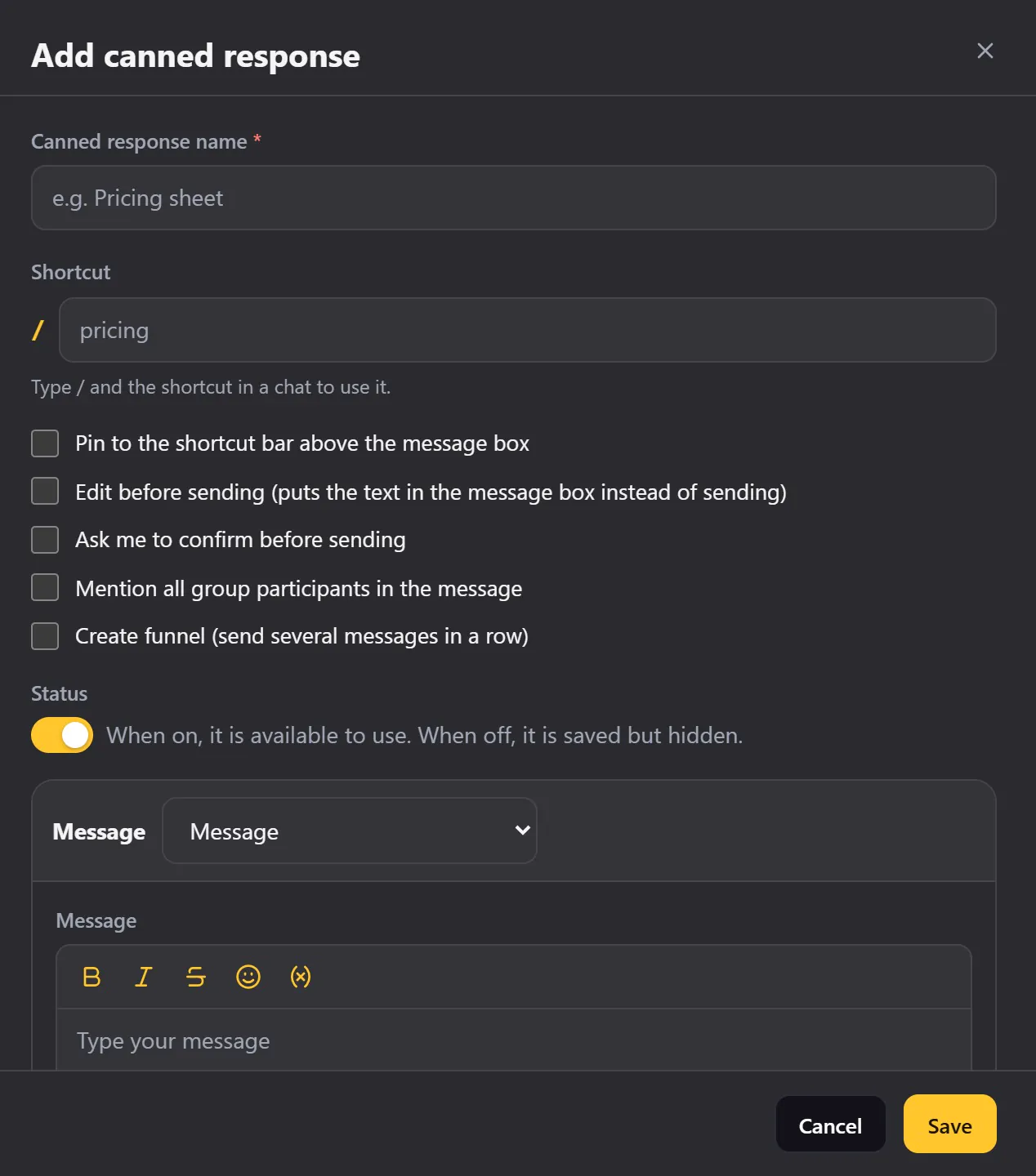
| Field | What it does |
|---|---|
| Canned response name | A name for you, such as Pricing sheet. Your customers never see it. |
| Shortcut | What you type after a slash to use it in any chat. With pricing, typing /pricing finds it. |
| Pin to the shortcut bar above the message box | Shows it as a button above your message box in every chat. |
| Edit before sending | Puts the text in your message box instead of sending it, so you can change it first. |
| Ask me to confirm before sending | Shows a question before anything is sent. |
| Mention all group participants in the message | For groups. |
| Create funnel | Lets you send several messages in a row. Each message waits a few seconds after the last. |
| Status | A switch. When it is off, the response is saved but hidden. |
Then write the message. It works just like everywhere else, with bold, variables, images, documents and more, and you can start from a template.
Post actions run after it is sent. For example, add a tag to the chat, or move it on the Kanban board.
Click Save.
Manage your responses#
Each response is a card, with its name, its shortcut, and a preview of the message.
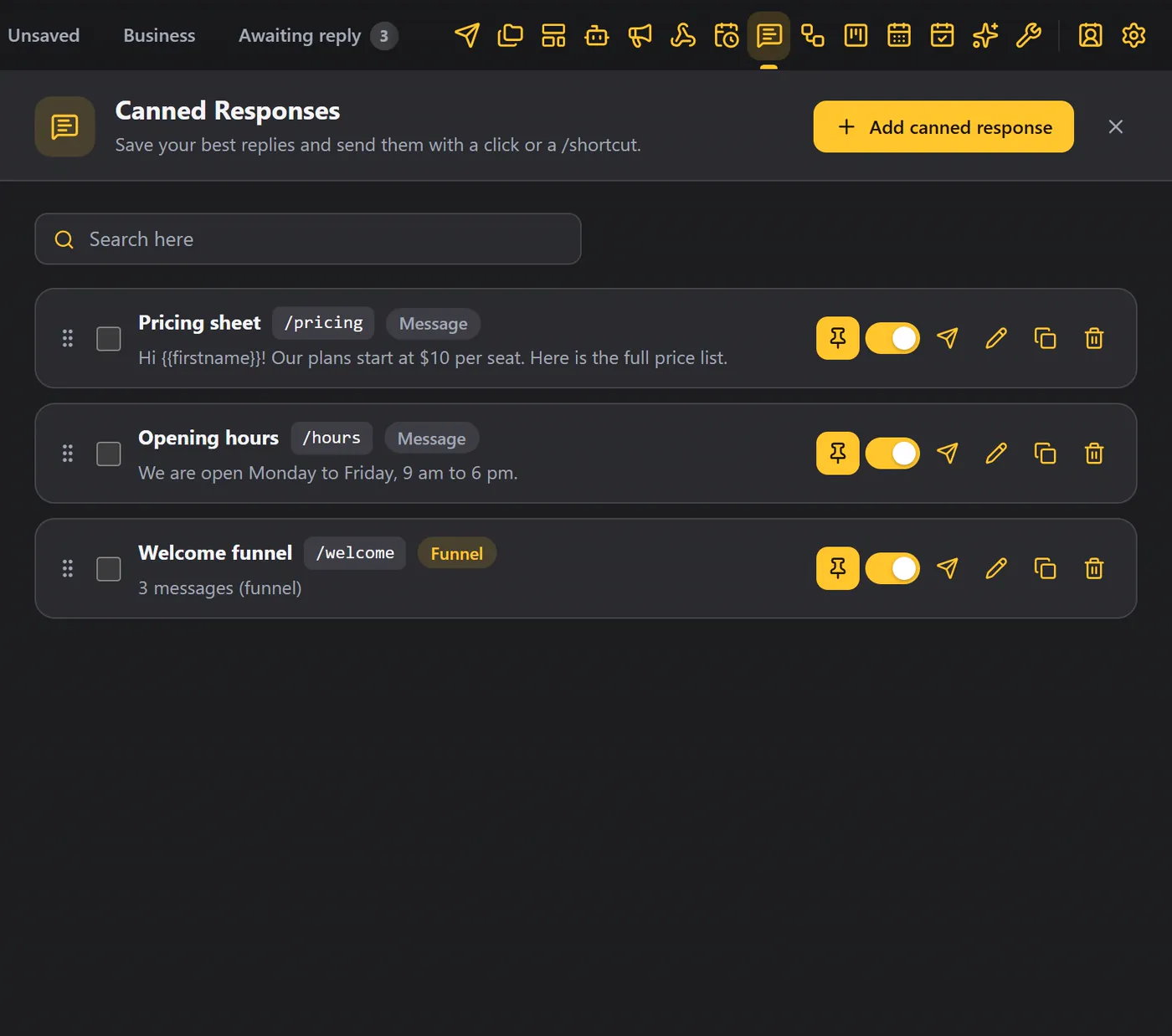
- The pin icon adds it to, or removes it from, the shortcut bar.
- The switch turns it on or off.
- The send icon sends it to the chat you have open.
- The pencil edits it, the copy icon duplicates it, and the bin deletes it, after you confirm.
- Drag a card by its handle to change the order. The pinned buttons follow the same order.
- Use search to find one, and tick several cards to delete them together.
Use them in a chat#
The shortcut bar#
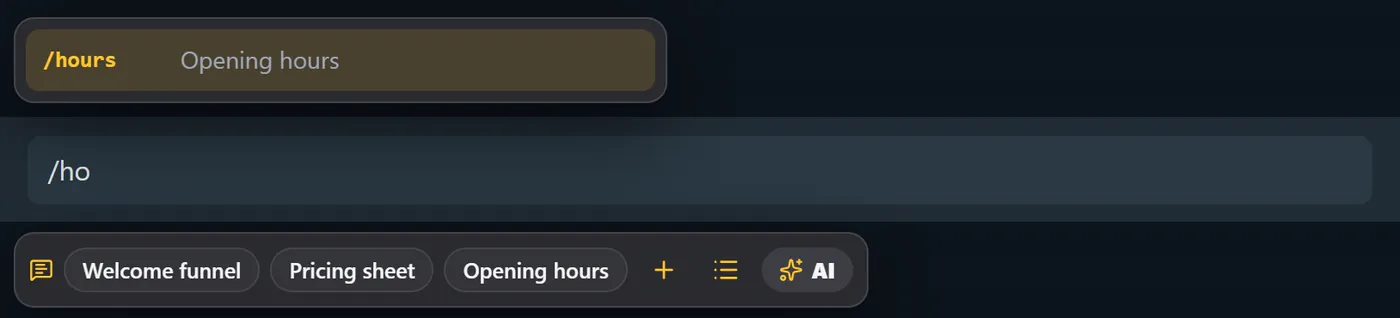
Open a chat and look under the message box. Your pinned responses are buttons in the shortcut bar. Click one to send it.

Hold Shift while you click to put the text in the message box instead, so you can change it and send it yourself.
Show the shortcut bar is a switch in Module settings, under Interface. It puts your canned responses and slash shortcuts above the message box.
Slash shortcuts#
Type a / in the message box. A list of your responses appears. Keep typing the shortcut to narrow it down. The arrow keys move up and down the list, and Enter or a click sends the response.
Funnels#
A funnel sends its messages one after another, with a short wait between them. Click it, and watch the progress in the corner (Sending 2/3). You can cancel it from there.

Tips#
- Keep shortcuts short and easy to remember.
- Pin the three you use most.
- Use a funnel for a full welcome, or an order confirmation.
- Canned responses are included in your backups.