Send Message
Write one message and send it to a list of numbers, groups, a tab, a Kanban board or everyone with a tag, at a safe speed, now or later.
Send Message is the first icon in the bar (the paper plane). It lets you write one message and send it to as many people as you like, without leaving WhatsApp Web. The panel has three parts: Who gets it, Your message and When to send.
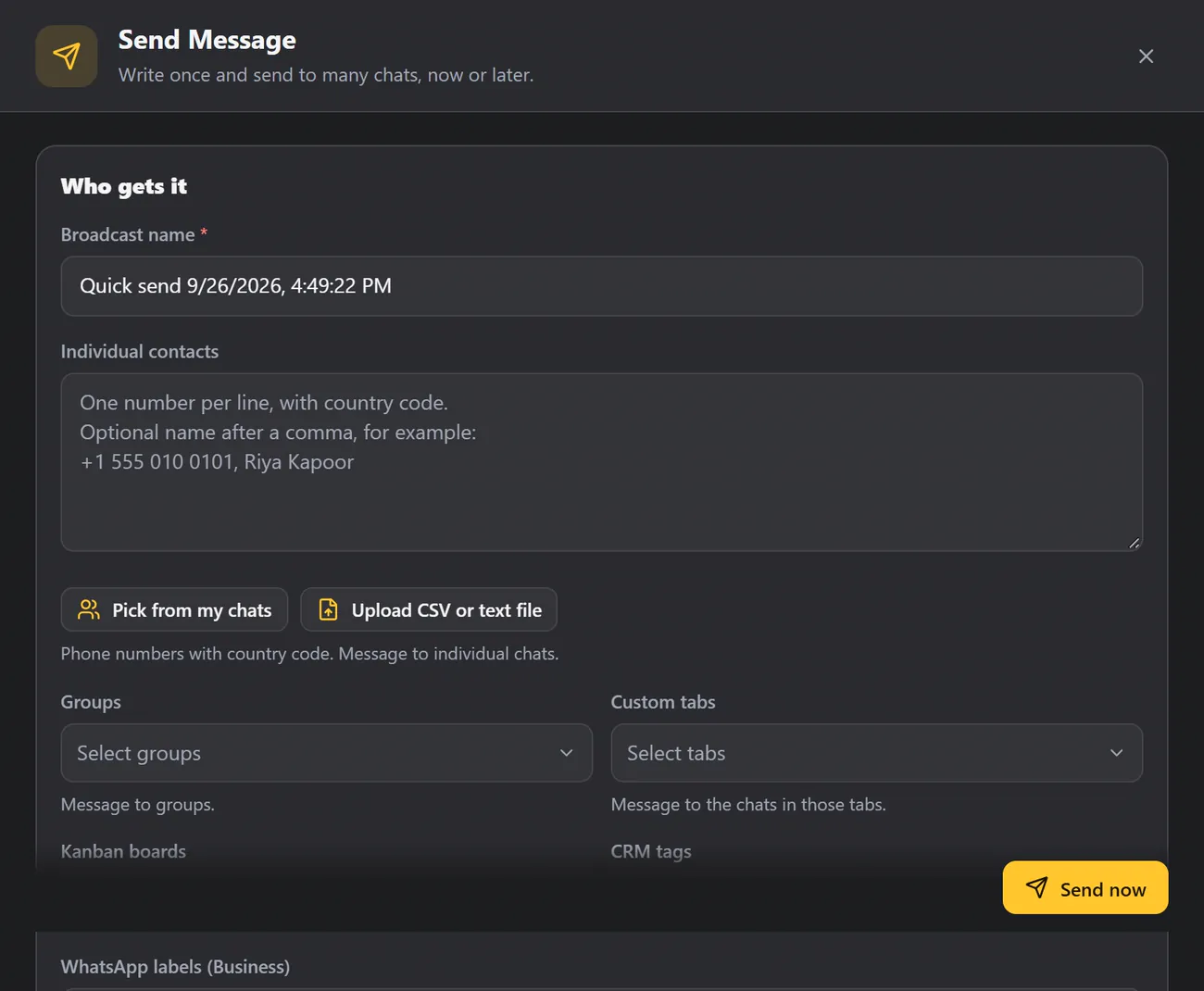
Send Message is the quick way to send now. If you want a wizard with a preview, a saved draft, actions after sending and a History tab, use Schedule Broadcast. Both use the same engine and the same safety settings.
Who gets it#
Give your send a name. It is only for you, so you can find it later in the reports. WAFlow fills in a name with the date and time; type over it if you like.
Type or paste numbers#
In Individual contacts, type or paste phone numbers, one per line, with the country code. After a comma you can add a name, which WAFlow uses for the {{firstname}} variable.
+1 555 010 0101, Riya Kapoor
+1 555 010 0102, Marcus Webb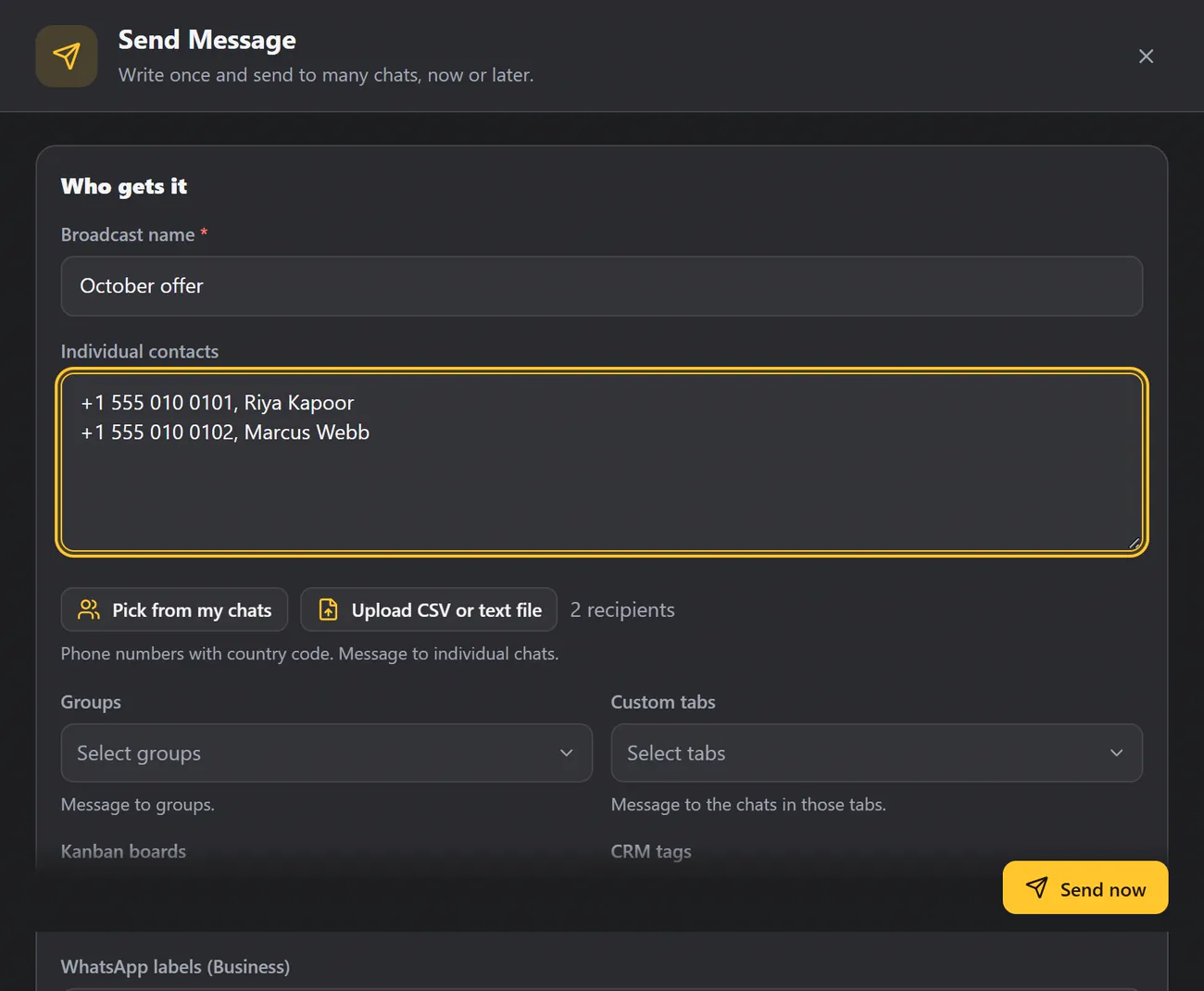
Pick from your chats#
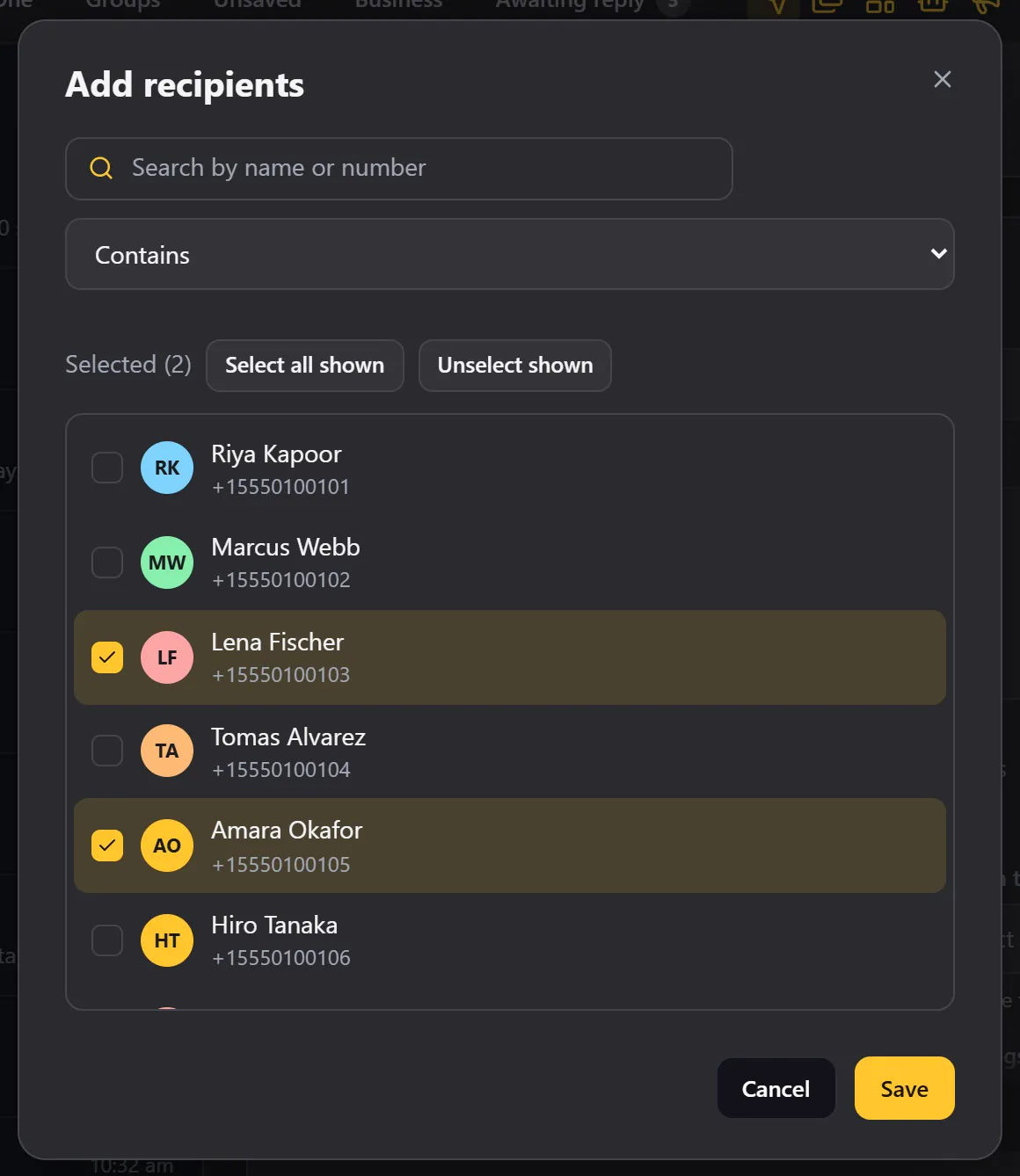
Click Pick from my chats, tick the people you already talk to, and click Save. Use the search box to find someone by name or number, and Select all shown to tick everybody in the list.
Upload a file#
Have a list in a spreadsheet? Save it as a CSV or text file, click Upload CSV or text file, and the numbers are added for you. A header row such as phone,name is fine.
Reach a whole group of people#
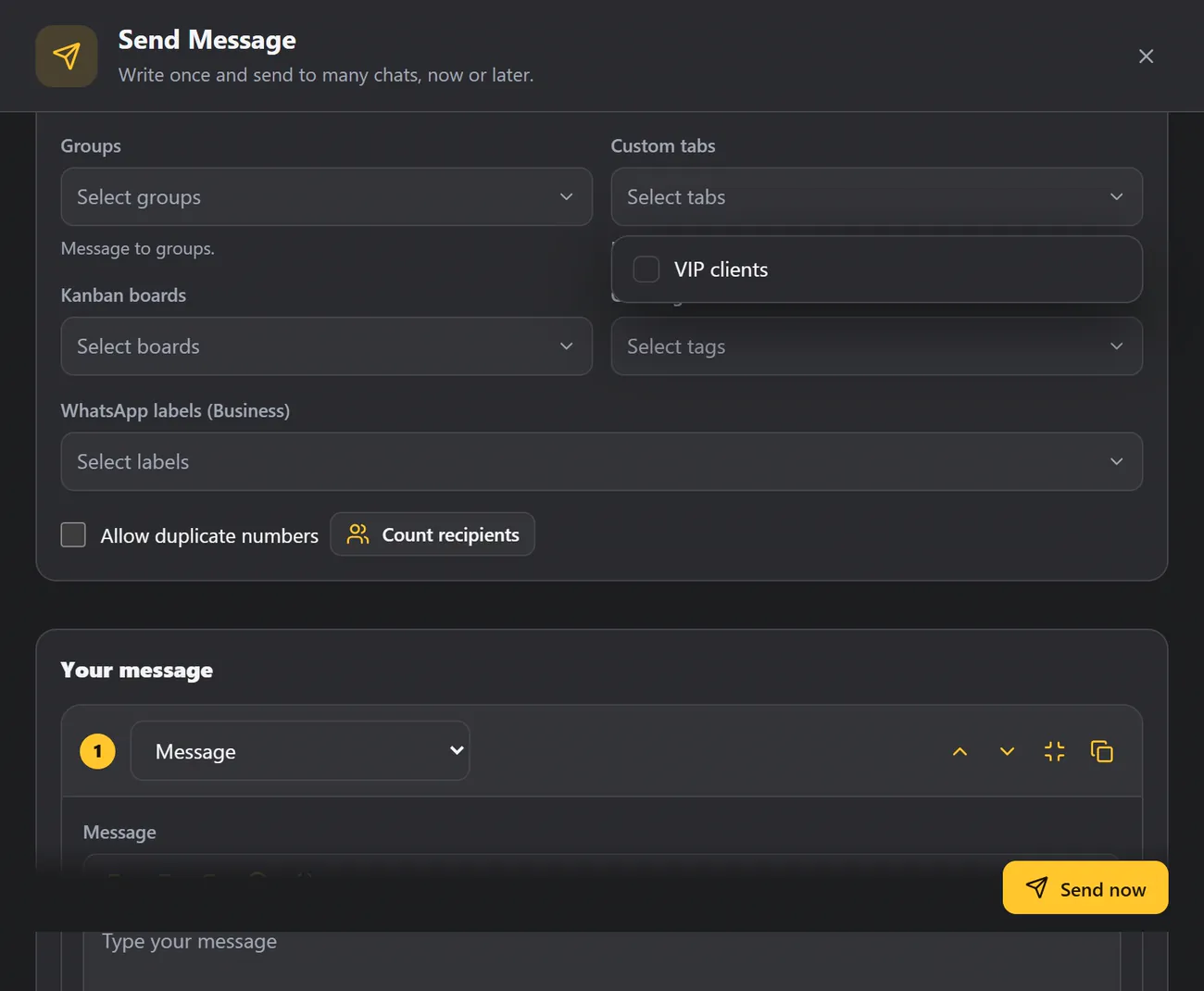
Scroll down for more ways to reach many people at once. You can combine them with the numbers above.
| Choose | Sends to |
|---|---|
| Groups | The WhatsApp groups you pick. |
| Custom tabs | Everyone in a custom tab. |
| Kanban boards | Everyone whose card is on a board. See Kanban. |
| CRM tags | Everyone with a tag, for example VIP. |
| WhatsApp labels | Everyone with a WhatsApp Business label. Labels are available on WhatsApp Business. |
Duplicates and the count#
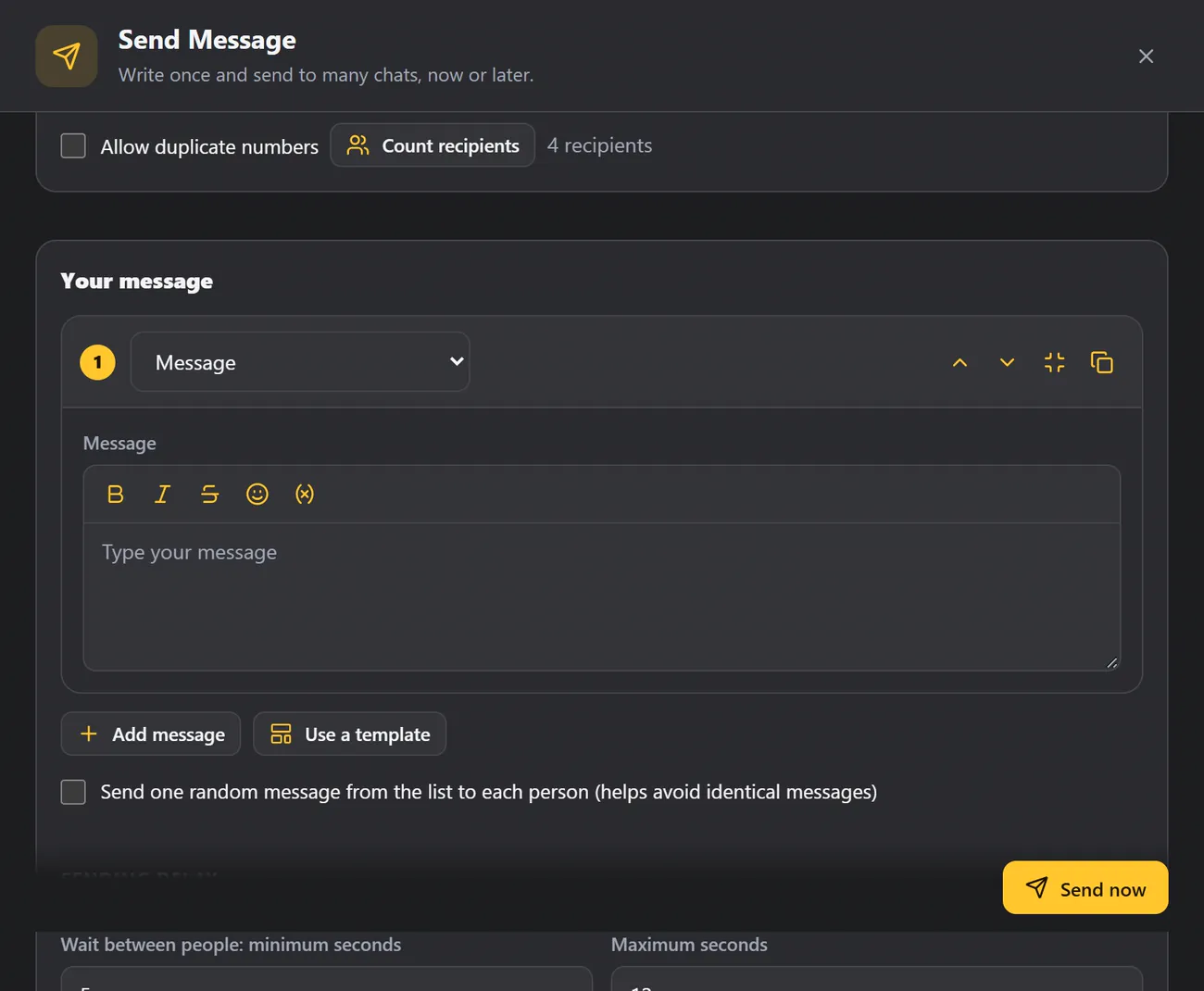
Allow duplicate numbers is off by default, so nobody gets the message twice even if they appear in two lists. Turn it on only if a person should receive it twice. Click Count recipients to see how many people will receive the message.
Your message#
The type is Message by default, which is plain text. The list also offers:
| Type | What it sends |
|---|---|
| Message | Text only. |
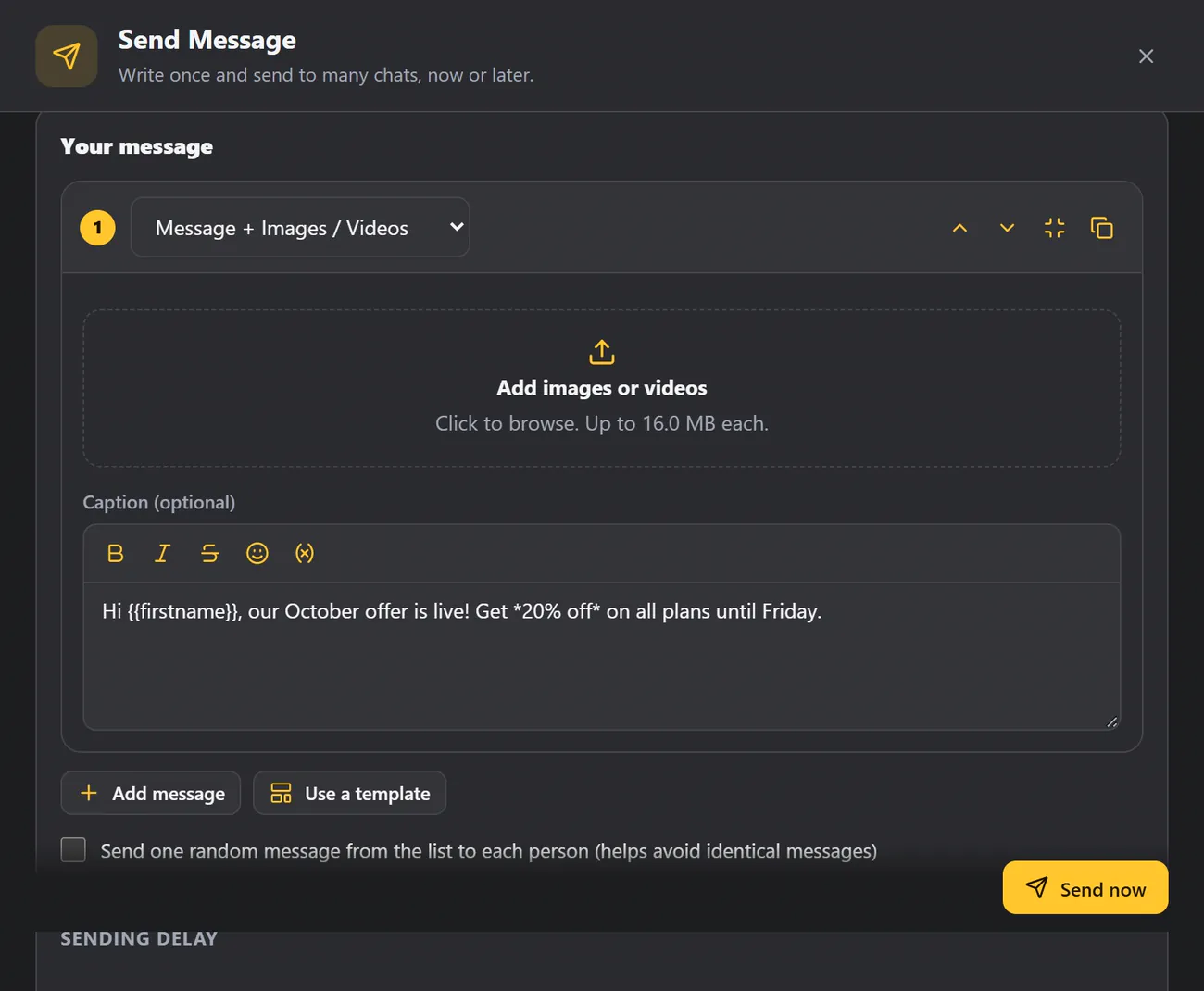
| Message + Images / Videos | Pictures or videos with an optional caption. Up to 16 MB each. |
| Message + Documents | Files such as a PDF price list, with a caption. |
| Message + Audio | An audio file. |
| Message + Contacts | One or more contact cards. |
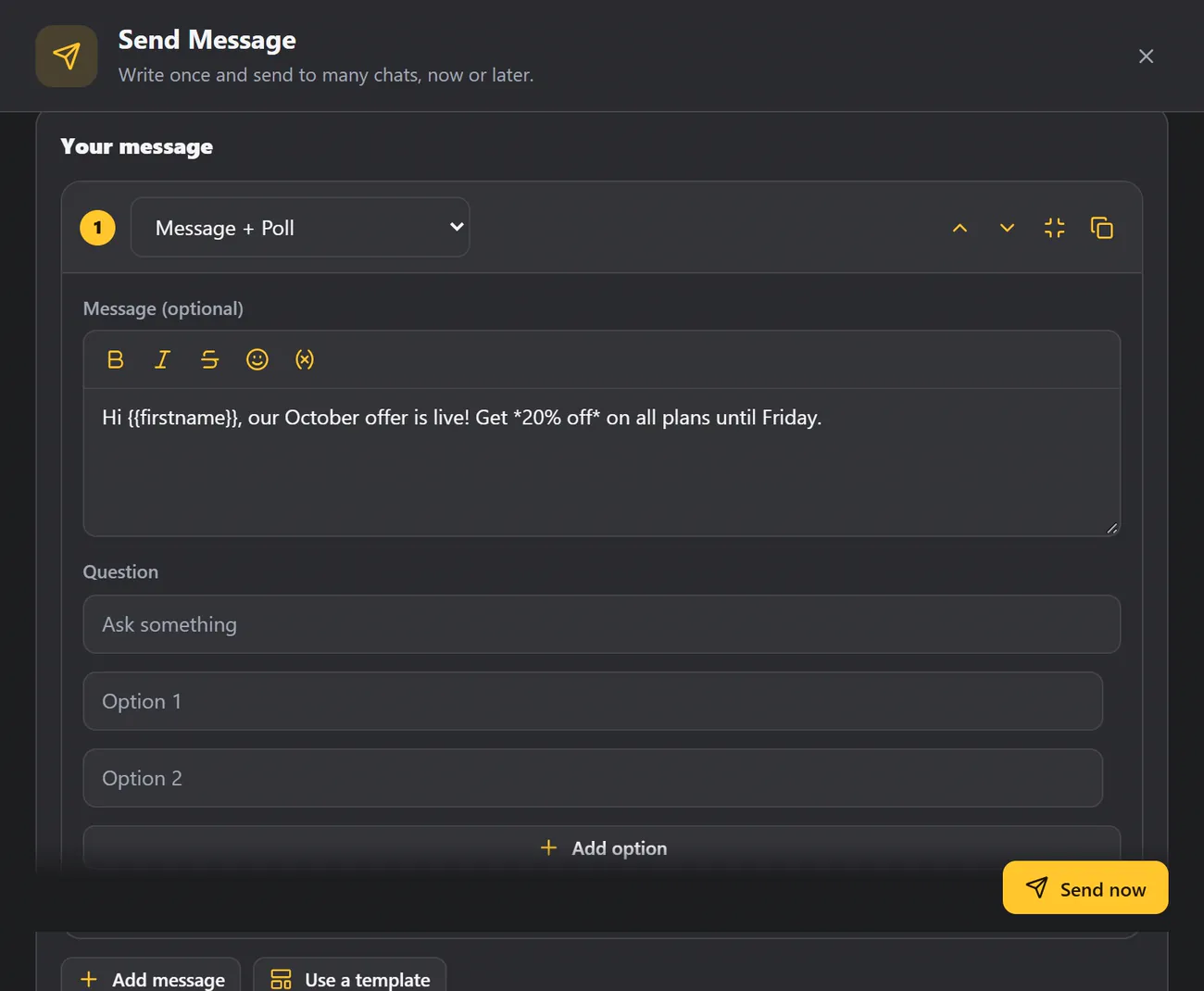
| Message + Poll | A question with options. |
| Message + List | A list the customer opens and chooses from. |
| Message + Buttons | Reply buttons. See the note on buttons below. |
Write it#
Type your message in the box. Above the box are the formatting tools: B for bold, I for italic, S for strikethrough, the smiley for emoji, and the variable button. To greet each person by name, click the variable button and choose First name. Every person then receives their own name.
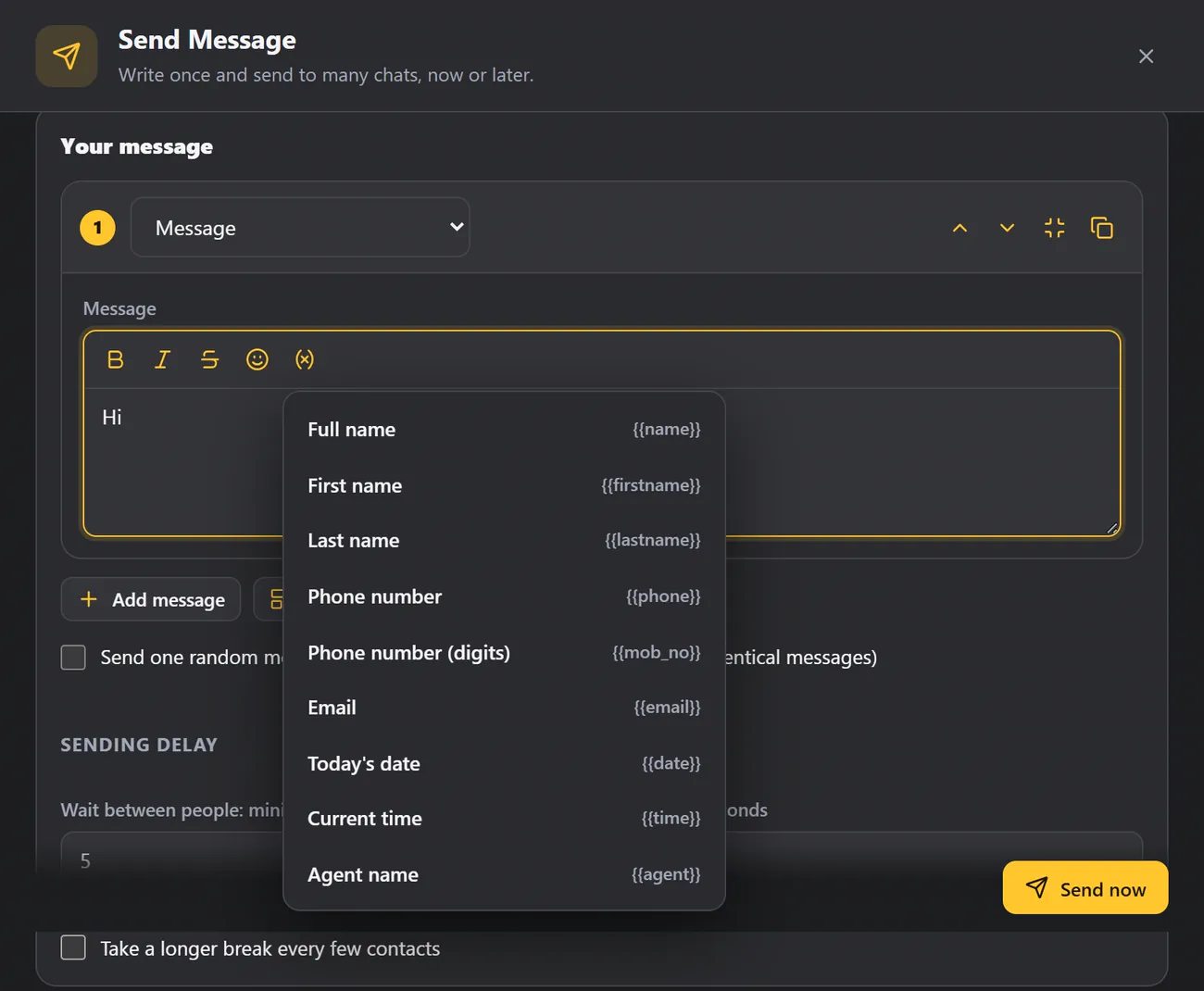
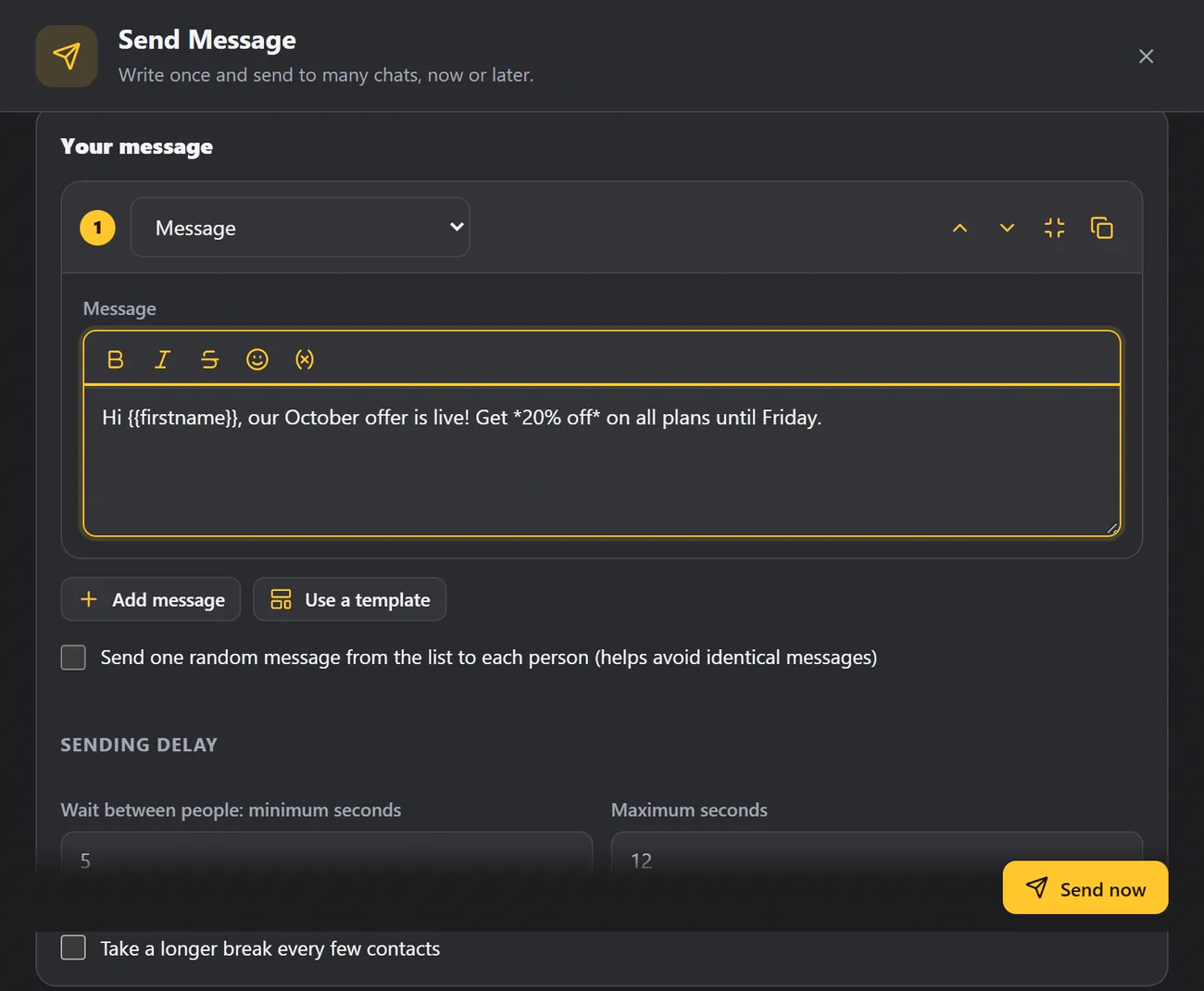
Read more about the tools in Variables and formatting.
More than one message#
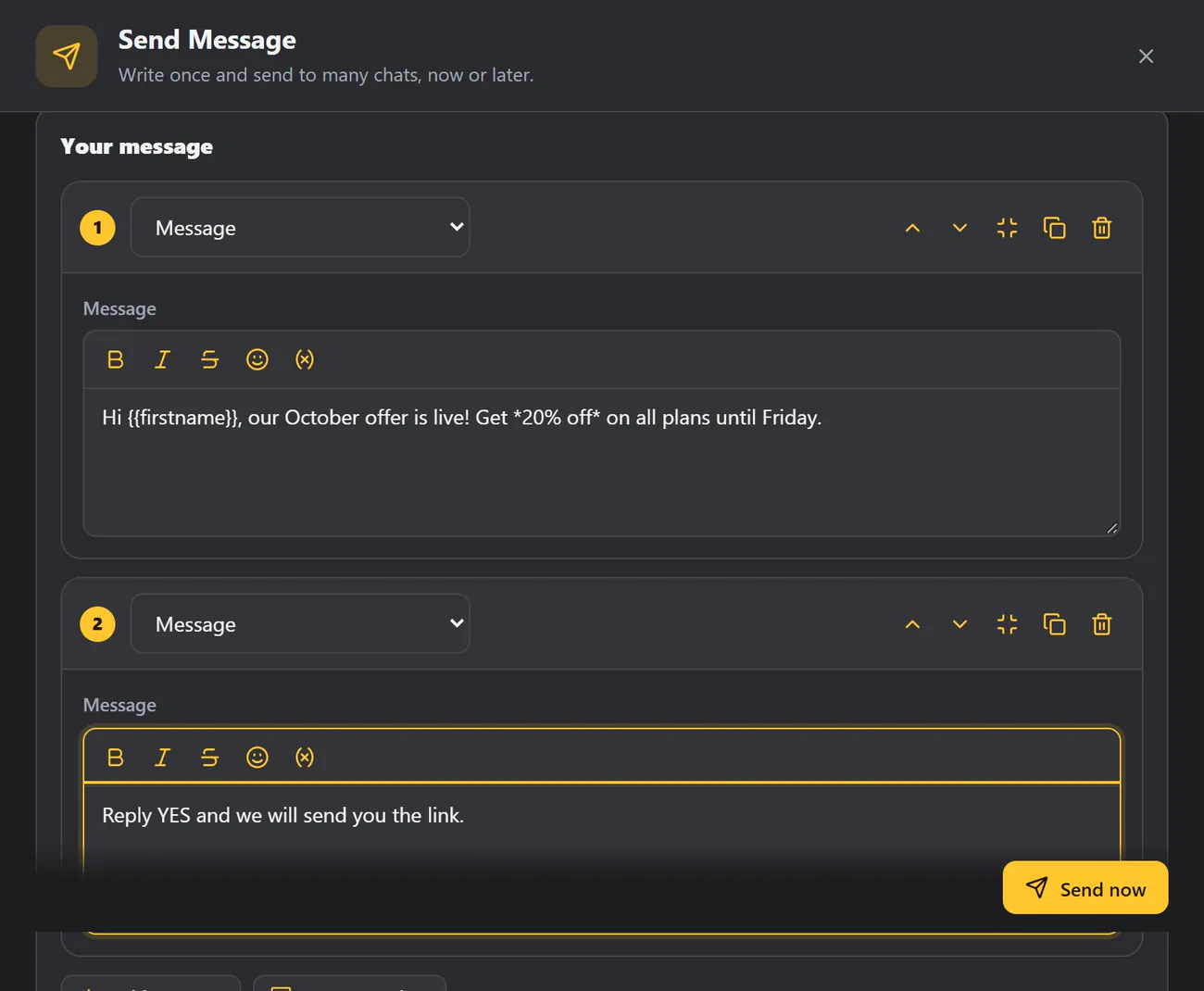
Click Add message to send several messages one after another. Tick Send one random message from the list to each person and each person gets just one of them, which helps avoid a wall of identical messages. Or click Use a template to start from a saved template.
The Buttons type can be sent as a list the customer opens, as a numbered text menu, or as real WhatsApp buttons. You choose in Module settings. Real buttons are experimental, and WhatsApp Web often cannot deliver them, so test on your own number first.
Sending delay#
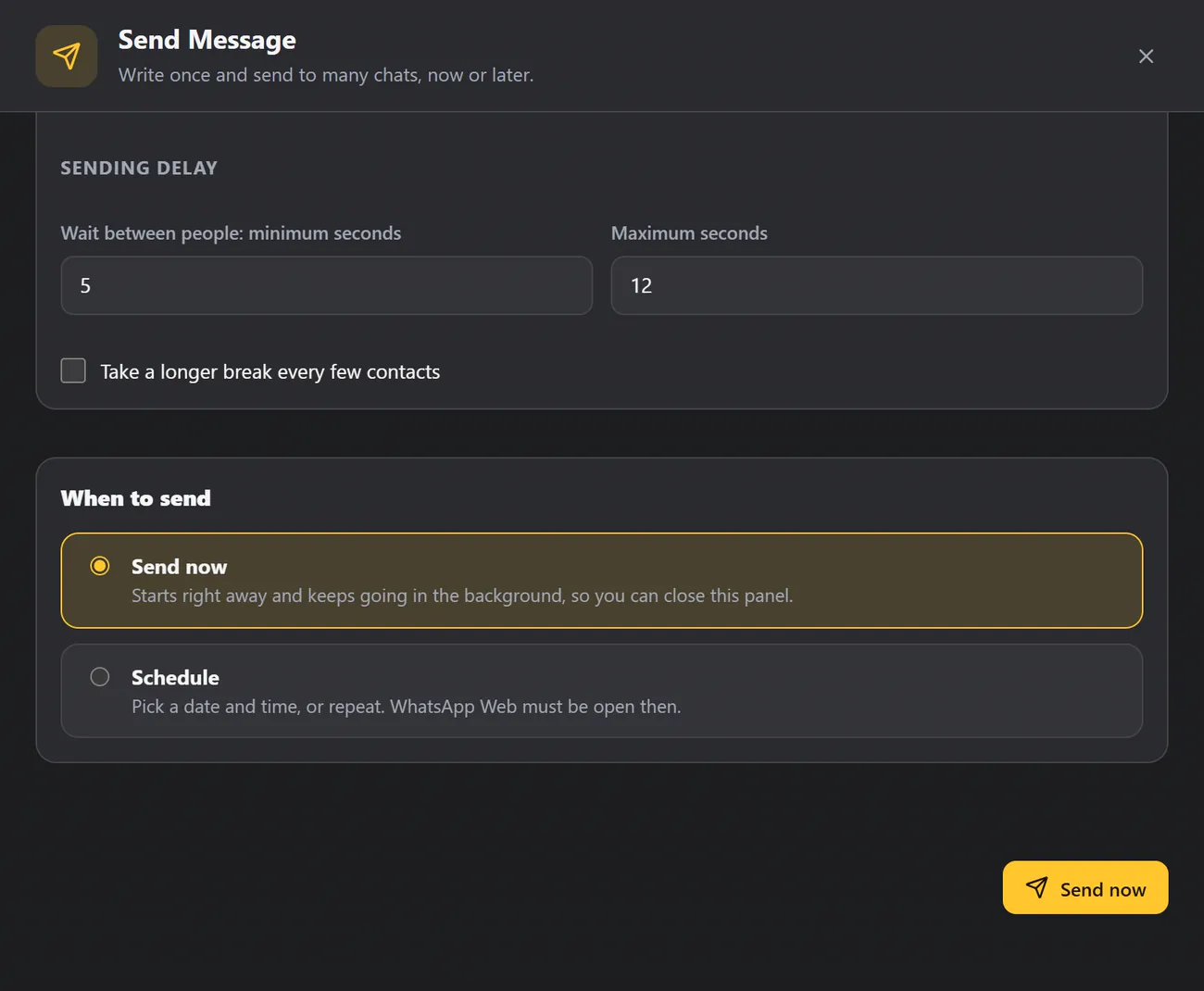
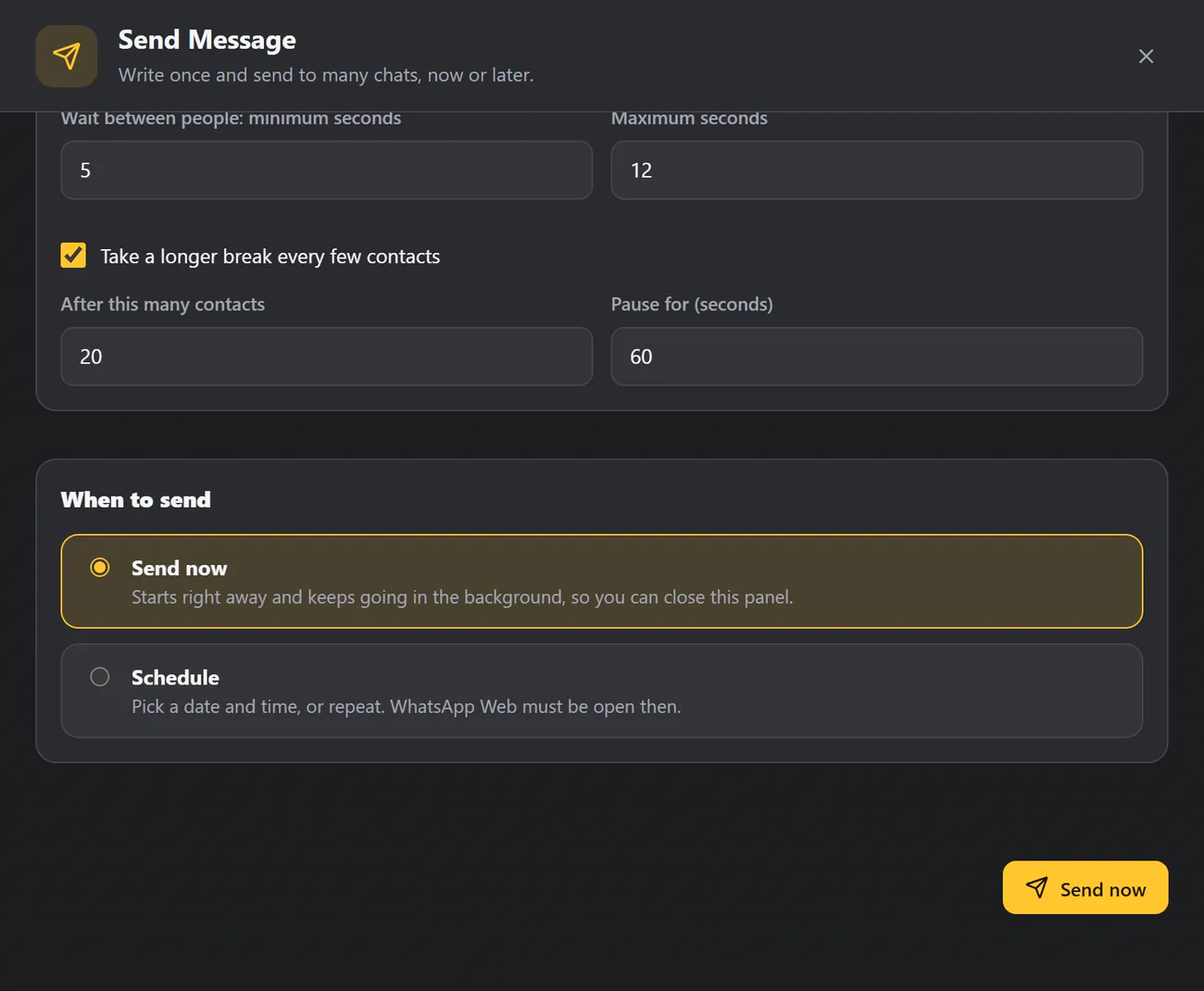
WAFlow waits a random number of seconds between people, somewhere between your minimum and maximum. The default is 5 to 12 seconds. We suggest at least five seconds, which keeps sending natural and safe. If you set less than that, WAFlow warns you that it is fast.
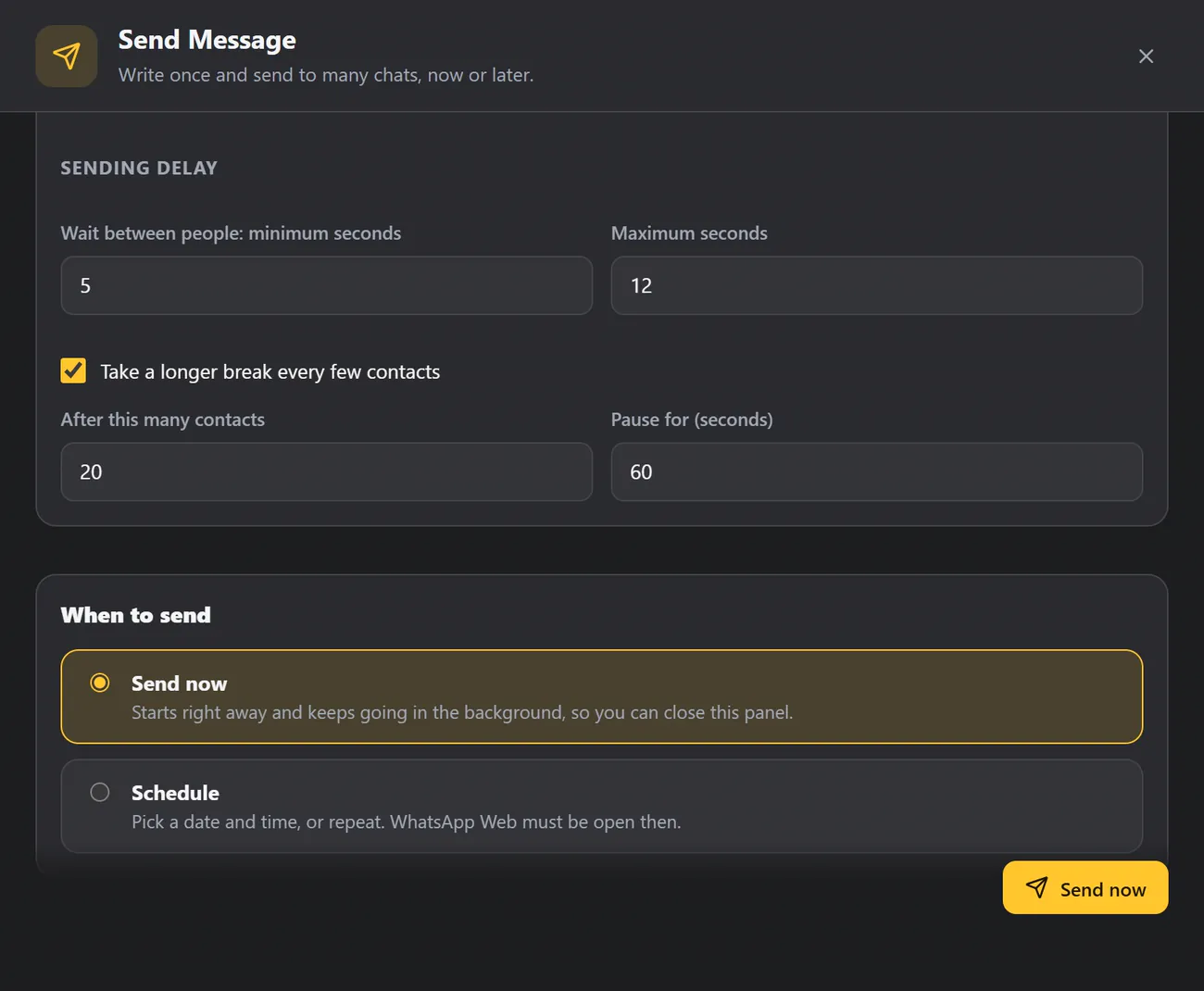
For big lists, tick Take a longer break every few contacts, and choose how many contacts to send before pausing, and for how many seconds. For example, pause for 60 seconds after every 20 contacts.
When to send#
- Send now starts right away and keeps going in the background, so you can carry on working.
- Schedule lets you pick a date and time. WhatsApp Web must be open at that time.
When you choose Schedule, you can send once, or repeat it every few minutes, hours, days, weeks or months. That is ideal for regular reminders.
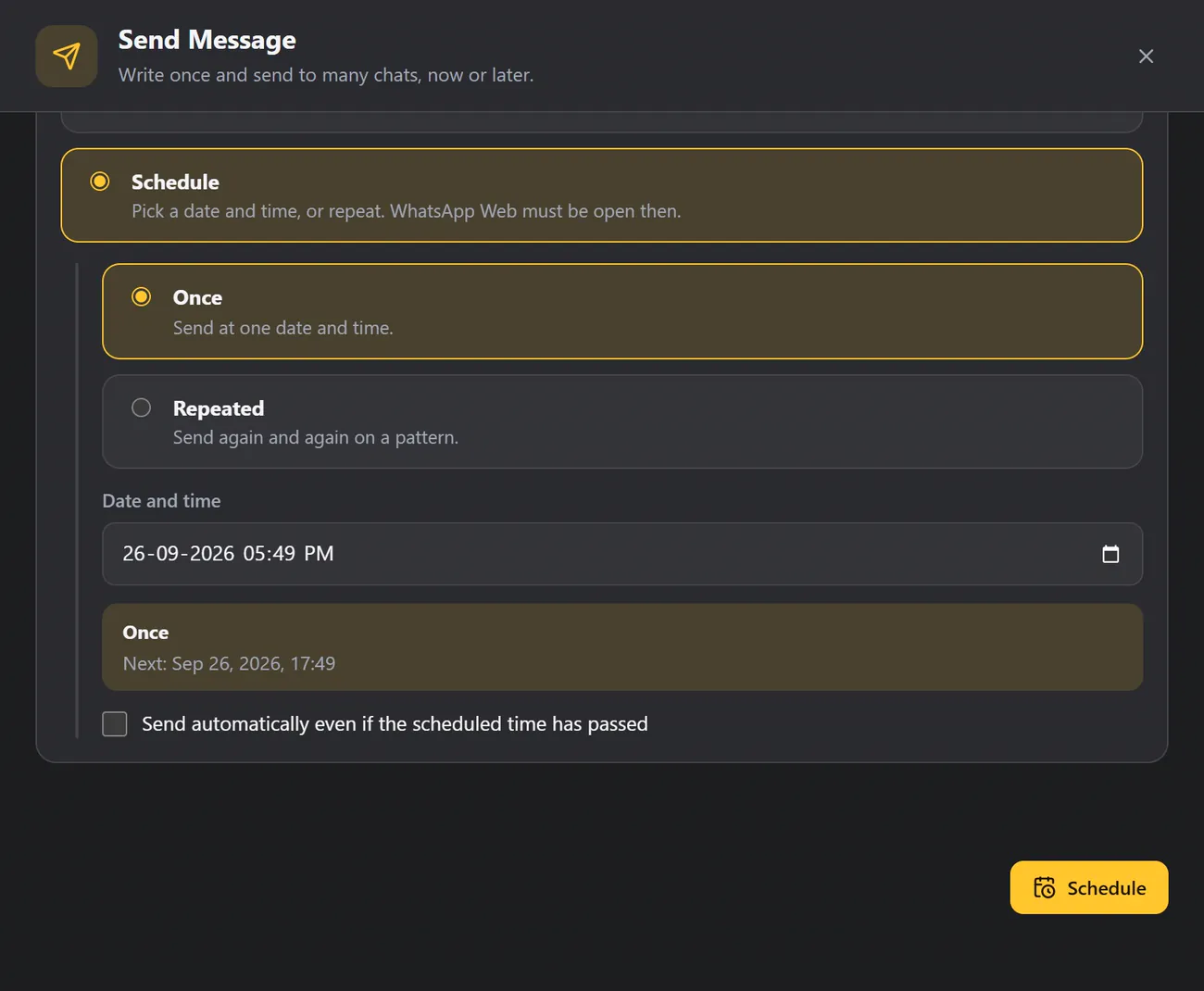
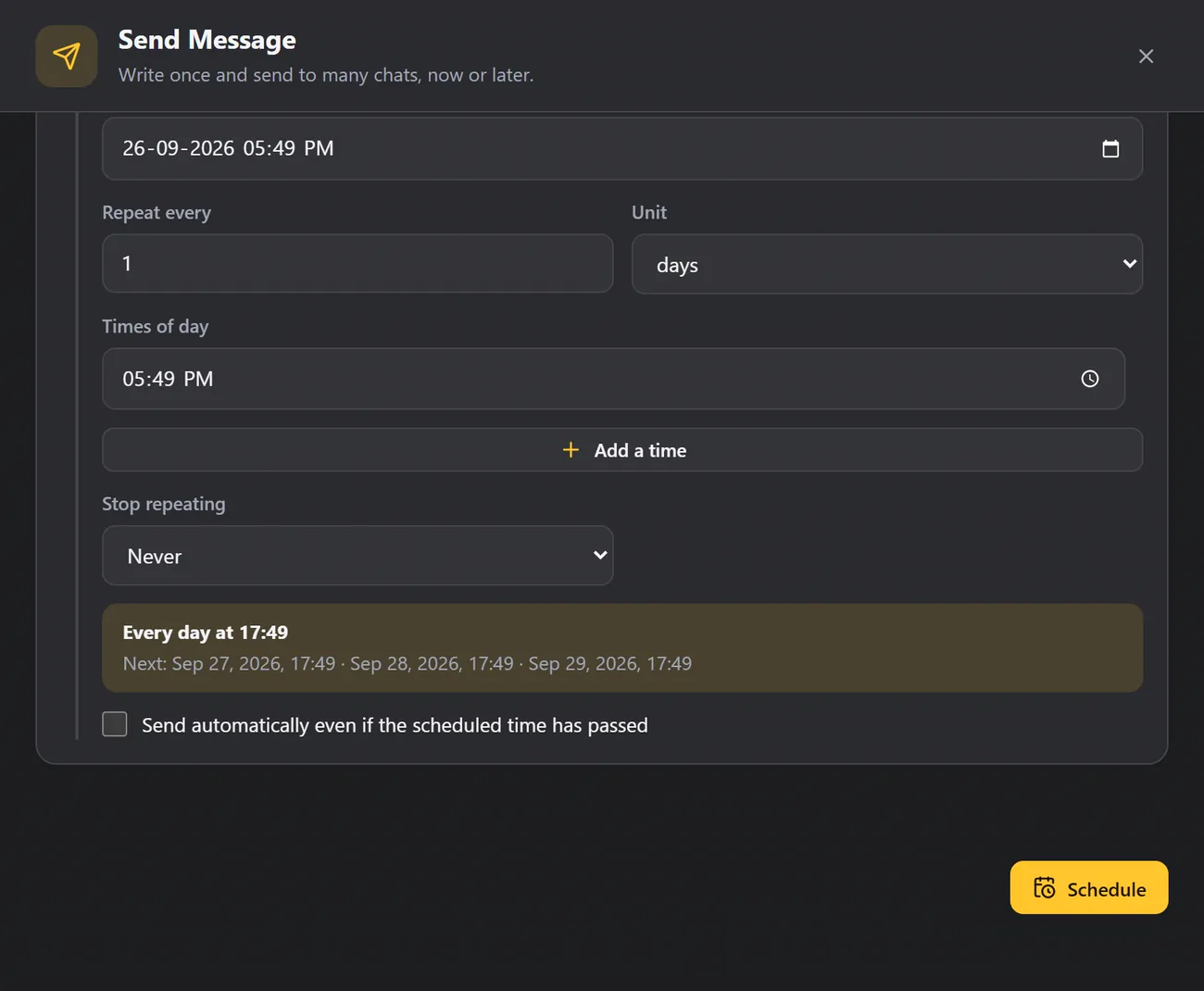
Below the schedule, Send automatically even if the scheduled time has passed lets a send go out late, for example when WhatsApp Web was closed at the planned time. The Schedule module explains repeats in more detail.
Send it#
Click Send now. A message confirms that it started: Sending to N chats in the background. You can keep using WhatsApp. Click View progress to watch it live.
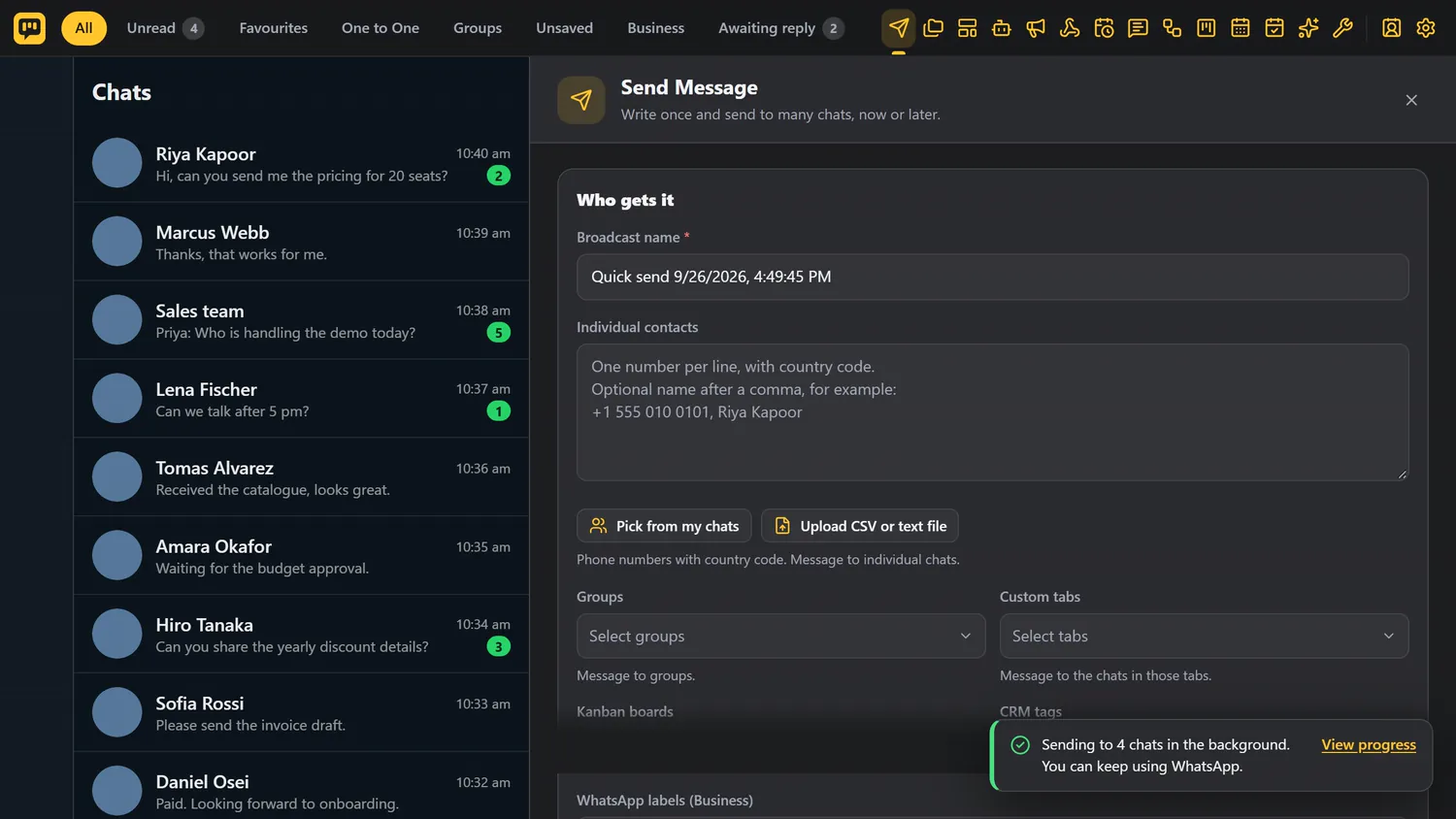
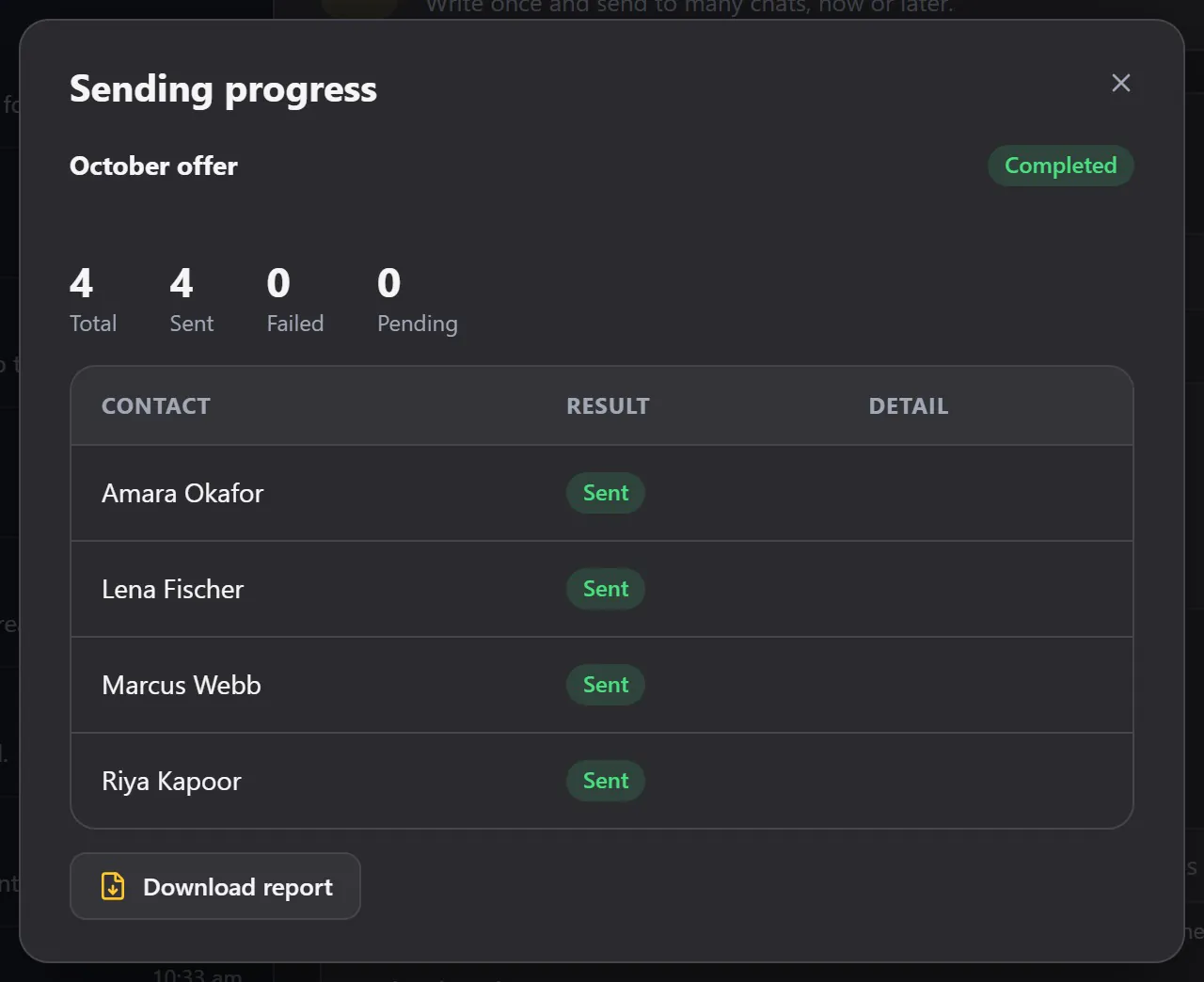
The progress window shows the total, and how many are sent, failed and pending, and the result for each person. You can pause, or discard the people who have not received it yet, at any time.
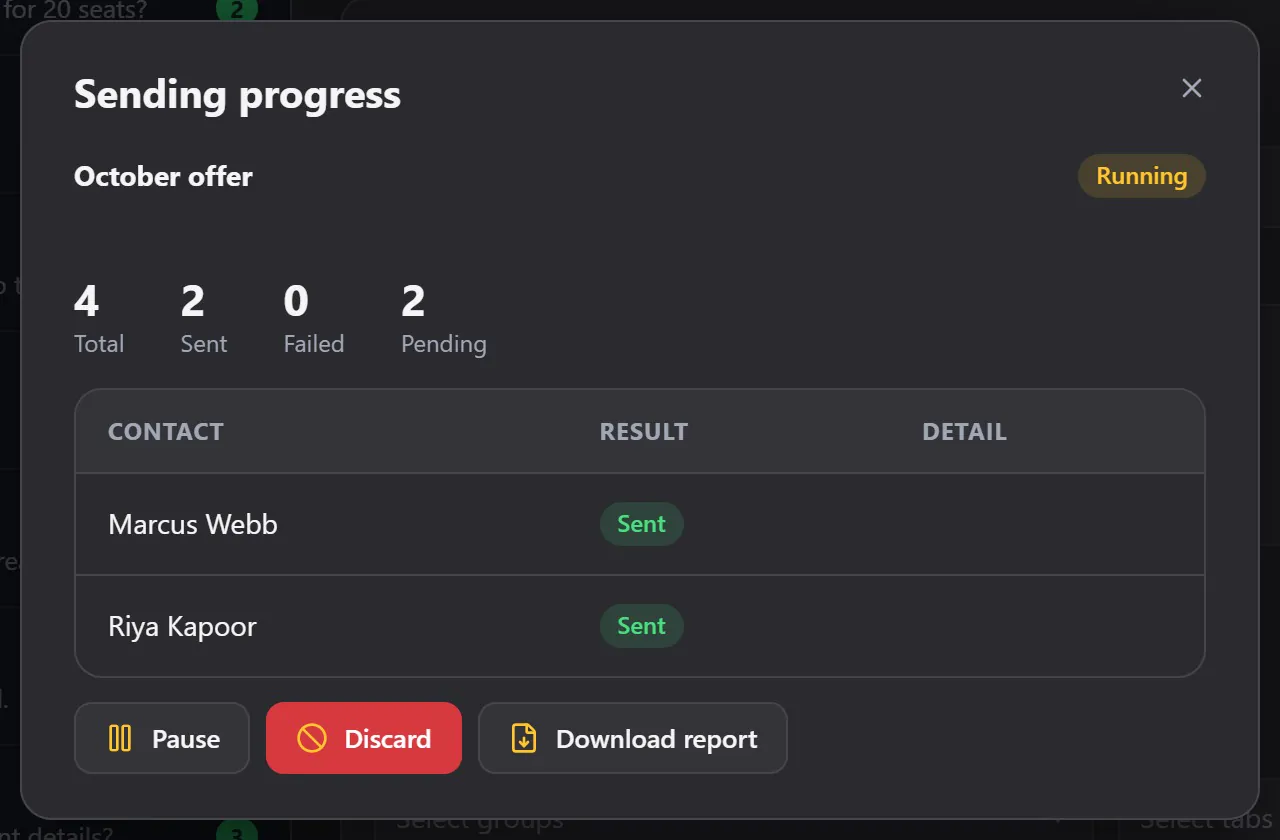
When it is finished, click Download report to save the results as a CSV file.
If you chose Schedule instead, you get a confirmation such as Scheduled for Sep 28, 09:00, and you will find the item under Schedule.
Good to know#
- Your signature. If you set a name or signature in Module settings, it is added to what you send.
- The hourly limit. If you set Most automatic messages per hour in Module settings, sending pauses when the limit is reached.
- WhatsApp Web must stay open while a send is running.
- Test first. Send to your own number before a big list.
Continue with Templates, Schedule Broadcast and Safe sending.