The Settings menu
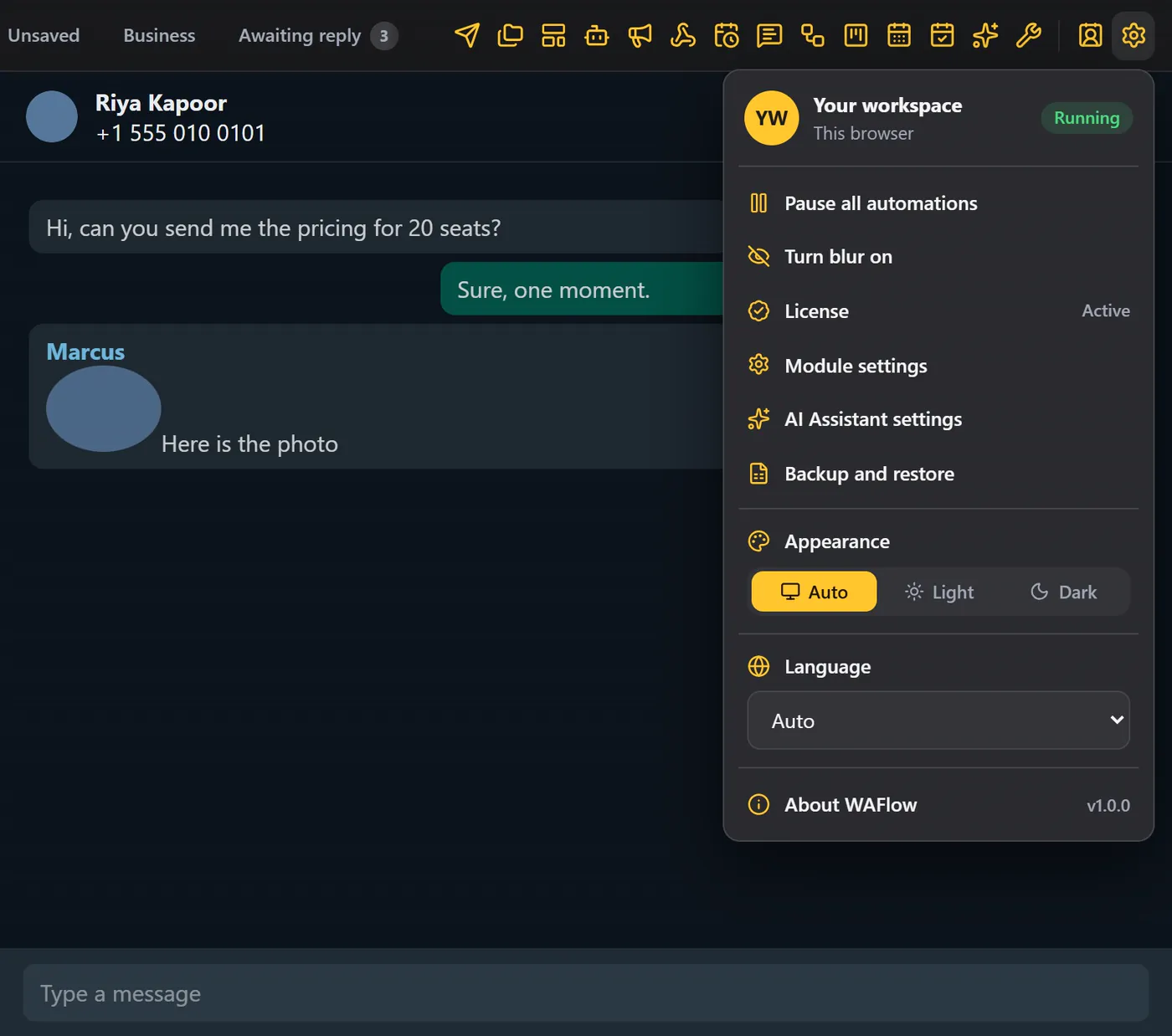
The gear at the end of the bar. Pause every automation, blur the screen, open the license box, and choose the look and language.
Settings is the last icon in the WAFlow bar, the gear. Hover over it, and click. The Settings menu opens.
Your workspace#
At the top is your workspace: your name, the name of this browser, and a chip that says Running, or Paused. You set your name and the browser's name in Module settings.
The menu#
| Item | What it does |
|---|---|
| Pause all automations | Stops chatbots, message bots, the AI assistant, broadcasts and schedules from sending. Your own messages still go out. |
| Turn blur on | Hides names, photos and messages on your screen, so you can share it safely. Click again to turn it off. See Blur. |
| License | Opens the license box. |
| Module settings | The main settings screen. See Module settings. |
| AI Assistant settings | Takes you straight to the AI Assistant. |
| Backup and restore | Opens the backup screen. See Import and export data. |
| Appearance | Auto, Light or Dark. See Appearance and language. |
| Language | Eleven languages, or Auto. |
| About WAFlow | The version, and how to reach support. |
Pause all automations#
While it is on, a Paused chip shows in the top bar. Click the chip, or the menu item, to resume.
Paused means: no chatbot, message bot, AI reply, broadcast or schedule sends anything. What you type yourself is not affected. Use it when you want to take over a busy time by hand, or while you fix a bot.
Without a license#
Without a license, the menu is short: License, Appearance, Language and About. Everything else appears once a license is applied.
About#
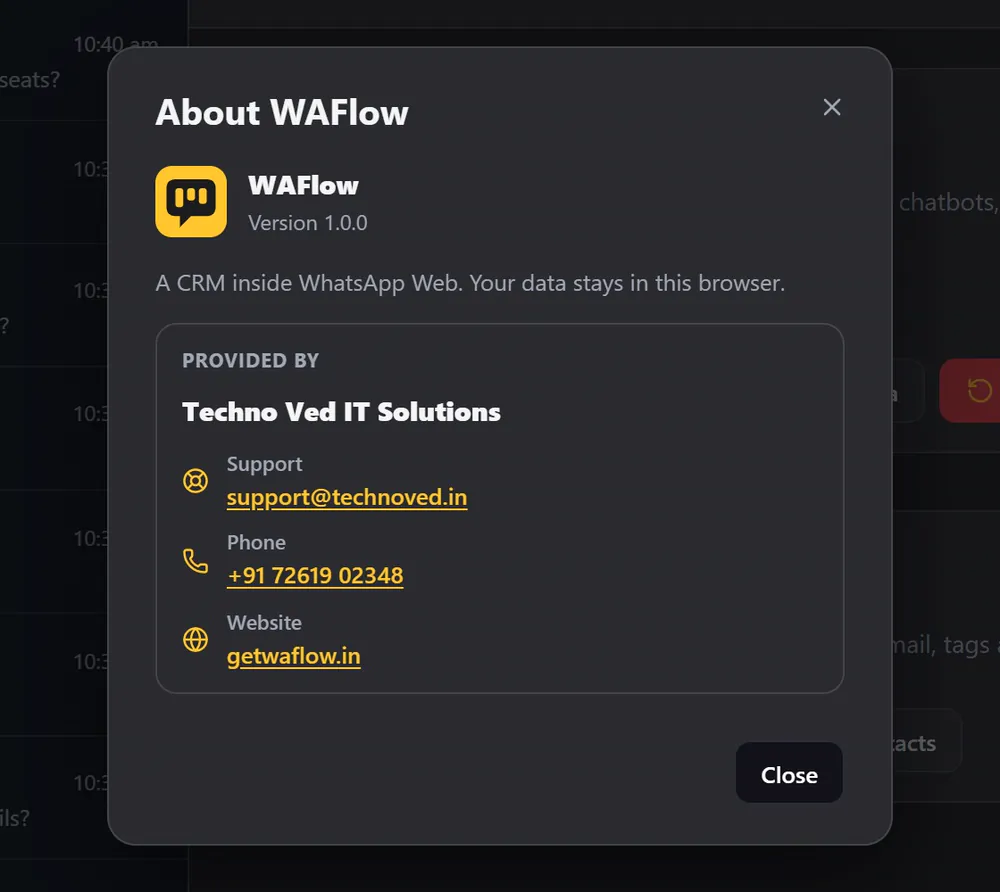
About WAFlow shows the version, and who provides the extension, with the support email, phone and website.
Related#
- Module settings: your signature, safety limits, interface and diagnostics.
- Appearance and language: light and dark, and eleven languages.