Custom Tabs
Make your own chat filters that appear in the top bar, such as VIP clients or Follow up this week. Choose which chats belong in each tab.
The tabs at the top of WhatsApp let you filter your chats. Custom Tabs are your own. You choose which chats go in them, and they appear right in the WAFlow bar. Custom Tabs is the second icon in the bar.
The built-in tabs#
Before your own, these tabs are always there. See A tour of the WAFlow bar for the full list: All, Unread, Favourites, One to One, Groups, Unsaved, Business and Awaiting reply.
Create a tab#
Click the + button at the end of the tabs, or the Custom Tabs icon, to open the module. It is empty for now.
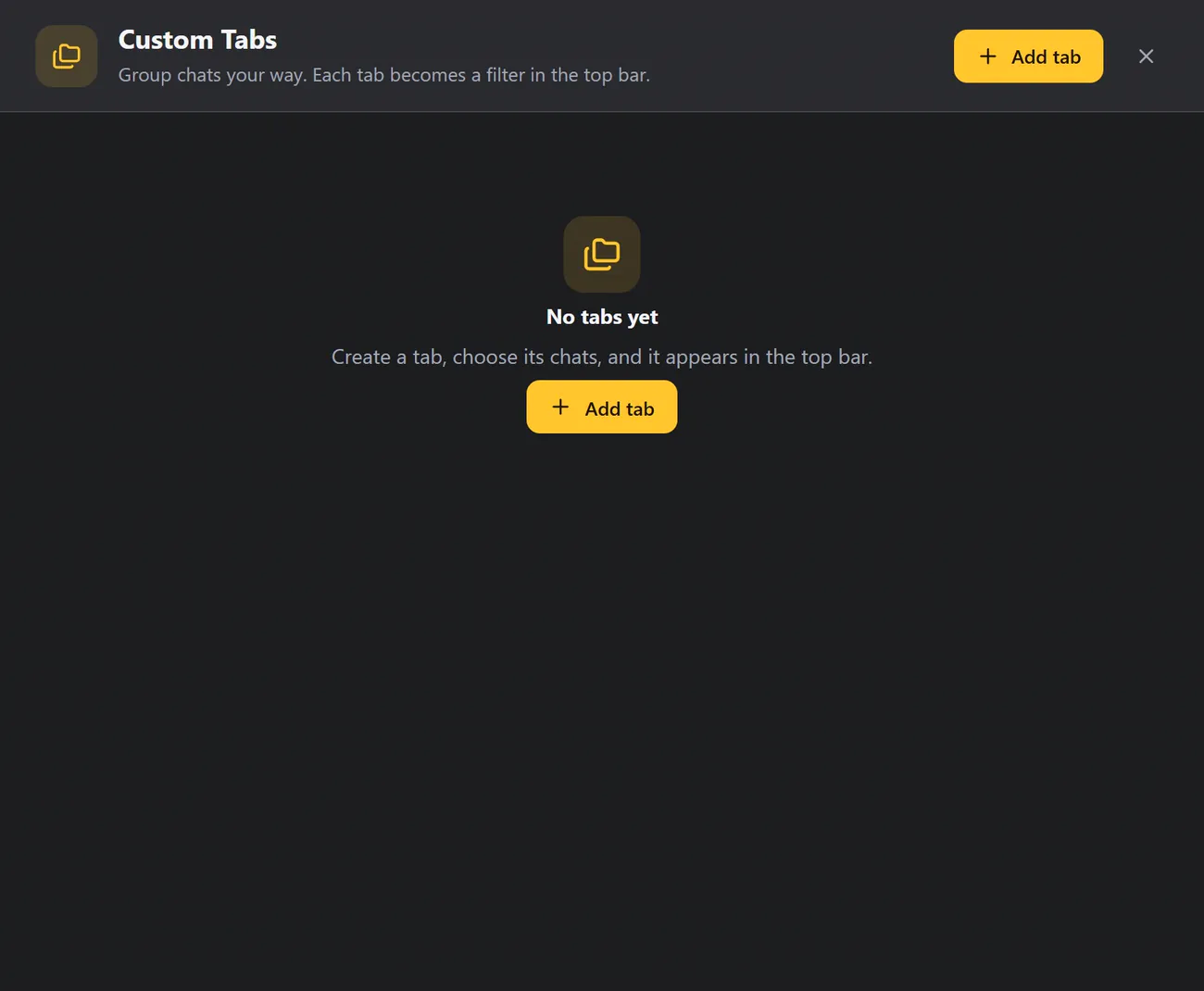
- Click Add tab.
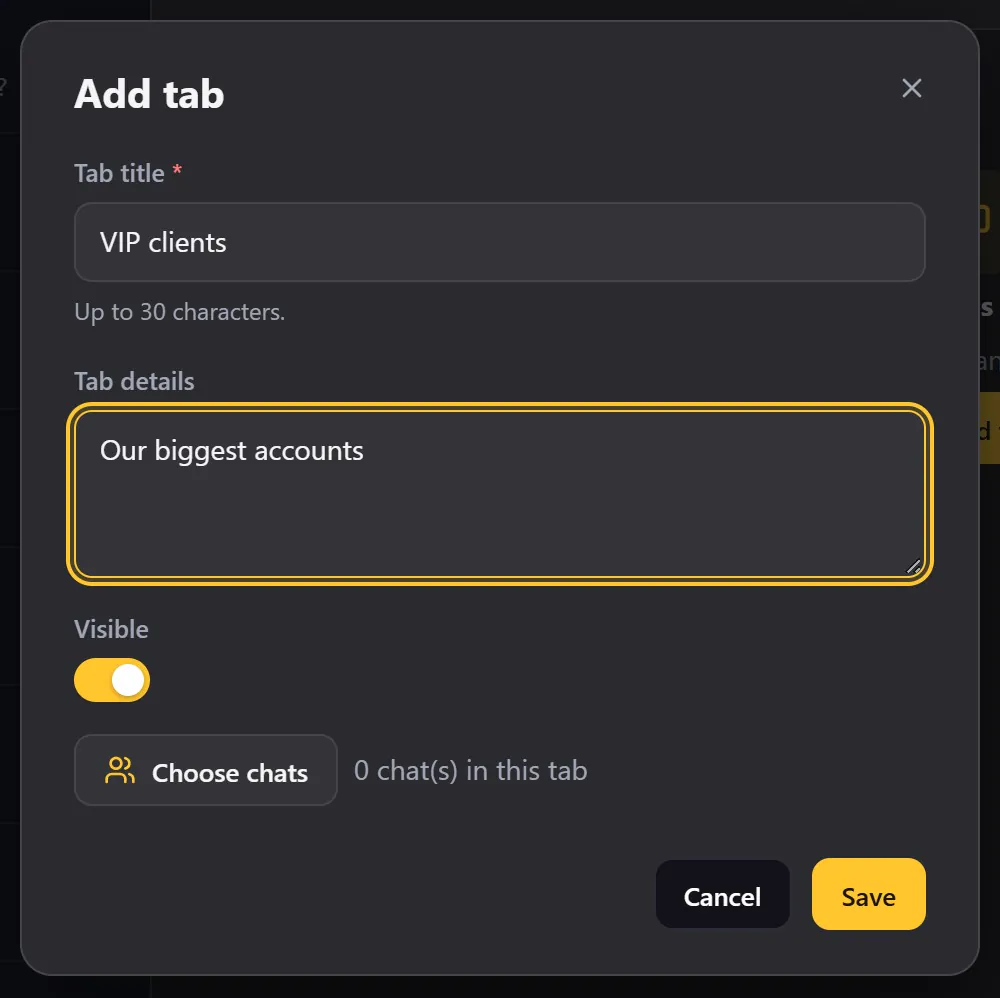
- Give the tab a title, up to 30 characters, for example VIP clients.
- The details are optional. It is just a note, so you remember what the tab is for.
- The Visible switch decides whether the tab shows in the top bar. Leave it on.
- Click Choose chats.
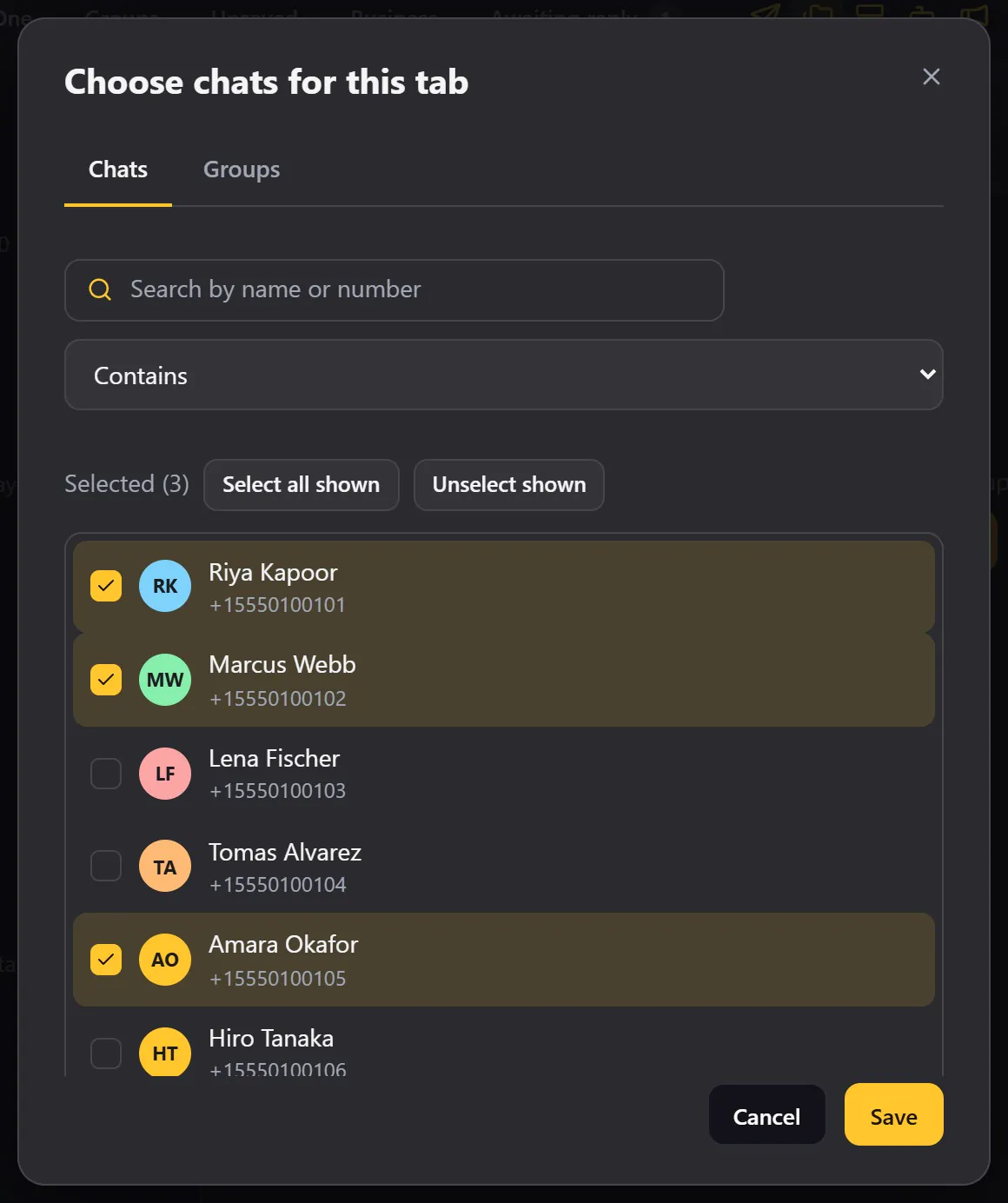
Tick the people who belong in this tab. You can search by name or number. The Groups tab lets you add groups too. Select all shown ticks everyone in the current list, and the count shows how many you have chosen. Click Save.
Back on the tab, you can see how many chats it holds. Click Save.
Use it#
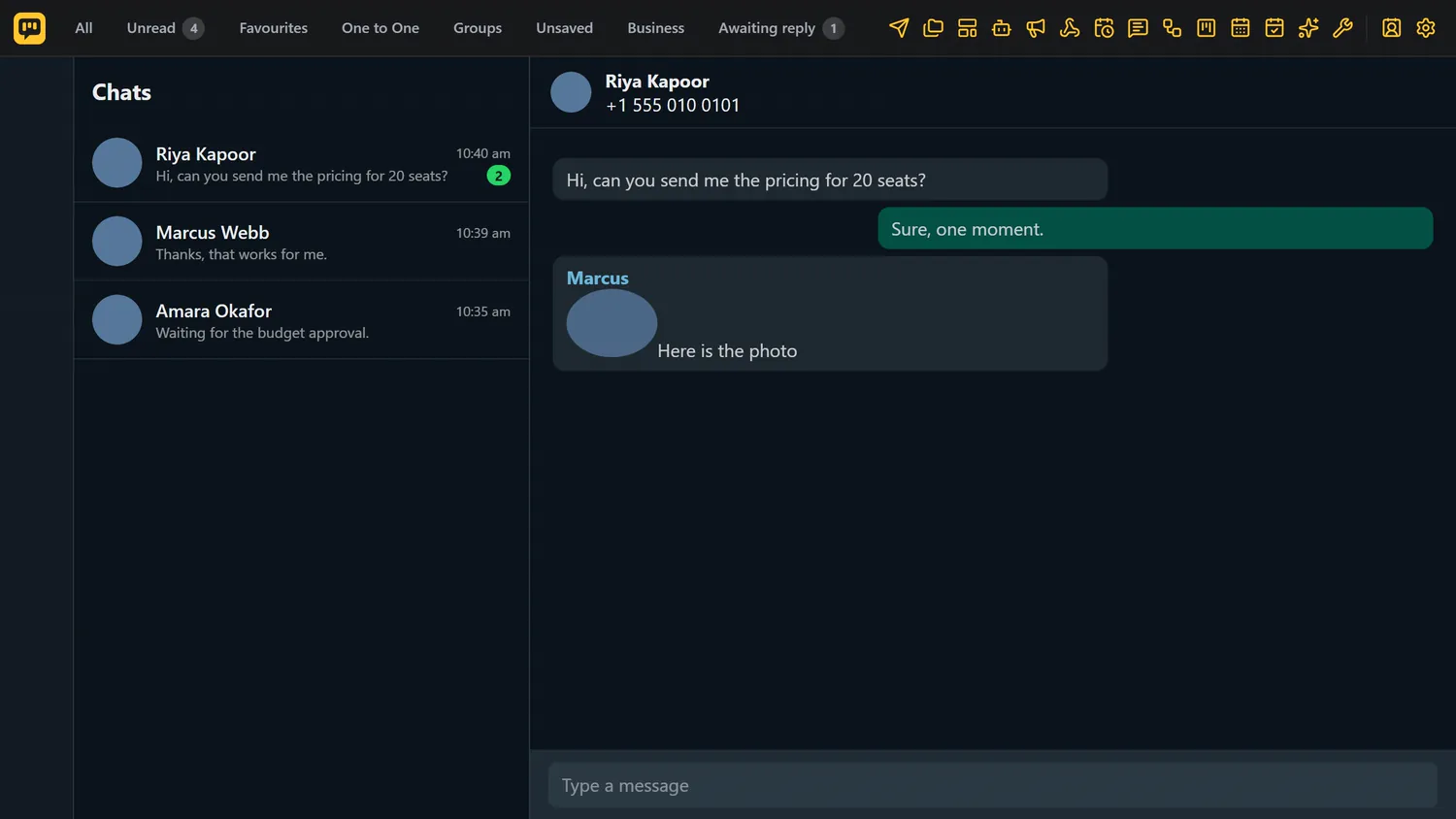
Your tab is ready, and it appears in the top bar with a folder icon. Click it, and WhatsApp shows only those chats.

Manage your tabs#
Every tab you make is listed in the module, with its chat count.
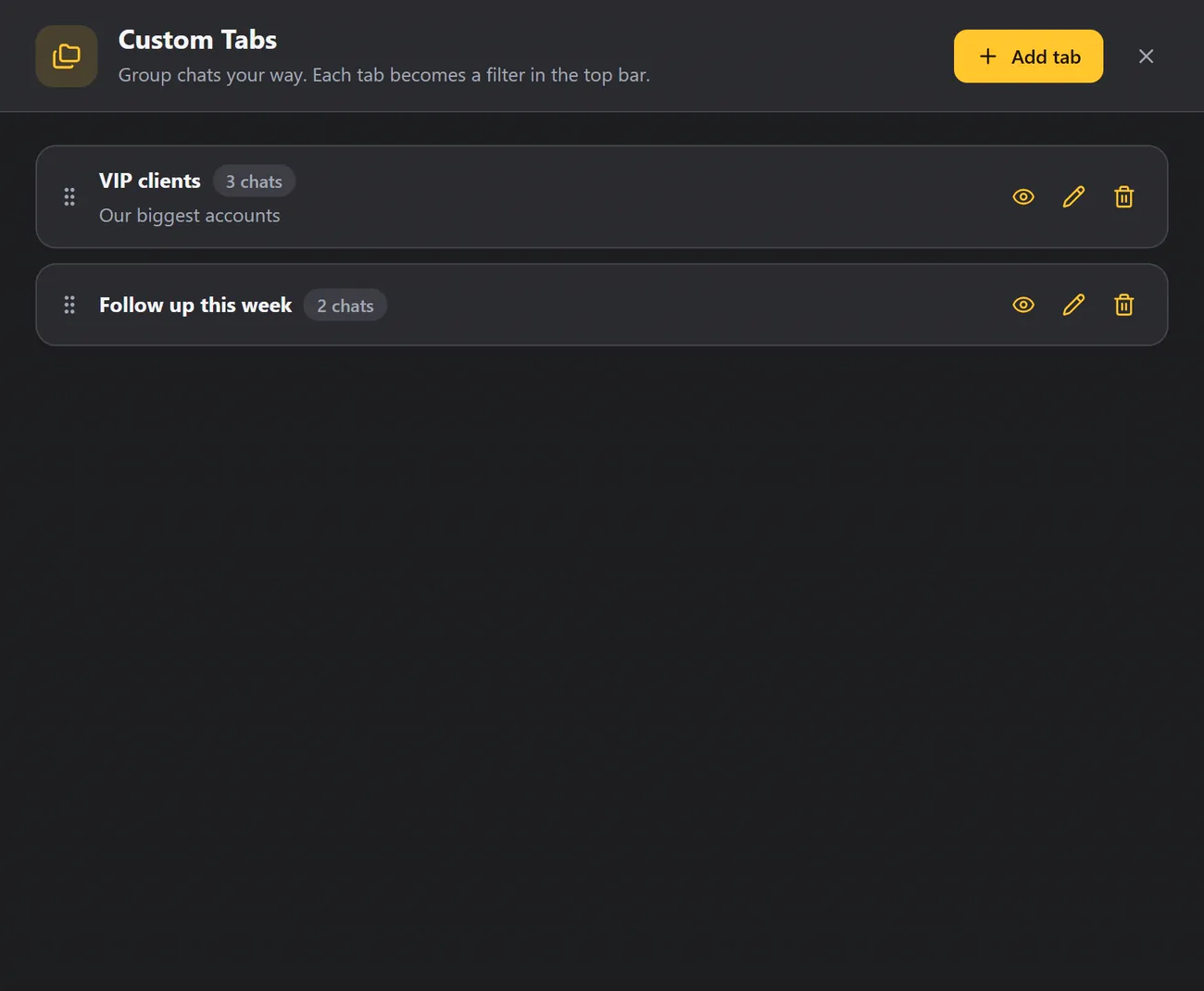
| Icon | What it does |
|---|---|
| Eye | Hides a tab from the top bar without deleting it. Click it again to show it. |
| Pencil | Edits the tab, so you can rename it or change its chats. |
| Drag handle | Drag a row to change the order. The top bar follows the same order. |
| Bin | Deletes the tab, after you confirm. Your chats are never deleted, only the tab. |
A quicker way to add one chat#
Open the chat and click Contact details (icon 15). Choose the Tabs section, and switch on every tab this chat belongs to.
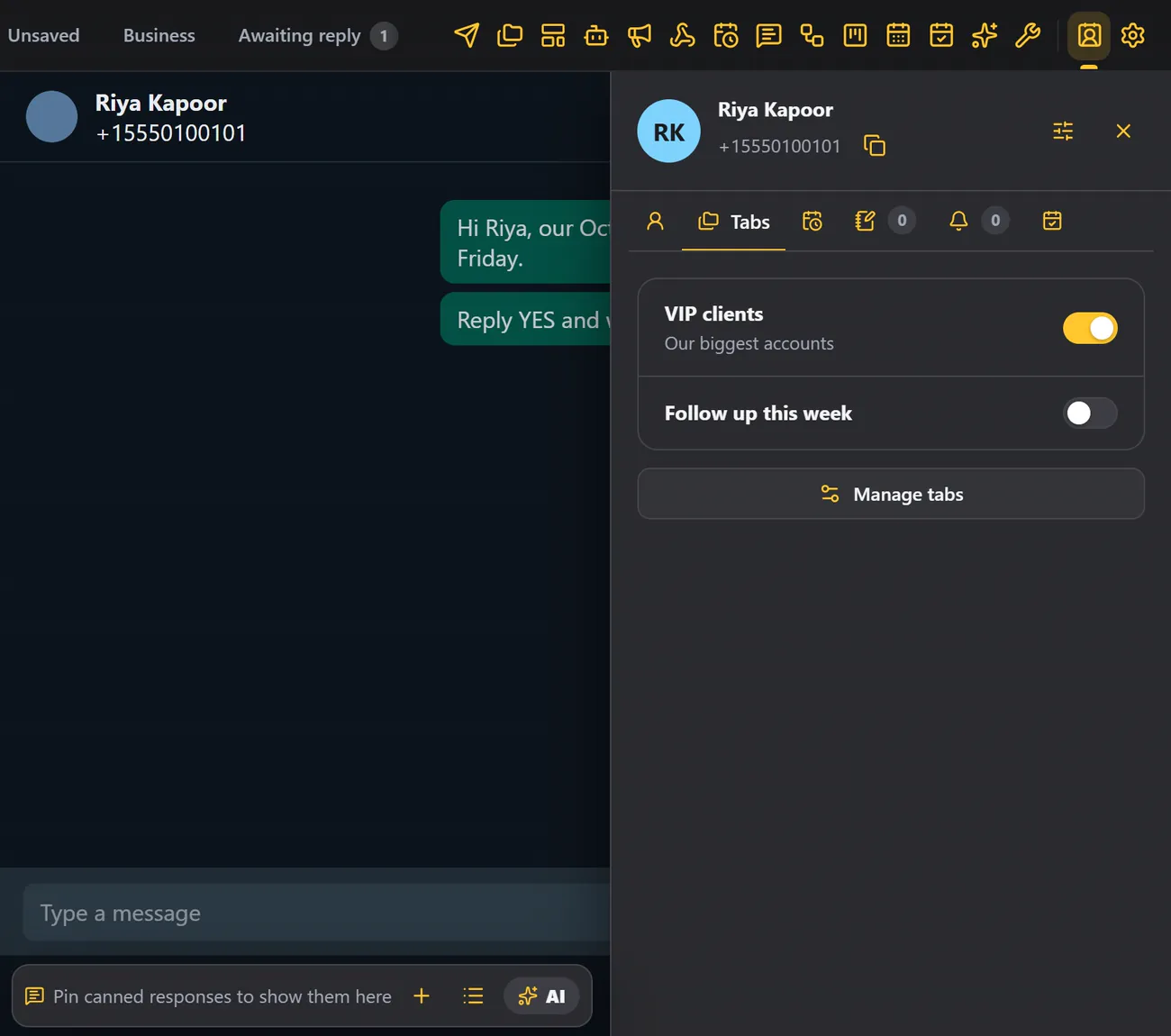
You can even do it automatically. In a message bot, the post actions can add each chat to a tab as it replies.
Where else tabs are useful#
- In Send Message and broadcasts, choose a tab under Custom tabs to message everyone in it.
- In Free Tools, you can export a tab's contacts to a file.
- Tabs are included in your backups.
Tips#
- Keep tab names short.
- Use tabs for your VIP clients, follow-ups and suppliers.
- Hide the tabs you do not need right now.