Tags and custom fields
Label your contacts with coloured tags and store the details that matter to you in custom fields. Use both as filters, and fields as variables in messages.
Tags say who someone is. Custom fields store the details you care about, such as a company, a budget or where the lead came from. You create both in one place, CRM Settings.
Open CRM Settings#
Either:
- open a contact's Profile and click Manage tags and fields, or
- open Free Tools and click Tags and custom fields.
There are two tabs: Custom tags and Custom fields.
Tags#
WAFlow starts you off with a few tags, Lead, Customer, VIP and Follow up.
- Click Add tag.
- Give it a name.
- Pick a colour.
- Click Save.
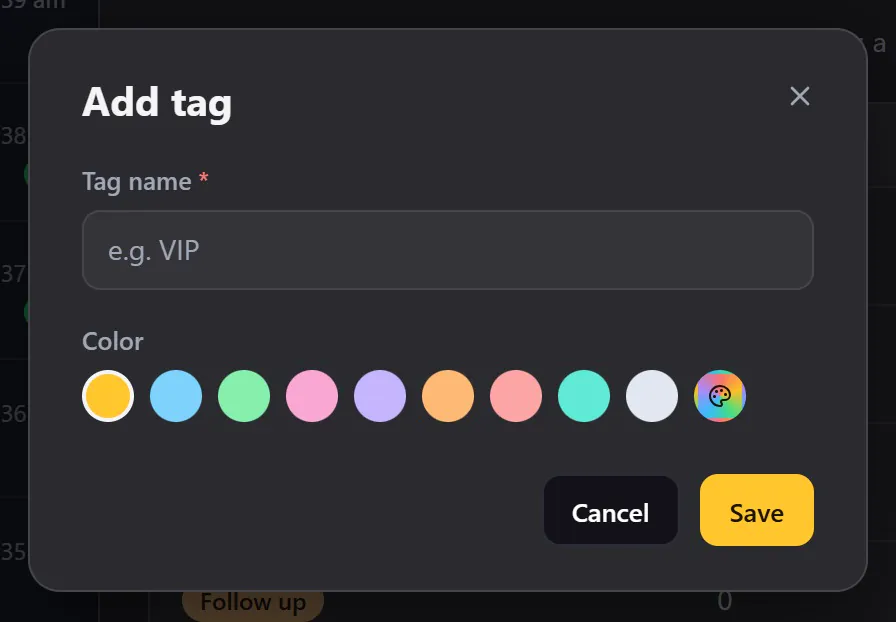
Every tag shows how many contacts have it. Use the pencil to edit a tag and the bin to delete it.
Where tags are used#
| Place | How |
|---|---|
| A contact's Profile | Open the Tags list and pick as many as you like. |
| Send Message and broadcasts | Choose CRM tags to send to everyone with a tag. See Send Message. |
| Message bots and canned responses | Post actions can add or remove tags. See Message Bot. |
| Chatbots | A Tag Contact block tags people as they answer. |
| The AI Assistant | It can add tags you allow. See AI Assistant. |
| Export | Export contacts with a given tag. See Export contacts. |
| Webhooks | The Tag added to a contact event. See Webhooks. |
Custom fields#
Custom fields are your own. They appear on every contact, and you can use them as variables in your messages.
- Open the Custom fields tab and click Add field.
- Give it a name, for example Company.
- Choose a type.
- For choices, type each one and press Enter.
- Click Save.
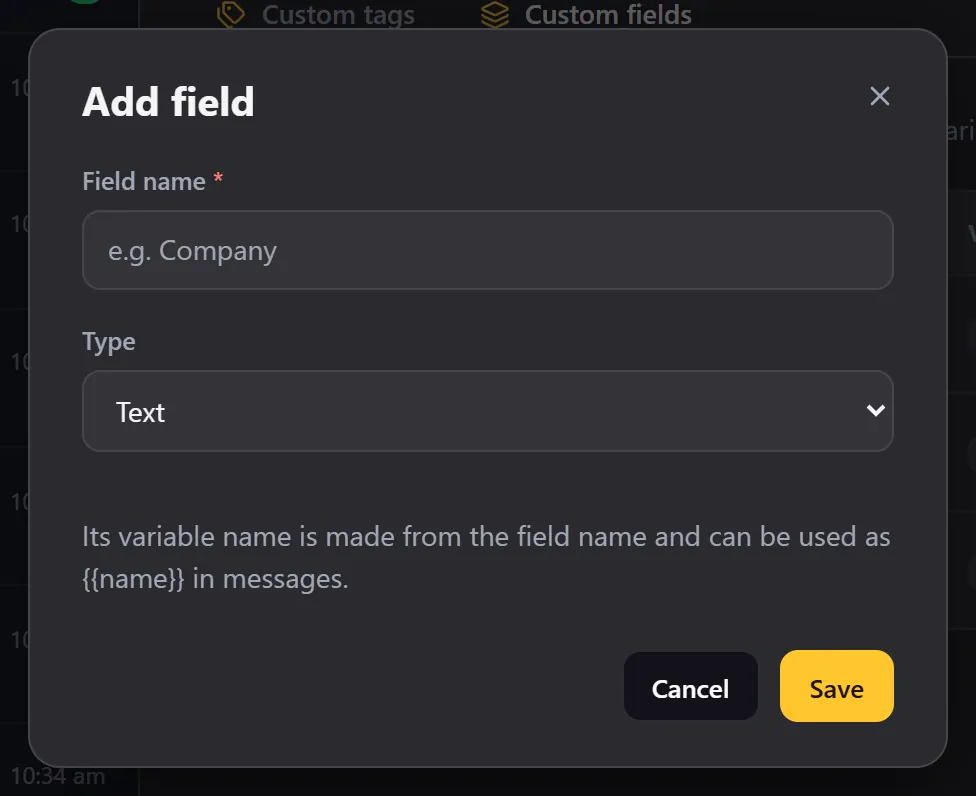
| Type | Use it for |
|---|---|
| Text | Free text, such as a company name. |
| Number | A budget, a quantity. |
| Date | A birthday, a contract date. |
| Single choice | One option from a list, such as a lead source. |
| Multiple choice | Several options from a list. |
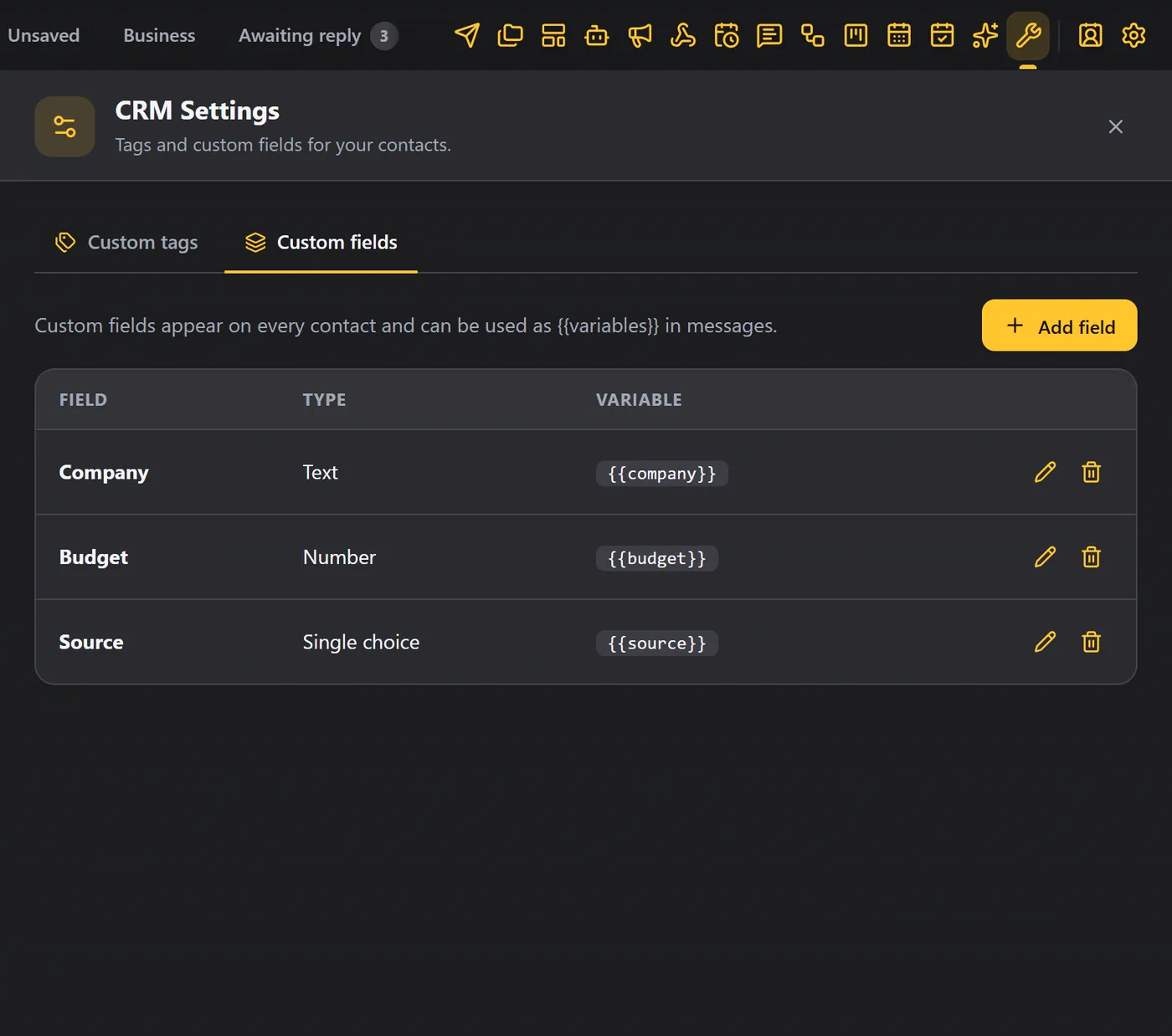
The variable name#
The variable name is made from the field name. A field called Preferred plan becomes {{preferred_plan}}, and you can use it in any message. See Variables and formatting.
Where custom fields are used#
- On each contact's Profile, where you fill them in.
- In messages, as variables.
- In the CSV export and import of your CRM contacts. See Import and export data.
- The AI Assistant can fill custom fields you allow it to.
Tips#
- Use tags for who they are, and custom fields for facts.
- Keep the list short. A few clear tags beat many overlapping ones.
- Tags and custom fields are saved in your browser, and included in your backups.