Module settings
The main settings screen: automation safety, your name and signature, interface options, diagnostics, recent activity and data.
Module settings is the main settings screen. Open it from the Settings menu, or from the last tile of Free Tools. It has six sections: Automation safety, You, Interface, Diagnostics, Recent activity and Data.
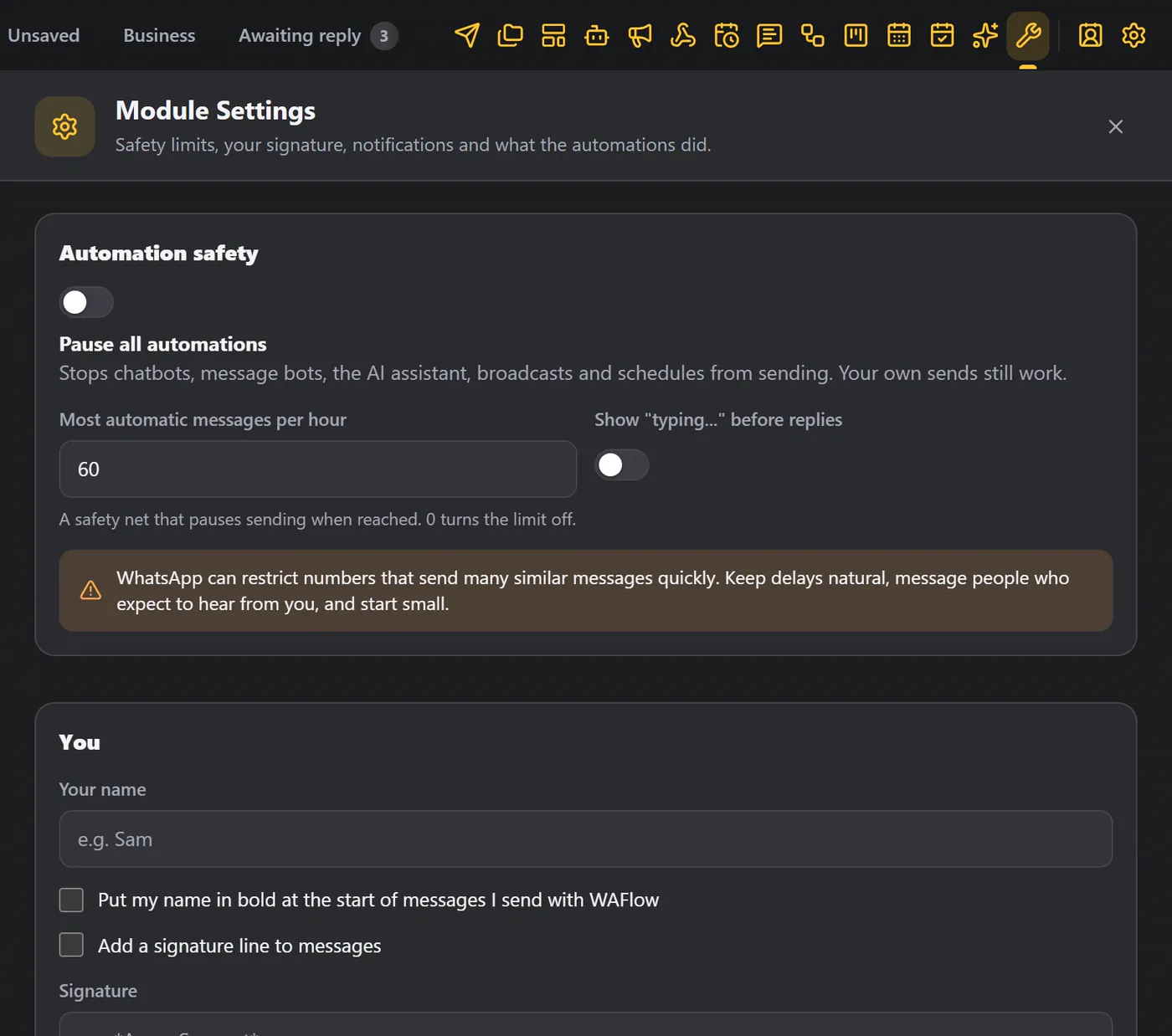
Changes save as you type. Save writes them to storage and tells you so.
Automation safety#
| Setting | What it does |
|---|---|
| Pause all automations | The same switch as in the Settings menu. |
| Most automatic messages per hour | A safety net: when it is reached, sending pauses. Zero turns the limit off. |
| Show "typing…" before replies | Shows typing before automatic replies, so they feel natural. |
A yellow note is worth remembering: WhatsApp can restrict numbers that send many similar messages quickly. Keep delays natural, and start small. See Safe sending.
You#
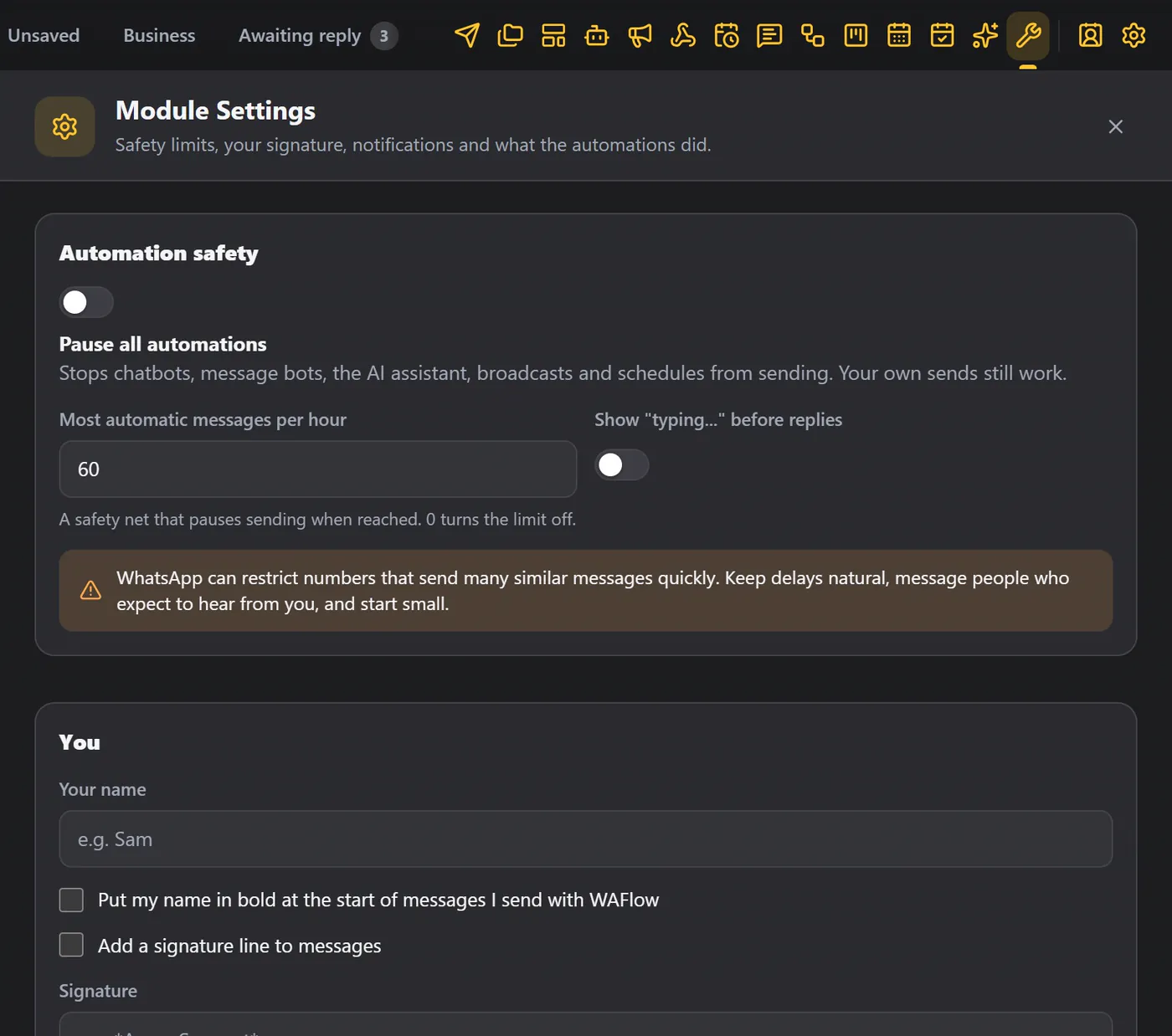
- Your name. Type your name. It is also the
{{agent}}variable. - Put my name in bold at the start of messages I send with WAFlow. Choose whether it goes in bold at the start.
- Add a signature line to messages. Then add a signature line, like your business name.
- How a message will look shows the result at once.
It applies to Send Message, broadcasts, schedules, canned responses, message bots and chatbots. Tick the box below it, and it applies to the messages you type in WhatsApp too. AI assistant replies are left as they are.
- This browser is called. A name for this computer. It shows in the Settings menu, under your workspace.
Interface#
| Setting | What it does |
|---|---|
| Show the shortcut bar and / shortcuts above the message box | Puts your canned responses and slash shortcuts above the message box. |
| Show notifications for reminders and appointments | You can turn them off. |
| Buttons in messages | How a message with buttons is sent: as a list the customer opens, as a numbered text menu, or as real WhatsApp buttons. Real buttons are experimental. WhatsApp Web often cannot deliver them, so test them on your own number first. |
| Kanban opens in | A separate full-screen tab, or a panel inside WhatsApp. |
| Recent chats in the Kanban inbox | How many recent chats the Inbox shows. |
Diagnostics#
Diagnostics tells you if WAFlow is healthy. It shows:
- whether the WhatsApp tools are loaded and ready,
- whether you are signed in, and your number,
- the library version,
- where the shortcut bar sits,
- how many automatic messages went out in the last hour,
- and how much is saved.
If something looks wrong, click Check again. If the connection is not loaded, reload WhatsApp Web.
Recent activity#
Recent activity lists what your automations did: message bot replies, chatbots that started and ended, AI replies and hand-overs, finished broadcasts, and canned responses. Click Clear to empty it.
When a bot behaves oddly, look here and at Diagnostics first.
Data#
- Backup and restore opens the backup screen, where you save everything to a file and bring it back in another browser. The file includes your AI keys, so keep it private. See Import and export data.
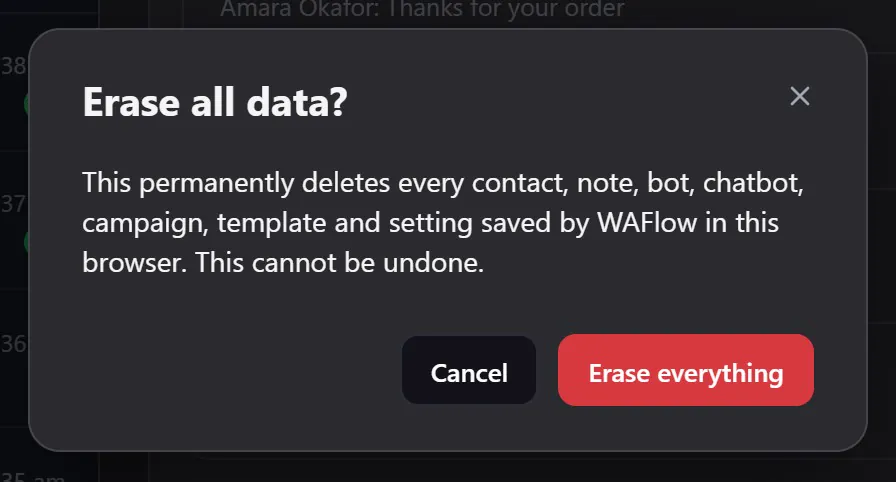
- Erase all data deletes everything WAFlow saved in this browser, after you confirm. So make a backup first.
Tips#
- Set your name and signature first.
- Make a backup before you erase anything, or change browsers.
- If a bot behaves oddly, look at Recent activity and Diagnostics first.