Activate your license or start a free trial
Apply the license key for your WhatsApp number, or start a free trial from inside the extension. Includes what each message in the license box means.
WAFlow only runs once a license is applied for the WhatsApp number that is signed in. Until then nothing sends, no bot replies and no timer runs, and the bar shows only the logo, an Activate license button and Settings.
A license belongs to a WhatsApp number, not to a computer or a browser. Every browser that is signed in to WhatsApp Web with that number can use it, with no device limit. If you use a different number, you need a license for that number too.
Open the license box#
- Sign in to WhatsApp Web.
- Click Activate license in the bar. If you prefer the menu, click the gear at the far right and choose License.
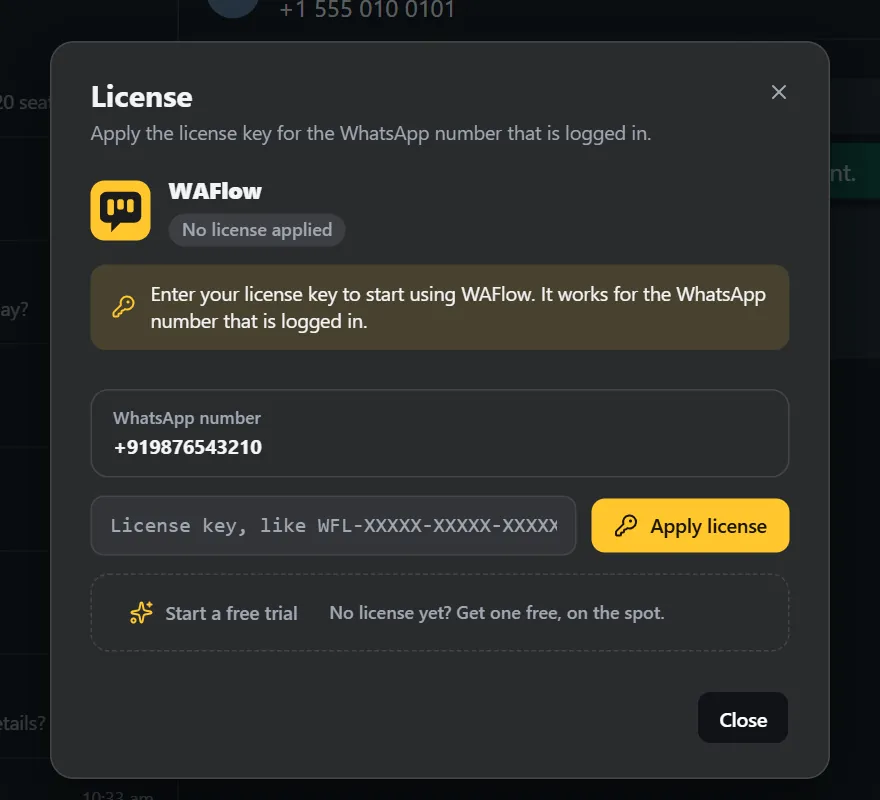
The box shows:
- WhatsApp number: the number that is signed in right now. This is the number the license is checked against.
- License key box: where you paste the key.
- Apply license: checks the key with the license server.
- Start a free trial: for people who do not have a key yet.
If you have a license key#
- Copy the key you received. It looks like
WFL-XXXXX-XXXXX-XXXXX-XXXXX. Paste it into the key box.
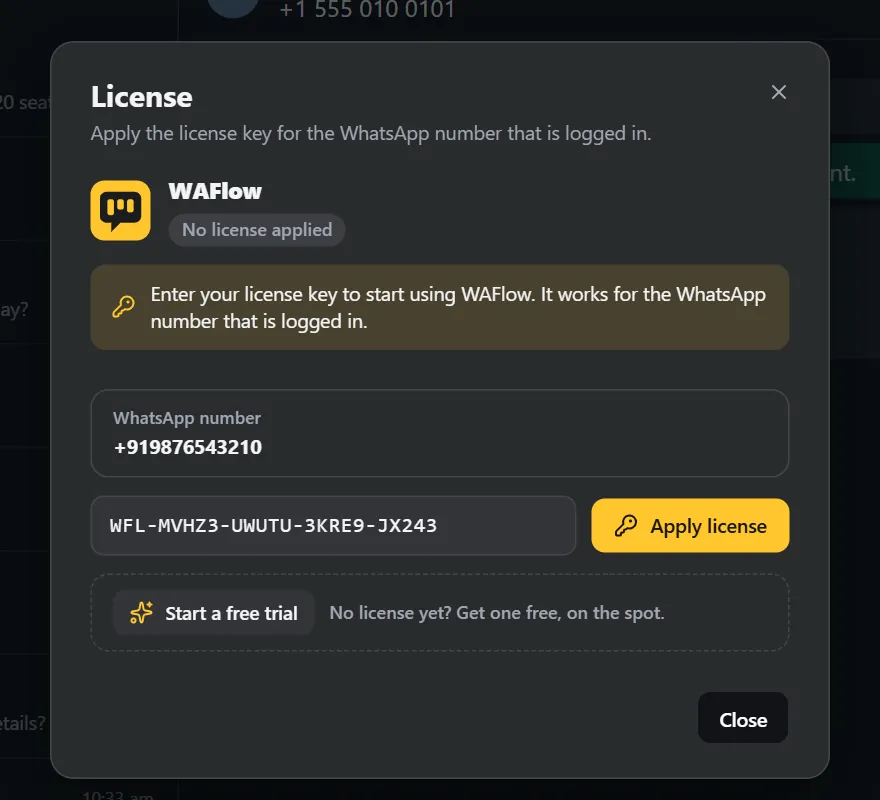
A key pasted into the license box - Click Apply license.
- A message confirms it: License applied for +91…. The bar fills with all the tools.

If you do not have a key: start a free trial#
- In the license box, click Start a free trial. A page opens in a new tab, with your WhatsApp number already filled in.
- Type your name and email address, and confirm the number.
- Click Start my trial. Your key appears on that page straight away. It is not emailed to you, so copy it before you close the page.
- Go back to WhatsApp Web, paste the key in the license box and click Apply license.
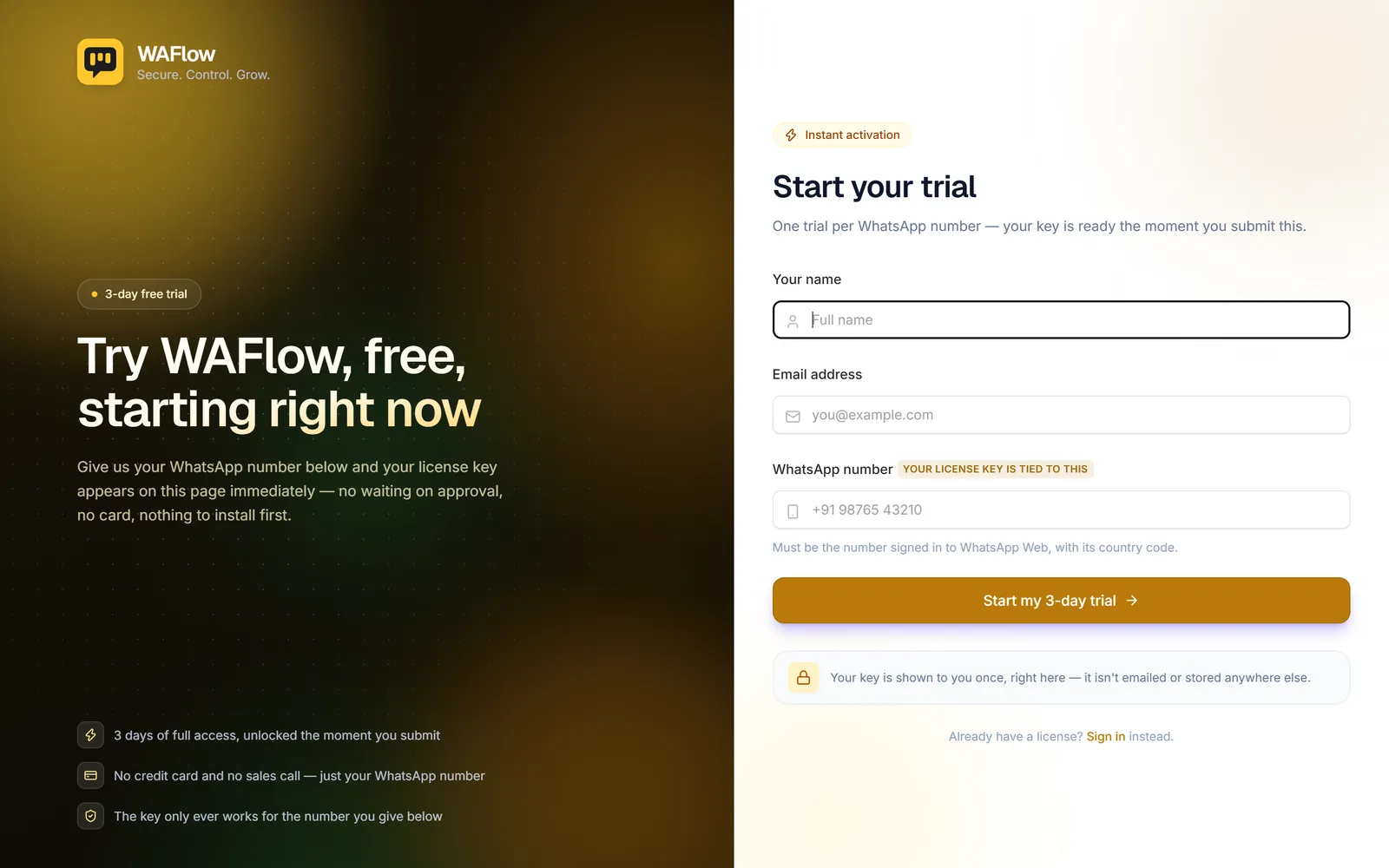
A trial gives you full access for a short time, three days by default. There is one trial per WhatsApp number. The trial's key only works for the number you gave. When it ends, ask the person who provided WAFlow to you for a paid license. They can convert your trial without changing the key, so you keep your data and settings.
What the license box shows once it is active#
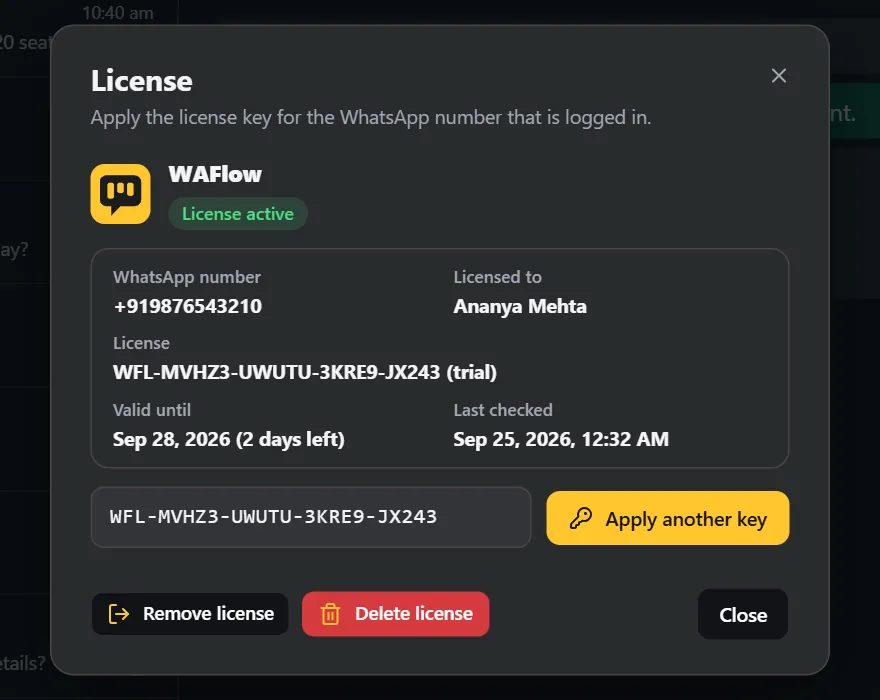
| Field | Meaning |
|---|---|
| WhatsApp number | The number that is signed in. |
| Licensed to | The name the license was issued to. |
| License | Your key. A trial shows (trial) after it. |
| Valid until | The end date, and how many days are left. It says (in its grace period) when the license has ended but still works for a few more days. |
| Last checked | When WAFlow last asked the license server. |
Below that:
- Apply another key replaces the license with a different key.
- Remove license takes the license off this browser and tells the server, so the browser no longer counts as using it. The key stays in the box, so you can apply it again with one click.
- Delete license does the same and also forgets the key completely.
When are licenses checked?#
- Every time WhatsApp Web loads or refreshes, WAFlow asks the license server about your key before it trusts anything it saved. A license that was suspended or revoked stops at the next refresh.
- Between refreshes, WAFlow uses the last good answer for the time the server names, 24 hours by default.
- If the server cannot be reached, the saved answer keeps working for a grace period, so a shaky connection does not lock you out in the middle of a conversation. WAFlow shows Working offline.
Every answer from the server is signed, and WAFlow only trusts an answer that carries a valid signature.
What the messages mean#
| Message | What to do |
|---|---|
| Enter your license key first. | The key box is empty. Paste your key. |
| Sign in to WhatsApp Web first. | WAFlow checks the key against the signed-in number, so sign in first. |
| There is no license for the WhatsApp number … | No license exists for this number. The key must be issued for the number that is logged in. |
| That license key does not belong to the WhatsApp number … | The key is for a different number. Use the key issued for this one. |
| Could not reach the license server. | Check your internet connection and try again. |
| Too many license checks. Try again in a minute. | Wait a minute, then try again. |
| The license server's answer could not be verified. | The answer was not trusted, because it was not signed correctly. Try again; if it repeats, contact support. |
| This WhatsApp number does not have a usable license. | The license has expired, or was suspended or revoked. Contact the person who provided WAFlow to you. |
Install WAFlow there, sign in to WhatsApp Web with the same number, and apply the same key. There is nothing to transfer and no seat to release. To bring your data along, use a backup.