Send events to Google Sheets
Save every WAFlow event, a new lead, a message, a tag or a finished broadcast, as a row in your own Google Sheet, with a short Google Apps Script and a webhook. No extra tool and no fee.
A webhook tells another tool when something happens in WAFlow. This page connects a webhook to a Google Sheet, so every event you choose becomes a new row, by itself. You need nothing except a Google account. It takes about ten minutes, and you only copy and paste.
Here is how it works:
- You add a small script to your Google Sheet.
- Google turns it into a web address.
- You give that address to a WAFlow webhook. From then on, every event you choose arrives as a row.
Each kind of event gets its own tab in the sheet, named after the event (message_received, chat_new, tag_added and so on), with the time first and one column for each piece of data.
The pictures of Google Sheets and Apps Script on this page are simple illustrations. Google changes its screens from time to time, but the menu names and the options below stay the same.
1. Make a sheet and open Apps Script#
- Open Google Sheets and start a new blank spreadsheet.
- Click the title and give it a name you will recognise, for example WAFlow leads.
Open the Extensions menu and choose Apps Script.
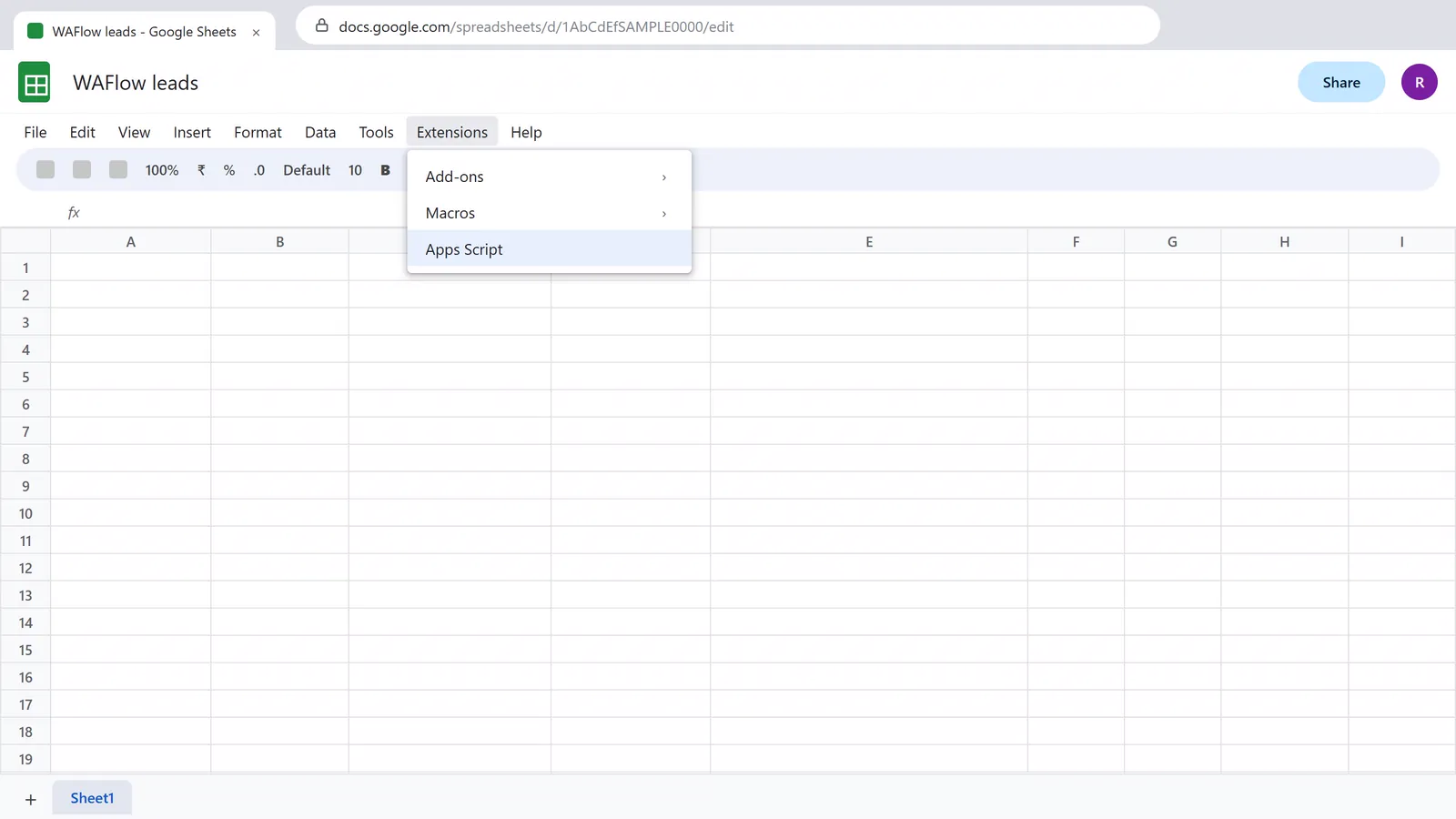
The Extensions menu of a spreadsheet, with Apps Script at the bottom - A new tab opens: the Apps Script editor, where small programs for your sheet live. Because you opened it from this sheet, the script belongs to this sheet. Click the project name at the top and call it WAFlow webhook.
- The editor starts with a sample function. Click inside the code, select everything with Ctrl + A, and press Delete.
Always open Apps Script from Extensions > Apps Script inside your sheet. A script made on its own, without a sheet, cannot write to your sheet.
2. Paste the script#
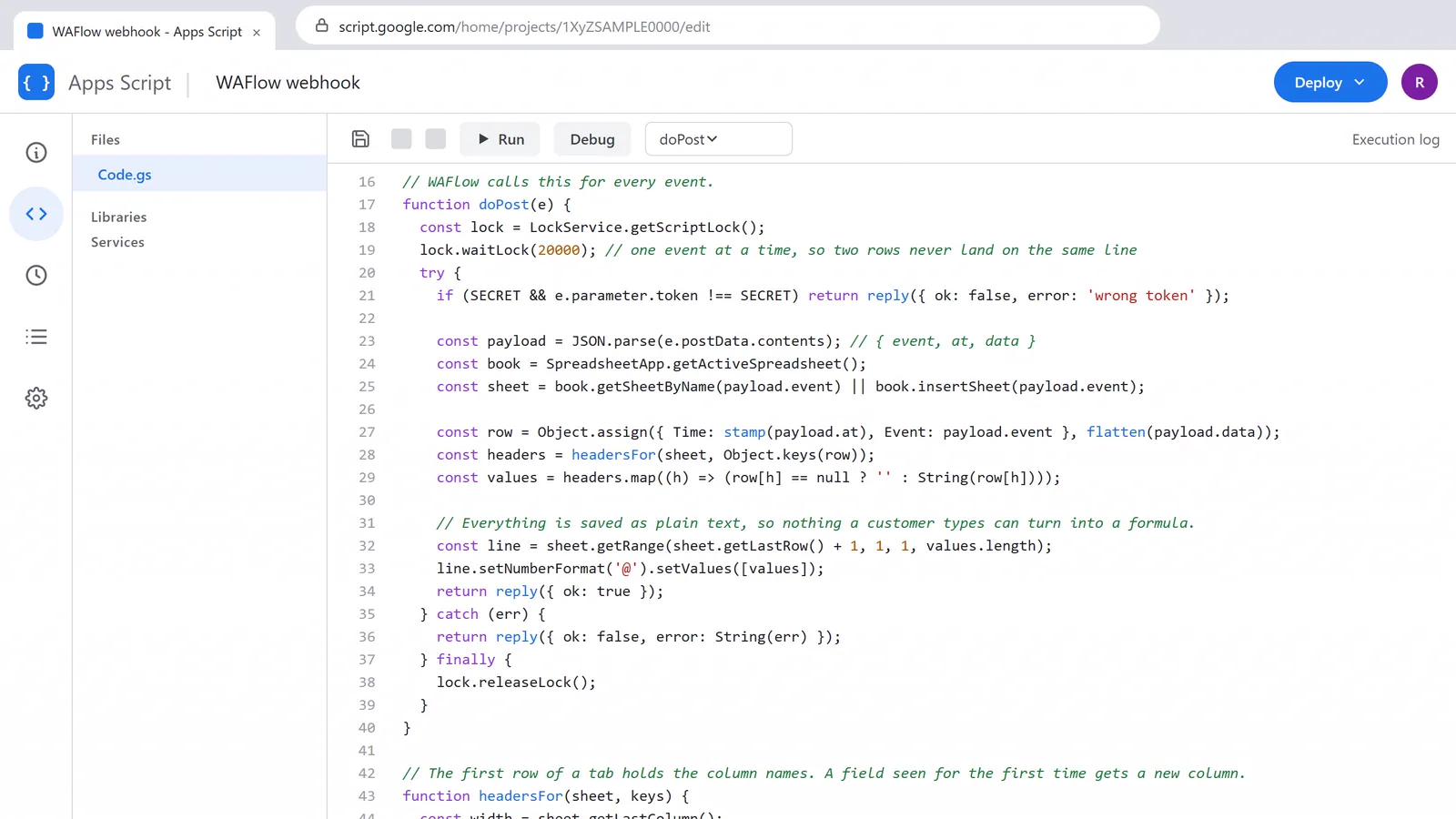
Click Copy on the box below, and paste the code into the editor. Then click Save (the disk icon) or press Ctrl + S.
// WAFlow to Google Sheets
// Paste this whole file into Extensions > Apps Script (replace what is there), then Deploy > New deployment > Web app.
// Every event WAFlow sends becomes a new row, in a tab named after the event (message_received, chat_new, ...).

/** @OnlyCurrentDoc */ // the script may only touch this one spreadsheet, nothing else in your Google account

// Optional. Type any word between the quotes, and add ?token=THAT-WORD at the end of the web address in WAFlow.
// Requests without it are refused.
const SECRET = '';

// Opening the web address in a browser shows this, so you can check that the deployment works.
function doGet() {
  return ContentService.createTextOutput('WAFlow webhook is ready. Paste this address into WAFlow.');
}

// WAFlow calls this for every event.
function doPost(e) {
  const lock = LockService.getScriptLock();
  lock.waitLock(20000); // one event at a time, so two rows never land on the same line
  try {
    if (SECRET && e.parameter.token !== SECRET) return reply({ ok: false, error: 'wrong token' });

    const payload = JSON.parse(e.postData.contents); // { event, at, data }
    const book = SpreadsheetApp.getActiveSpreadsheet();
    const sheet = book.getSheetByName(payload.event) || book.insertSheet(payload.event);

    const row = Object.assign({ Time: stamp(payload.at), Event: payload.event }, flatten(payload.data));
    const headers = headersFor(sheet, Object.keys(row));
    const values = headers.map((h) => (row[h] == null ? '' : String(row[h])));

    // Everything is saved as plain text, so nothing a customer types can turn into a formula.
    const line = sheet.getRange(sheet.getLastRow() + 1, 1, 1, values.length);
    line.setNumberFormat('@').setValues([values]);
    return reply({ ok: true });
  } catch (err) {
    return reply({ ok: false, error: String(err) });
  } finally {
    lock.releaseLock();
  }
}

// The first row of a tab holds the column names. A field seen for the first time gets a new column.
function headersFor(sheet, keys) {
  const width = sheet.getLastColumn();
  const headers = width ? sheet.getRange(1, 1, 1, width).getValues()[0] : [];
  keys.forEach((k) => { if (headers.indexOf(k) === -1) headers.push(k); });
  if (headers.length !== width) sheet.getRange(1, 1, 1, headers.length).setNumberFormat('@').setValues([headers]).setFontWeight('bold');
  return headers;
}

// { chat: { name: 'Riya' } } becomes { 'chat.name': 'Riya' }, and a list becomes text.
function flatten(value, prefix, out) {
  out = out || {};
  if (value && typeof value === 'object' && !Array.isArray(value)) {
    Object.keys(value).forEach((k) => flatten(value[k], prefix ? prefix + '.' + k : k, out));
  } else if (prefix) {
    out[prefix] = Array.isArray(value) ? JSON.stringify(value) : value;
  }
  return out;
}

// The time of the event, in the time zone of this script (File > Project settings).
function stamp(iso) {
  return Utilities.formatDate(new Date(iso), Session.getScriptTimeZone(), 'yyyy-MM-dd HH:mm:ss');
}

function reply(result) {
  return ContentService.createTextOutput(JSON.stringify(result)).setMimeType(ContentService.MimeType.JSON);
}
What the script does#
| Part | What it does |
|---|---|
@OnlyCurrentDoc | Lets the script touch only this one spreadsheet, nothing else in your Google account. |
SECRET | Optional. A word of your choice. When you type one, only requests that carry it are accepted. See Protect the address. |
doGet | Answers when you open the address in a browser: WAFlow webhook is ready. It lets you check that it works. |
doPost | The important part. WAFlow calls it for every event. It reads the event, finds or creates the tab with the event's name, and adds one row. It handles one event at a time, so two rows never land on the same line. |
headersFor | The first row of a tab holds the column names. A field that shows up for the first time gets a new column. |
flatten | Turns data inside data, such as a chatbot's answers, into one column each (variables.name). A list is kept as text. |
stamp | Writes the time of the event, in the time zone of the script. |
Everything is saved as plain text, so nothing a customer types, for example a message that starts with =, can ever turn into a formula.
3. Publish it and copy the web address#
- Click Deploy, then New deployment.
Click the gear next to Select type, and choose Web app.
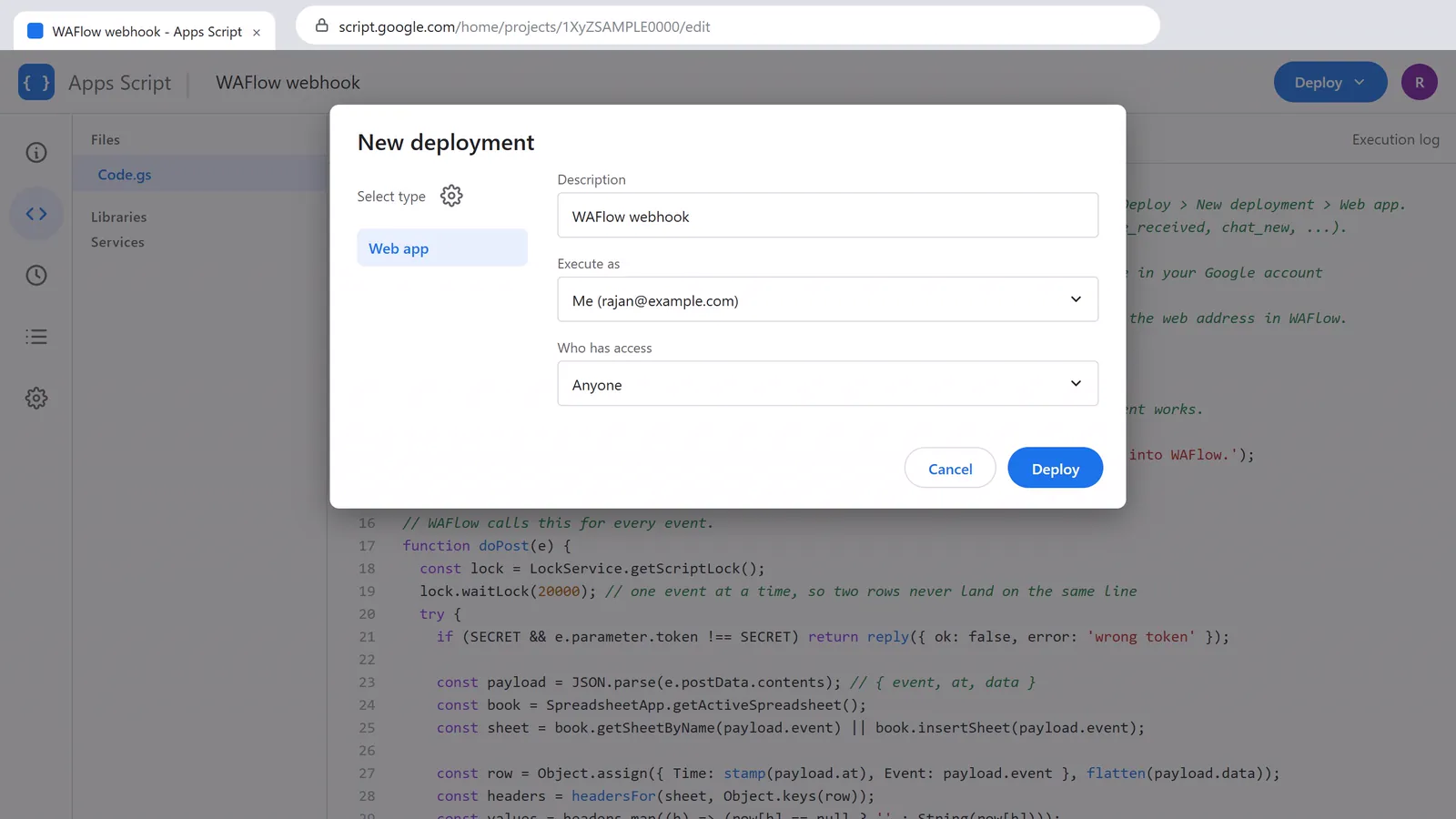
The New deployment window: Web app, Execute as Me, Who has access Anyone - Add a description if you like, for example WAFlow webhook.
- Set Execute as to Me, so the script writes into your sheet with your own permission.
- Set Who has access to Anyone, so WAFlow can reach it without signing in to Google. The address is long and secret, and only people who have it can use it.
- Click Deploy.
- The first time, Google asks for permission. Click Authorize access and choose your account. If Google says the app is not verified, that is normal: you wrote the script yourself. Click Advanced, then Go to WAFlow webhook (unsafe), and then Allow. The permission it asks for is only this spreadsheet.
Your Web app URL appears. It ends in
/exec. Click Copy.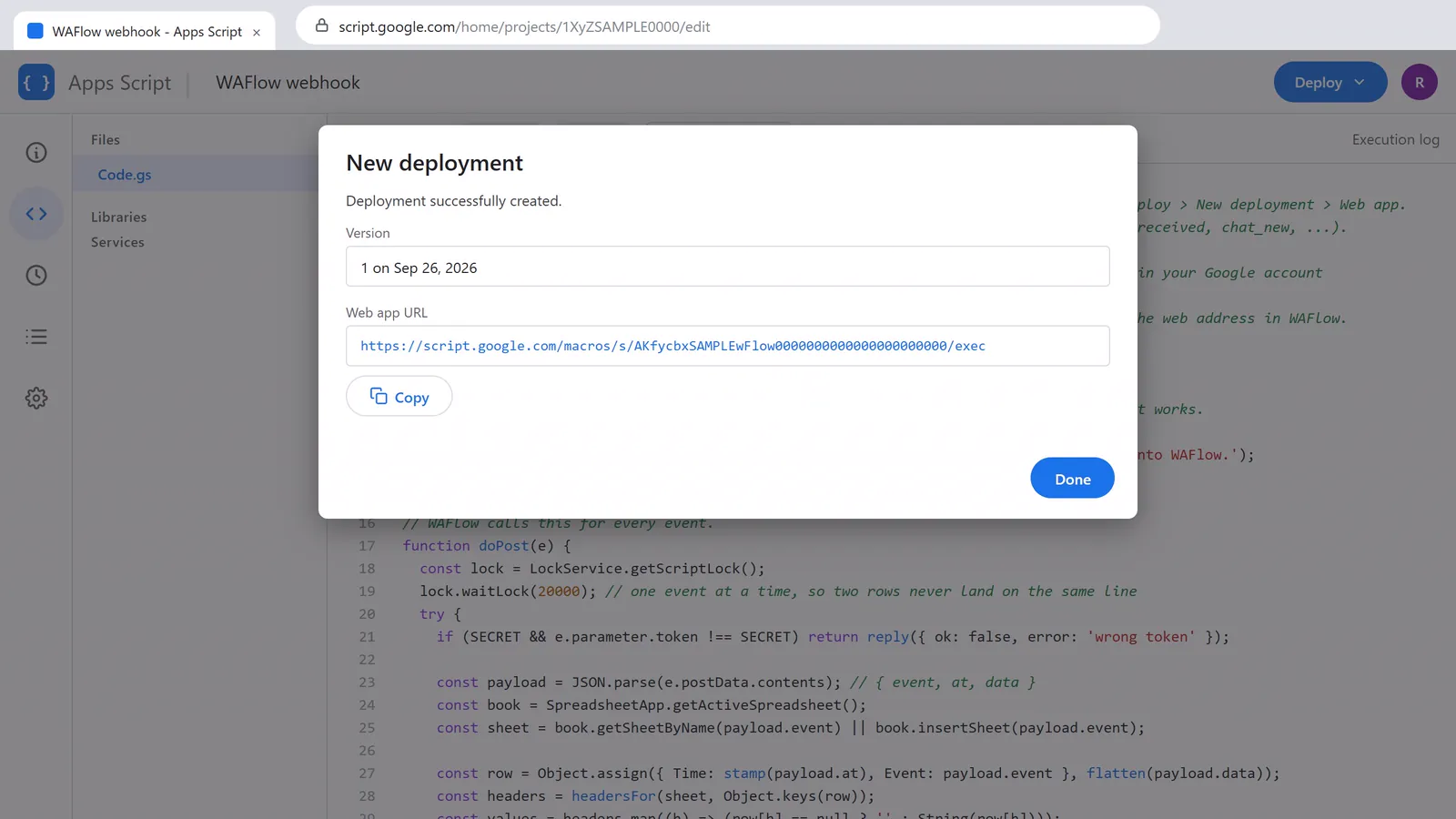
The web app URL, with a Copy button
Open the address in a new browser tab. You should see WAFlow webhook is ready. If you do, the script is published.
The Test deployments address ends in /dev and only works for you. WAFlow needs the Web app URL that ends in /exec.
4. Connect WAFlow#
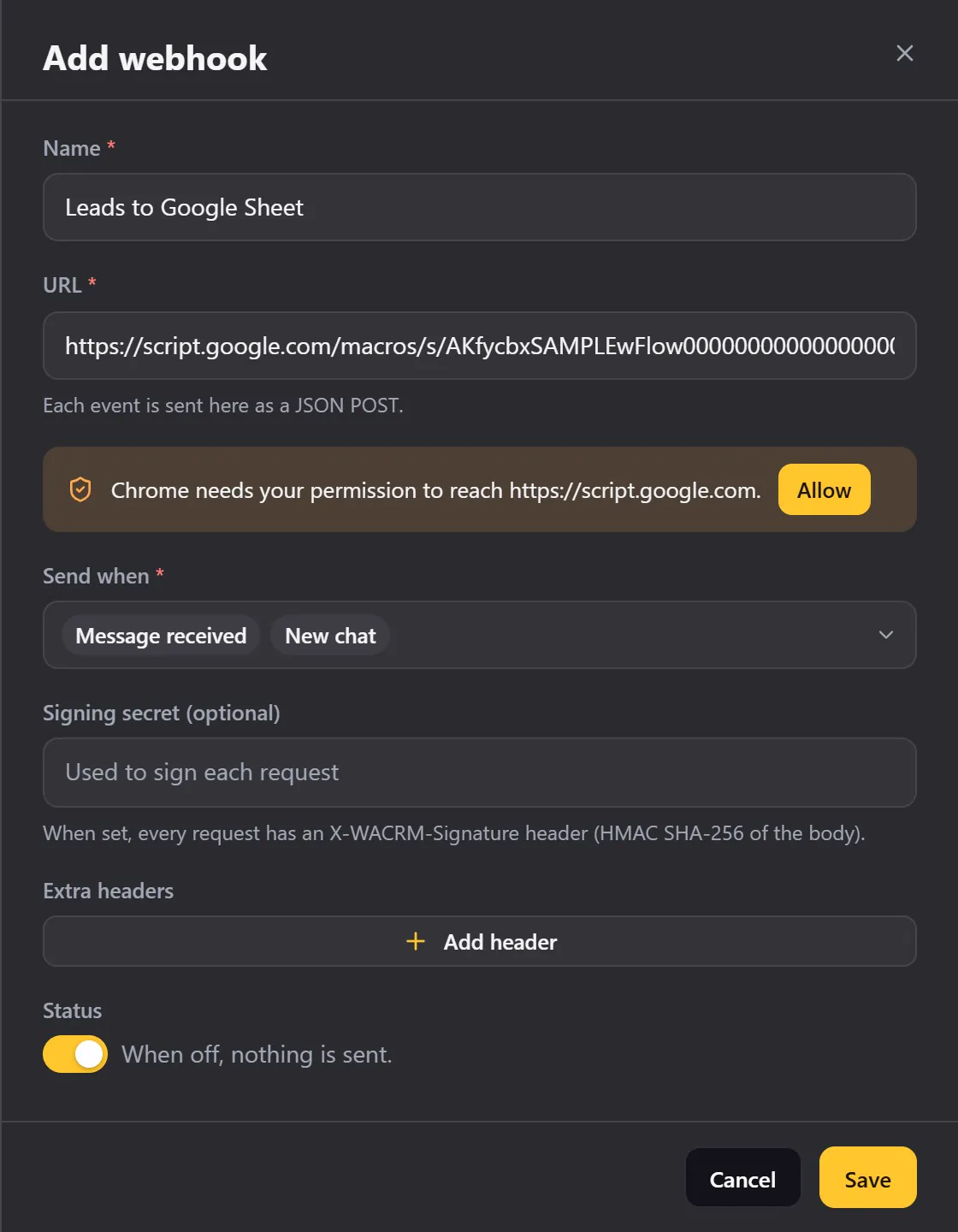
- In WAFlow, open Webhook (the sixth icon in the bar) and click Add webhook.
- Name: for example Leads to Google Sheet.
- URL: paste the web address you copied.
- Chrome asks for permission to reach
script.google.com. Click Allow and confirm in the small window. It will not ask again. - Send when: tick the events you want, for example Message received and New chat. Every event you pick gets its own tab.
- Leave Signing secret and Extra headers empty. Google's script cannot read request headers, so WAFlow sends only the data to a
script.google.comaddress. To protect the address, use the Secret word instead. - Click Save.
5. Test it#
- Click the play icon on your webhook, to send a test. You should see Test delivered.
- Go back to your sheet. A new tab called test has appeared, with one row: the time, the event and the test message.
- Now a real one: ask a friend to write to you. A moment later a tab called message_received appears, with a row for the message: the time, who wrote, their number, and what they said.
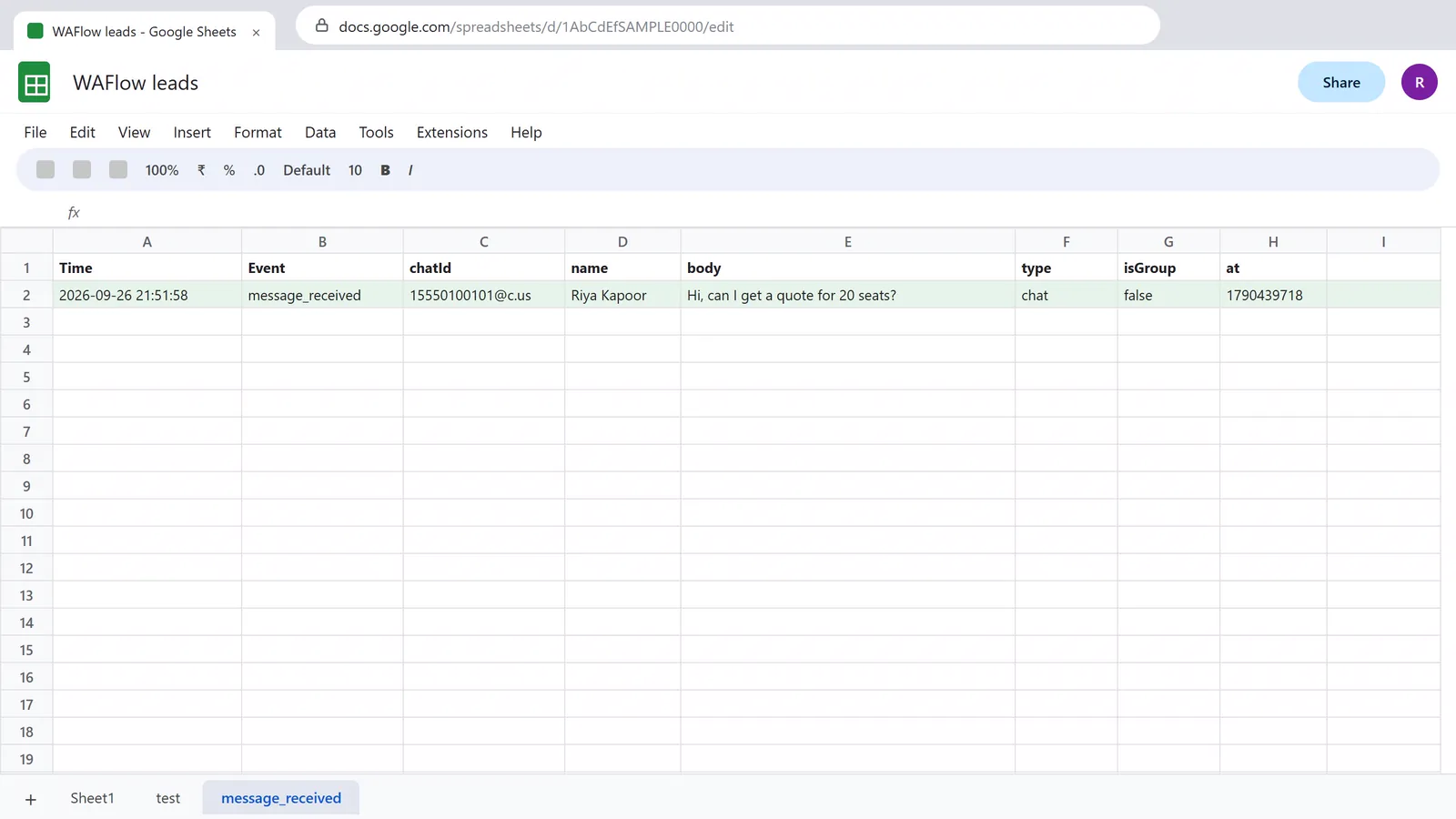
You can filter, sort or chart the tabs like any other data, build a pivot table on them, or share the sheet with your team.
Webhooks are sent by WAFlow while WhatsApp Web is open in Chrome, like everything else in WAFlow.
What each event writes#
| Tab | Columns after Time and Event |
|---|---|
message_received | chatId, name, body, type, isGroup, at |
message_sent | chatId, name, kind, text |
chat_new | chatId, name |
stage_changed | chatId, name, stage, dashboard, previousStageId |
tag_added | chatId, name, tag |
note_added | chatId, name, title |
appointment_created | title, customer, phone, start, end |
reminder_due | title, chatId, name, at |
chatbot_completed | chatId, flow, and one variables.… column for each answer the chatbot collected |
handoff | chatId, name, source, and, from the AI assistant, summary and reason |
campaign_completed | name, sent, failed, total |
test | message, sample |
The chatId is the contact's WhatsApp id, the phone number followed by @c.us.
Protect the address#
Anyone who has the web address can add rows to your sheet, so keep it private. To make it harder still:
- In the script, type a word between the quotes of
SECRET, for exampleconst SECRET = 'blue-otter-42';. - Add
?token=and that word to the end of the address in WAFlow:https://script.google.com/macros/s/…/exec?token=blue-otter-42. - Save the script, then publish a new version.
Requests without the right word are refused, and nothing is written. Google still answers OK to a refused request, so a test can say Test delivered while no row appears. If that happens, check the word.
Change the script later#
After you edit the script, the published copy does not change by itself. Publish the new version:
- Click Deploy, then Manage deployments.
- Click the pencil on your deployment.
- Under Version, choose New version, and click Deploy.
The web address stays the same, so you do not need to change anything in WAFlow.
If something is wrong#
| What you see | What to do |
|---|---|
| The test fails, or WAFlow shows a Google sign-in page | Who has access must be Anyone. Fix it in Manage deployments and publish a new version. |
| The test fails with Not found | Use the Web app URL that ends in /exec, and copy it again. |
| Test delivered, but no row | In Apps Script, open Executions (the list icon on the left) to see the error. Check that you opened Apps Script from Extensions > Apps Script in your sheet, and that the word after ?token= matches SECRET. |
| You changed the script, but nothing changed | Publish a New version, as above. |
| The time is wrong | In Apps Script, open Project settings and set the time zone. |
| Nothing arrives from real events | Keep WhatsApp Web open, check the webhook is Active, and that the event is ticked under Send when. |
| Chrome asks for permission again | Click Allow. It asks once for script.google.com. |
Good to know#
- One webhook can send several events. Each kind gets its own tab, so the columns stay tidy.
- A busy account can fill a sheet fast. Choose the few events you really need, for example New chat and Tag added, instead of every message.
- To put everything in one tab, change
book.getSheetByName(payload.event) || book.insertSheet(payload.event)to use one fixed name, such as'WAFlow'. The columns then grow to cover every event. - To send to another spreadsheet, make a copy of your sheet, open Apps Script in the copy, and publish it there. Each sheet has its own address.
- Requests to a
script.google.comaddress carry only the data, without theX-WACRM-EventandX-WACRM-Signatureheaders. The event name and the time are in the data. See Webhooks.