AI Assistant
Let an AI answer your customers using your own AI key, your business knowledge and the rules you set. Includes connection, knowledge, personality, rules, testing and activity.
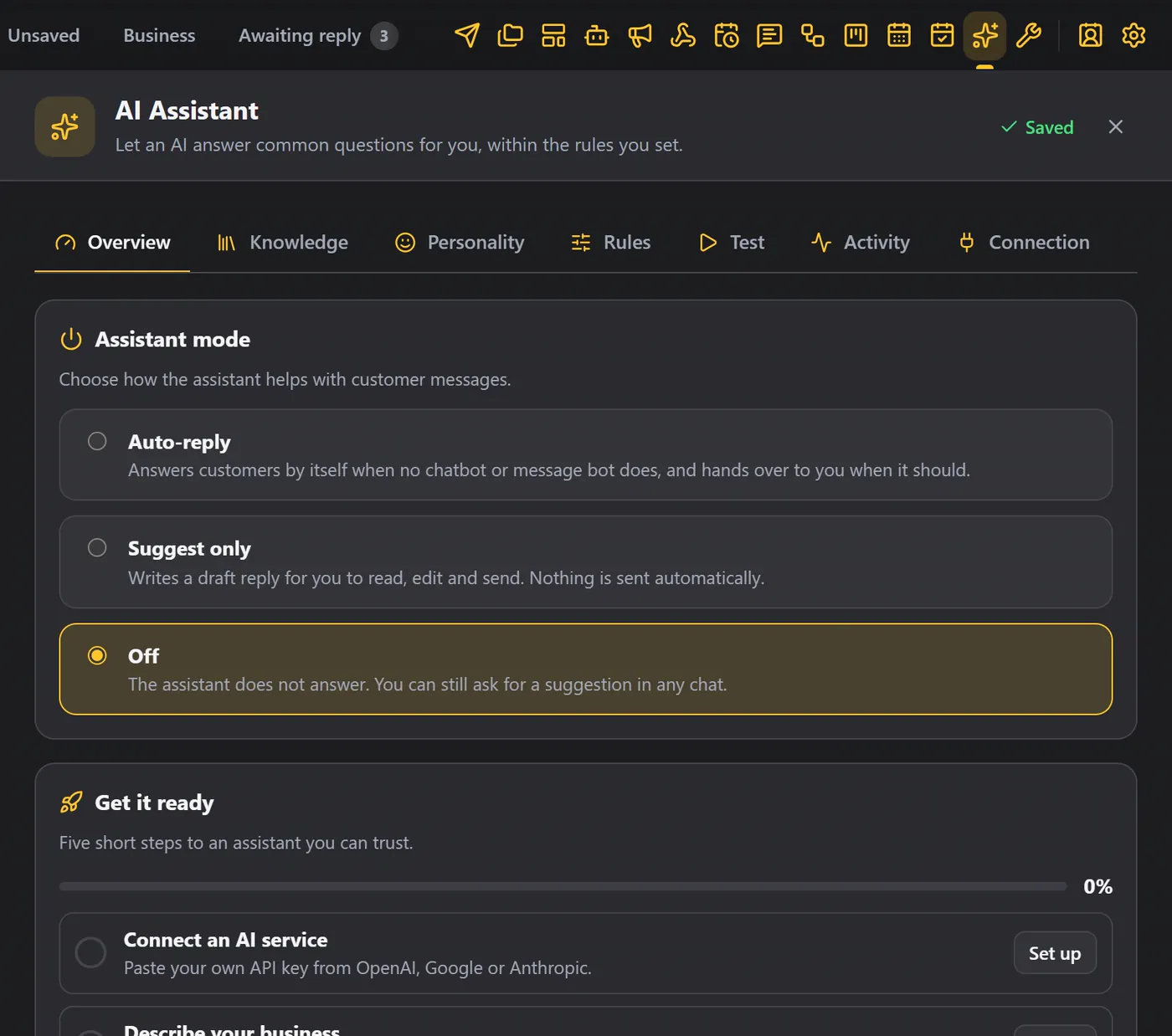
The AI Assistant answers your customers using your own AI key, your business knowledge and the rules you set. It is the thirteenth icon in the WAFlow bar.
The screen has seven tabs: Overview, Knowledge, Personality, Rules, Test, Activity and Connection. Everything saves by itself a moment after you change it.
You bring your own key for ChatGPT (OpenAI), Gemini or Claude (Anthropic). The key is stored only in your browser, and your conversations go straight from your browser to the service you pick, with no WAFlow server in between. See Privacy and data.
1. Connect an AI service#
Start with the Connection tab.
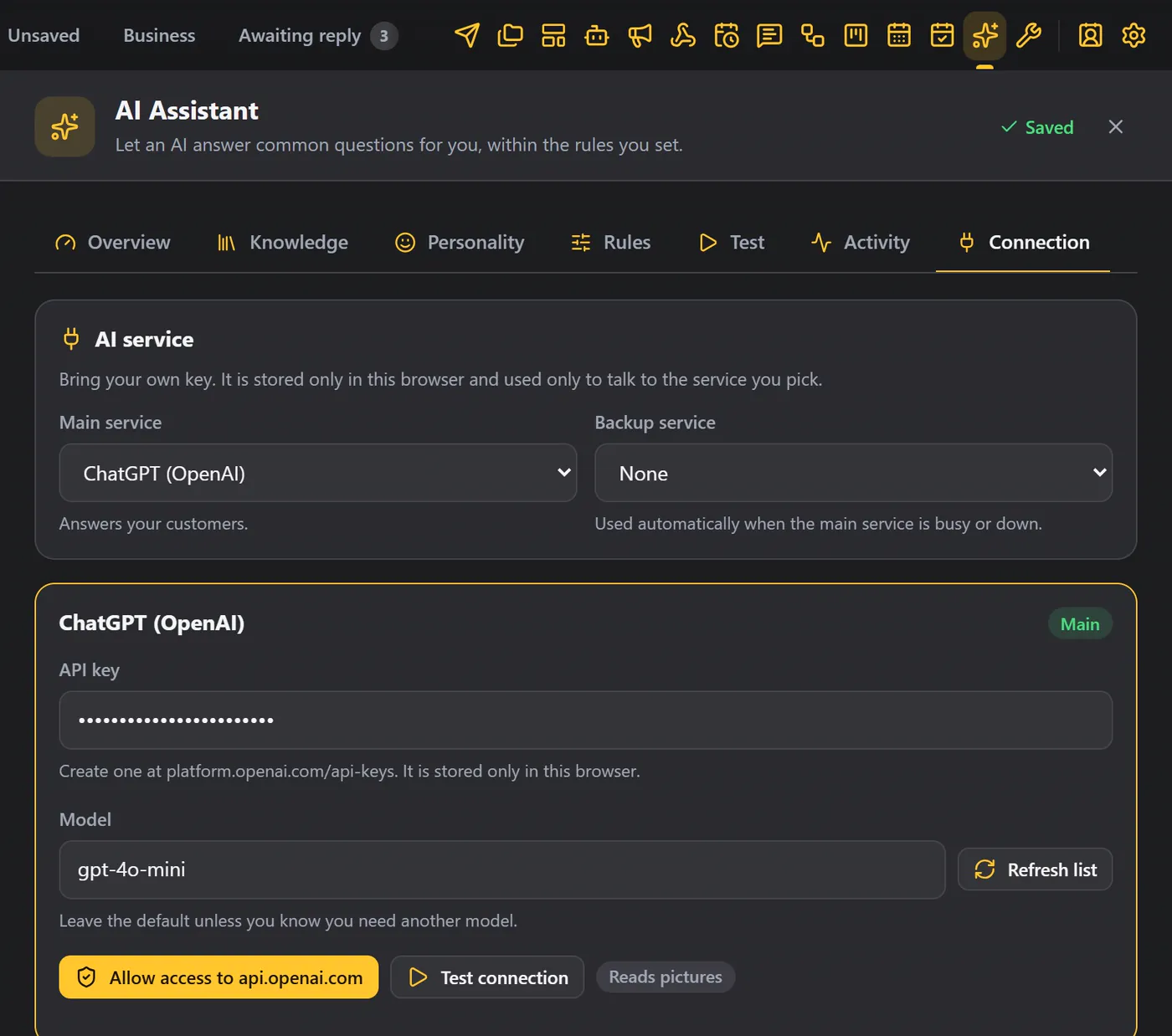
- Choose the main service: ChatGPT, Gemini or Claude.
- Paste your API key. Keys are made in your account on the service's website.
- Leave the model as it is, or click Refresh list to load the models your account can use.
- Click Allow access, so Chrome can reach that service. Chrome asks once per site.
- Click Test connection. When it works, you see the model, and how fast it answered.
- Optionally choose a backup service, which takes over when the main one is busy or down. Busy answers are retried first.
2. Choose a mode#
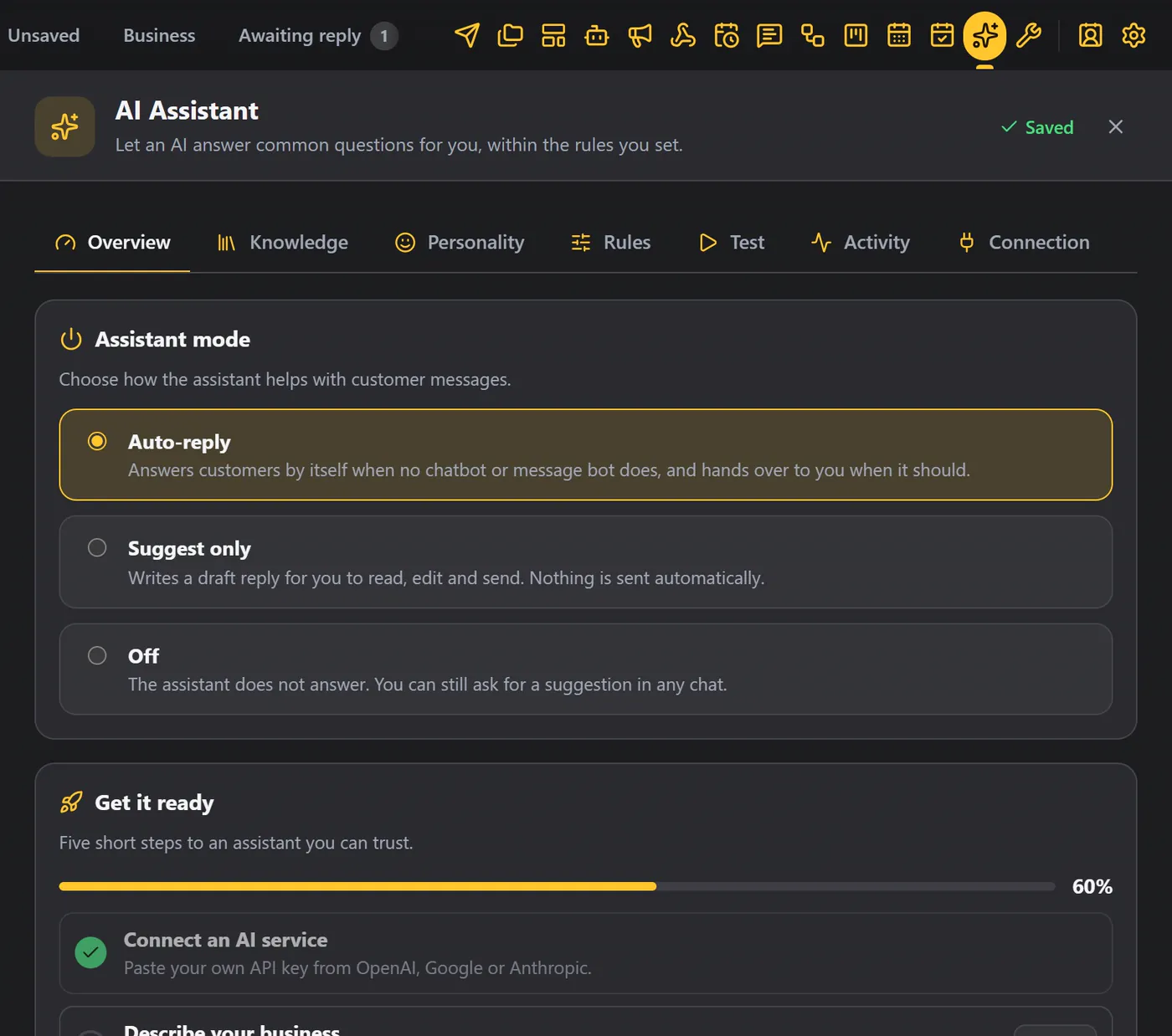
On Overview, the assistant mode decides what it does:
| Mode | What happens |
|---|---|
| Auto-reply | Answers by itself, when no chatbot or message bot does. |
| Suggest only | Writes a draft above the message box for you to use. Nothing is sent. |
| Off | Does nothing. |
Get it ready lists five short steps, with a progress bar. Each step has a button that takes you to the right place.
Start from a starter kit#
Starting from nothing? Choose a starter kit for your kind of business. There are eight: restaurant, clinic, real estate, store, school, salon, agency and travel. A kit adds the questions customers usually ask, and you write the answers.
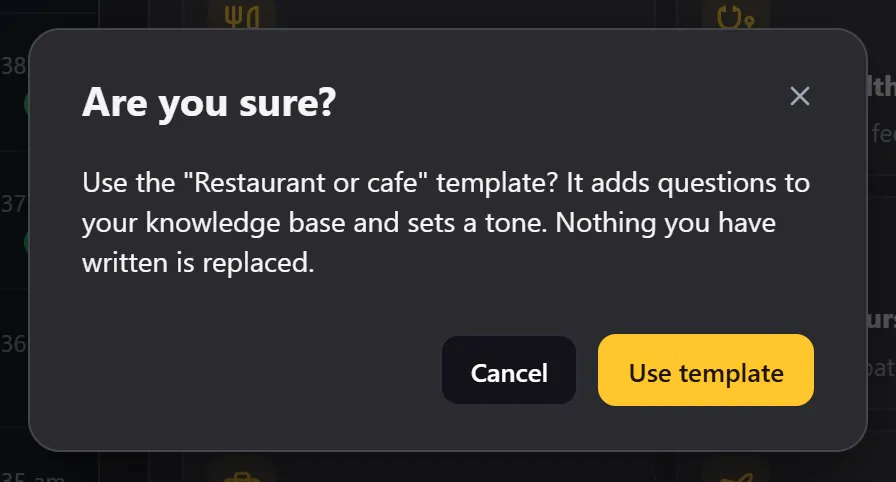
The kit's answers are left as [[fill in]]. Text that still has one is never sent to the AI, so a half-finished answer cannot reach a customer. Entries marked Needs an answer are ignored until you fill them in.
3. Teach it: Knowledge#
Knowledge is what the assistant knows.
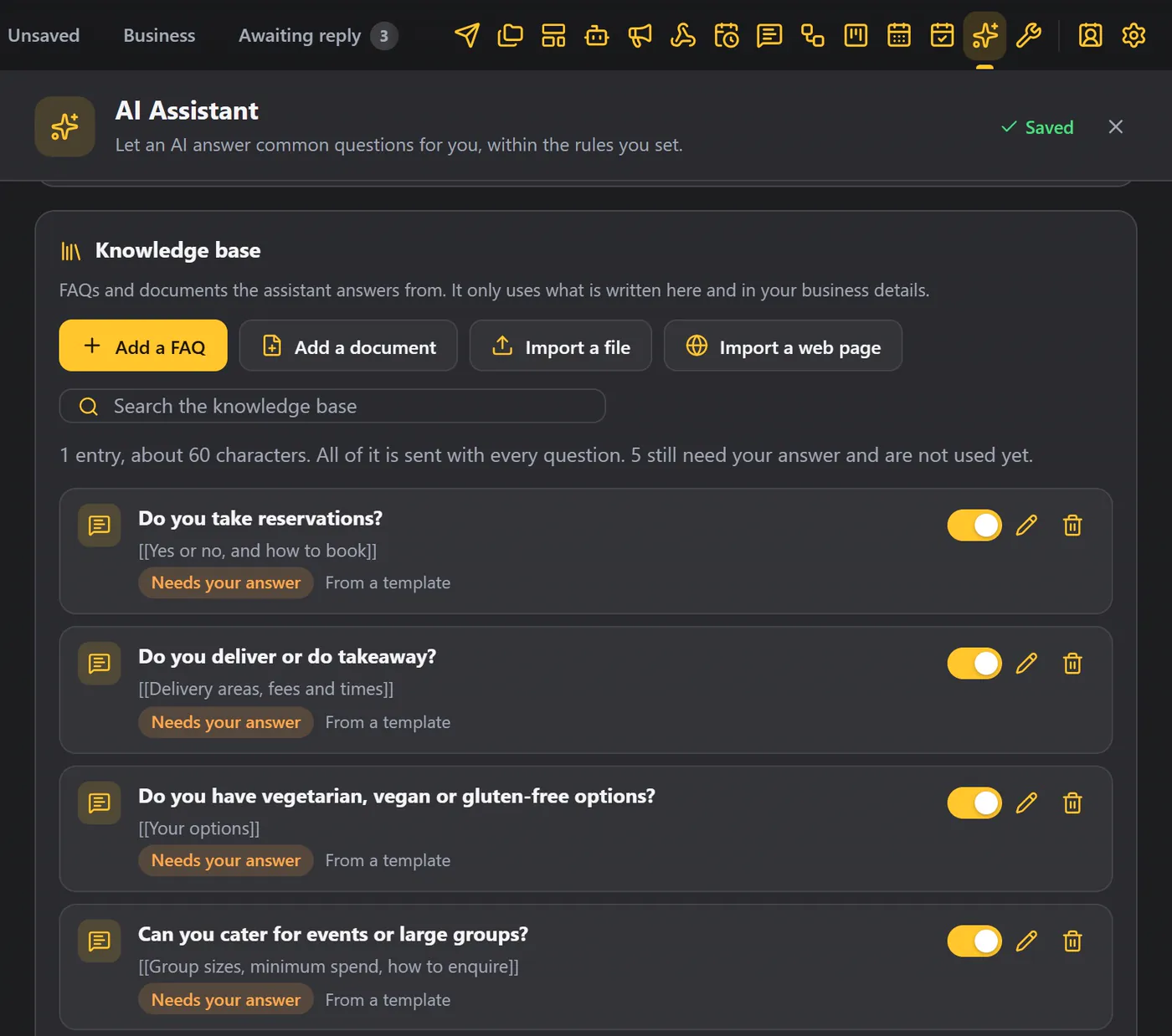
- Business details: the company, how to reach you, what you do and sell, your hours, location and policies.
- FAQs: click Add a FAQ, type what a customer asks, and the answer you would give.
- Documents: for longer text, click Add a document.
- Import a file (
.txt,.md,.csvor.json), or import a web page. The assistant reads it. Chrome asks once per site.
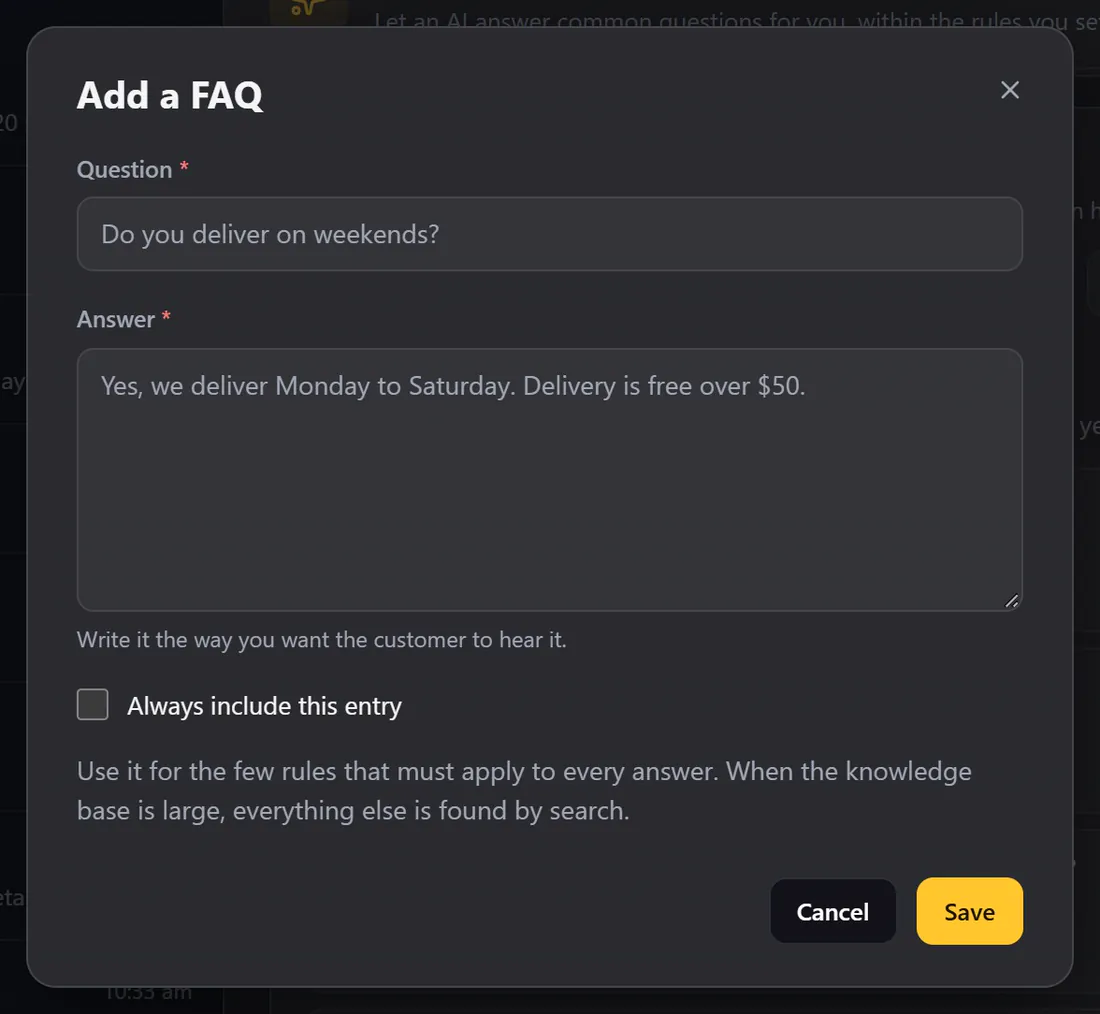
A small knowledge base (up to about 6,000 characters) is sent whole with every question. A bigger one is searched, and only the best passages are used. Use the Always include this entry option for the few rules that must apply to every answer.
Questions the assistant could not answer are collected under Not in knowledge, so you can add the answer with one click.
4. Personality#
Personality is how the assistant sounds.
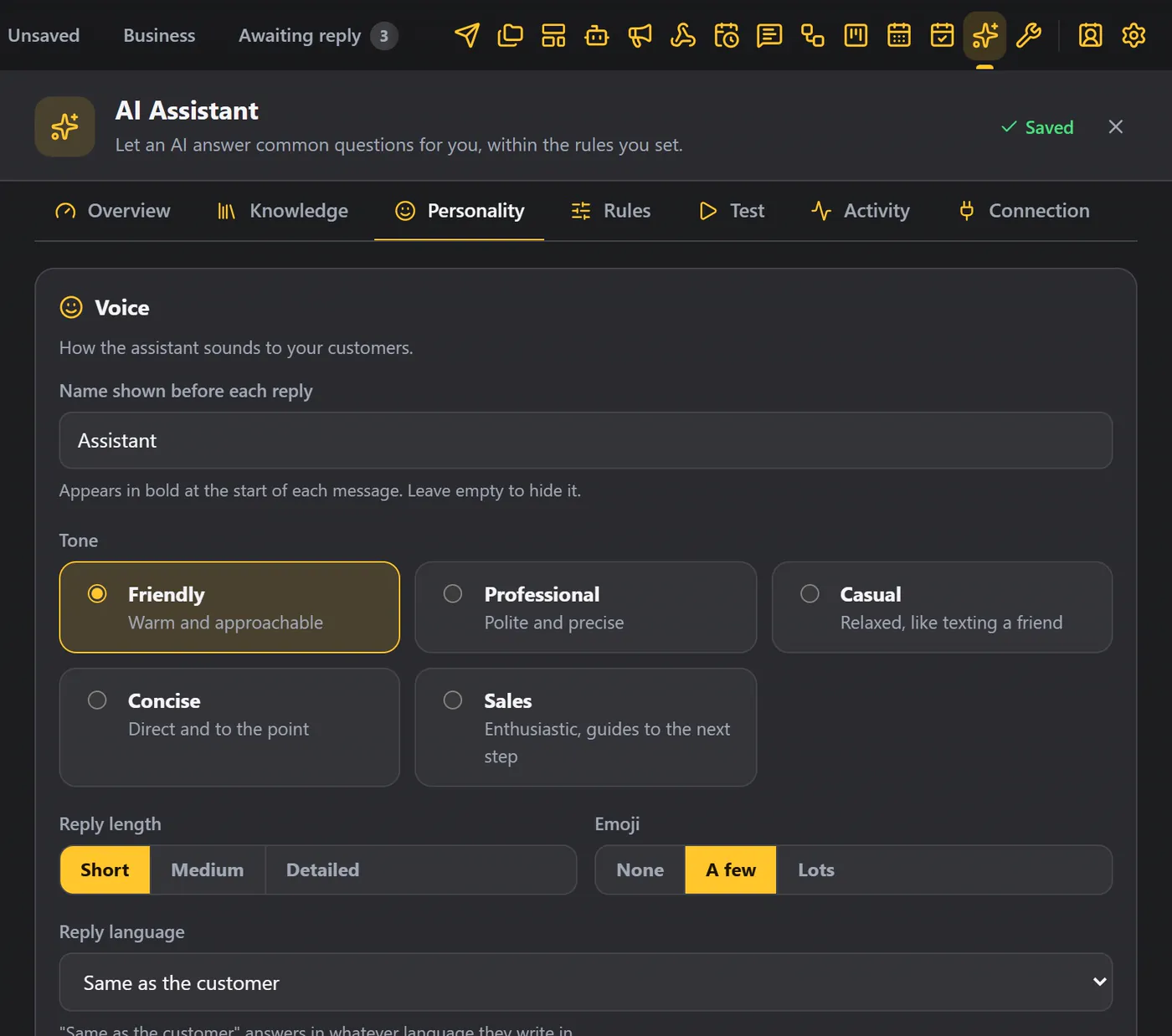
- Name shown before each reply.
- Tone: friendly, professional, casual, concise or sales.
- Reply length: short, medium or detailed. Emoji: none, a few or lots. Reply language: the same as the customer, or a language you choose.
- Say it is an AI when asked.
- Teach it by example: add a customer message and the reply you would like, up to 8 examples.
- Extra instructions, and topics it must never discuss.
5. Rules#
Rules decide where and when it answers.
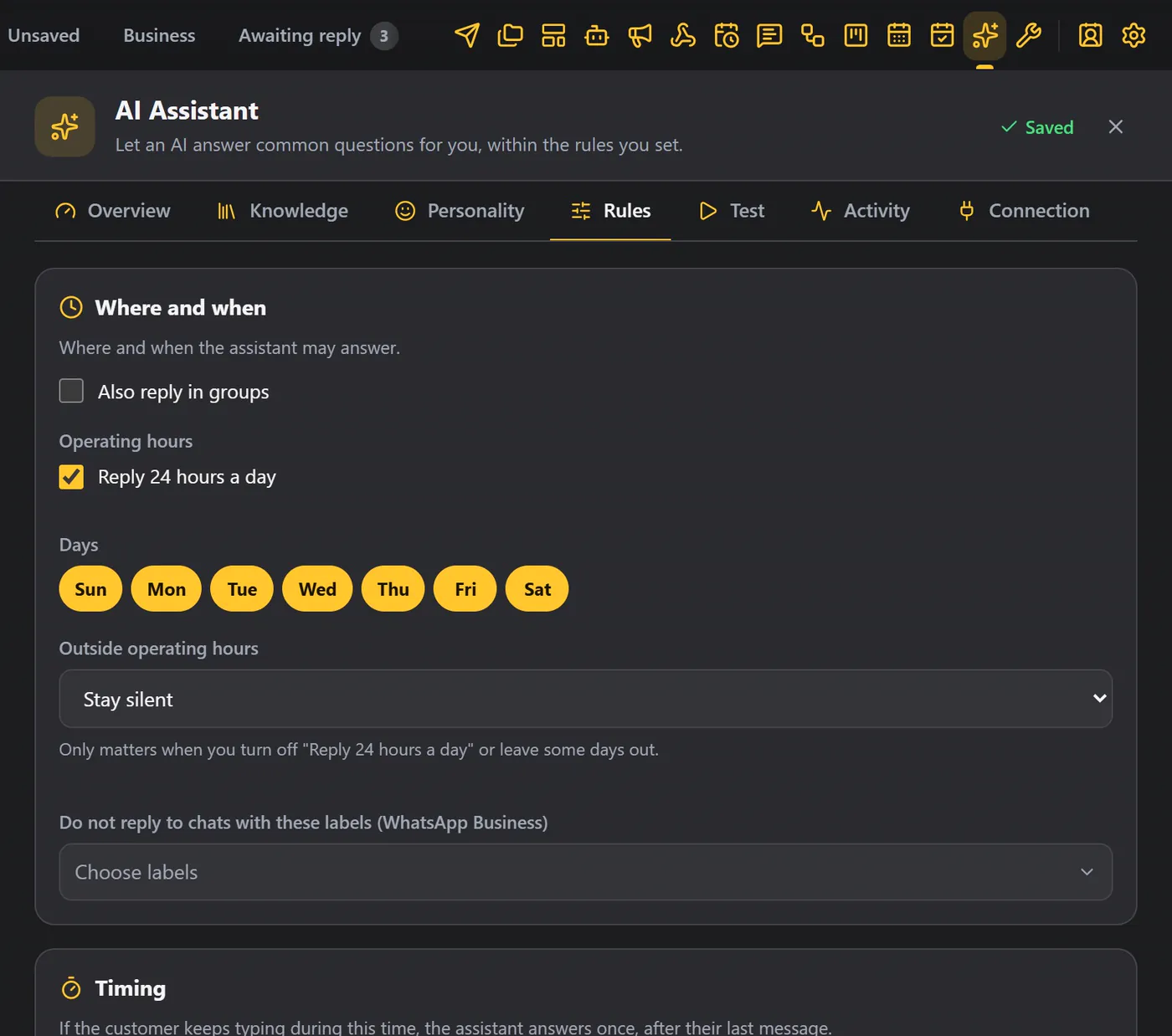
| Section | What you set |
|---|---|
| Where and when | Answer in groups or not. The operating hours, and the days. Outside those hours it can stay silent, send an away message once, or answer and say you are closed. It can skip chats that have certain WhatsApp labels. |
| Timing | A random wait before it replies, so it feels natural. It stays quiet when you reply yourself, and when that chat is open on your screen. |
| Safety limits | The most answers per customer per day, and the most AI requests per day. |
| Hand over | When a person takes over: certain words, an upset customer, or when it is unsure twice in a row. It can tell the customer, and message a teammate on WhatsApp with a summary. |
| Actions in your CRM | What it may do: add tags, move a Kanban card, save details in custom fields, write notes, and create follow-up reminders. Every one is off until you allow it, and only the tags, stages and fields you pick can ever be used. |
| What it may look at | The customer's profile, your knowledge, pictures and voice notes. Pictures go to all three services. Voice notes go only to Gemini; with the others the customer is asked to type. |
6. Test before you switch it on#
Open Test and talk to the assistant as a customer would. It can act as a new customer or as a real one, using that person's CRM profile. Nothing is sent to WhatsApp, and nothing changes in your CRM.
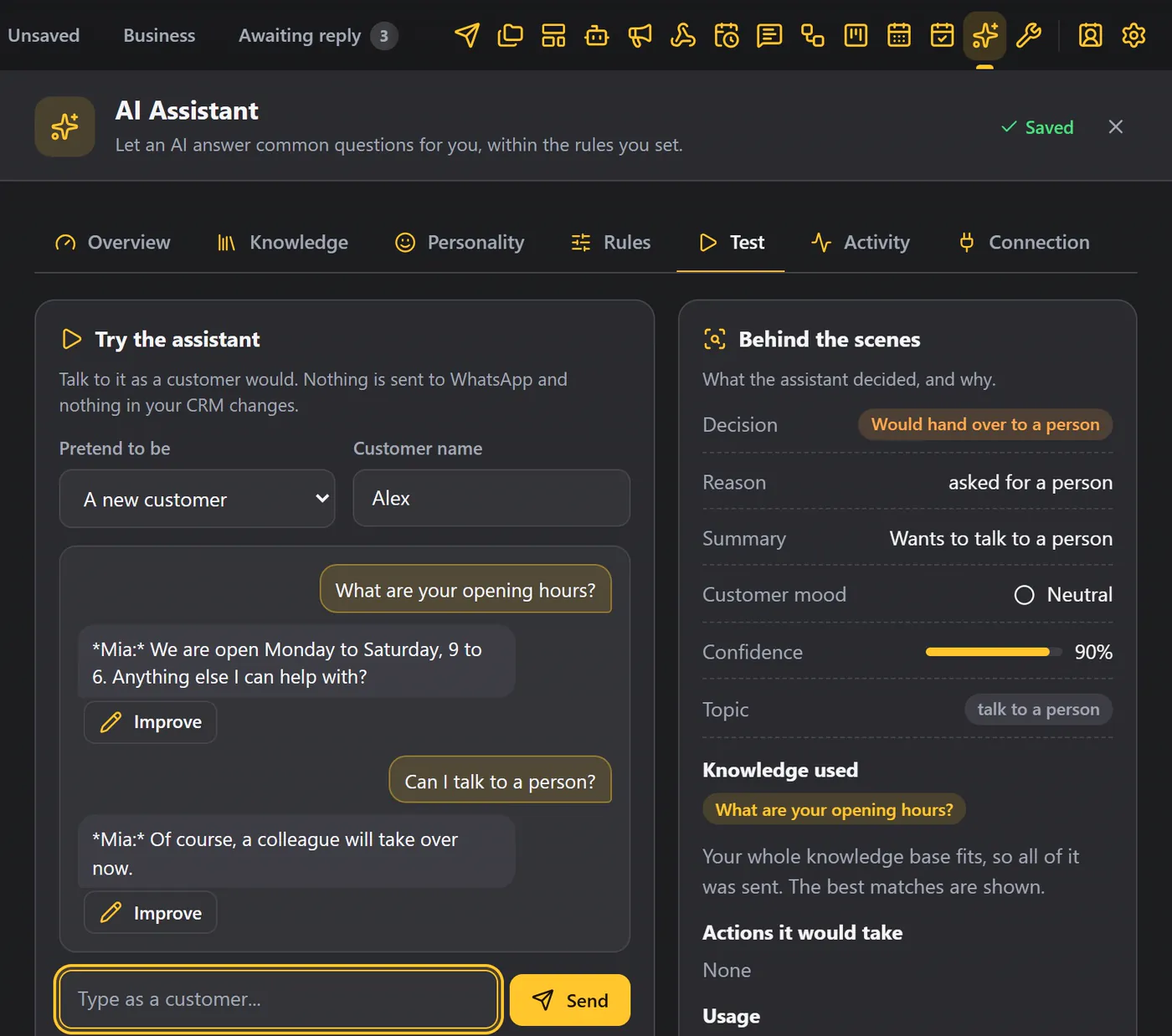
Behind the scenes you see its decision, its mood reading, how confident it was, the knowledge it used, the actions it would take (they are not done), the tokens and the speed. If a person is asked for, it would hand over.
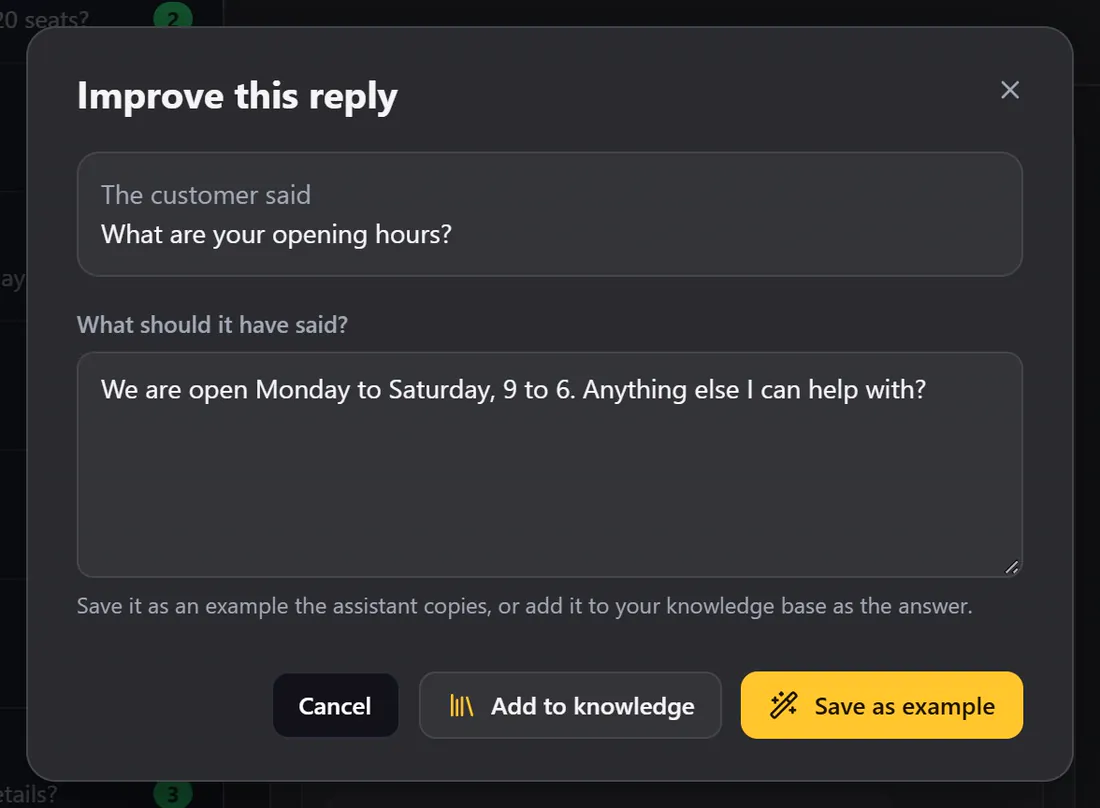
If you do not like an answer, click Improve, write a better one, and save it as an example or add it to your knowledge.
7. Switch it on and watch it#
Happy? Choose Auto-reply on the Overview. From now on, when a customer writes, the assistant answers by itself, in your tone, from your knowledge.
Everything it does is in Activity: the question, the answer, the tags it added, and the tokens it used.
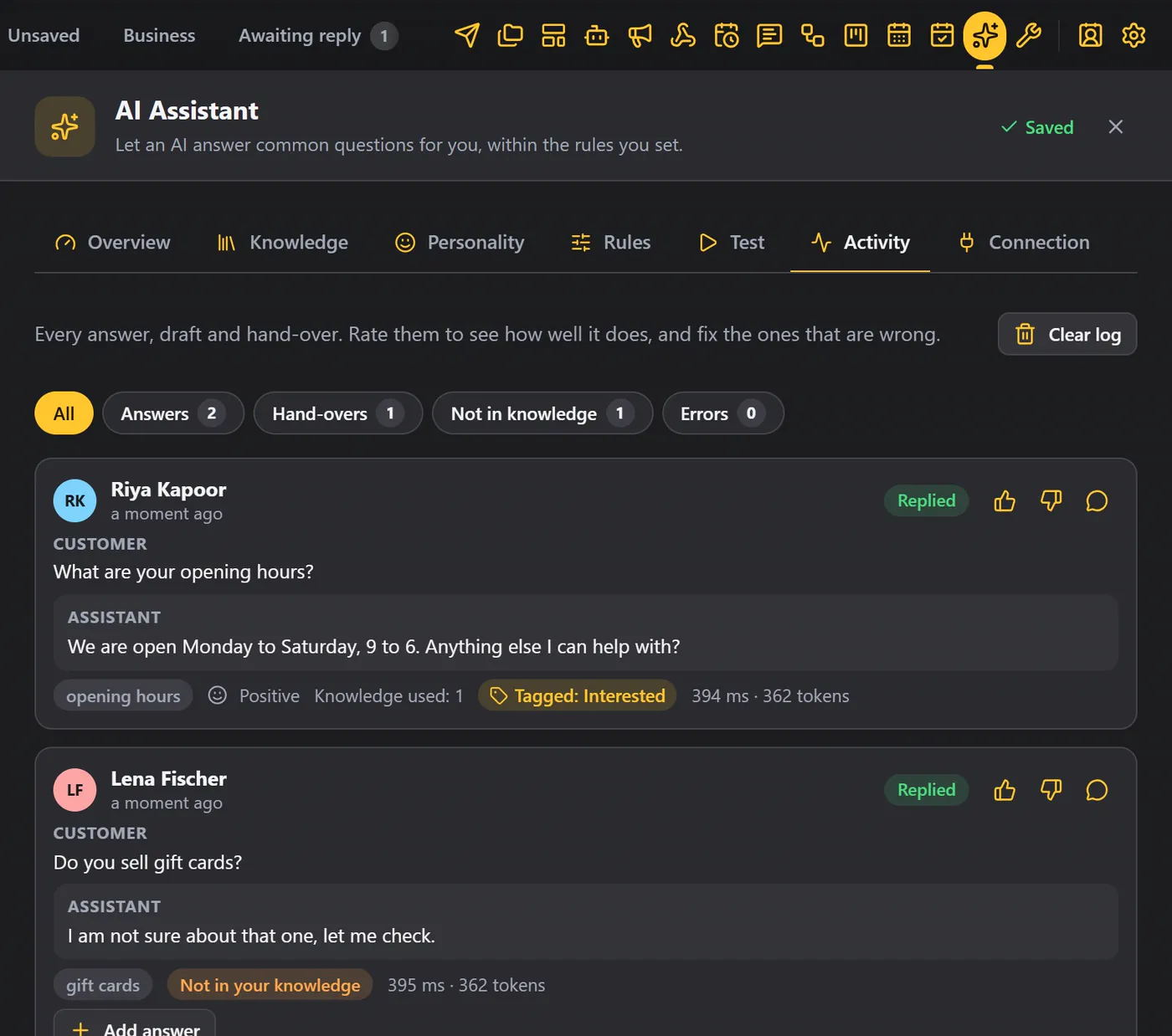
- Filter by answers, hand-overs, questions not in your knowledge, or errors.
- Give an answer a thumbs up. Or a thumbs down, and write what it should have said, to save it as a new FAQ.
- A keyword hand-over is listed in Activity too, with its reason.
On the Overview, the last seven days are counted for you: answers sent, hand-overs, the average answer time, and the AI usage.
Writing help in every chat#
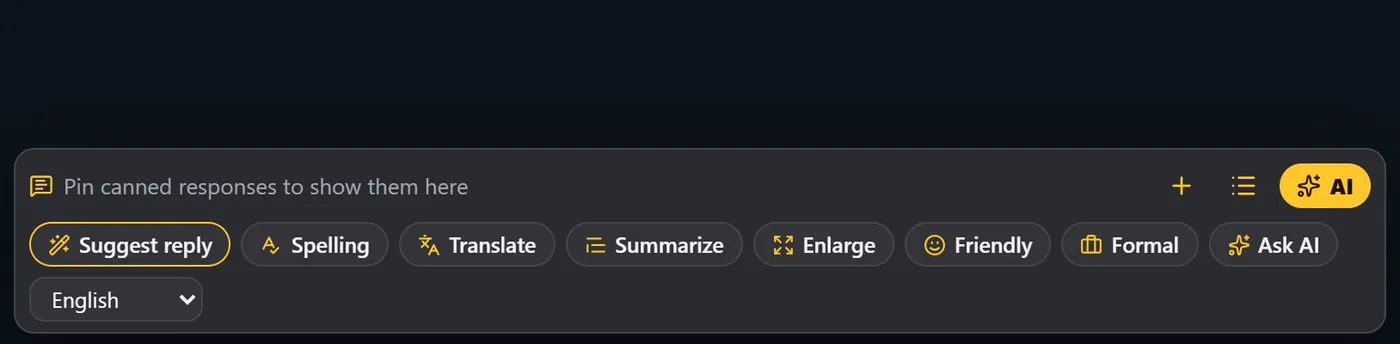
Even with Auto-reply off, you get the AI row above the message box. Suggest reply writes an answer for you, and Spelling, Translate, Summarize and Enlarge improve what you typed. Tone buttons such as Friendly and Formal, and Ask AI, are there too.
In Contact details, Summarize with AI writes a short summary of a conversation, which you can copy or save as a note. See Contact details.
Good to know#
- The assistant answers when no chatbot or message bot does. Bots come first.
- A cut-off answer from the AI is never sent to a customer as raw text.
- The instructions sent to the AI are in English on purpose, since models follow them best. Your knowledge and its replies can be in any language.
- Use Pause all automations in the Settings menu to stop the assistant with everything else.
Tips#
- Start with a starter kit.
- Test every answer before you switch on Auto-reply.
- Answer the questions in Not in knowledge, so it keeps getting better.
- Let it hand over rather than guess: keep the hand-over rules on.