Calendar
See all your appointments by month, week or day. Click an empty hour to book, and click a chip to open an appointment.
The Calendar shows all your appointments by month, week or day. It is the eleventh icon in the WAFlow bar.
Month view#
Every day is a square, and today is highlighted. Appointments appear as small chips with the time and the title.
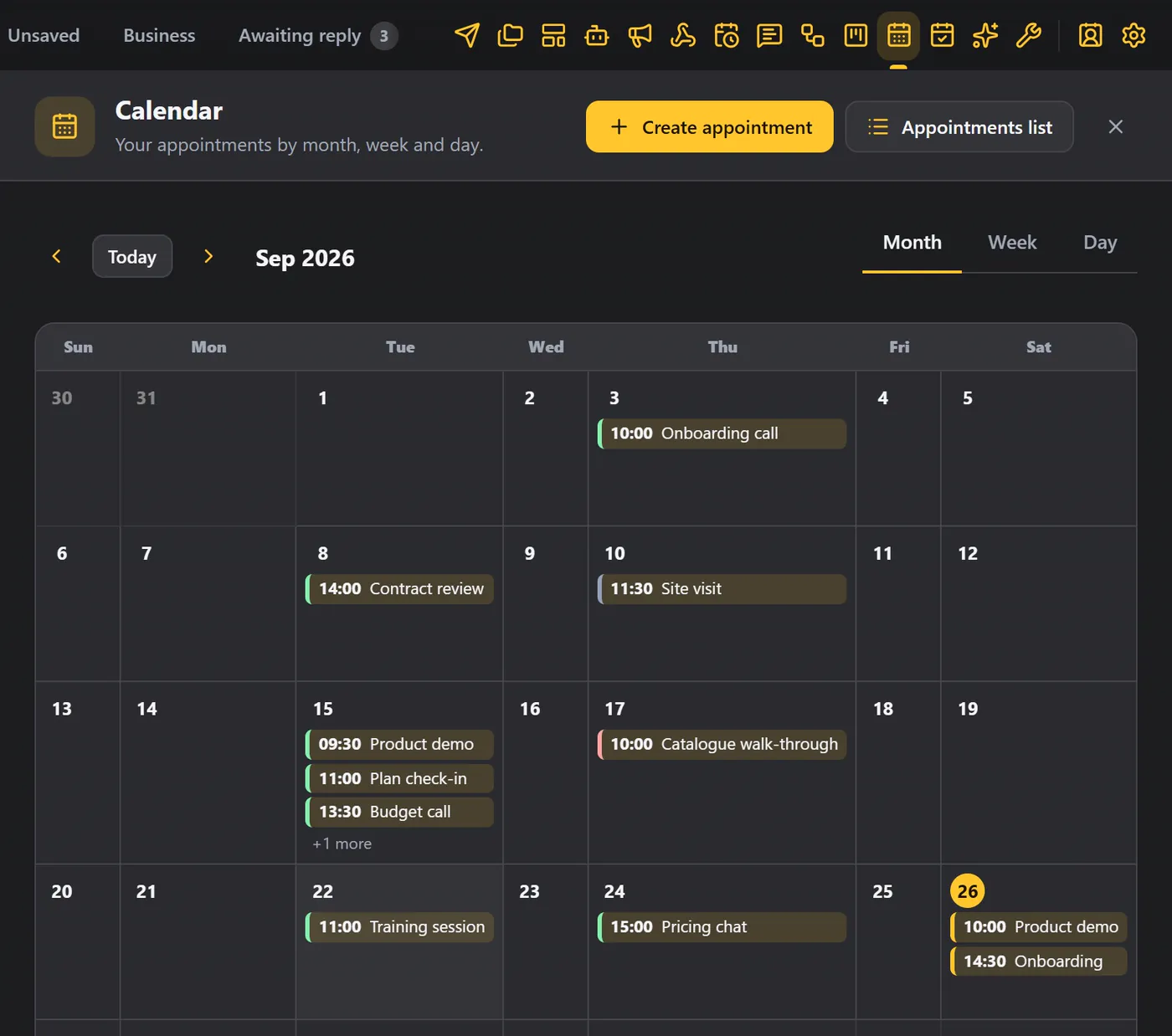
The colour shows the status:
| Colour | Status |
|---|---|
| Yellow | Scheduled |
| Green | Completed |
| Grey | Cancelled |
| Red | No-show |
If a day has more than three appointments, it says how many more (for example +2 more). Click any chip to open that appointment.
Move around#
Use the arrows to go to the previous or the next month. Today brings you straight back.
Week view#
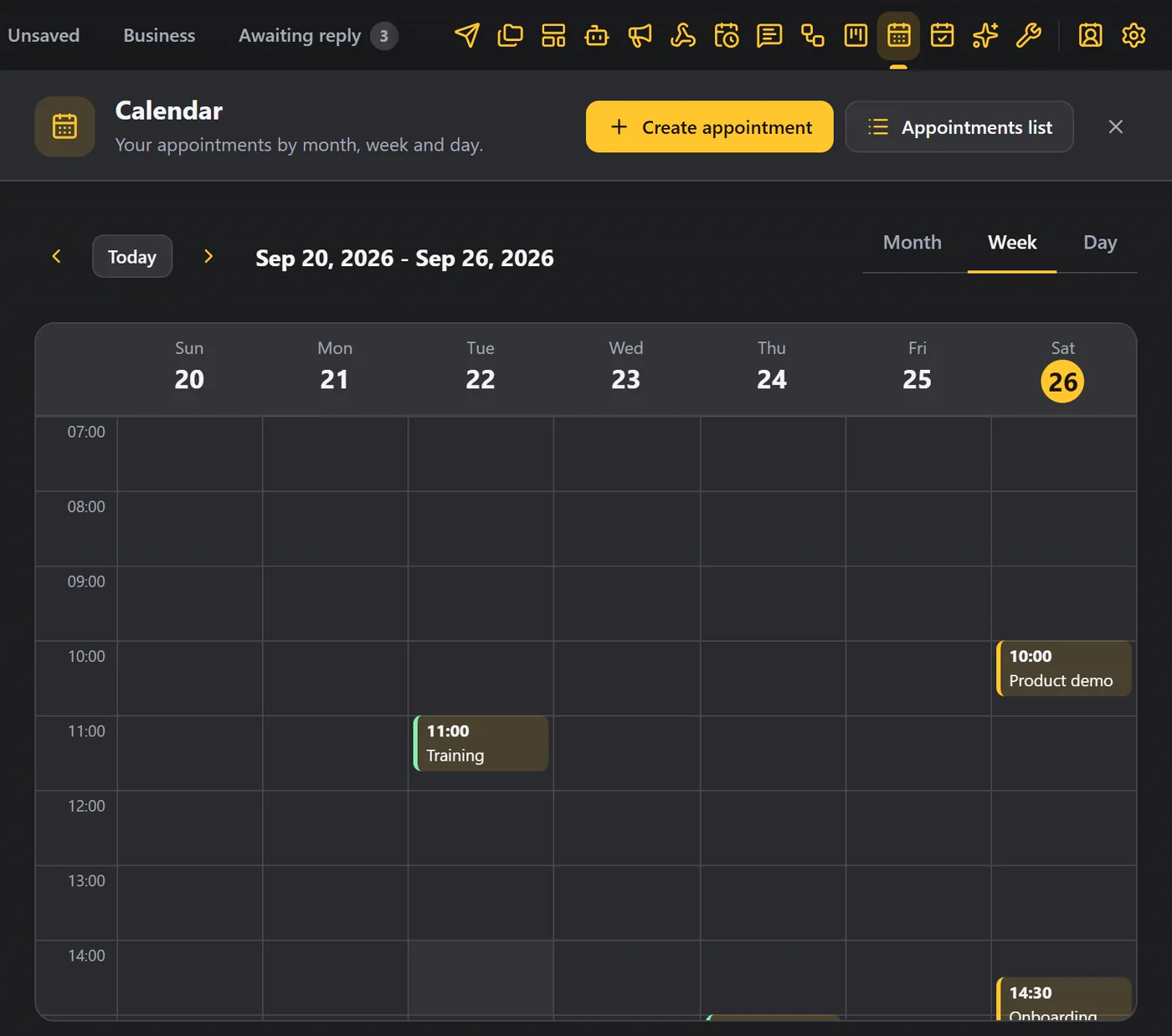
The Week view shows each day as a column, with the hours down the side. An appointment sits at its time, and is as tall as its length.
Day view#
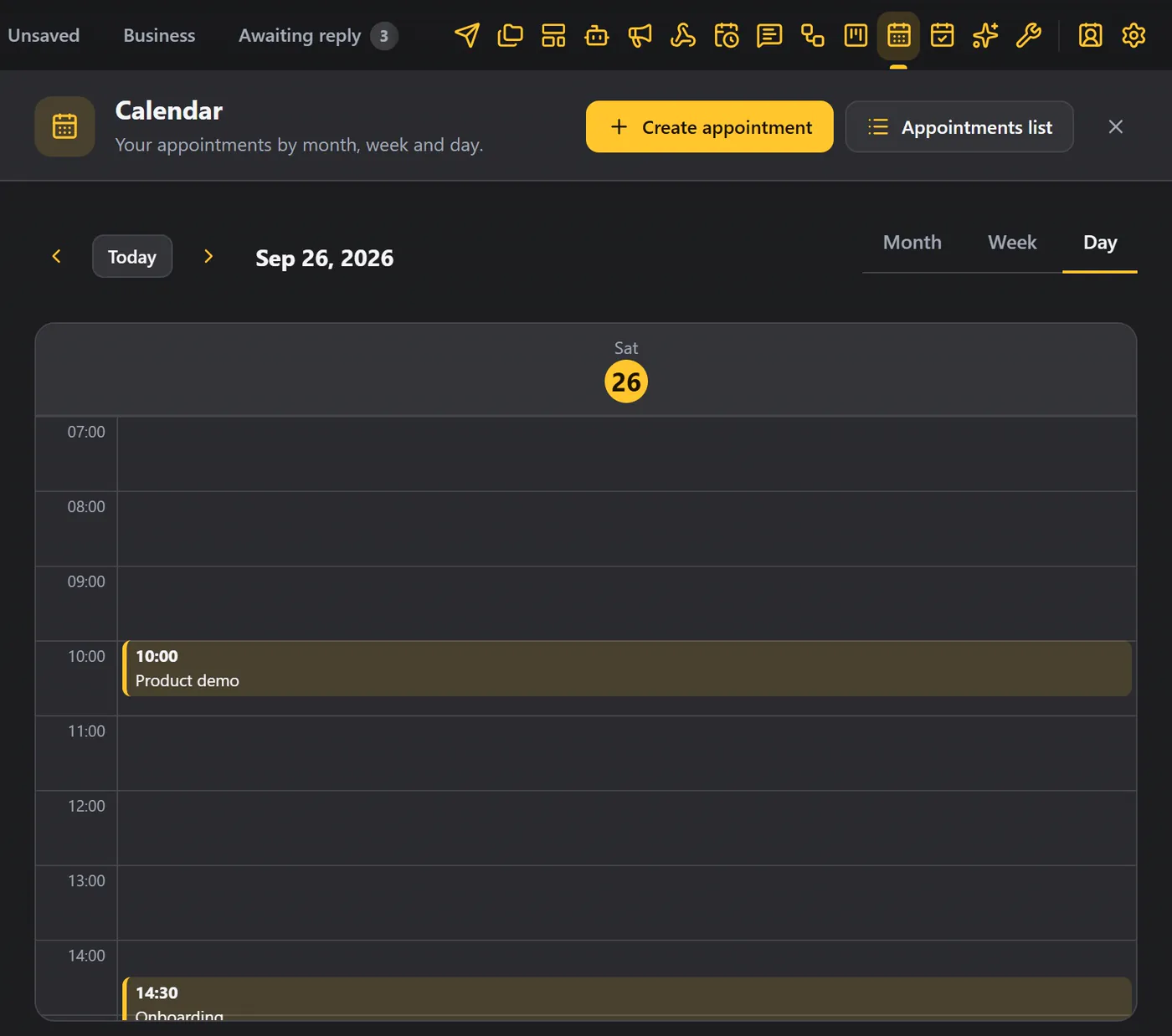
The Day view shows a single day, in the same way.
Add an appointment#
Click Create appointment at the top. Or click an empty hour in the week or day view, and the date and time are already filled in. In the month view, you can click any empty day in the same way.
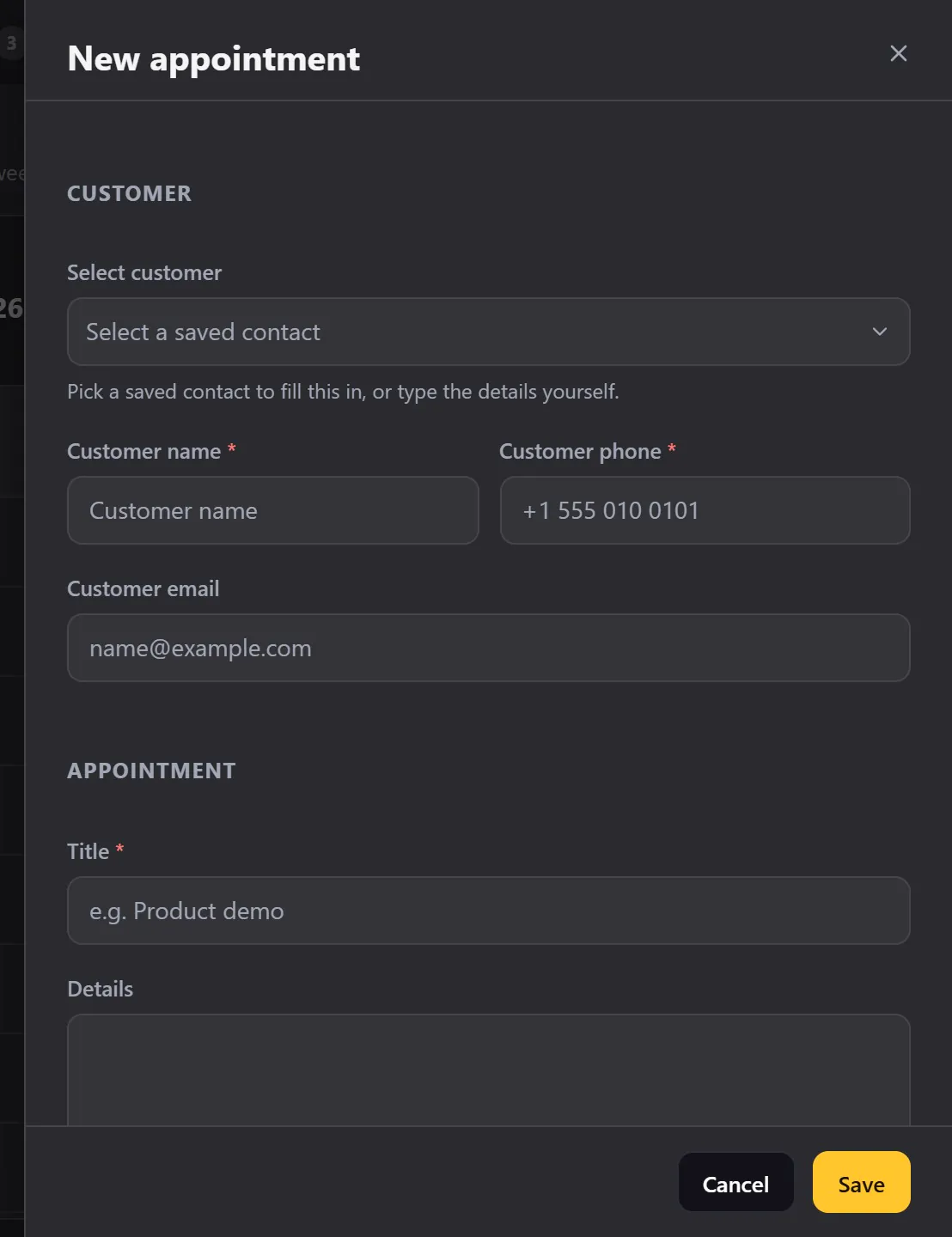
Type the customer's name and phone, give it a title, and click Save. It appears on the calendar. The form is explained field by field in Appointments.
The appointments list#
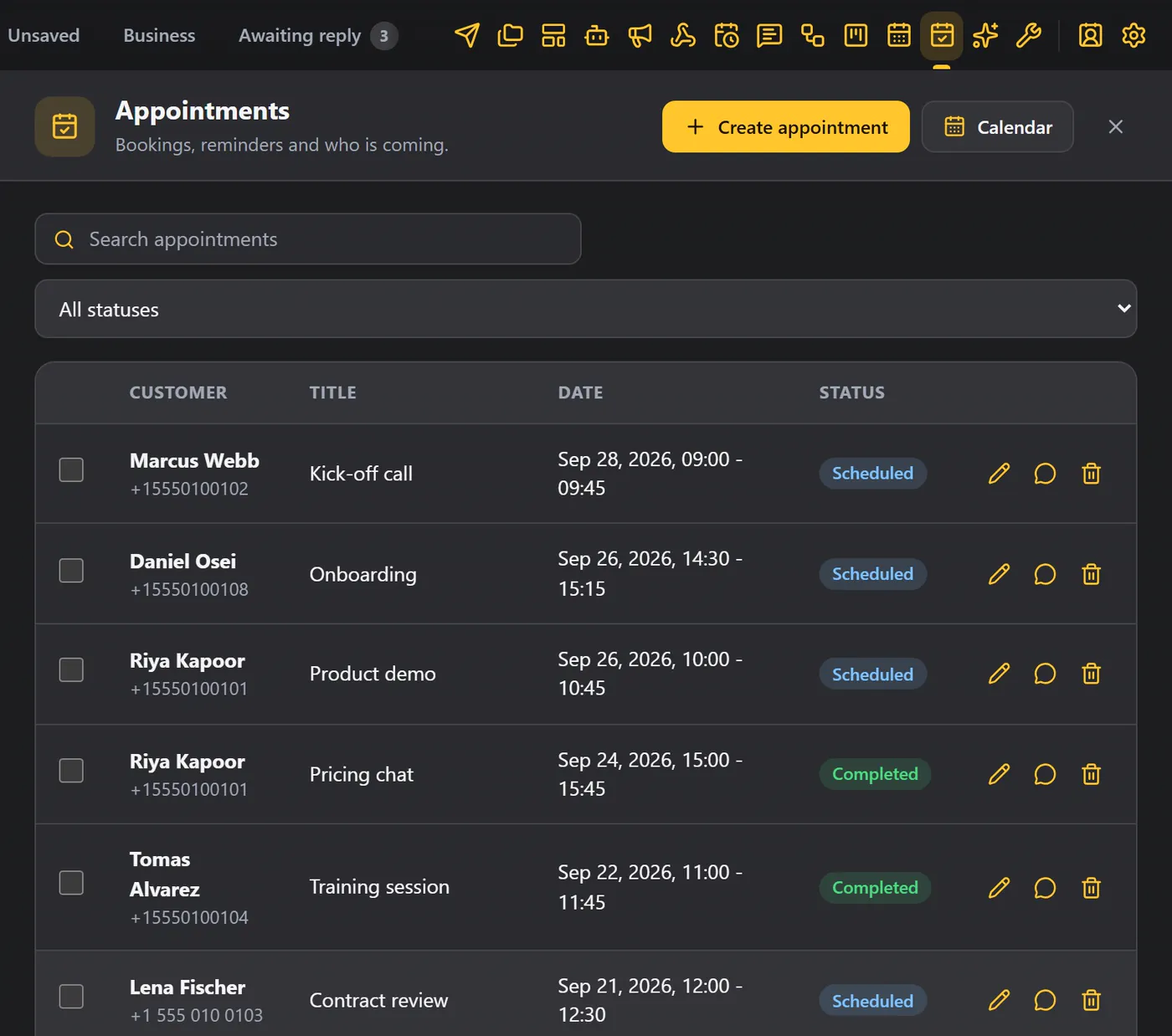
The Appointments list button opens the same appointments as a table, where you can search, filter and manage them.
Tips#
- Check the week view each morning.
- Change the status after every visit.
- Use the reminders, so nobody forgets. See Appointments.