Webhooks
Tell your other tools, like a spreadsheet or an automation app, when something happens in WAFlow. Choose events, sign requests, test and review every delivery.
A webhook tells your other tools, such as a spreadsheet, a CRM or an automation app, when something happens in WAFlow. It is the sixth icon in the bar.
Here is the idea. When an event happens, WAFlow sends a small message, a JSON request, to a web address you choose. Tools like Zapier, Make and n8n can receive it and do the rest. To fill a Google Sheet with your events, without any other tool, see Send events to Google Sheets.
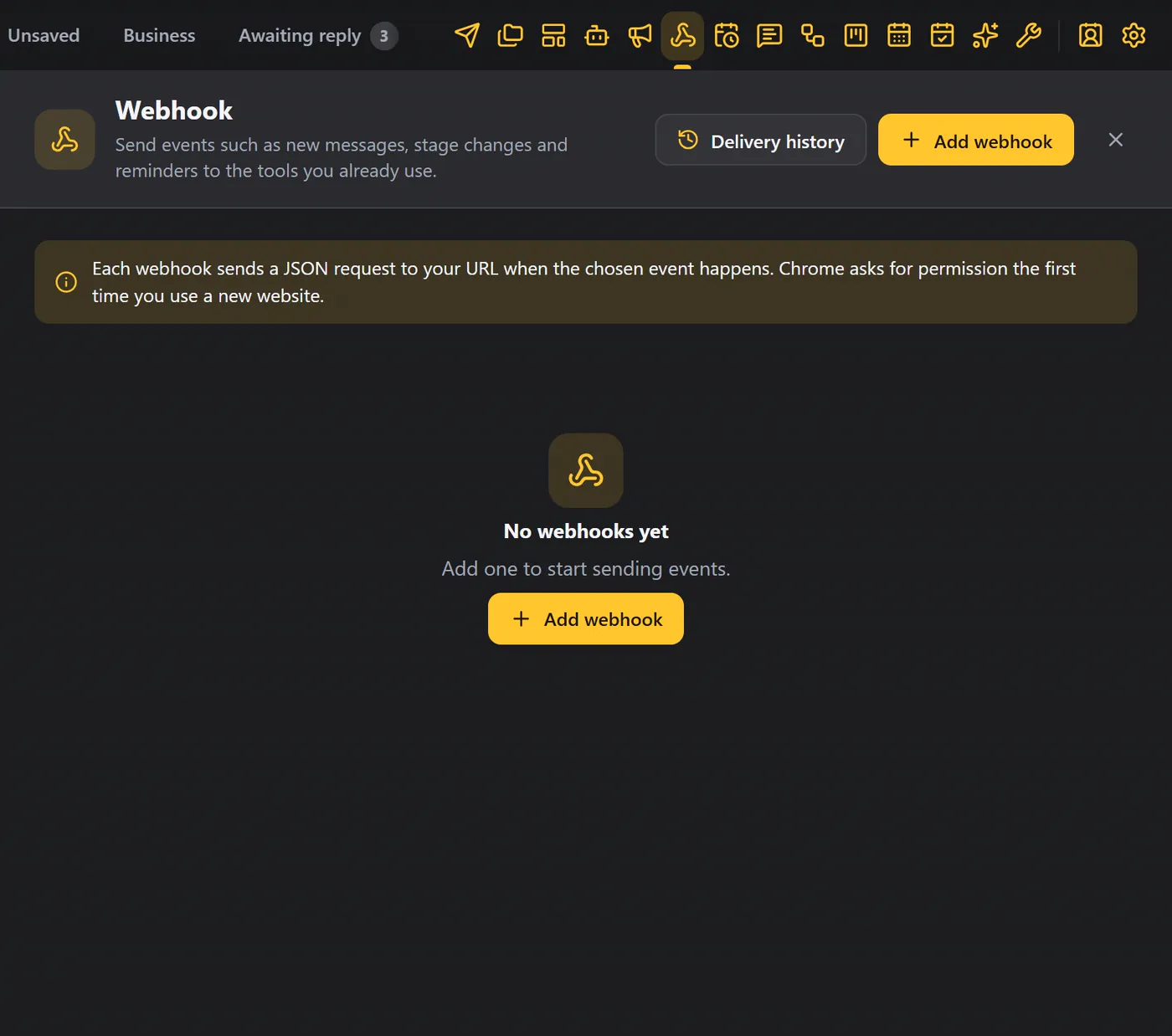
Add a webhook#
Click Add webhook.
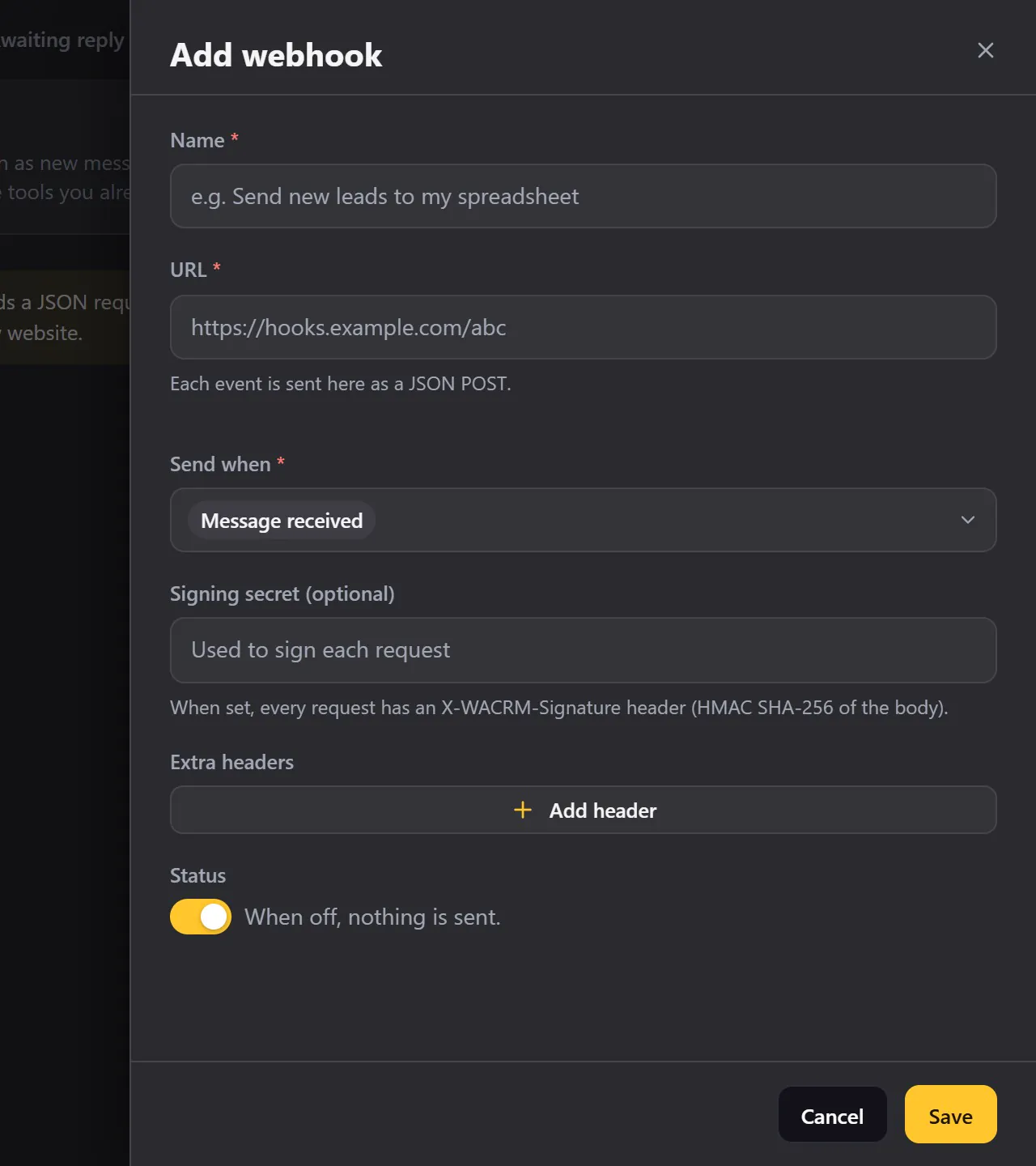
| Field | What it does |
|---|---|
| Name | For you only, for example Send new leads to my spreadsheet. |
| URL | The web address that should receive the events. It must start with http:// or https://. Each event is sent there as a JSON request. |
| Send when | Which events trigger the webhook. |
| Signing secret (optional) | When set, every request carries a signature so your tool can check it really came from WAFlow. |
| Extra headers | For tools that need a key. Click Add header, then type the header name and its value. |
| Status | A switch. When it is off, nothing is sent. |
Permission for a new website#
The first time you use a new website, Chrome needs your permission. Click Allow, confirm in the small window that opens, and it will not ask again for that site.
The events#
Click Send when to see the list, and tick as many as you need.
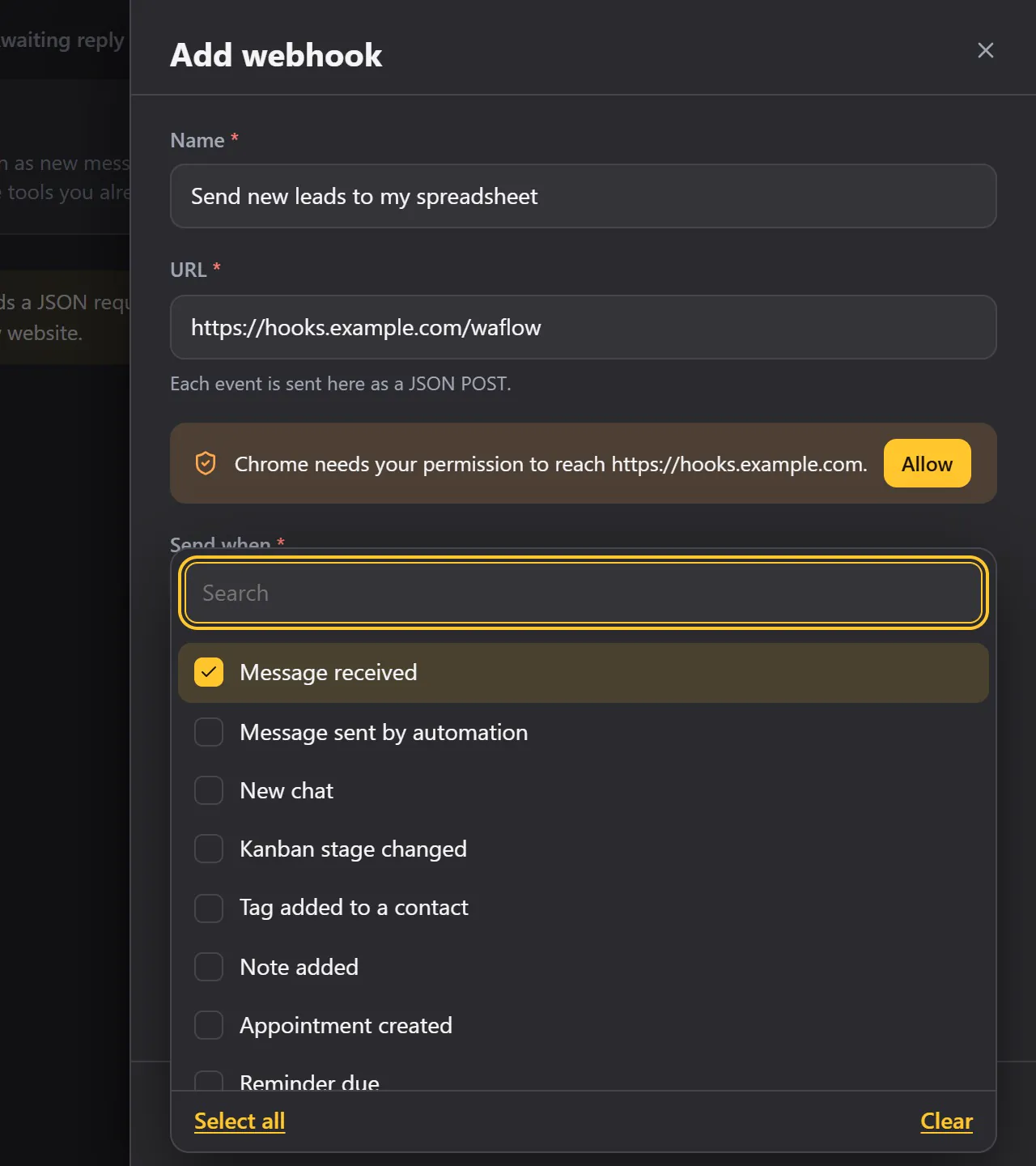
| Event | Name in the request | Fires when |
|---|---|---|
| Message received | message_received | A customer writes. |
| Message sent by automation | message_sent | A bot, chatbot, AI reply, broadcast or schedule sends one. |
| New chat | chat_new | Someone writes for the first time. |
| Kanban stage changed | stage_changed | A card moves to another board. |
| Tag added to a contact | tag_added | A contact gets a tag. |
| Note added | note_added | A note is saved on a contact. |
| Appointment created | appointment_created | An appointment is booked. |
| Reminder due | reminder_due | A reminder comes due. |
| Chatbot finished | chatbot_completed | A chatbot conversation ends. |
| Handed to a human | handoff | A chatbot or the AI assistant hands a chat to you. |
| Broadcast finished | campaign_completed | A broadcast has run to the end. |
Click Save. Your webhook appears in the table.
The table#
The table shows the name, the events, the address, the last delivery and the Active switch.
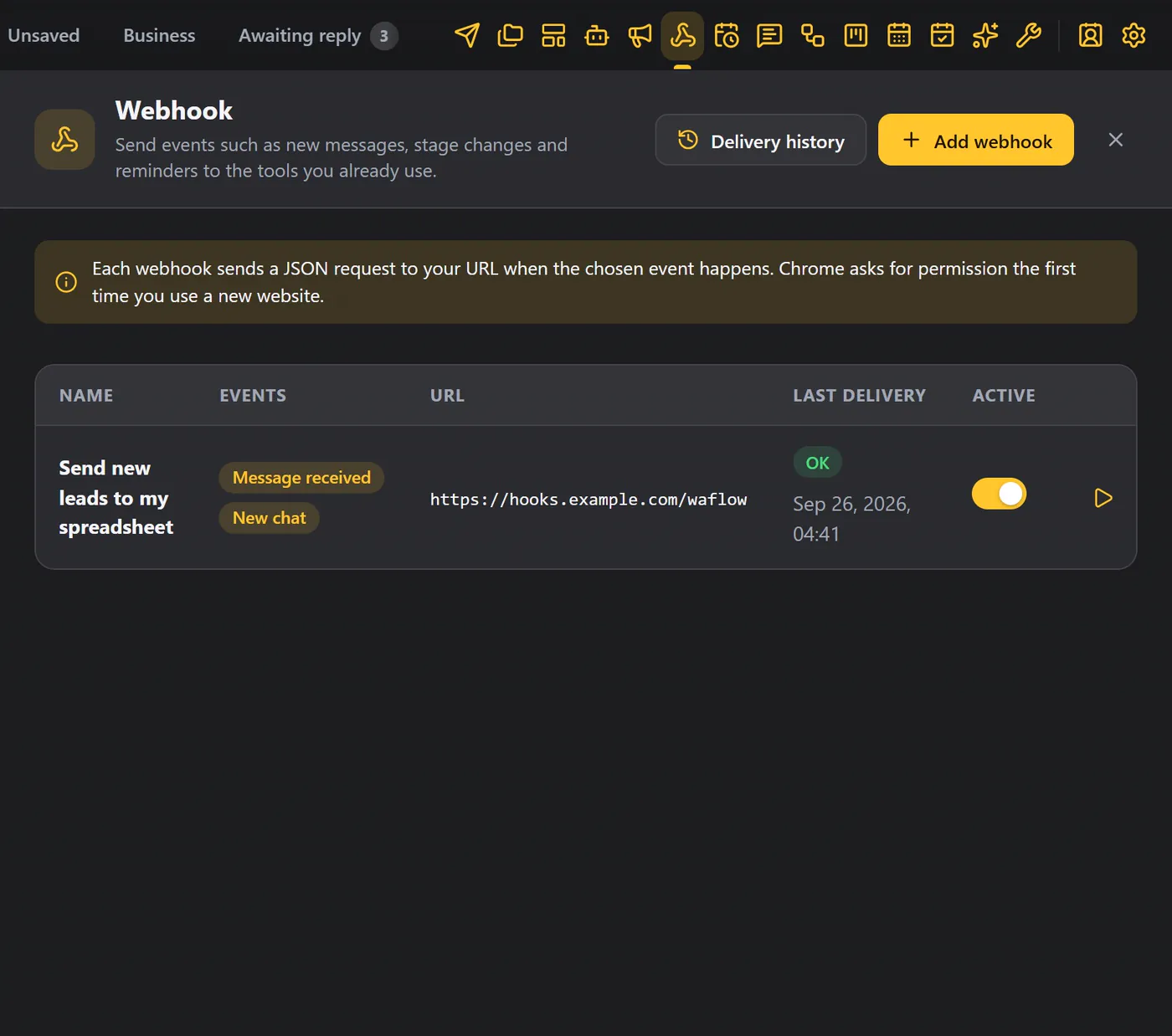
- Click the play icon to send a test. If your tool answers, you see Test delivered, and the last delivery column shows OK and the time.
- The pencil opens the webhook again so you can change anything.
- The bin deletes it, after you confirm.
Delivery history#
The history icon on a row lists every delivery for that webhook: the time, the event and the result. Delivery history at the top shows every delivery from all your webhooks.
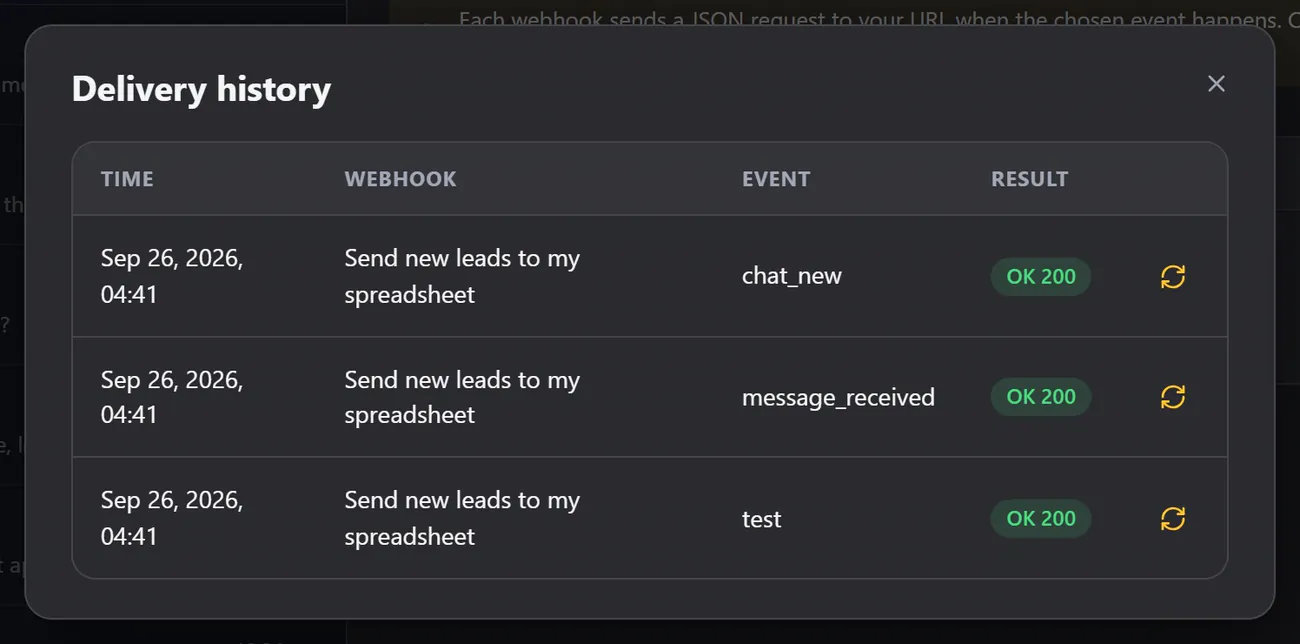
Every row has a Send again button, so you can repeat a delivery once your tool is ready.
What your tool receives#
Each request is an HTTP POST with a JSON body that carries the event name, the time it happened (at) and the data. For a message, that is who wrote, and what they said.
{
  "event": "message_received",
  "at": "2026-09-26T04:41:00.000Z",
  "data": {
    "chatId": "15550100101@c.us",
    "name": "Riya Kapoor",
    "body": "What is the price for 20 seats?",
    "isGroup": false
  }
}The fields inside data depend on the event. Send yourself a test and look at the delivery in your tool to see the real shape for the events you chose. A test carries the event test and a short sample message.
The request also carries these headers:
| Header | Value |
|---|---|
Content-Type | application/json |
X-WACRM-Event | The event name, for example message_received. |
X-WACRM-Signature | sha256= followed by a signature. Only when you set a signing secret. |
| Your own headers | Whatever you added under Extra headers. |
A request to a script.google.com address, which is how a Google Sheet receives a webhook, carries only Content-Type. Google's script cannot read headers, and extra headers stop the request from getting through. The event name and the time are in the body (event and at), so nothing is lost, but a signing secret and extra headers are not used there. See Send events to Google Sheets.
If your tool does not answer, WAFlow tries once more after a moment. It waits up to 15 seconds for an answer. The delivery history keeps the most recent 300 deliveries.
Verify the signature#
If you set a signing secret, the X-WACRM-Signature header holds an HMAC SHA-256 of the exact request body, made with that secret, written as lowercase hexadecimal after sha256=. Compute the same value in your tool and compare, to be sure the request came from WAFlow. In Node.js:
const crypto = require('crypto');
const expected = 'sha256=' + crypto.createHmac('sha256', SECRET).update(rawBody).digest('hex');
const ok = crypto.timingSafeEqual(Buffer.from(expected), Buffer.from(req.headers['x-wacrm-signature']));
Use webhooks in other tools#
Webhooks work with other modules too. In a message bot, a chatbot or a broadcast, open Post actions and choose Send to these webhooks. See Message Bot.
Tips#
- Test every webhook once, before you rely on it.
- Use a secret, so your tool can verify each request.
- Switch a webhook off instead of deleting it when you need a pause.
- Only WhatsApp Web open in Chrome can send webhooks, so keep it open.